

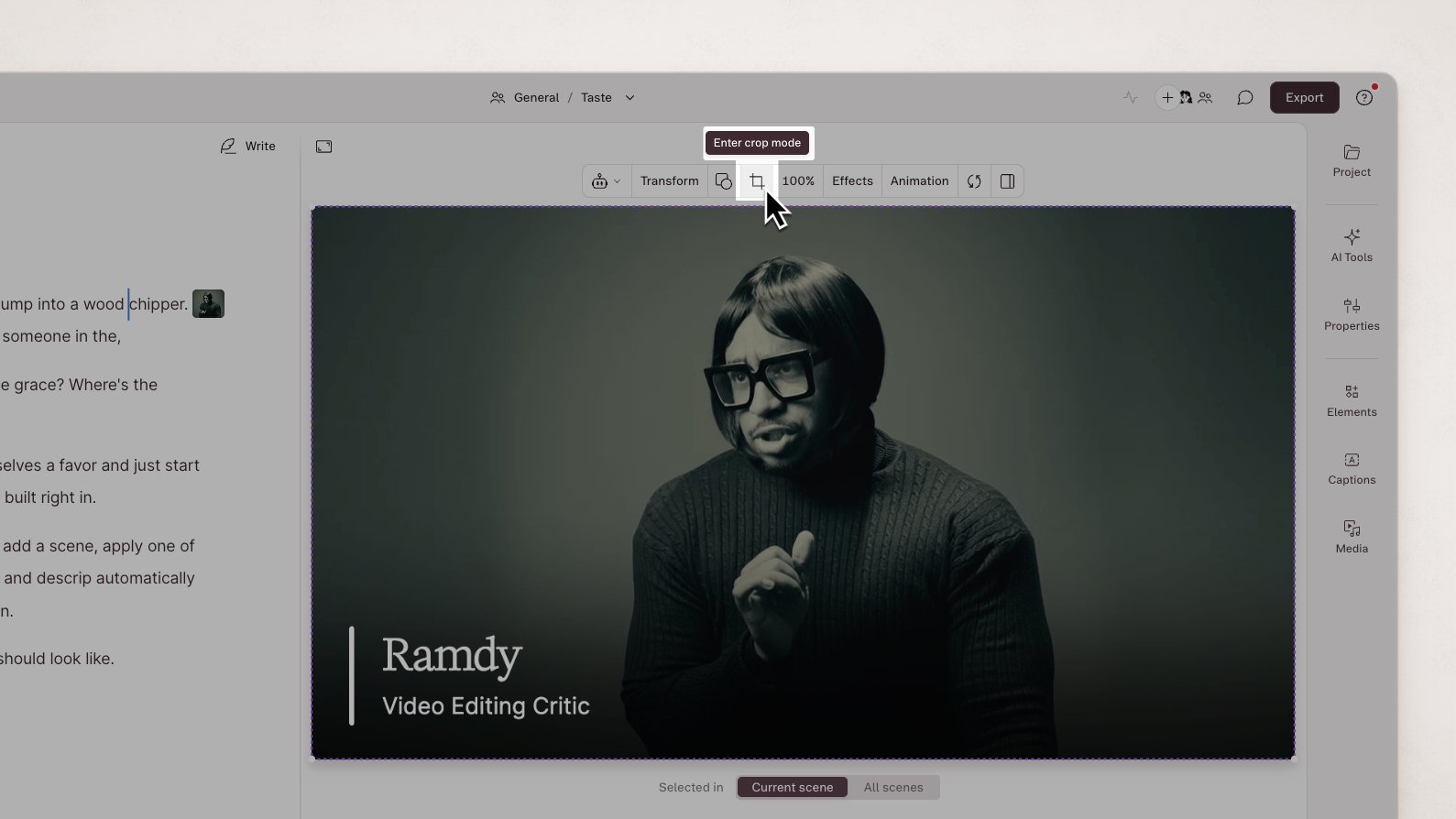
Crop and reframe your media
- Select the video or image in the scene editor.
- If the layer appears in multiple scenes, choose Current scene in the Properties panel to change only this scene; choose All scenes when you want the same adjustment across every scene using that layer.
- Click the crop icon in the floating toolbar to enter crop mode.
- Adjust the framing:
- Drag the crop handles to change the visible area.
- Drag the video or image inside the frame to reposition the subject.
- Use Zoom in the toolbar to show more or less of the source.
- Click Done.
Double click to cropYou can also enter crop mode by double clicking a video or image layer in the scene editor.