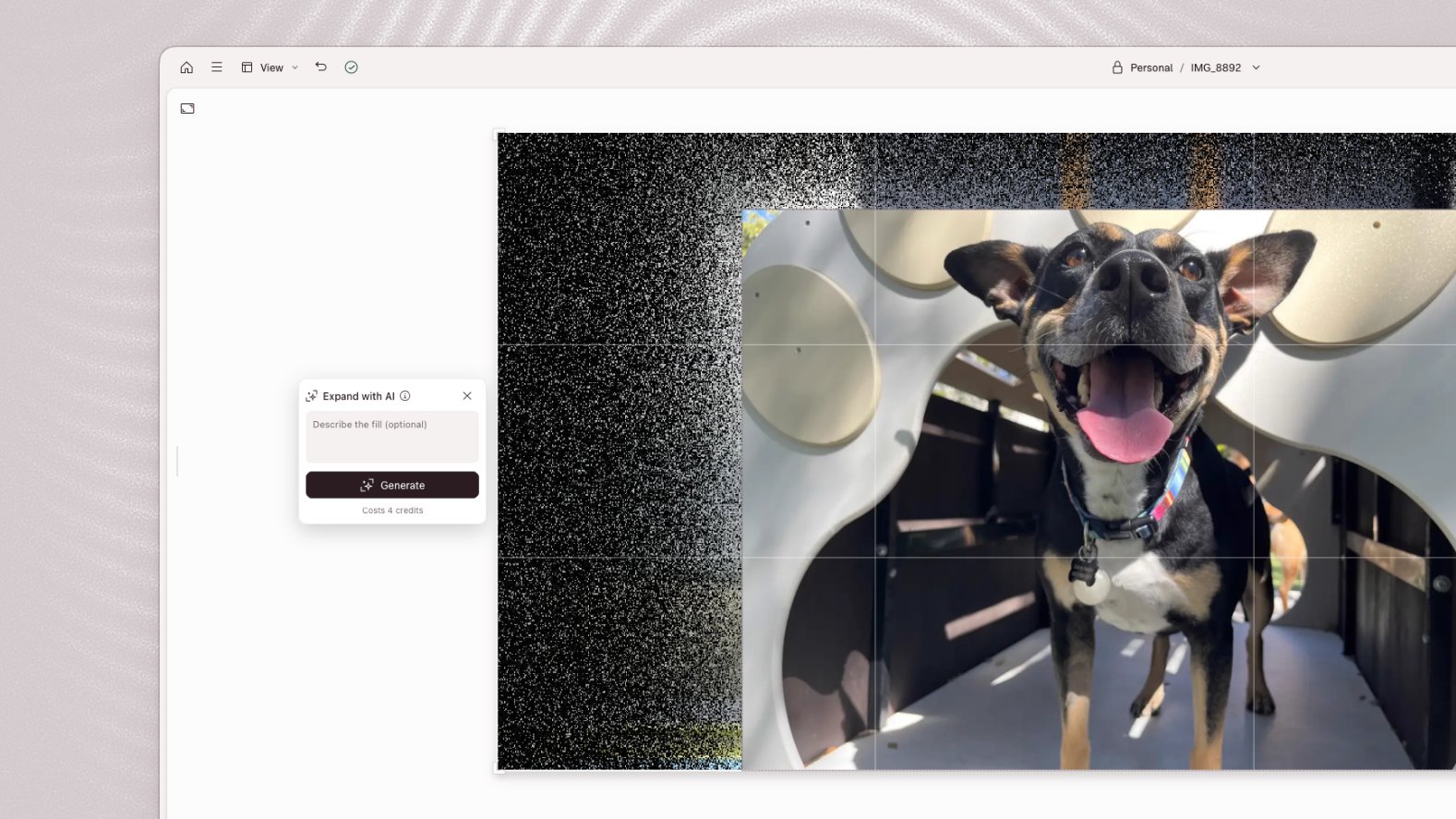

Expand an image or video
If you’re changing formats, set your composition’s aspect ratio first.- Select the image or video layer in the scene editor. Videos can be up to 30 minutes long.
- Open Transform in the floating toolbar, then select Expand with AI.
- Descript will, by default, set the expansion to fill the canvas. To set a custom ratio, drag the outer frame’s handles to define the area to fill.
- If the media spans multiple scenes, choose to apply this to Current scene or All scenes.
For video, Current scene supports cuts within a script scene when they use the same source video. Other video layers require one continuous clip. Scenes with freeze frames cannot be expanded on their own.
- Optionally, enter a prompt to guide the output.
- Click Generate. Expanding a video adds content around the frame without upscaling the original video.