

On current plans, this feature uses AI credits.
Generate a YouTube thumbnail
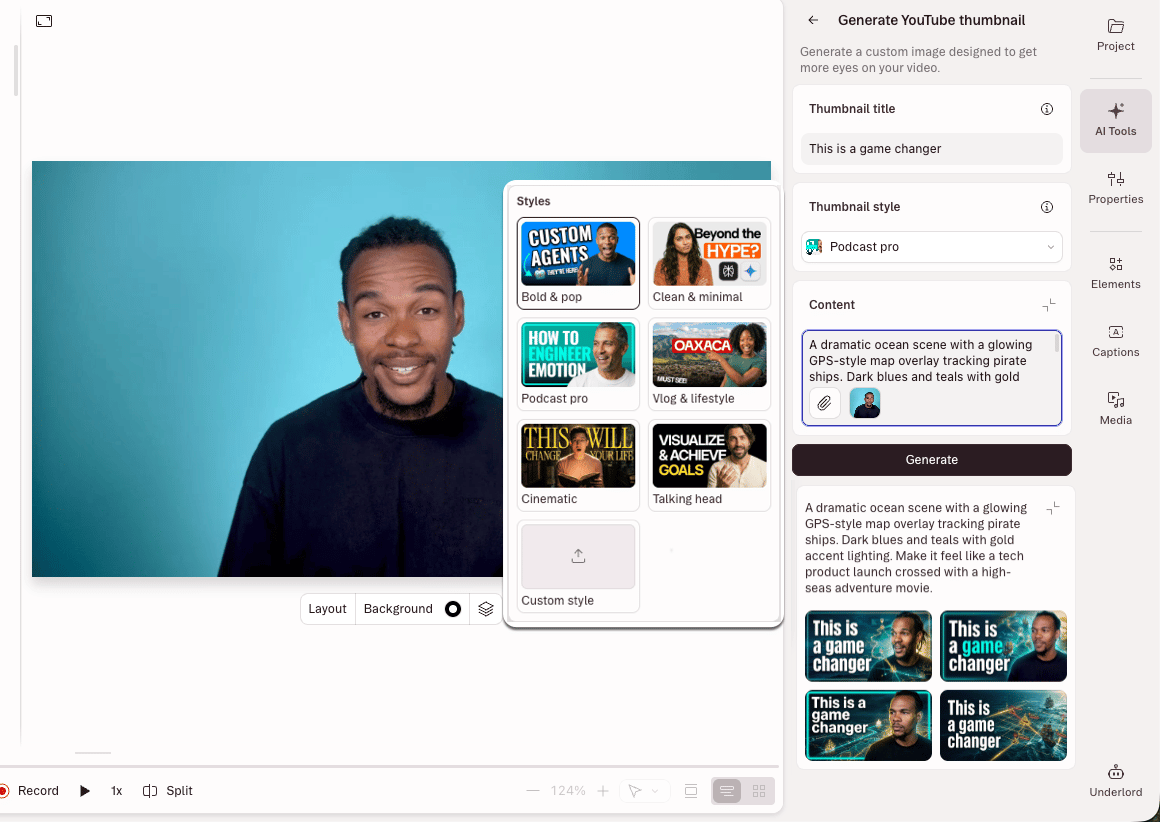
Before you start, it helps to have the title text, subject or frame, and visual style you want in mind.- Open the AI tools panel in the right-hand sidebar.
- In the Publish section, select Generate a YouTube thumbnail.
- Enter your Title. This is the exact text Descript renders on the thumbnail. Keep it short so it stays readable at small sizes.
- Choose a Thumbnail style from the available presets, or upload your own image as a custom style reference.
- Add any additional instructions or reference images in the Content field. If you want the thumbnail to feature a specific person or moment, save a frame from your video or attach a reference image so Descript has a strong visual starting point. Focus on describing what should change rather than listing everything the image should contain.
- Click Generate.
Use your generated thumbnail
After generating, select a thumbnail to see your options:- Set as share page thumbnail updates the preview image that appears when you or anyone else shares your Descript web link.
- Download saves the image to your device. To use it as your YouTube thumbnail, upload the downloaded file in YouTube Studio. Generated thumbnails don’t automatically sync to YouTube.
- Add as new layer places the image in your composition so you can edit or build on it further.
- Reuse prompt generates a fresh set of options using the same title, style, and instructions.