

Keep learning with videosWatch more getting started tutorials and feature walkthroughs in Learn Descript.
Step 1: Bring your media, or your idea
You can start a project in a few different ways.- Record: Use Descript’s built-in recorders, or record a remote session with others in Rooms.
- Import: Drag in existing audio or video files.
- Generate: No recording? Use AI Speakers to create text-to-speech audio. Type your script, pick a voice, and Descript generates the voiceover.
- Starting from scratch: In the Home tab, chat with Underlord or run a skill to quickly create your first clip.
Step 2: Edit your content like a doc
Editing in Descript feels like editing a document. Delete, move, and copy or paste content just as you would in a word processor. Descript automatically updates your media to match.- Delete words or sentences from the transcript, and the media edits automatically.
- Cut, copy, and paste text to rearrange audio or video.
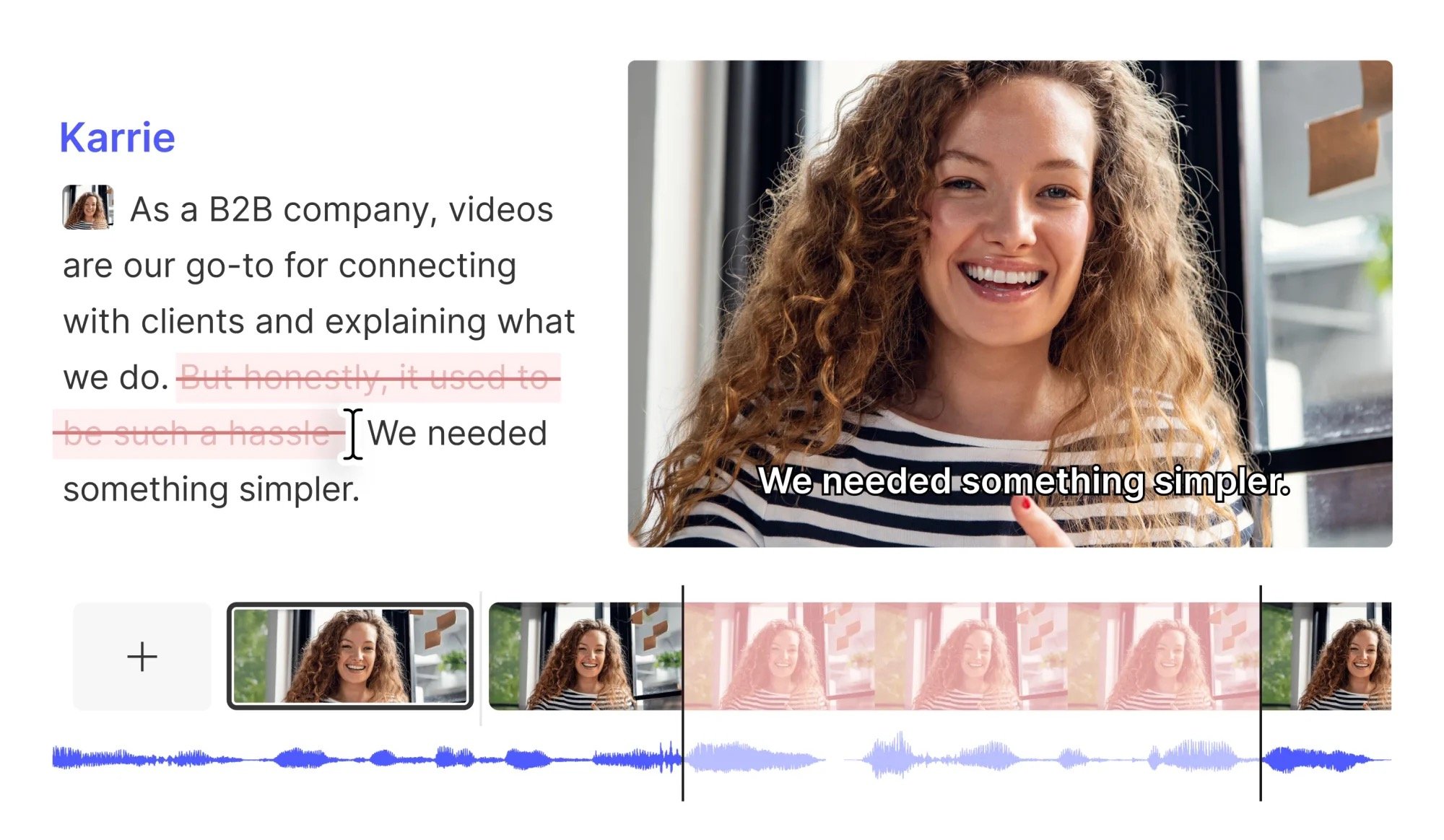
Tip: RegenerateNeed to fix a line or smooth out awkward phrasing? Use Regenerate to re-create part of your narration directly from the script — no re-recording required.
Step 3: Build your scenes and apply layouts
Scenes and layouts give your project structure and style. Use scenes to organize content, then apply layouts to control how it looks.- Scenes: Break your project into sections. Add a new scene whenever you want the visuals to change.
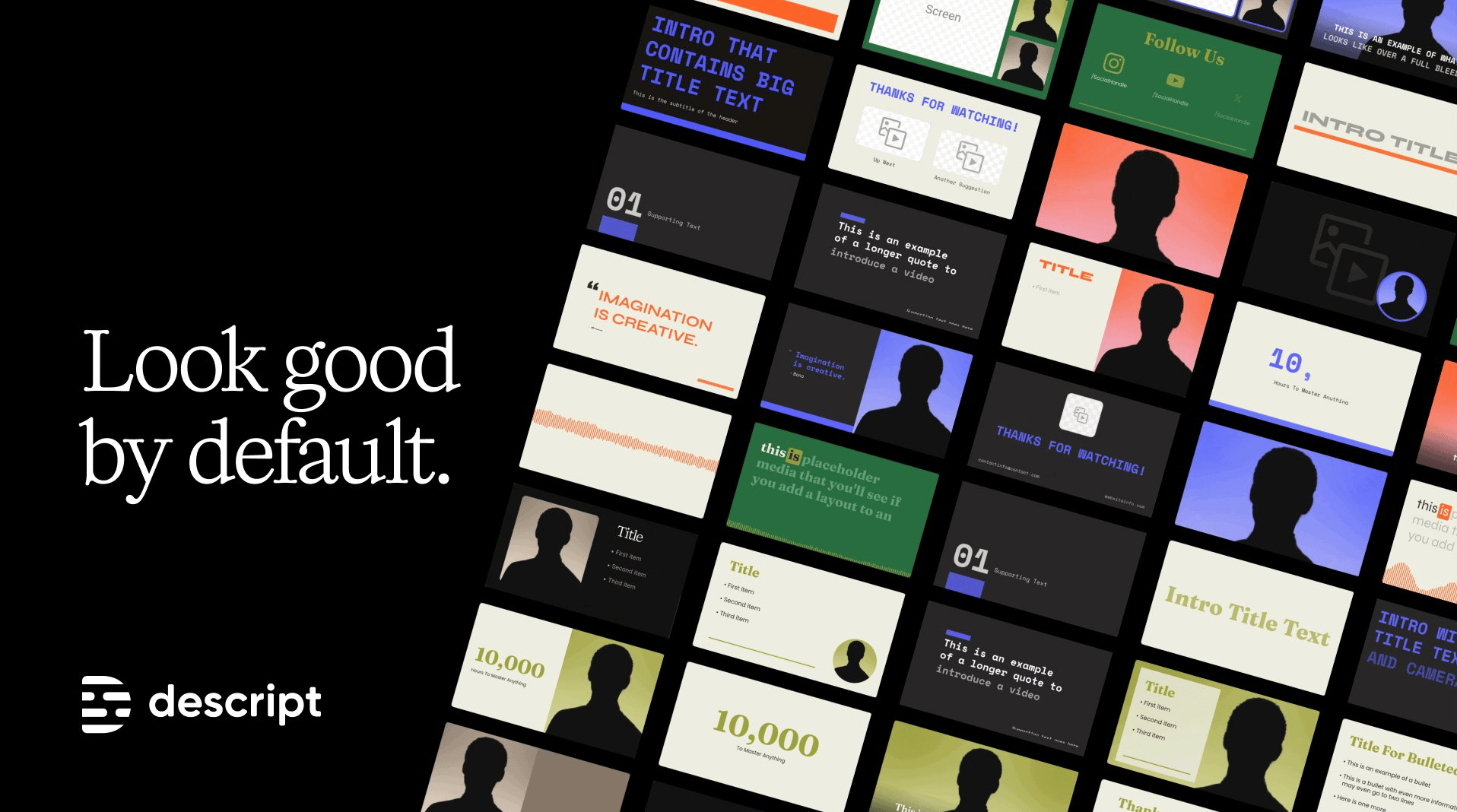
- Layouts: Control how each scene looks with ready-made layout packs for common set ups: split-screen speaker views, picture-in-picture explainers, title cards, outros, and more. Smart transitions are applied by default to keep your video flowing.
- Elements and stock media: Add shapes, text, and other elements, then layer in music, sound effects, or footage from Descript’s robust stock media library.
- Captions: Choose a style from the Captions panel in the sidebar, and (optionally) customize it to match your video.
Step 4: Edit in the timeline
For more precise control beyond text editing, use the timeline.- Adjust pacing with the wordbar: Drag directly in the wordbar to fine-tune pacing.
- Expand layers across scenes: Let visuals like background music, b-roll, or lower thirds continue seamlessly over multiple scenes.
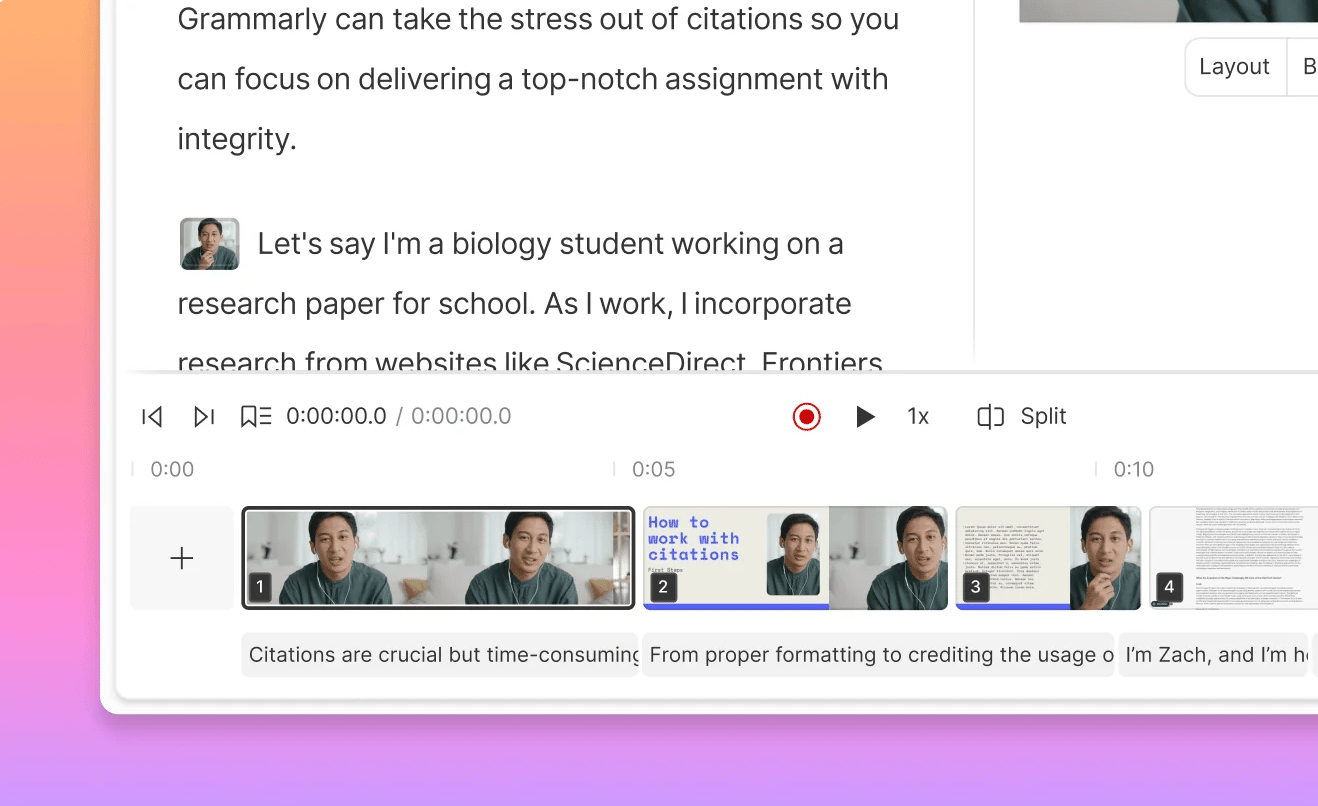
Edit directly in the timeline for precise control
Step 5: Polish your project with AI
Use Descript’s suite of AI tools to clean up, enhance, and repurpose your content with just a few clicks. Here are just a few of the powerful AI tools available in Descript:- Underlord: Chat with our AI co-editor to repurpose, refine, or generate new content. You can also use skills to rerun your favorite Underlord workflows.
- Studio Sound: Improve audio quality by removing background noise and enhancing clarity.
- Eye Contact: Adjust your gaze so it looks like you’re speaking directly to the camera.
- Create clips: Automatically generate shorter, snack-sized videos from your full project.
Step 6: Collaborate, share, and export
When you’re ready to share your project, Descript makes it easy to publish, collect feedback, and export anywhere you need- Local export: Save a copy to your device in formats like MP4, MP3, WAV, GIF, and more.
- Publish link: Share a hosted version of your project. Viewers can leave timestamped comments directly on the video, so you can collect feedback without switching tools.
- Integrations: Export straight to platforms like HubSpot, YouTube and many more.
- Comments: Collaborators can leave timestamped comments making it easy to review and resolve feedback in context.
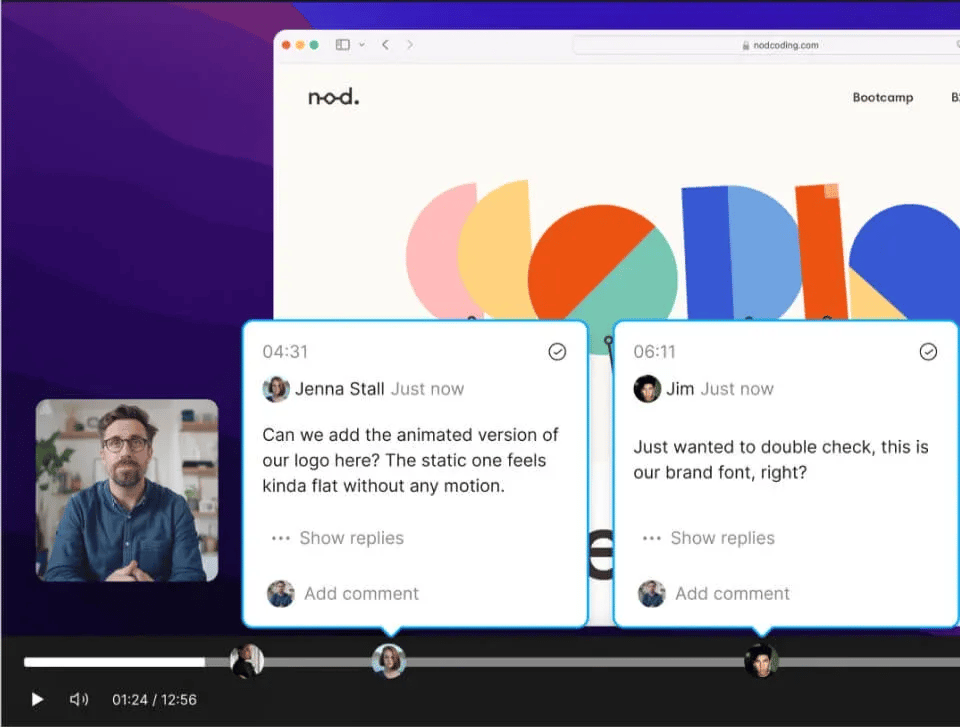
Add and reply directly to comments