

Skills run inside Underlord. If you’re new to Underlord, start with Underlord (Beta): Your AI co-editor in Descript.
Find skills
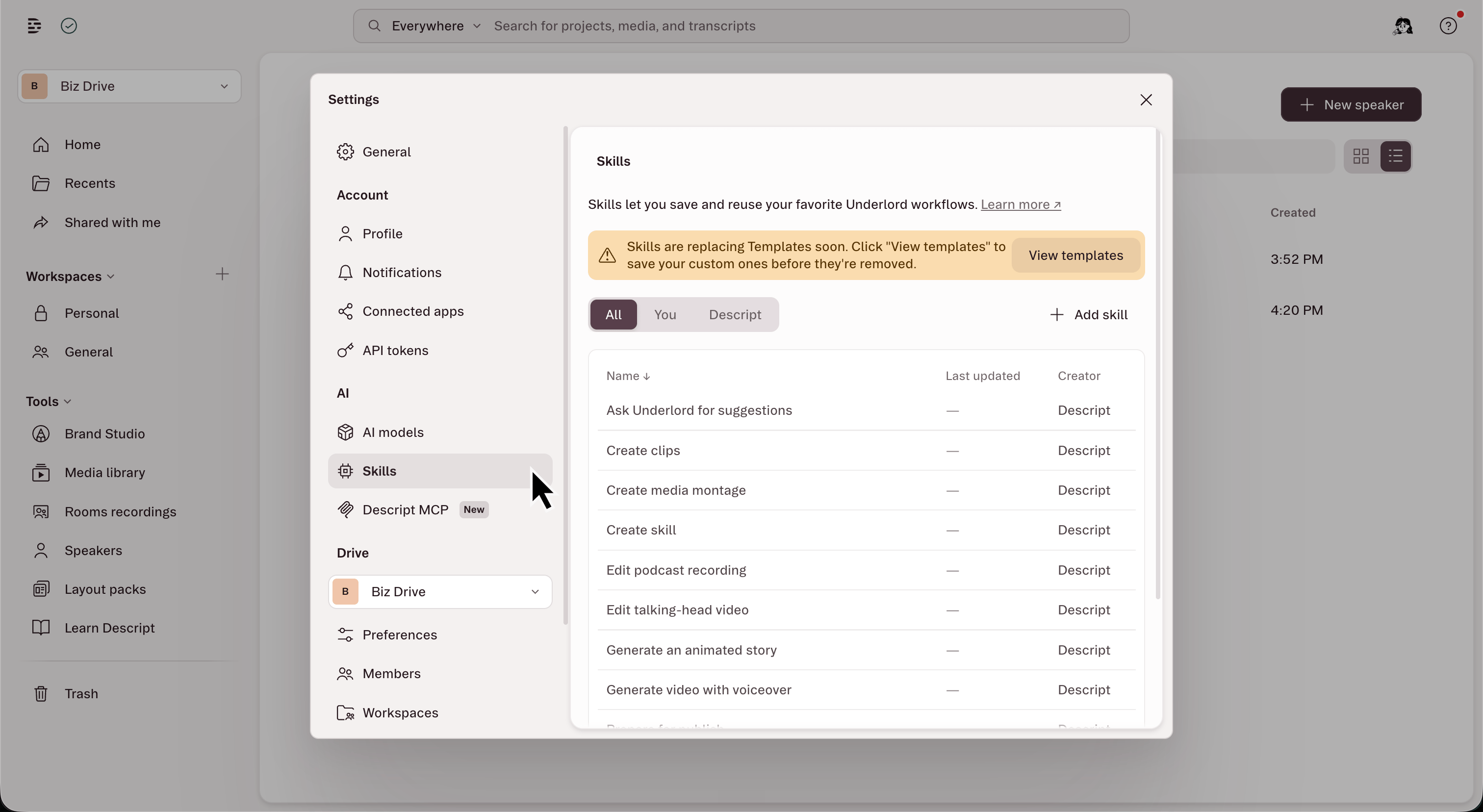
- Open App settings (keyboard shortcut Cmd/Ctrl + ,)
- In the left pane, select the Skills tab.
- Click a skill to open its details page, which shows the skill’s name, description, and (where available) instructions.
- To run the skill right away, click Try skill. Underlord opens with the skill added to the chat box in your current project, or in a new video project if you don’t have one open. Add any details, then send the message.
Use a skill in Underlord chat
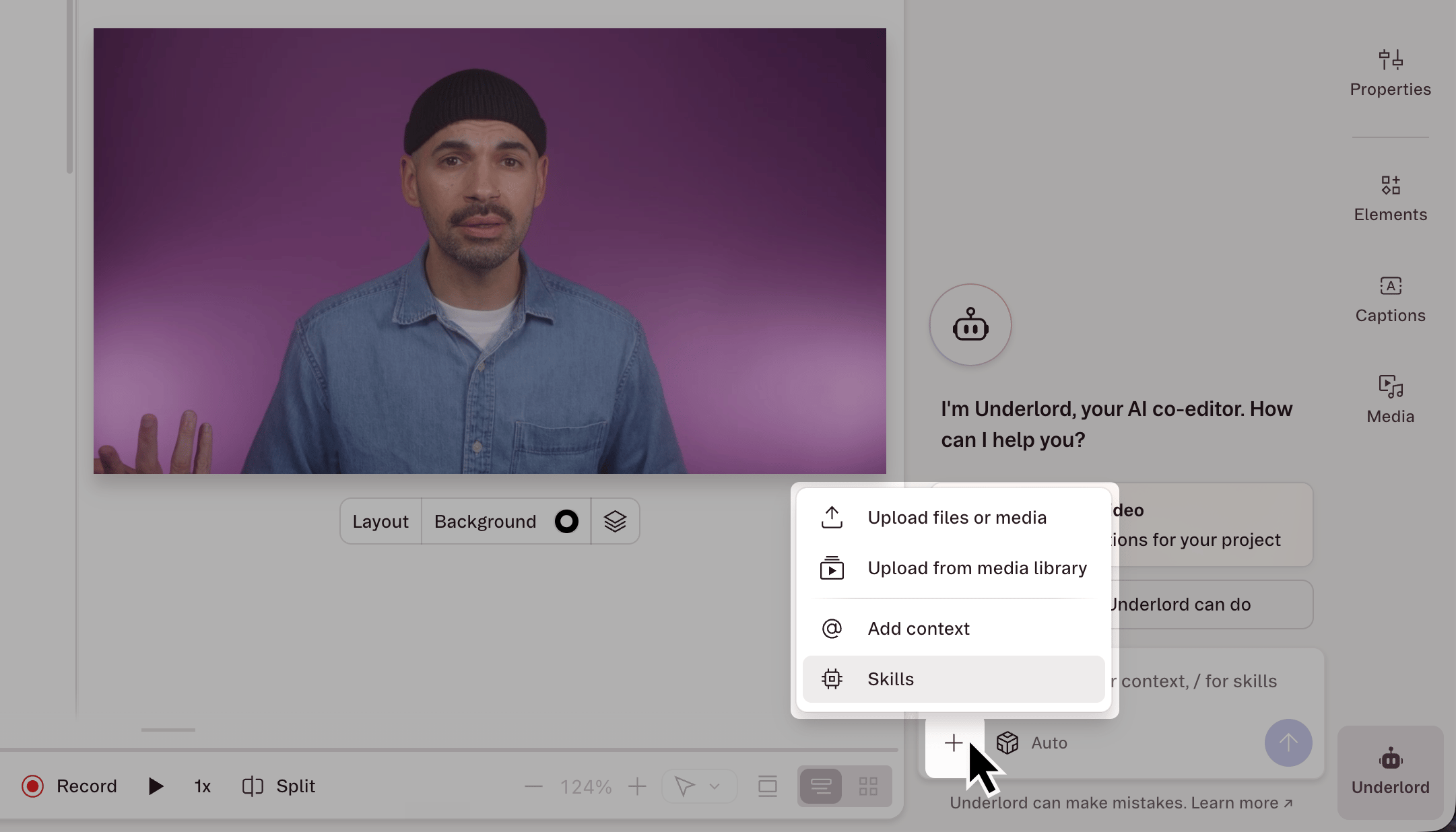
- In the Underlord chat box in the project sidebar, click + and choose Skills, or type /.
- Select a skill from the list.
- The skill appears as a chip in your message. Send it on its own, or give Underlord additional context.
Usage noteRunning a skill sends a prompt to Underlord, so it uses AI Credits the same way any Underlord request does.
Create a skill
- In the Skills tab of App settings, click + New skill.
- Choose one of these options:
- Create with Underlord: opens an Underlord chat in your current project, or in a new video project if none is open. Describe the skill you want, and Underlord builds and saves it.
- Write skill manually: opens an editor where you fill in the skill yourself.
- Enter a name (up to 100 characters). Each name must be unique, including against Descript’s built-in skills, and matching ignores capitalization.
- Add a short description of what the skill does.
- Write your instructions in Markdown. For tips on structure, see How to write effective prompts for Descript’s AI features.
- Click Save.
Edit a skill
- Open App settings.
- Select the Skills tab from the left sidebar.
- Click your skill in the list.
- Make edits to the name, description, or instructions. Markdown is supported.
- Click Save.