

What makes a good prompt?
A good prompt usually includes these elements:- Action: What job needs doing?
- Context: Who’s this for? Where will it be used?
- Tone: How should it feel?
- Format: What should the output look like?
- Constraints: What rules should it follow?
Tip: Attach reference materialsAttach files to provide more context — for example, a starting image and (optionally) a last frame, a brand photo for color direction, or a PDF of your slides.
Building a prompt
Let’s see how these elements come together for different AI features in Descript. Final prompt Turn this 60-minute podcast into 5-6 short clips for Instagram and TikTok. Keep them punchy and attention-grabbing, in vertical format with bold captions. Each clip should be 30-60 seconds and focus on one key insight.
Example prompt for generating images:
Generate images showing teams collaborating in modern office settings for a product demo video about our new project management software. Professional but approachable, not too corporate or staged. Cinematic-style realism, with wide-angle shots, natural lighting, 16:9 format. Show diverse teams, avoid clichés like high-fives or fist bumps.
Add context to an Underlord prompt
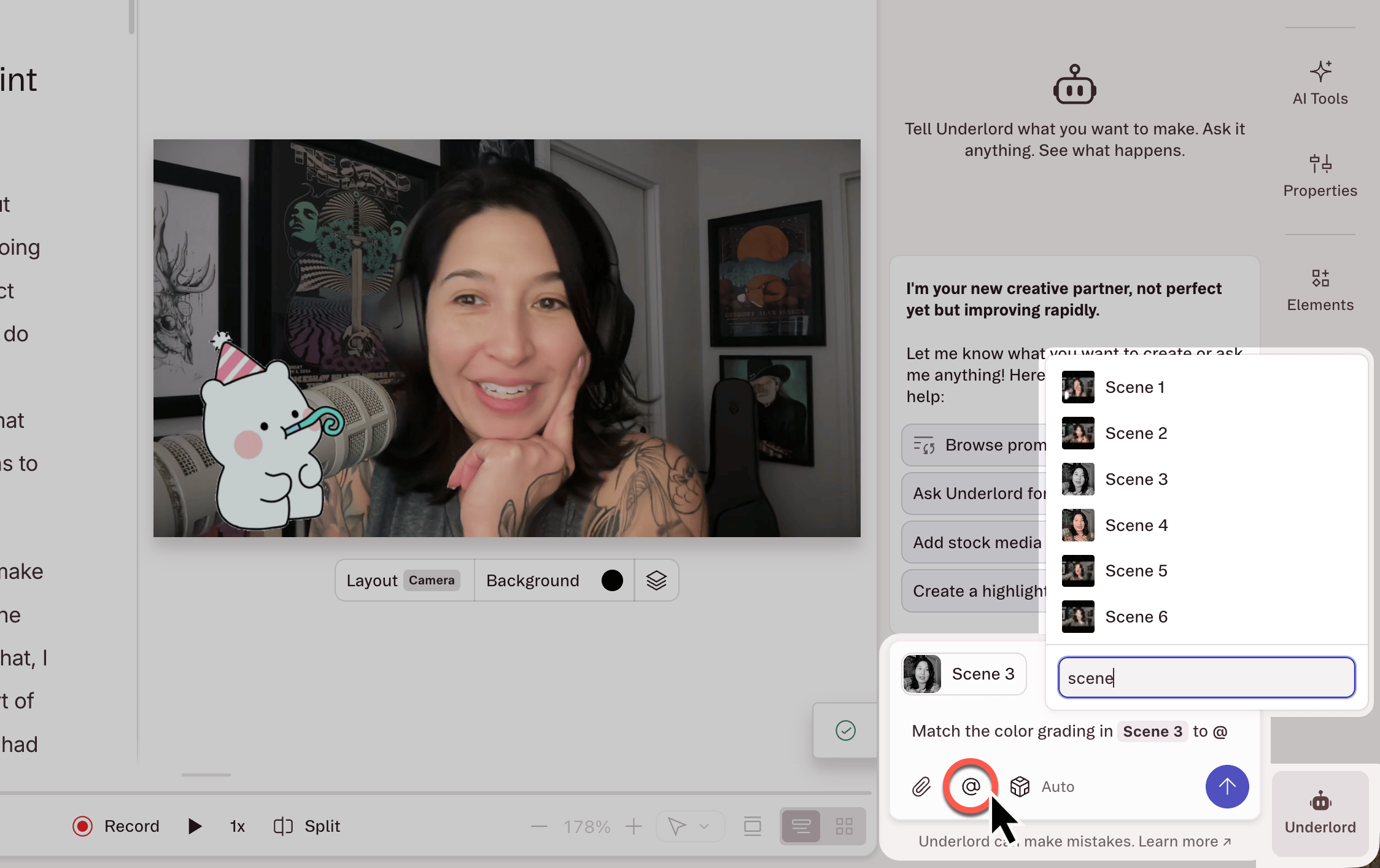
When you’re working with Underlord inside a project, attach specific scenes, script passages, layers, Speakers, or files to your prompt as context. This tells Underlord exactly where to focus, instead of leaving it to guess from your description — which usually means fewer follow-ups and more accurate edits. There are three ways to add context: type @ in the prompt box, click the + button below it, or right-click a selection in your script, scene editor, or timeline and choose Add to Underlord. What you can attach as context- Scenes — any scene in your composition
- Script selections — passages of script you’ve highlighted
- Layers — any layer on the canvas or timeline
- Project files — files in your project
- Speakers — any Speaker label in your project
- Timestamps — the playhead, a specific time, or a time range
How to improve your results
Your first prompt doesn’t need to be perfect. Start with a clear request, see what happens, then adjust.- If it’s close: “Make it a little more casual” or “Brighten the lighting.”
- If it missed the mark: “Try again, but make it feel more polished.”
- If it did too much: “Keep the captions, remove the music.”
- Break complex edits into steps: “Summarize this into 60 seconds” → then “Now add captions.”
- Use current sources: Ask Underlord to search the web and name the subject or source to look up.
- Give feedback: Click 👍 or 👎 to help improve results.