Publish to Blubrry in Descript
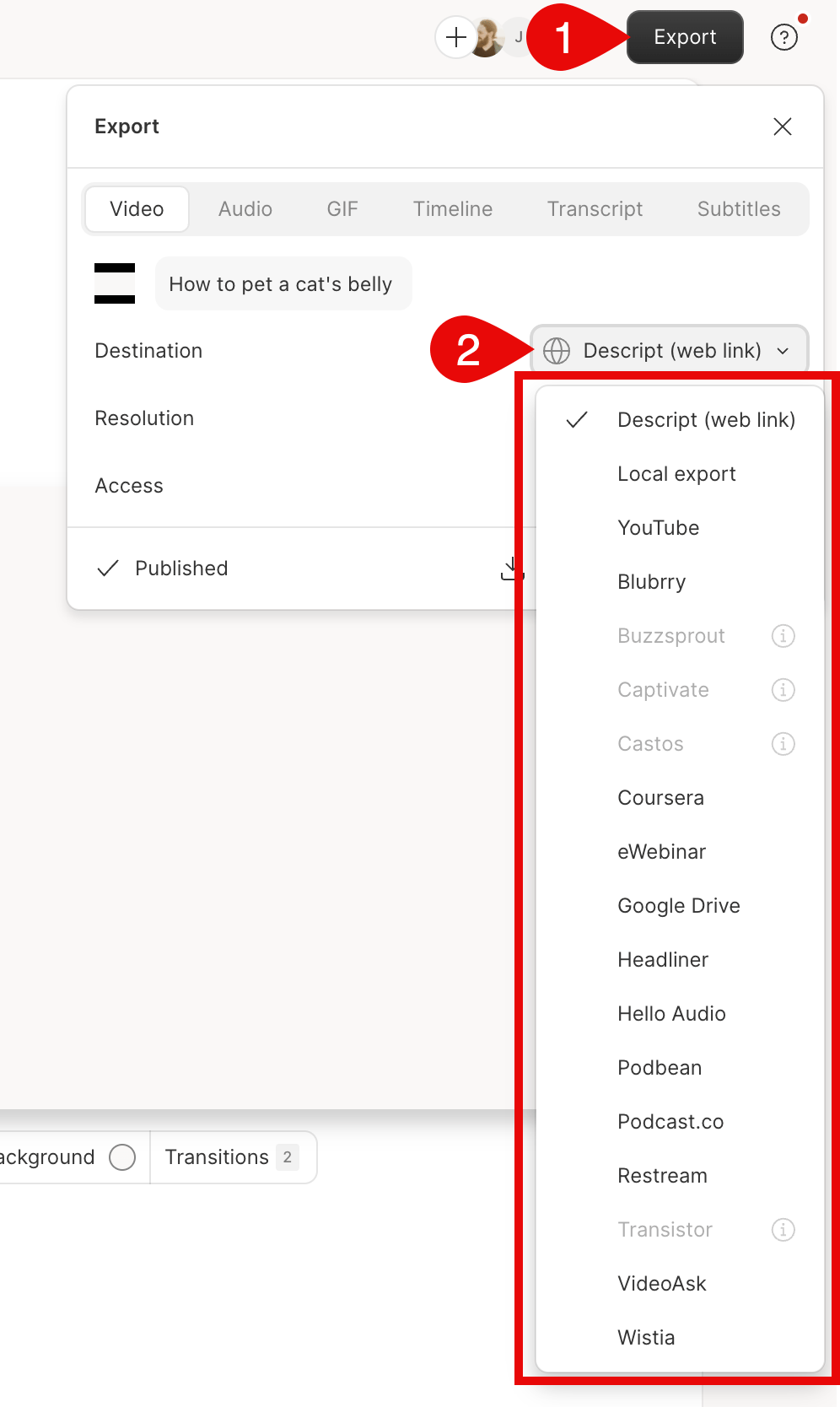
- Click Export at the top-right corner of your editor.
- Select Blubrry from the destination list.
- Select Export at the bottom of the export window. At this point, Descript will also export an unlisted share page of your content. Learn more about share pages.
Import your content to Blubrry
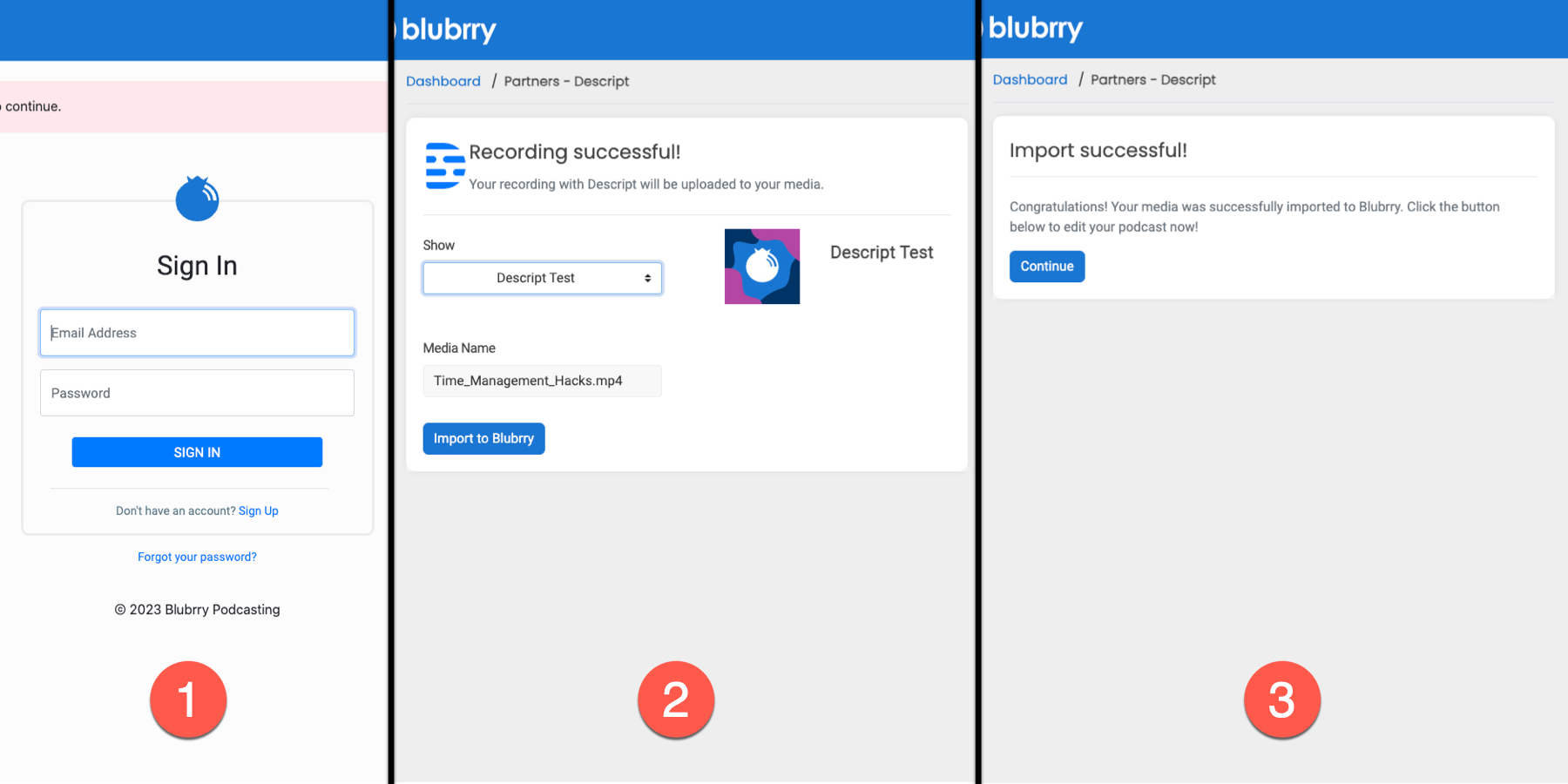
- After exporting in Descript, you will be redirected to your web browser to finish uploading your content to Blubrry.
- Sign in to your Blubbry account or sign up for a new account. At that point, your Descript content will begin uploading to your Blubrry media.
- When the file finishes processing, you can select your podcast, name your file, and select Import to Blubrry.
- Your media is now in Blubrry, and you can select Continueto edit your podcast.