

-
Click Export at the top-right corner of your editor. Then select the eWebinar from the Destination dropdown.\
 At this point, Descript will also export an unlisted share page of your content.
 -
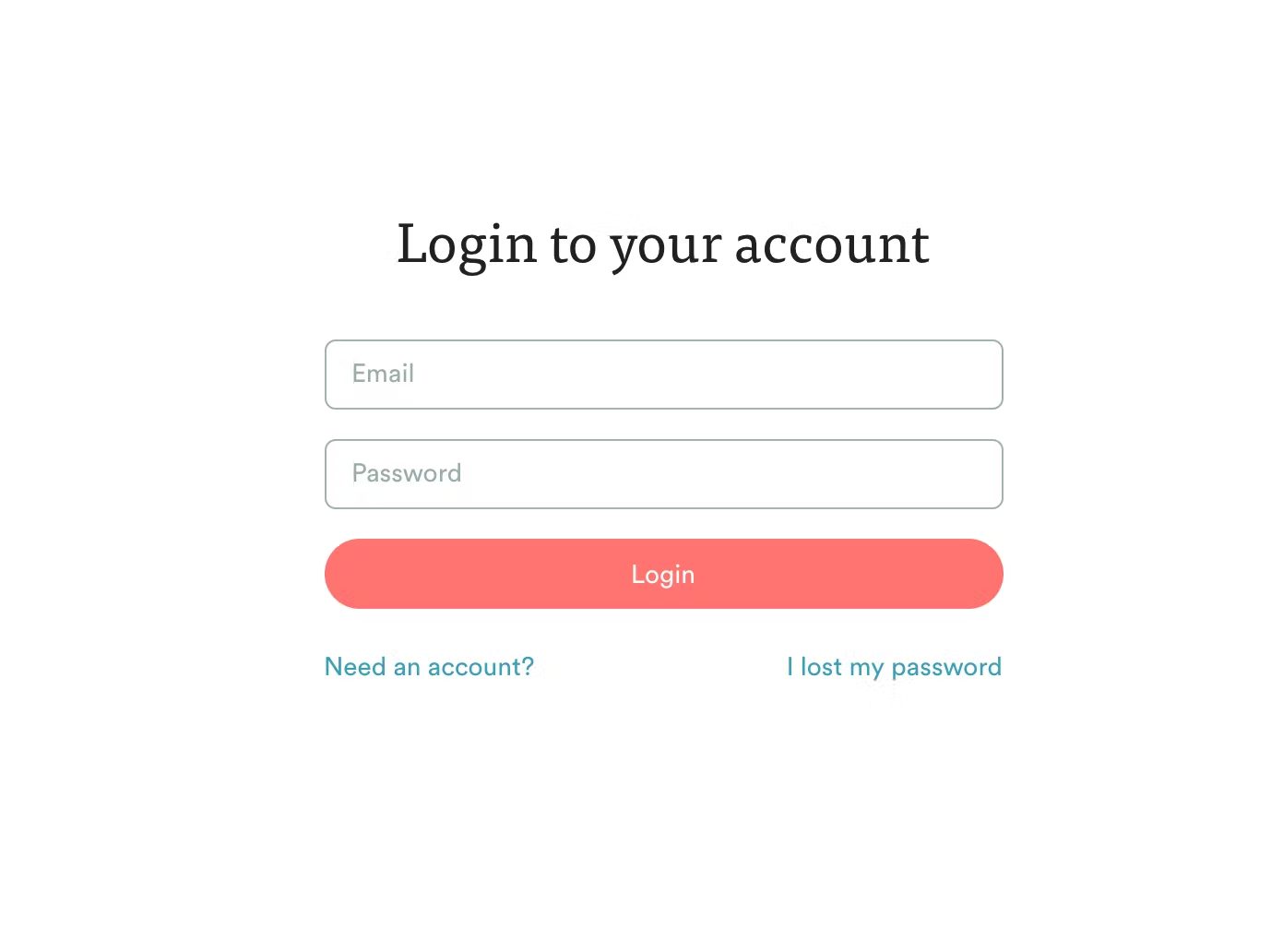
You will then be redirected to a web browser to sign into your eWebinar account (or create a new one if you have not yet signed up).
-
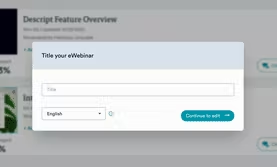
Once you sign in, you will see a pop up window prompting you to Title your eWebinar. Fill out the details and click Continue to edit.
-
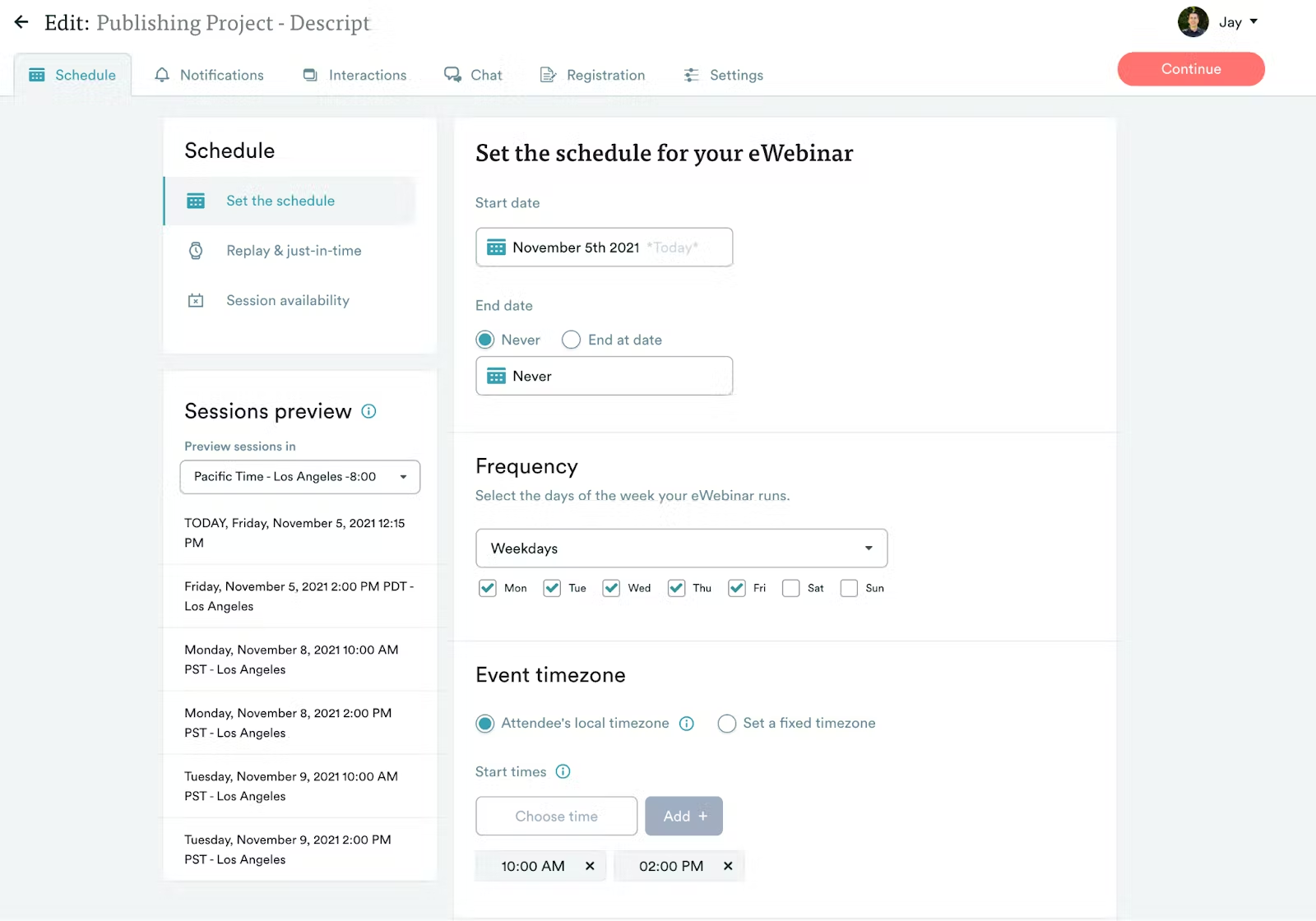
Your Descript video will now be ready and available for you to use on eWebinar.
Export your content to eWebinar
Send a finished Descript video directly to eWebinar.


