

Looking for an easier way to meet and record?Rooms (Descript’s conferencing tool and recorder) lets you meet, record, and collaborate in one place. Learn how to use Rooms.
First-time setup
Before you import Zoom recordings, configure your Zoom settings and connect your Zoom account to Descript.Connect your Zoom account
Connect your Zoom account
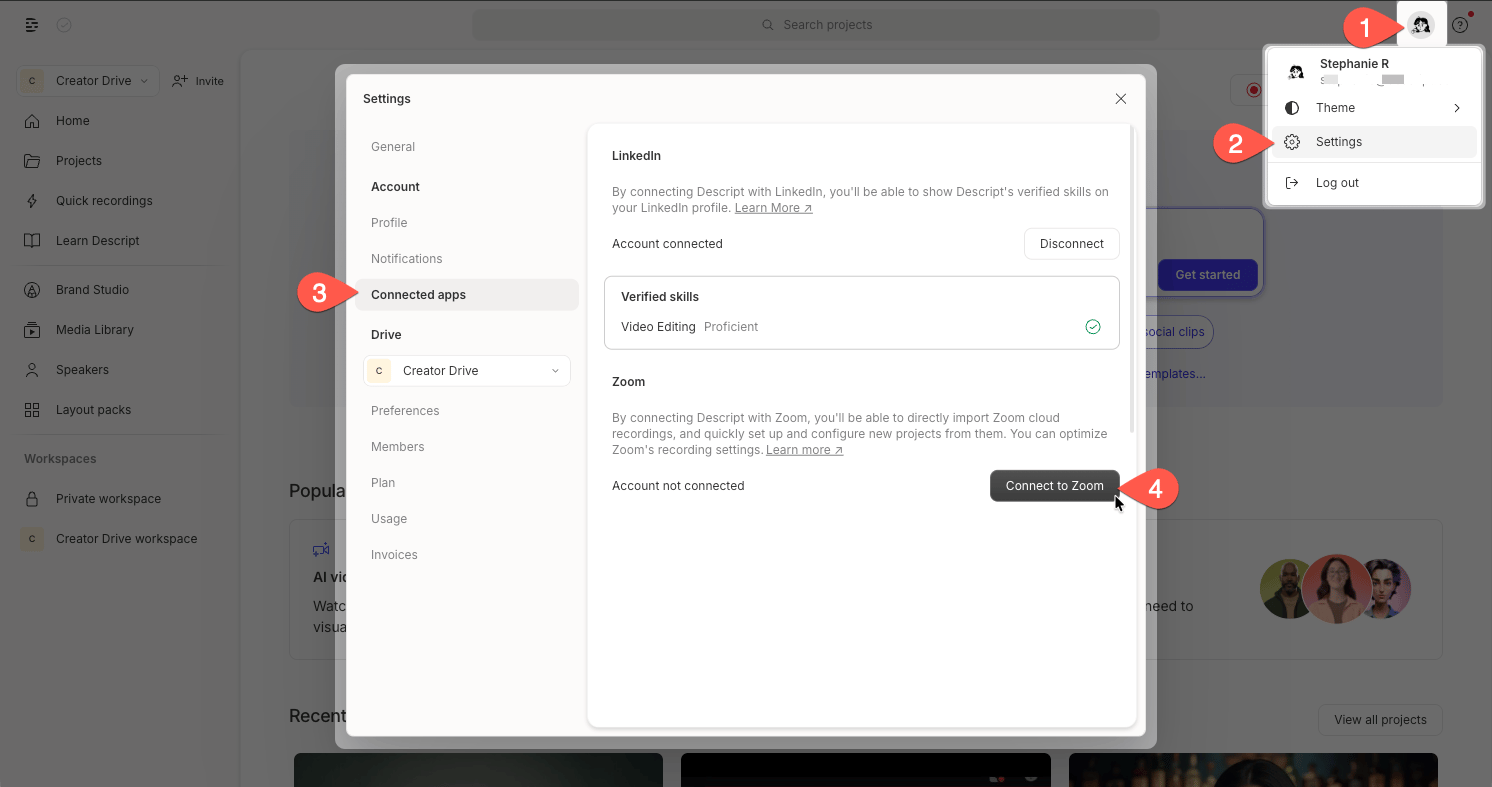
- Open Descript and click your profile picture or initials in the top right corner of the window.
- Select Settings from the dropdown menu.
- In the left-hand panel, select the Connected apps tab.
-
Click Connect with Zoom and follow the prompts to authorize access to your Zoom cloud recordings.
Permissions
Once connected, Descript can view your Zoom cloud recordings and access the audio and video files from recordings you choose to import. Descript doesn’t automatically download recordings.Recommended Zoom configuration
Recommended Zoom configuration
For the most flexibility when editing in Descript, update these Zoom settings:
- Log in to your Zoom account on the web and go to Settings > Recording. (Open Zoom Recording settings — you may need to sign in.)
- Toggle on Cloud recording. Descript’s Zoom integration can only import cloud recordings, not local recordings saved to your device.
- Enable Record a separate audio track for each participant. When selected, Zoom records individual audio files for each speaker, making it much easier to edit each person’s audio track in Descript.
- Enable Record active speaker, gallery view, and shared screen separately. We recommend selecting all three options for the most control over your visuals in Descript.
About Zoom video files
Zoom always provides a combined video file with all participants. Your Zoom view settings determine which perspectives appear, but Zoom doesn’t provide separate video tracks per participant.Will separate audio tracks use more media minutes?No. Separate audio tracks don’t increase media minute usage. Descript charges media minutes once per meeting, based on the longest file duration.Example: 1-hour Zoom meeting with 5 participants
Files imported: 6 total
Media minutes used: 60 minutes
Files imported: 6 total
Media minutes used: 60 minutes
Record and import workflow
In Zoom, click Record and select Record to the cloud.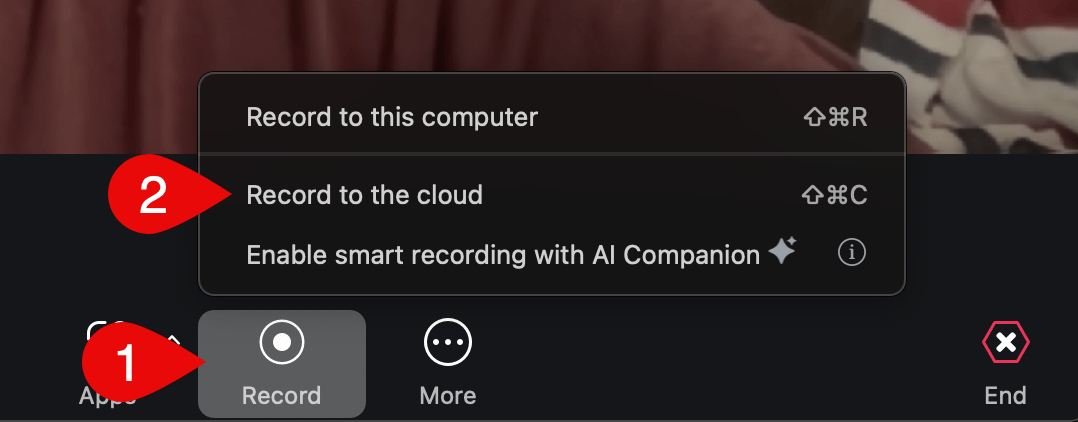
- Open or create a project.
- Click Import from in the script area and select Zoom.
- Select a recording by meeting title.
- Click Import.
Recording still processing?If a recording shows Processing, Zoom is still preparing the files. Wait for processing to finish before importing.
Import into the Media library
You can also import Zoom recordings into your Drive’s Media library to reuse them across projects.- Open Drive view, then select Media library in the left sidebar.
- Open the folder where you want the recordings to go.
- Click Add media, then select Import from Zoom.
- Select a recording and click Import.
Troubleshooting Zoom imports
If your Zoom recording does not import, check the issue that best matches what happened.Import stops after a network issue
Import stops after a network issue
If your internet connection drops during import, reconnect and wait for the import to resume. If it does not resume, check that your connection is stable, then try importing the recording again.
Zoom is having an outage
Zoom is having an outage
Zoom API outages can prevent Descript from listing or importing cloud recordings. Check Zoom’s status page for current outages. If Zoom is experiencing an issue, wait until it is resolved, then try the import again.
Zoom was disconnected during import
Zoom was disconnected during import
If Zoom is disconnected before or during an import, Descript may show an import error. Reconnect your Zoom account in Settings > Connected Apps, then try importing the recording again.
Disconnect Zoom
To unlink your Zoom account:- Open Settings and select Connected Apps.
- Next to Zoom, select Log out.