

Round-trip experienceWhen you import a Captivate episode using Edit in Descript, your project will retain the Captivate episode ID. After you export directly to Captivate from Descript, you can replace the original episode at any time. This is great for fixing editorial mistakes in exported episodes or adding new content without creating a new episode.
Importing a Captivate episode
-
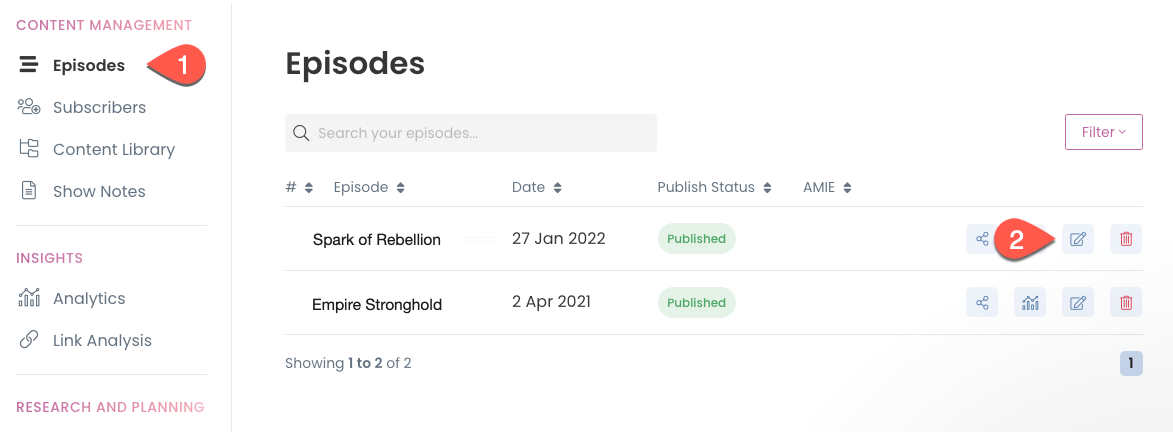
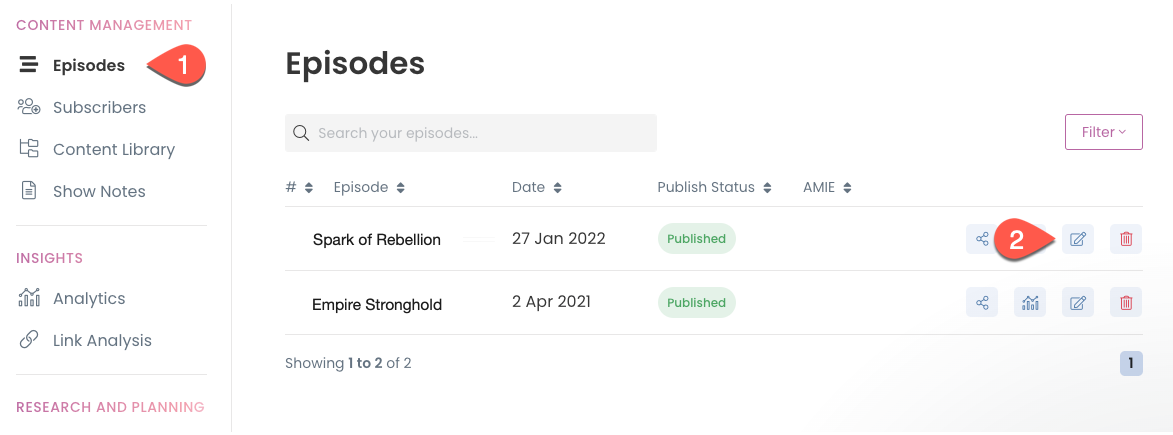
Navigate to your Episodes Screen on your Captivate Dashboard and click the Edit icon for the episode you want to import into Descript.
-
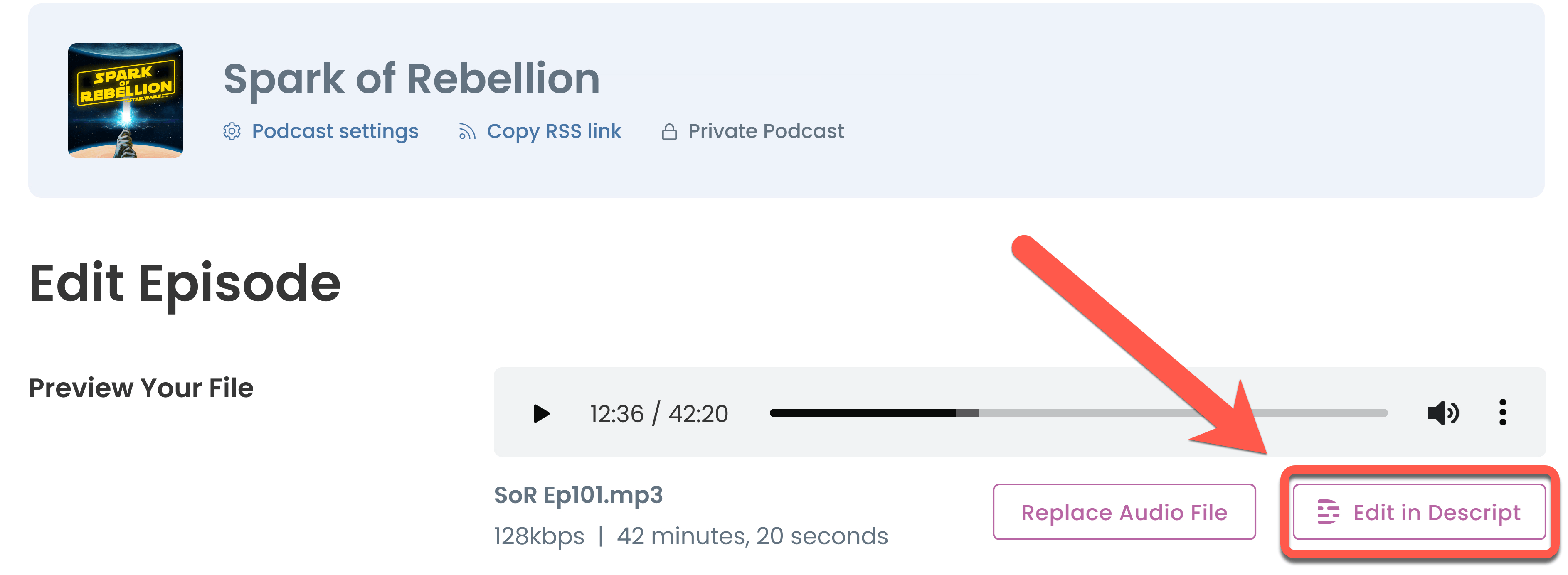
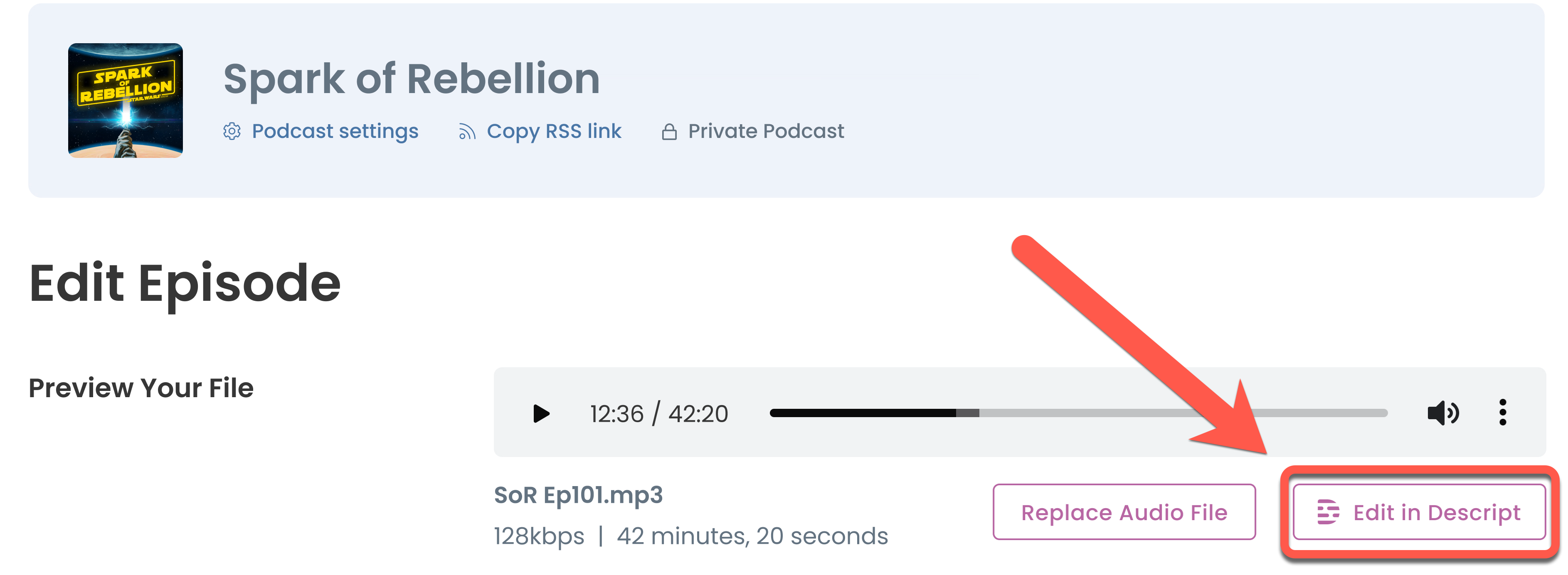
Select Edit In Descript on the right side of the screen. It will open the next browser page.
- Sign in to your Descript account or sign up for a Descript account to continue.
-
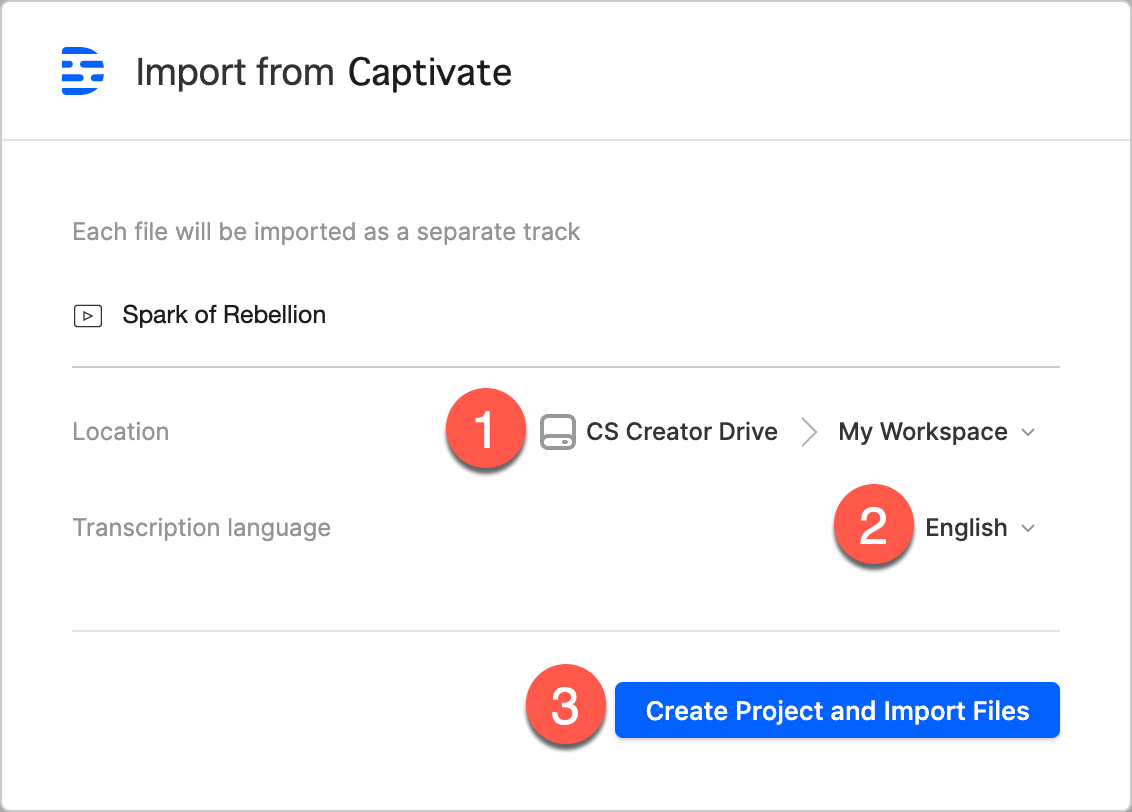
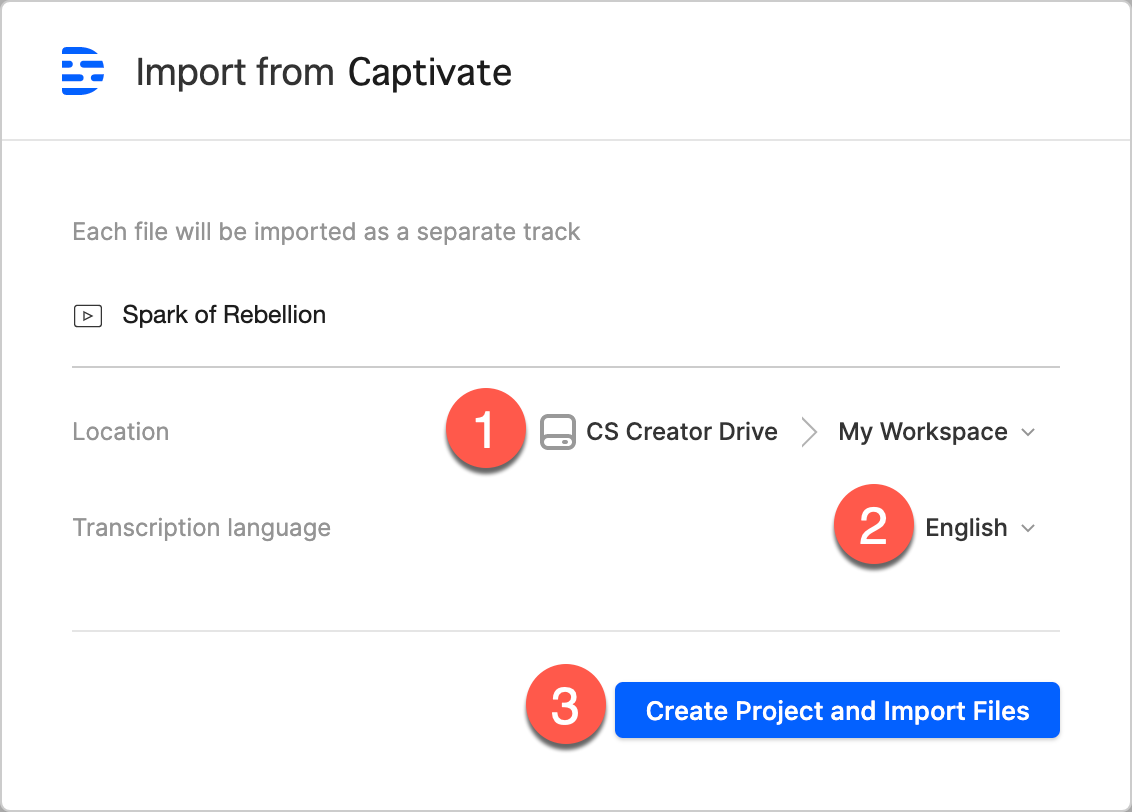
Type in your project’s name, set the storage location on your Drive, select the transcription language if desired, and click Create project and import files.
- A prompt will appear. Click Open Descript or Download the Descript app.
Re-opening the import linkNow that you’ve created the Descript project, if you try re-opening the import web page via the corresponding link, you will be prompted to open your newly created project.