

Each slide in your PDF becomes an image you edit like any other media: add captions, a voiceover, or animations. These steps cover the manual upload. Prefer a shortcut? Descript also has a Turn slides into video template that builds your video with the help of Underlord. Learn more about templates.
Before you start
  • Descript currently supports PDF (.pdf) slide decks only. You won’t be able to import .pptx or .key files.
  • Password-protected PDFs cannot be imported.
  • Each slide is imported as a static image. Animations, transitions, and embedded media (like video or audio) aren’t preserved.

Import your slide presentation

  1. Create a new project or open an existing one.
  2. Open the Project panel in the right-hand sidebar.
  3. Drag and drop your PDF file into the Files section.
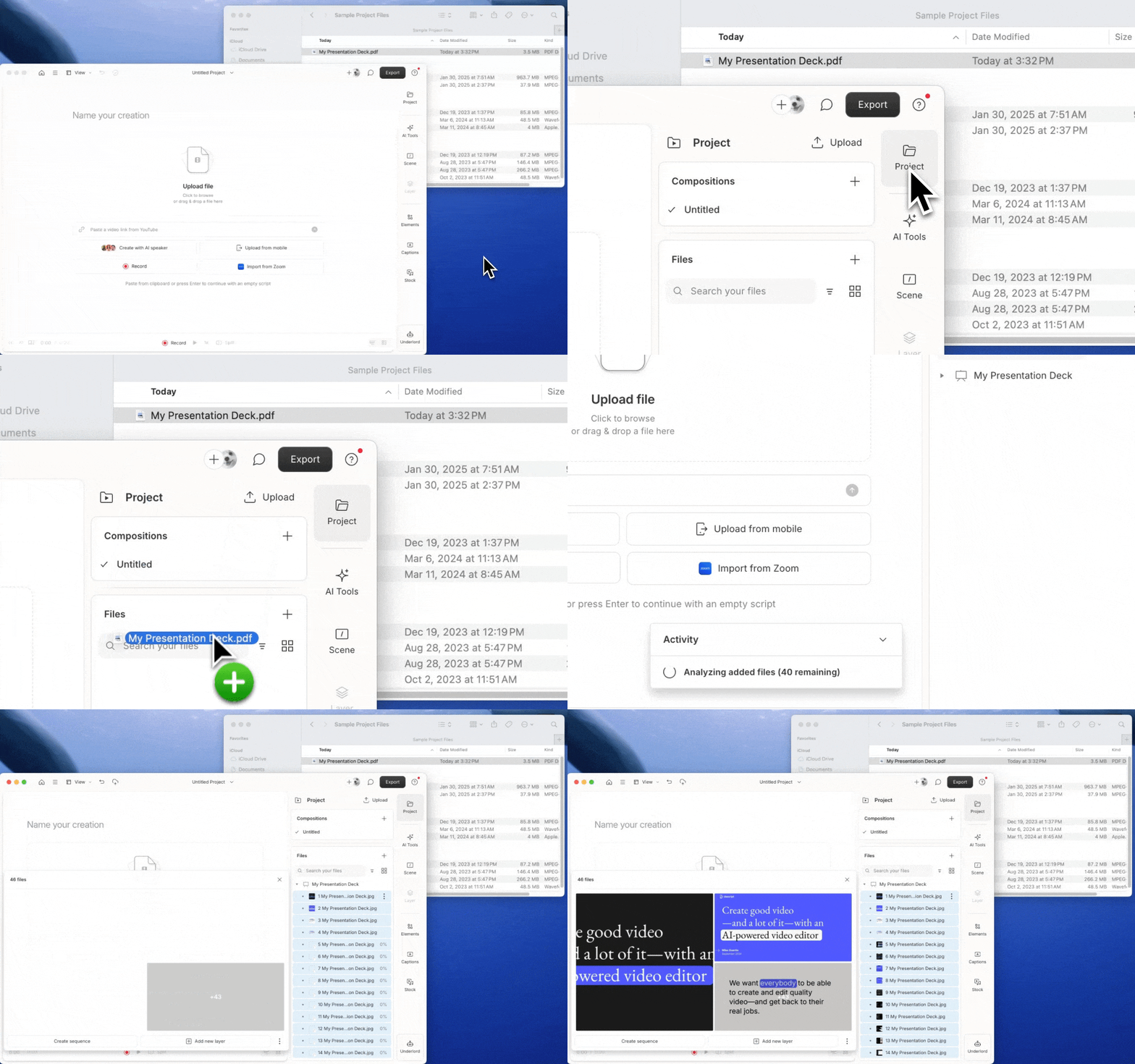
Descript will convert each slide into a .jpg image and store them in your Project Files. You can add them to scenes like any other media layer. GIF showing a PDF being dragged into the Files panel in Descript.

Start building your video

Once your slides are imported, you can start putting your video together — upload or record a voiceover, create a scene for each slide, and rearrange, duplicate, or delete scenes like any other visual.
Need help with manual editing?Scenes and layers are the building blocks of your video.