

Skip SquadCast — record right in DescriptNow that Rooms is built directly into Descript, there’s no need to maintain both SquadCast and Descript accounts. Rooms (Descript’s built-in conferencing and recording tool) lets you meet, record, and collaborate all in one place. It’s simpler, faster, and fully integrated. Learn how to use Rooms.
Connect from Descript
Follow these steps if you already have a Descript account and want to add SquadCast for remote recording.- Go to your Plan settings and select Open SquadCast. This will take you to a SquadCast webpage.
- Sign up for a SquadCast account.
- You’ll now connect your new SquadCast account to Descript. If you own multiple drives, make sure to select the correct drive at the bottom of the web page before continuing.
- Please review the offer and select Redeem Offer.
Connect from SquadCast
If you’re a SquadCast user who has never had a Descript plan, use the following steps to set up your Descript plan (which includes access to SquadCast).- Log into your SquadCast account.
- On the next screen, select View Pricing to see Descript’s available plans.\
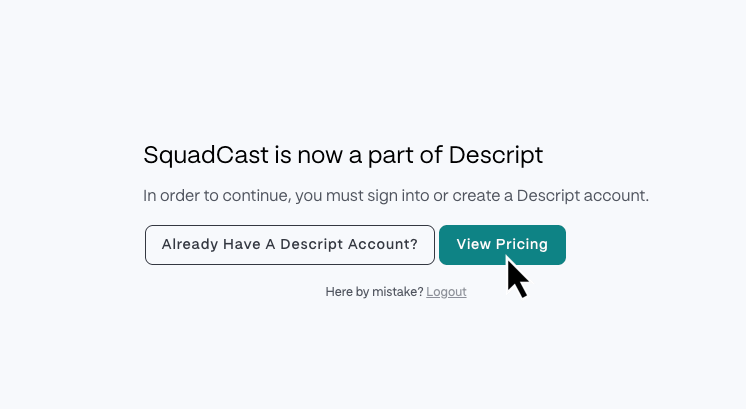
- On the next screen, select a Descript plan.
- Next, you’ll create your Descript account. See Create your Descript Account for those specific steps.
- After you’ve created your account, you’ll enter your billing details.
After linking your accounts
Subscription and billingAfter linking, Descript manages your subscription; you won’t be billed separately for SquadCast. View or update your plan in your Descript account by visiting the Subscription tab or by opening the app and navigating to Settings > Plan. Learn more about managing your Descript + SquadCast subscription.See our guide on how billing works in Descript for more details.
Team members
Linking accounts doesn’t automatically sync team members between SquadCast and Descript. If you manage a team in either tool and want your teammates to collaborate in both, you’ll need to add them manually.- Descript users adding teammates to SquadCast: Invite team members from your SquadCast organization settings.
- SquadCast users adding teammates to Descript: Managing team roles and project access and Accepting a drive membership invitation