Looking for an easier way to meet and record?Descript Rooms let you meet, record, and collaborate without needing session links or extra setup. It’s the easiest way to host podcasts, interviews, and meetings. Learn more about Rooms.
Set up your equipment in the Green Room
When you join a SquadCast session, you’ll first land in the Green Room. Here you can adjust your display name and configure your input and output devices before entering the Studio. Firefox users: Firefox doesn’t support selecting output devices directly within SquadCast. To change audio output, use your device’s system settings: Mac | Windows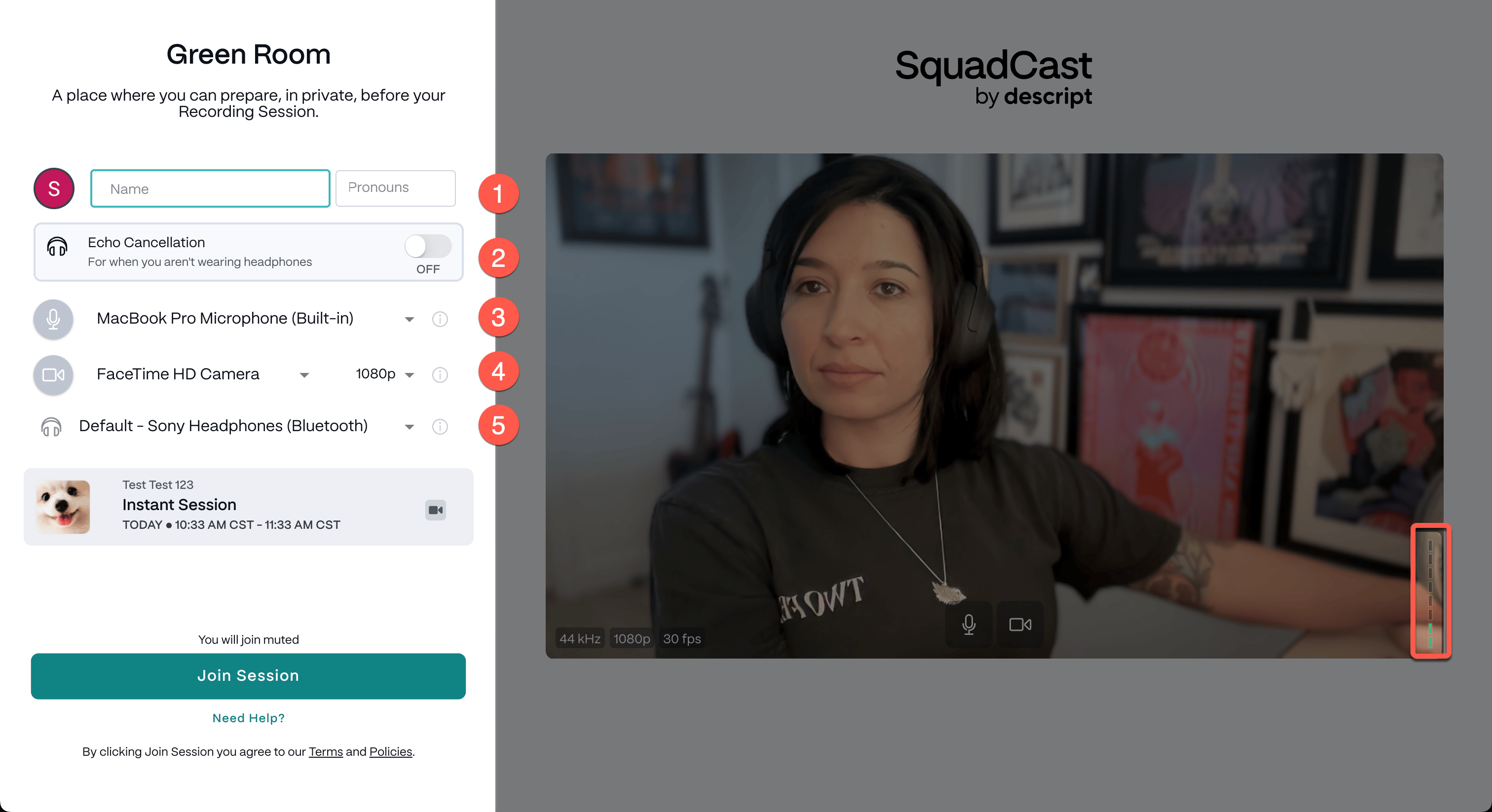
- Enter your name and pronouns.
- If you’re not wearing headphones, toggle on Echo Cancellation. We strongly recommend using headphones for the best audio quality. Learn more about the choice between headphones, echo cancellation, and volume ducking.
- Select your microphone. Use the VU meter in the bottom-right corner of the preview to confirm mic input.
- Choose your camera and resolution.
- Select your speaker or headphones for session audio.
Adjust settings after joining a SquadCast session
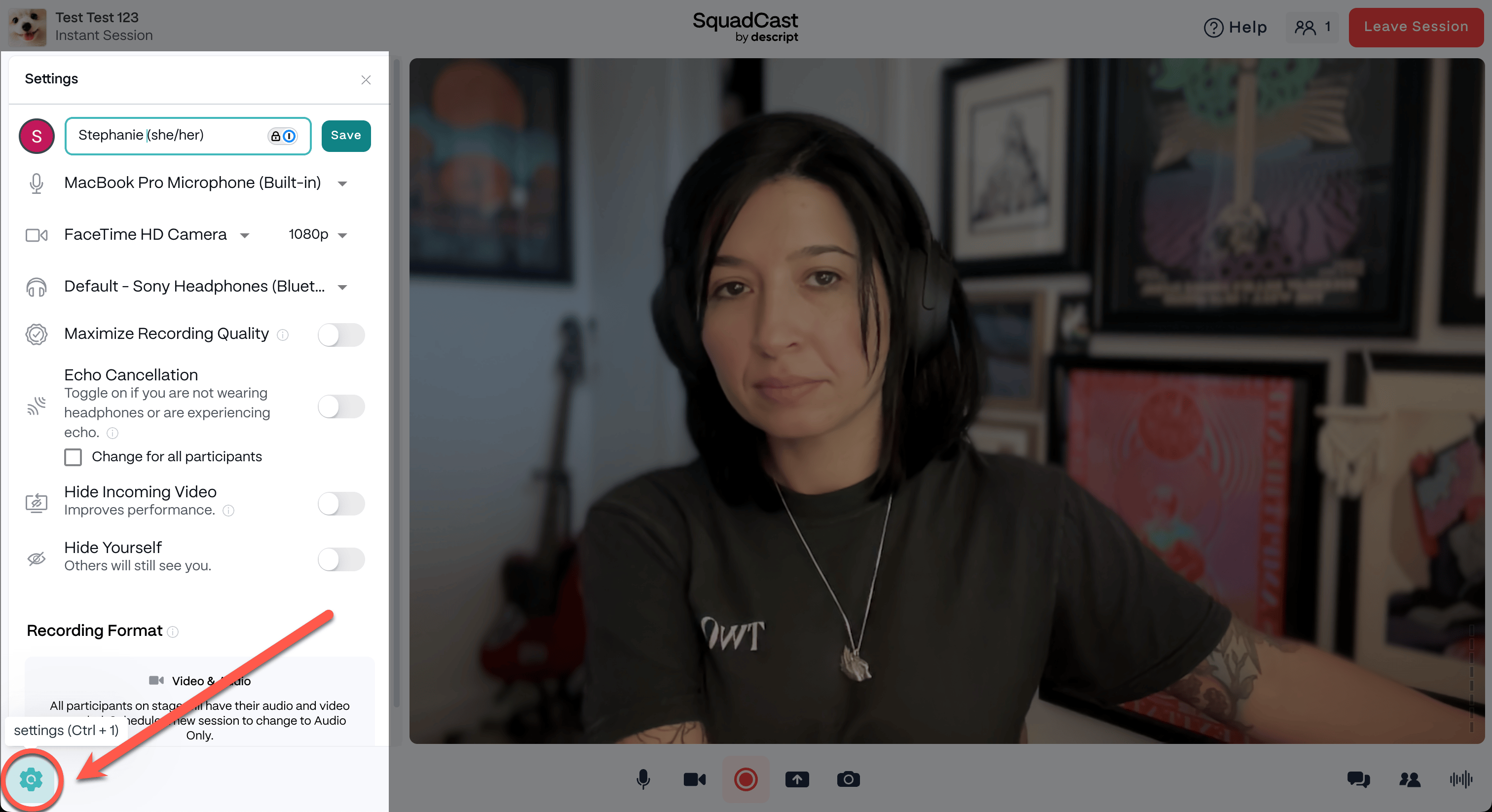
To change your equipment or name after entering the Studio, click the Gear icon (⚙️) in the lower-left corner.