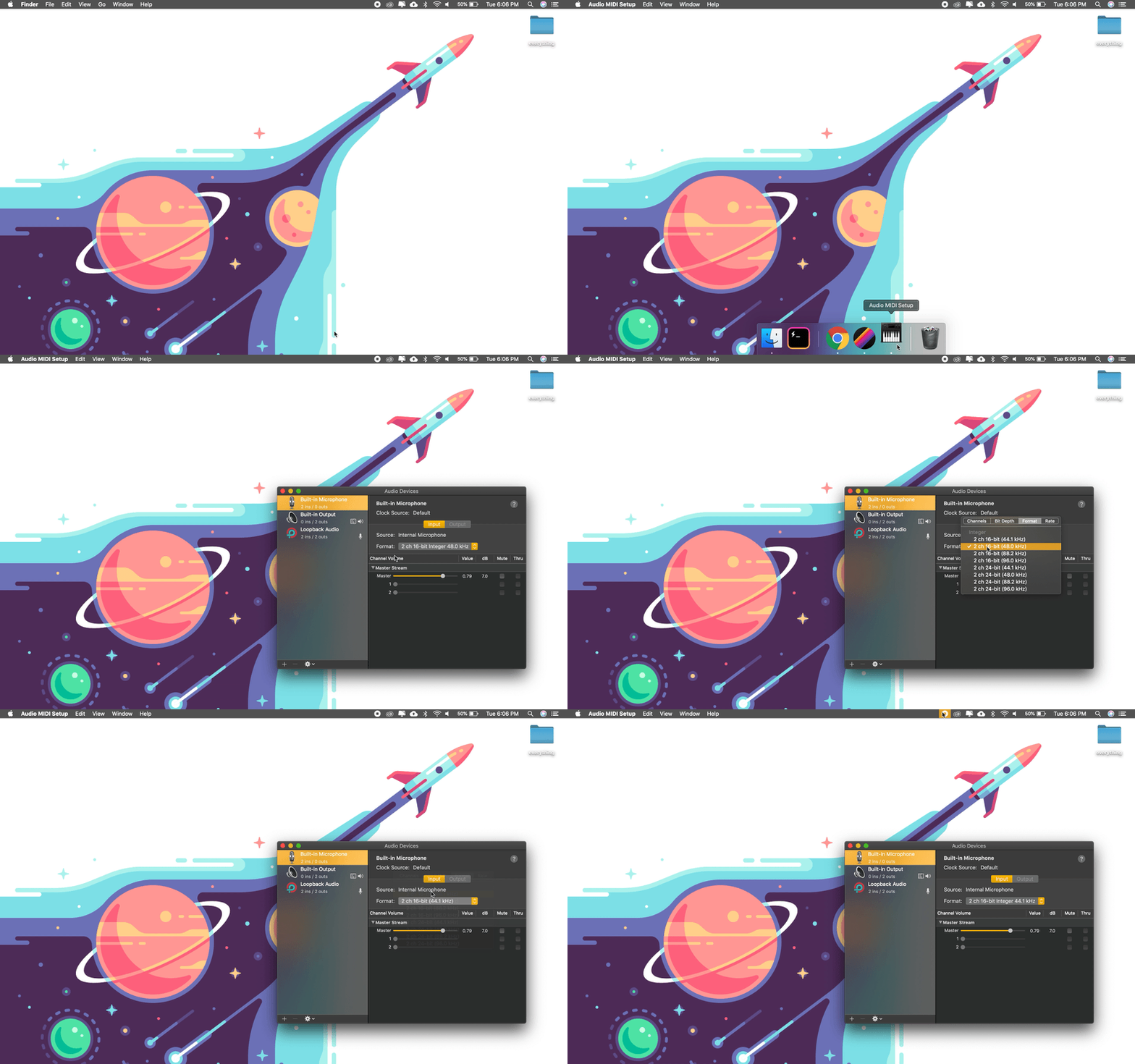
macOS
- Click the magnifying glass icon in the top-right corner of your screen.
- Search for Audio MIDI Setup and open the app.
- Select your microphone or audio interface in the left-hand panel.
- Click the Format dropdown and select 48kHz.
- Close the Audio MIDI Setup app.
- Return to SquadCast and refresh the page.
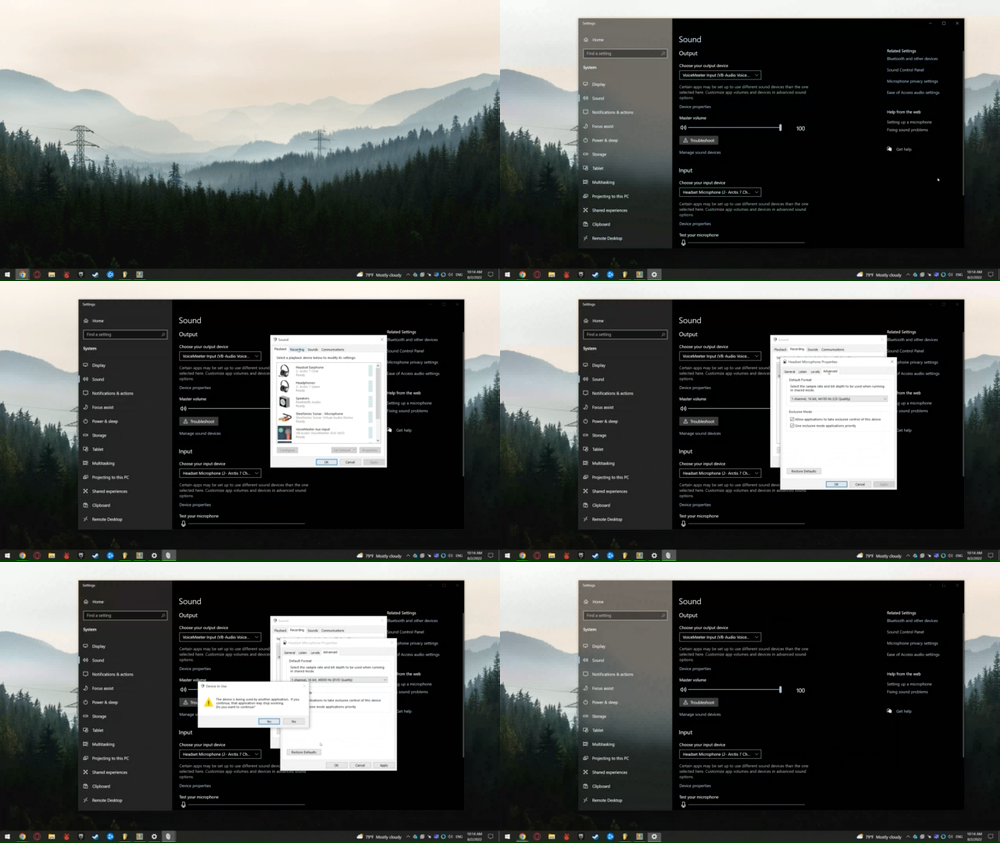
Windows
- Open the Control Panel.
- Go to Hardware and Sound Manage Audio Devices.
- In the Playback tab, select your output device (e.g. headphones) and click Properties.
- Click the Advanced tab.
- Select 16 bit, 48000 Hz (DVD Quality) from the dropdown.
- Click Apply, then OK.
- Repeat the same steps in the Recording tab for your microphone.
- Return to SquadCast and refresh the page.