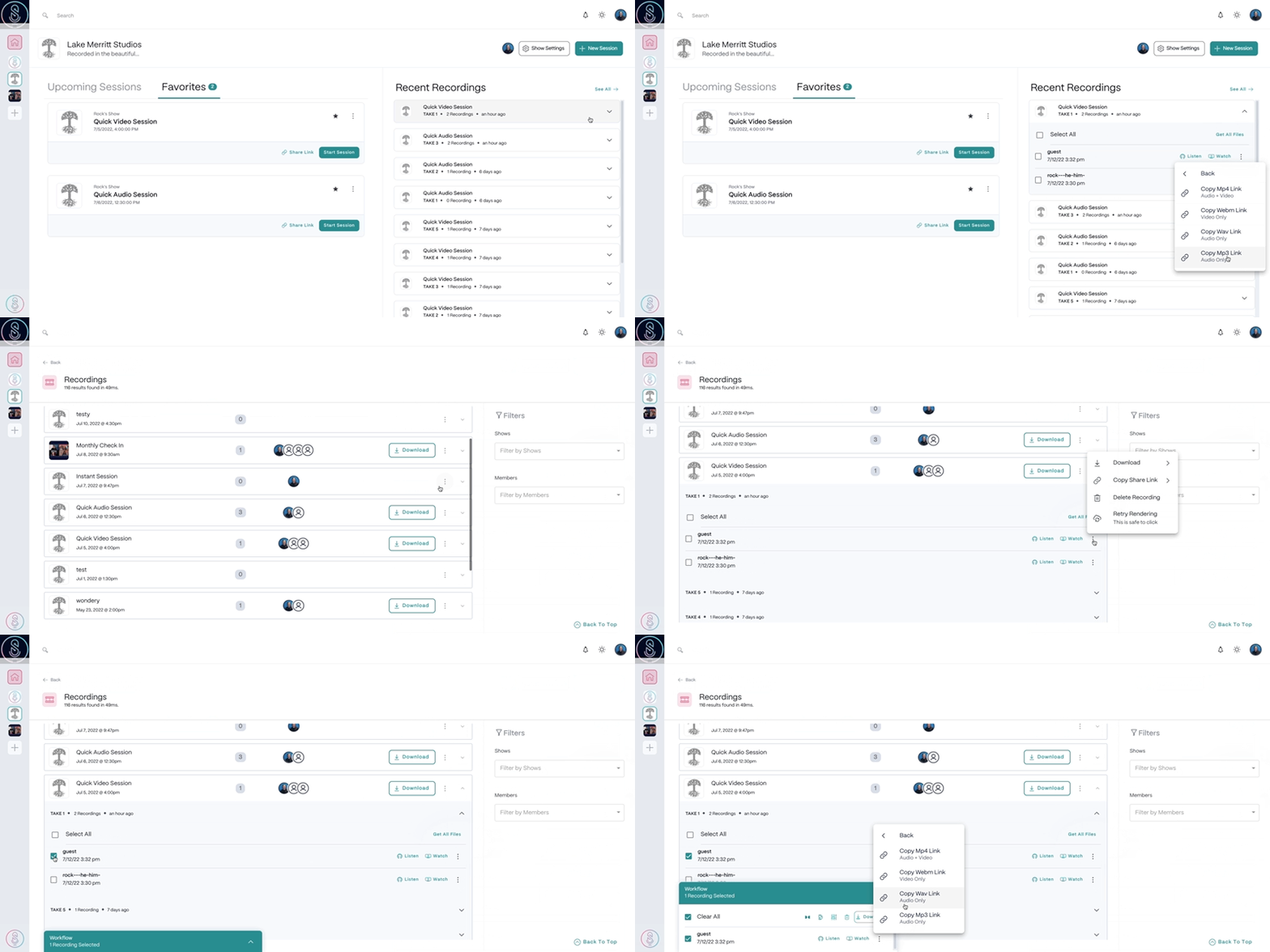
Sharing recording files from the Dashboard
- Select the Recordingstab in the top left corner of the Dashboard.
- Locate and select the session you would like to share files from, then select the Take.
- Select the

- Paste the link and provide it directly using the method of your choice (email, messenger tools, etc.).
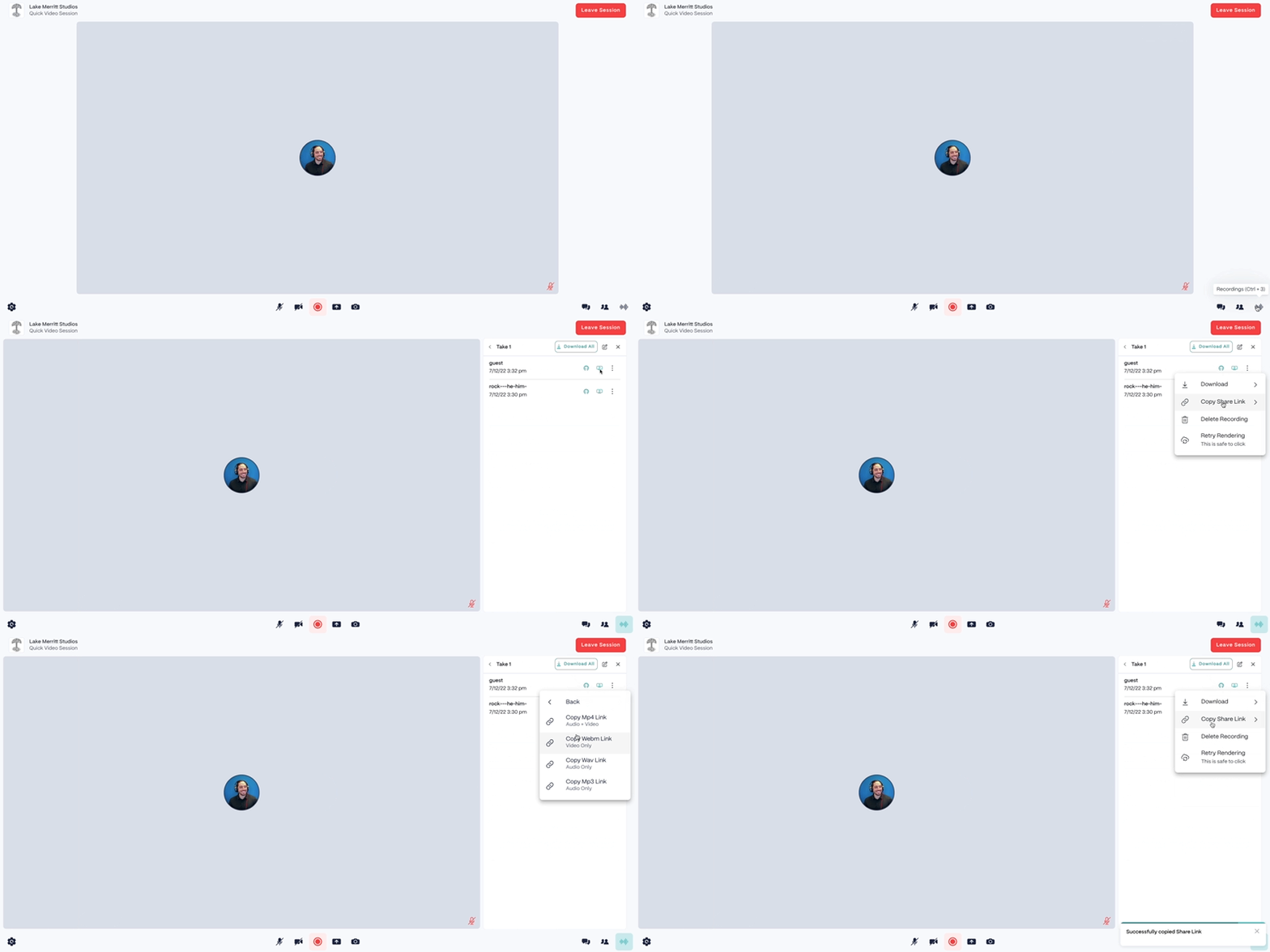
Sharing recording files from the Studio
- From within a session, click the recordings button in the lower right corner or press
Command + 8(macOS) orControl + 8(Windows). - Locate and select the Take you would like to share files from.
- Select the
- Paste the link and provide it directly using the method of your choice (email, messenger tools, etc.).