

Add a captions layer
- Open the right-hand sidebar and click the Captions panel.
- Choose where to apply captions: use the toggle at the top to apply captions to the current scene or all scenes. Learn more about scenes.
- Click a caption style from the sidebar. Descript applies the selected font, colors, and animation to your composition.
Find a caption preset
Search by name, or Filter by style to narrow the list. Sort the results by default order, recently used, or alphabetically. Descript’s older caption styles are grouped under the Legacy category and sit at the bottom of the list.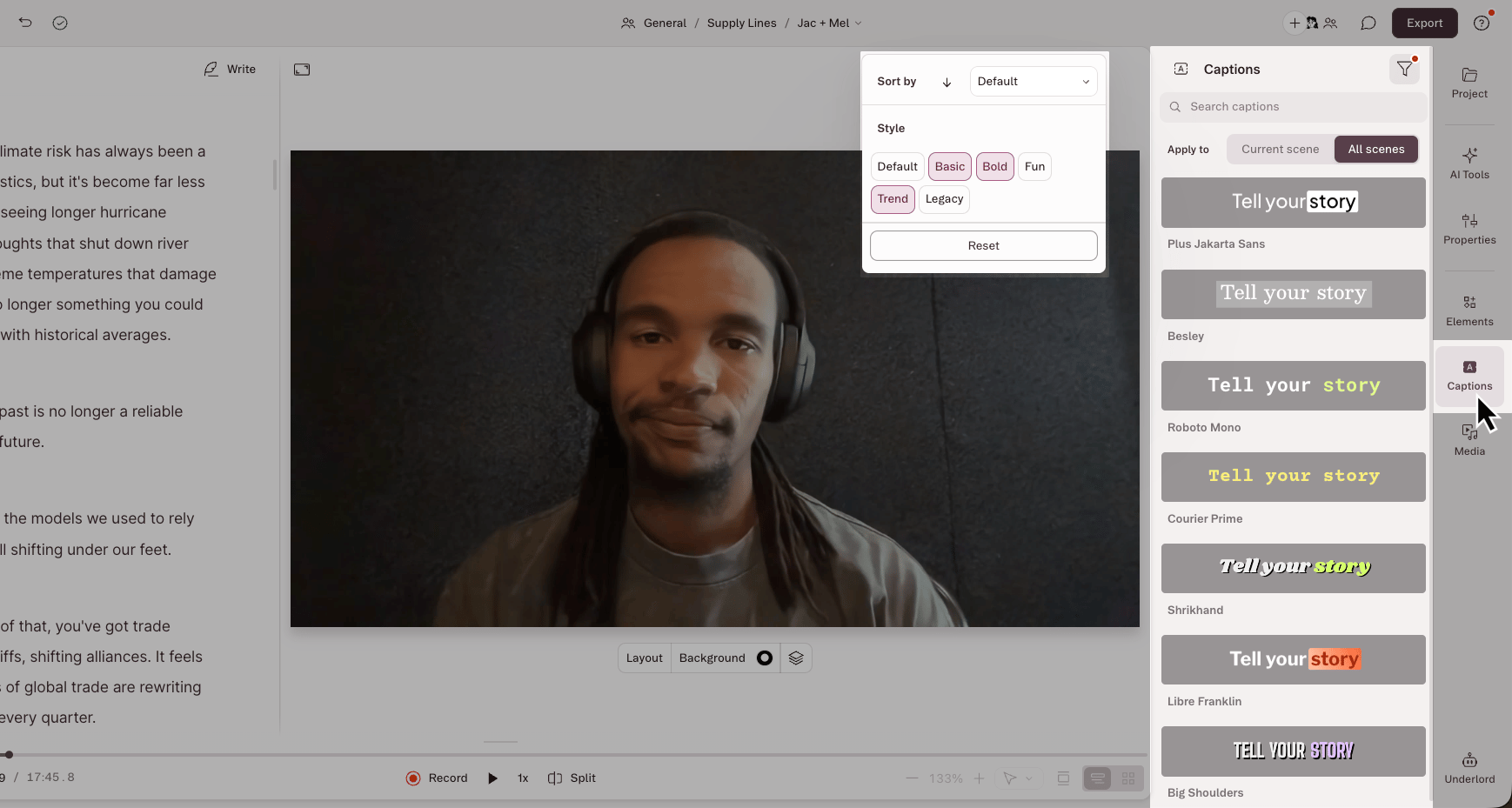
Switch to a different preset
Select your captions layer first. With the layer selected, click a new preset to apply the new style. If a captions layer is not already selected, clicking one of the available presets adds a new captions layer instead of restyling the one you have.Style your captions
Select a captions layer, then open the Properties panel to customize it. Changes apply to the selected scene or captions layer. You can adjust:- Font, size, and alignment
- Text and background colors, including gradients
- Stroke and outline
- Active word: the fill, stroke, and background of the word currently being spoken
- Future words: the fill and stroke of words not yet spoken
- Line animation: animate each word, line, or paragraph as it arrives and exits the screen. Learn more about text animations
One-word presetsPresets that show a single word at a time don’t have future words to style, so the Future words adjustments won’t apply.
Convert a text layer to captions
Convert any text layer to a captions layer:- Select the text layer, then click the ellipsis button in the selection toolbar.
- In the right-hand sidebar, open the Type dropdown and switch from Freeform to Captions.
Add captions for multiple speakers
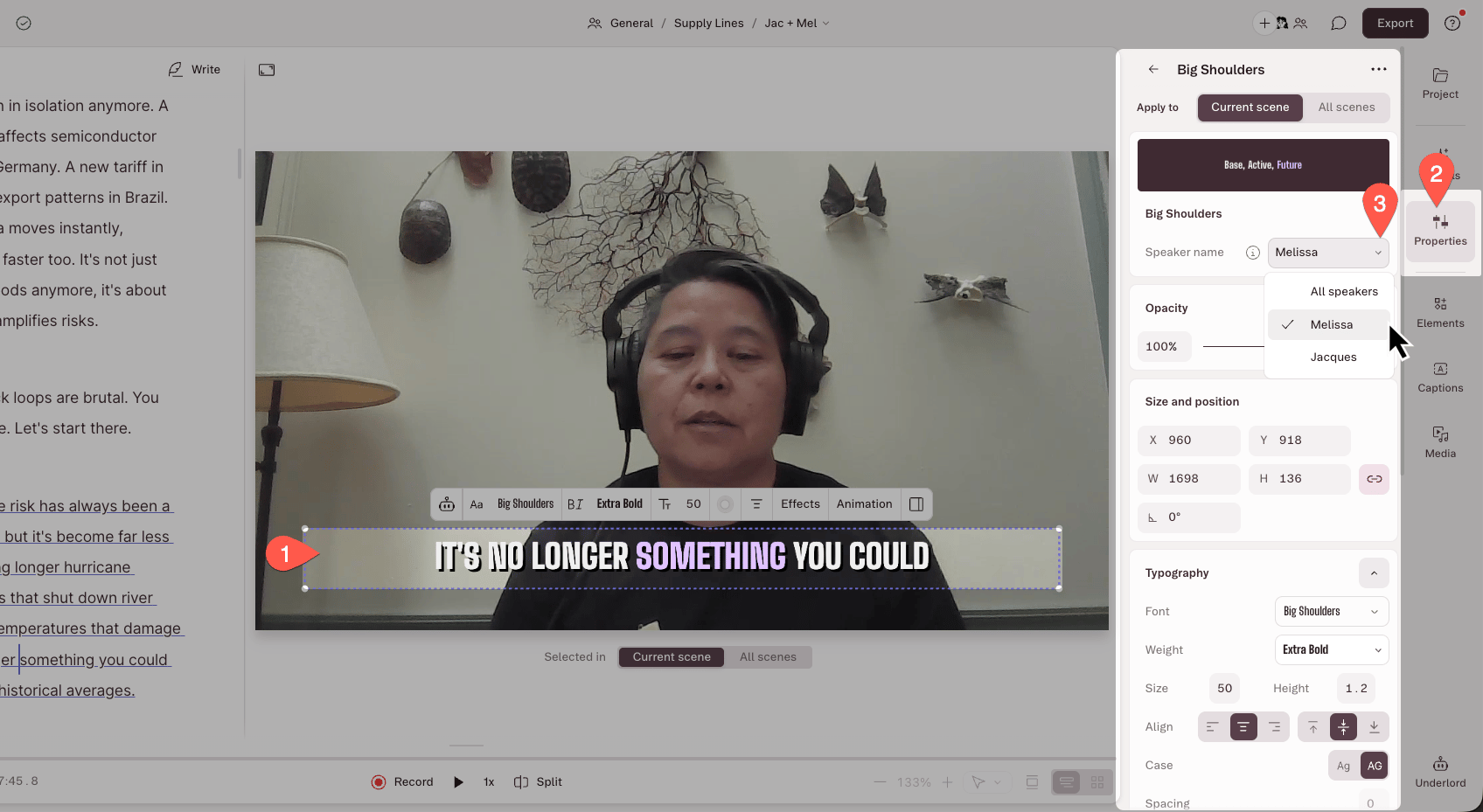
Create a separate captions layer for each speaker to make dialogue easier to follow visually.- With nothing selected, click a preset in the Captions panel to add a new layer.
- Select the captions layer in the scene or timeline, then open the Properties panel.
- Click the options slider icon next to the layer type and choose the speaker from the dropdown.
- Repeat for each speaker as needed.
Remove captions
To delete a captions layer without affecting your script:- Select the captions layer in the scene or timeline.
- Press Delete on your keyboard, or right-click and choose Delete.