

Want to change the actual words?If you’re replacing or rewriting speech, use your AI speaker and follow the steps in Use Regenerate to edit or change recorded audio
How to heal audio edits using Regenerate
- Find the edit point in your script where the audio sounds rough or abrupt. We recommend including a few words on either side of the edit for best results.
- Click Regenerate from the selection toolbar that appears.
- If you’re not changing the words: Descript will regenerate the audio using the original voice to smooth the transition.
- If you are changing the words: This requires a custom AI speaker. For that workflow, see Edit audio with Regenerate.
- Click the Regenerate button to continue. While the text and its underline pulse, Descript is processing and regenerating the audio for that section.
- Hover over the regenerated clip to preview or take further action:
- Play – Listen to the regenerated audio.
- Retry – Try a different variation.
- Keep – Accept the result and convert it to an audio clip.
- Revert – Revert to the original audio.
Tip: Regenerate from edit points
Click an edit boundary in your script, then click Smooth to fix the edit.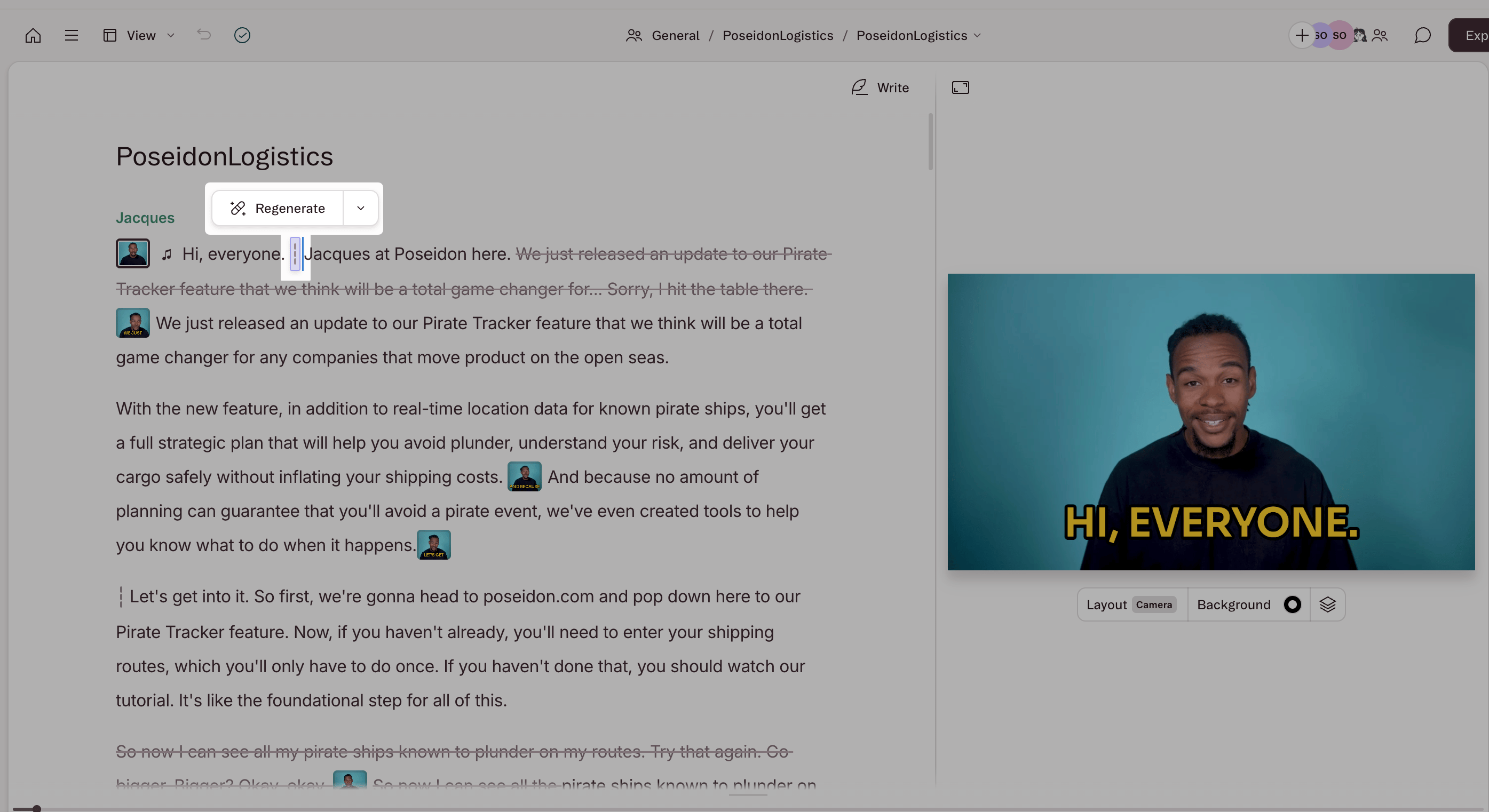
Feature limitations
You won’t be able to use Regenerate if:- The selection includes: multiple edit points, a scene boundary, or Ignored text.
- You edited the script and don’t have access to a Speaker’s voice.
- You’re trying to regenerate an already regenerated clip—click Keep to convert it, then you can regenerate again.