

New to scenes?Scenes are the building blocks of your video. If you’re not familiar with how scenes work in Descript, check out the Scenes overview guide first.
This article covers
Add a scene boundary
You can add a scene boundary using one of these methods:- Script shortcut: Place your cursor in the script and type
/to insert a new scene boundary. - Timeline: Move the playhead to your desired time, then click the Split button. Learn more about the Split button
Move a scene boundary
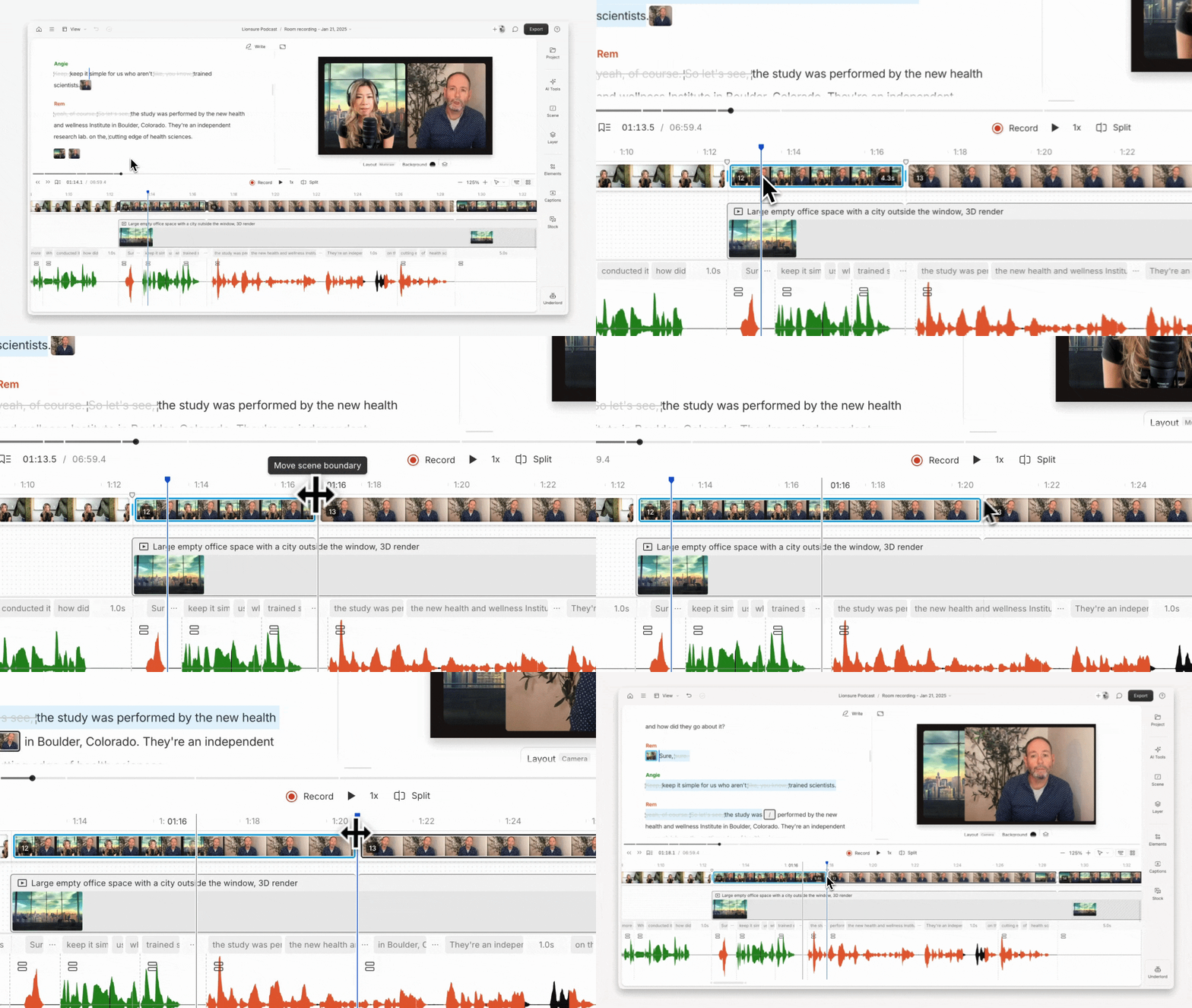
You can move an existing scene boundary in either the script or the timeline — just note that you can’t drag it past another existing boundary.- Script panel: Click a scene thumbnail to select it. In the timeline ruler, you’ll see boundary markers appear. Drag either marker to a new position. As you move it, the script will highlight where the new boundary will be placed—just before the highlighted word.
-
Timeline view: Click the scene thumbnail in the scene preview track at the top of the timeline. A handle will appear in the ruler — drag it to reposition the boundary.
Delete a scene boundary
To delete a scene boundary:- Right-click: Right-click the scene thumbnail and select Delete boundary. This merges the scene’s content into the previous one.
- Click + Delete: Click once on the thumbnail, then press Delete or Backspace. This removes the boundary and shifts its content into the previous scene.