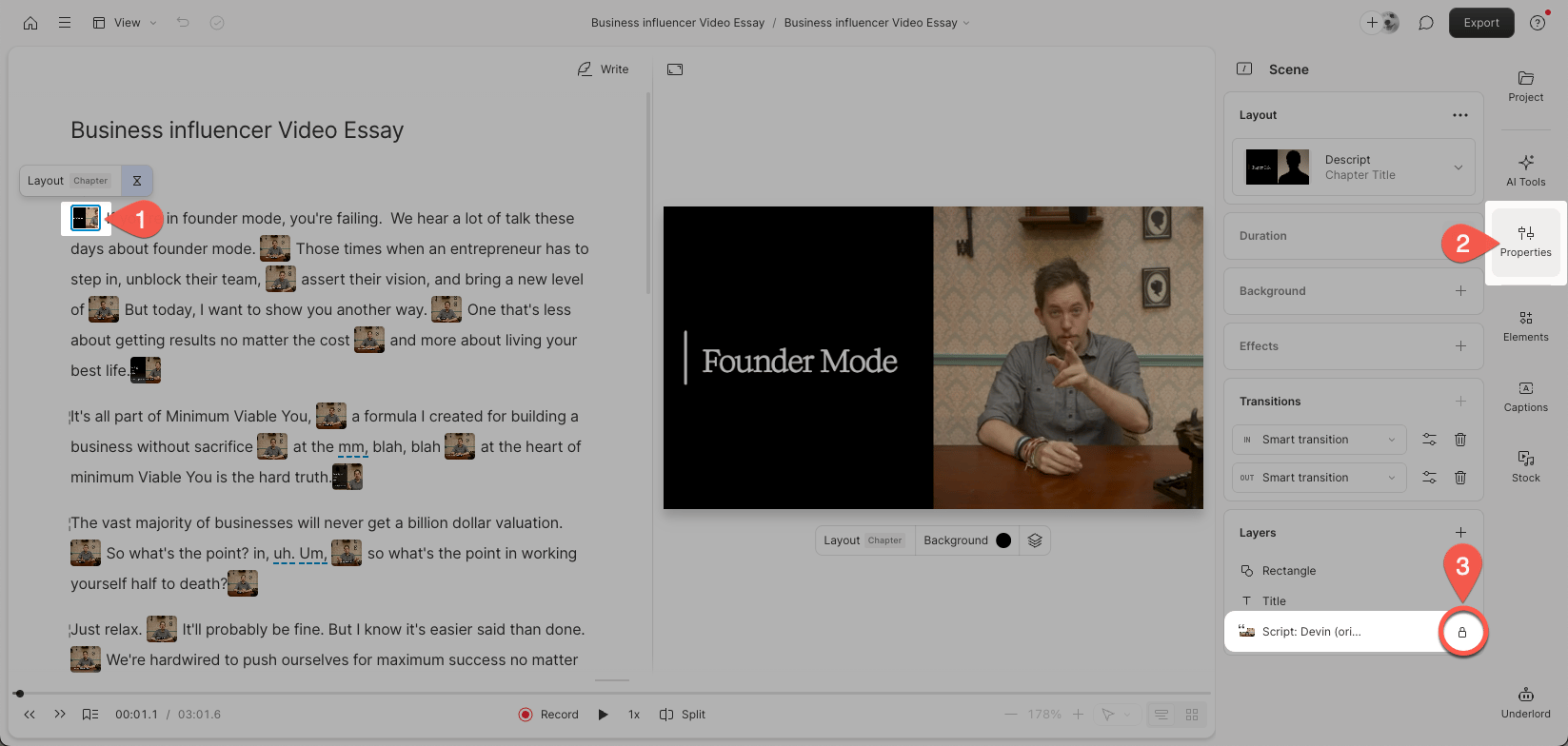
Lock a layer
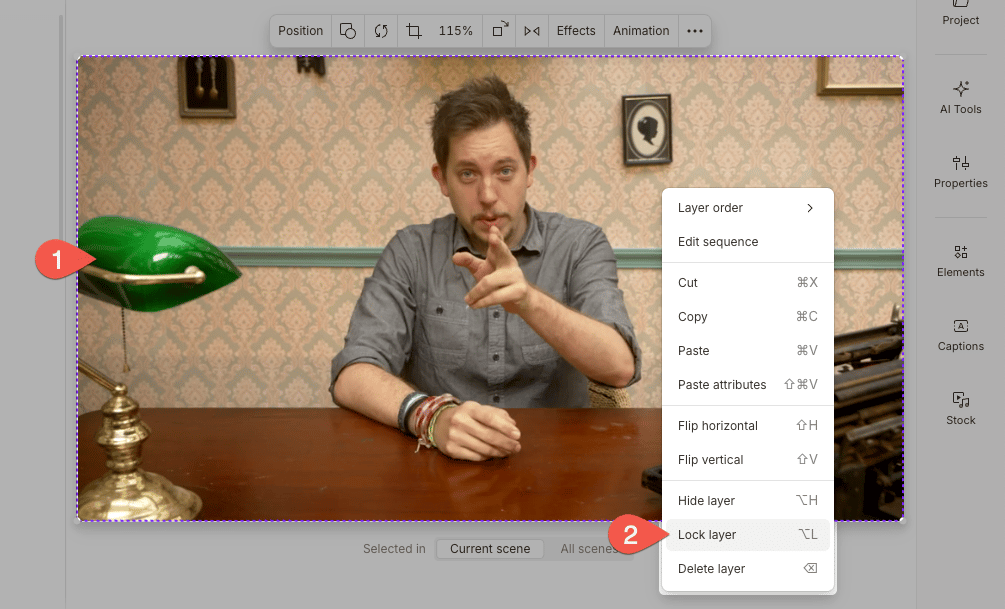
- Right-click the layer in the scene editor.
-
Select Lock layer. You won’t be able to move, scale, or edit this layer in the scene editor without unlocking it first.
-
Once locked, you’ll see a lock icon next to the layer name in the Layers section of the Properties panel.\
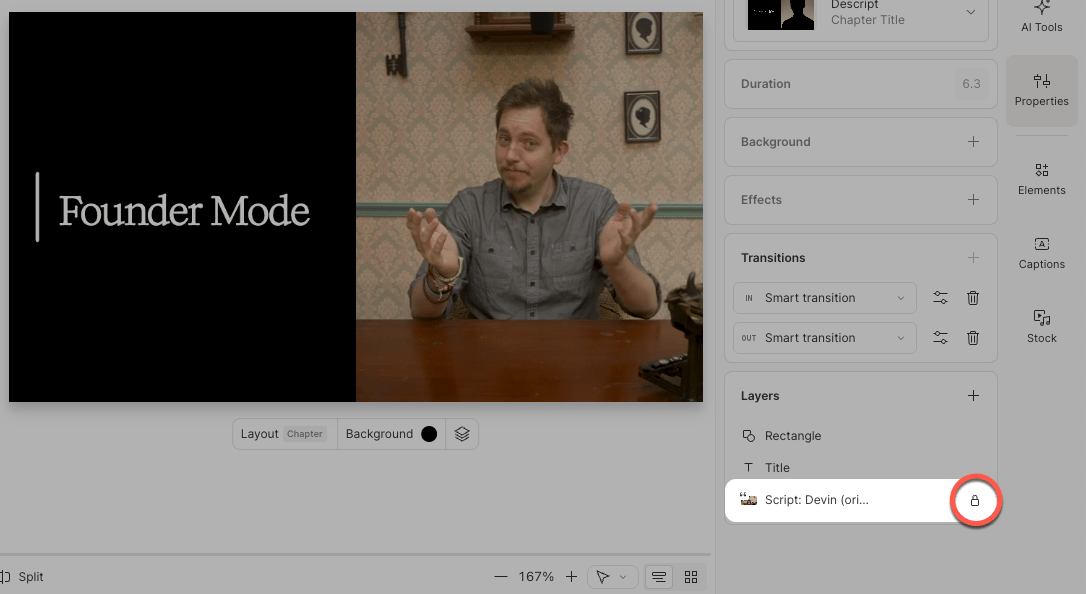
Interacting with a locked layerTo modify a locked layer, you must first unlock it. You can select locked layers directly in the scene editor, but you cannot move, scale, or edit them. The Properties panel controls are also disabled for locked selections.
Lock an extended layer
A lock applies everywhere the layer appears, so locking a layer that spans multiple scenes locks it across all of them at once. Right-click the layer in the scene editor or Timeline and choose Lock layer, or pressOption + L (Mac) or Alt + L (Windows).
Unlock a layer
You can unlock a layer directly from the scene editor or from the Properties panel. From the scene editor: Select the locked layer and click the Unlock button in the scene editor.\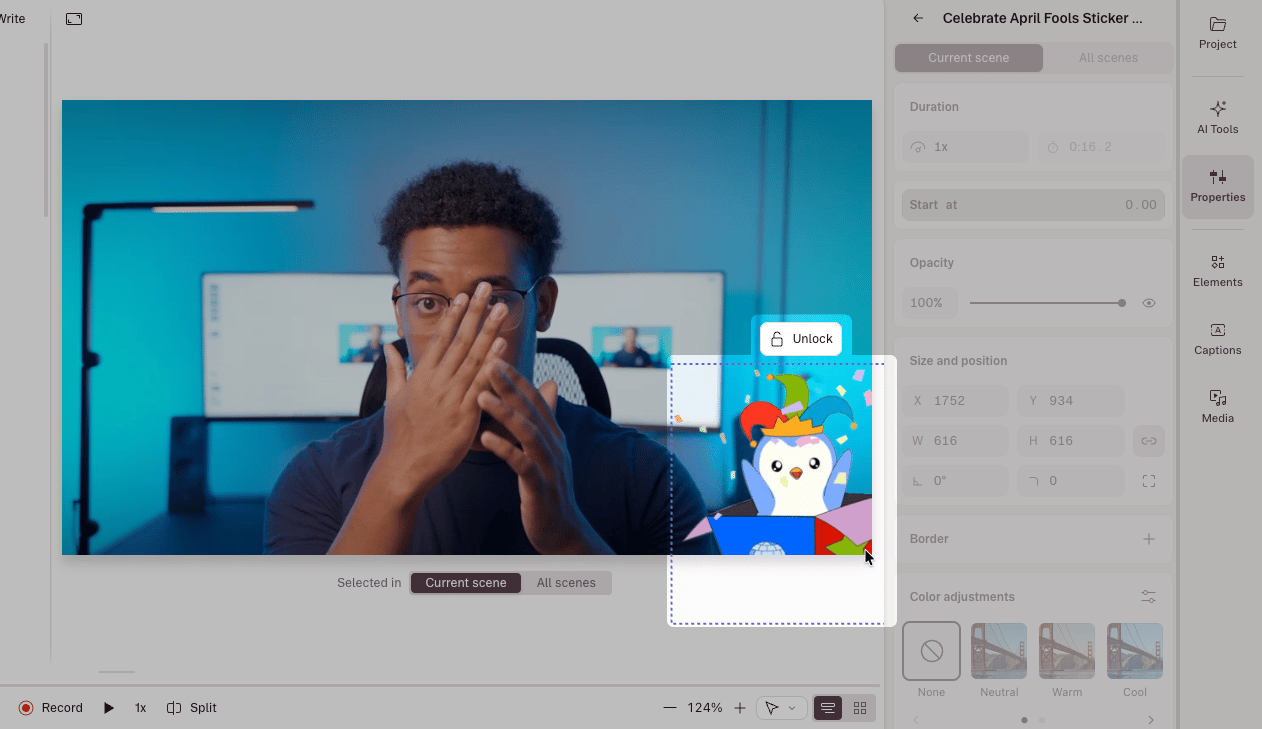
- Select the scene containing the locked layer.
-
In the Properties panel, find the Layers section, then click the lock icon to unlock the layer.