

Usage noteOn current plans, this feature uses AI Credits. Learn more about tracking your Media Minutes and AI Credits.Legacy and Sunset plans track usage differently. See our Understanding your Legacy and Sunset plan guide for details.
Remove your background
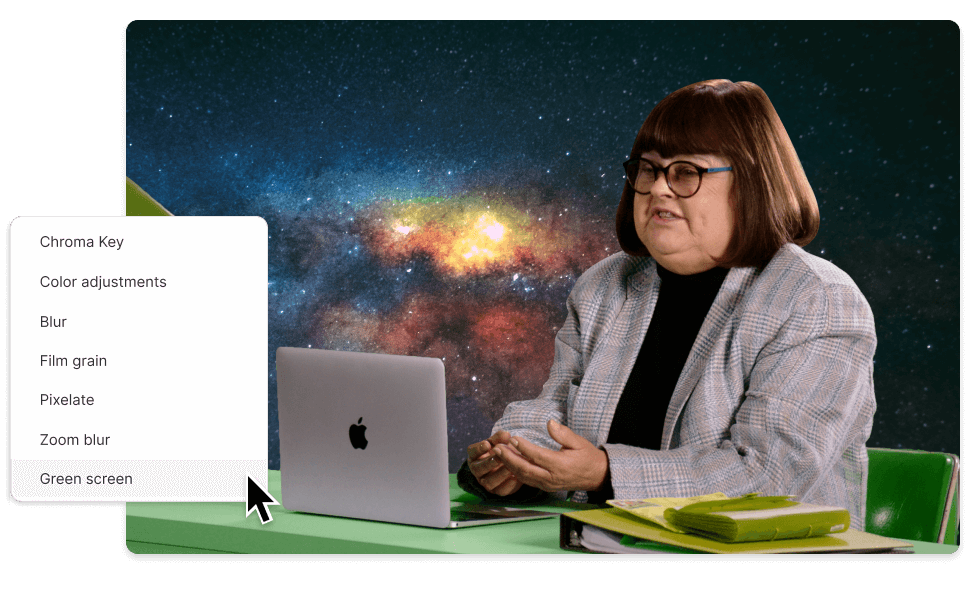
- Select the visual layer you want to edit, from the timeline, the scene editor, or the Layers list in the Properties panel.
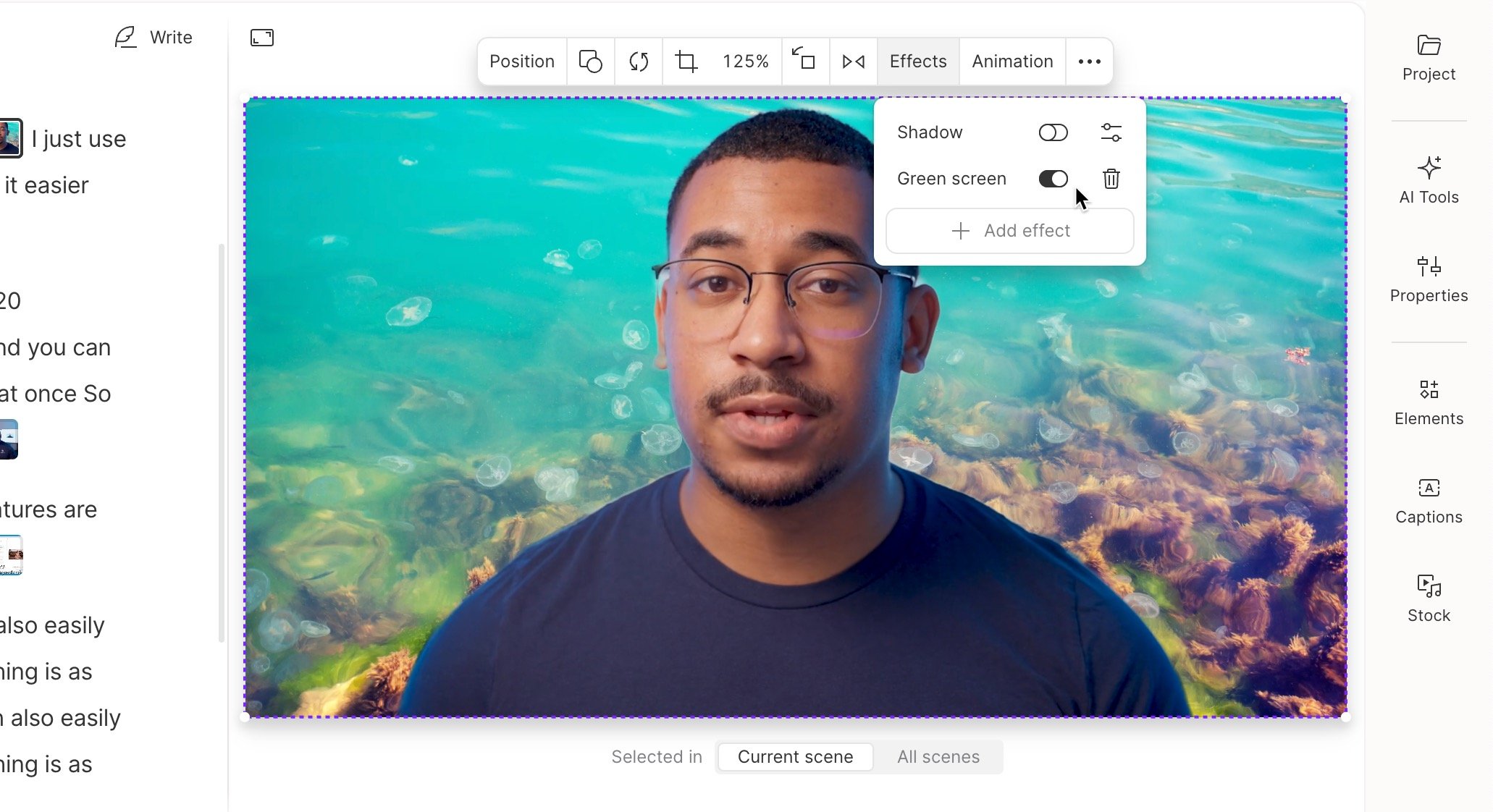
- From the hover menu, click the Effects tab.
- Click + Add effect.
- Select Green Screen from the list.
Add a new background
Upload a custom image, or use one of Descript’s stock media library backgrounds. Add the layer to the scene editor by dragging it in, or with the Insert new layer button. If the speaker layer ends up behind the new background, reorder your layers: drag the speaker layer above the background in the Properties panel’s Layer list, or right-click a layer in the timeline and choose an option from the layer order menu. Learn more about layer visibility and order.TipIf your composition has multiple scenes, use the All Scenes toggle to apply a background layer across all of them. Learn more about Scene Properties.
Tips for best results
- Stay connected to the internet — Green Screen requires a network connection.
- Keep other people, pets, and foreground objects like microphones out of the frame.
- Avoid upside-down faces (you can flip video after processing).
- Use soft, even lighting to reduce shadows.
- Maintain strong contrast between you and the background.