

Properties panel behaviorThe panel is context-aware and updates based on what you have selected—showing either scene-level or layer-level options. If the effect options you expect aren’t visible, check which item is selected in the Layer list. Learn more about how the Properties panel works.
Apply a color preset
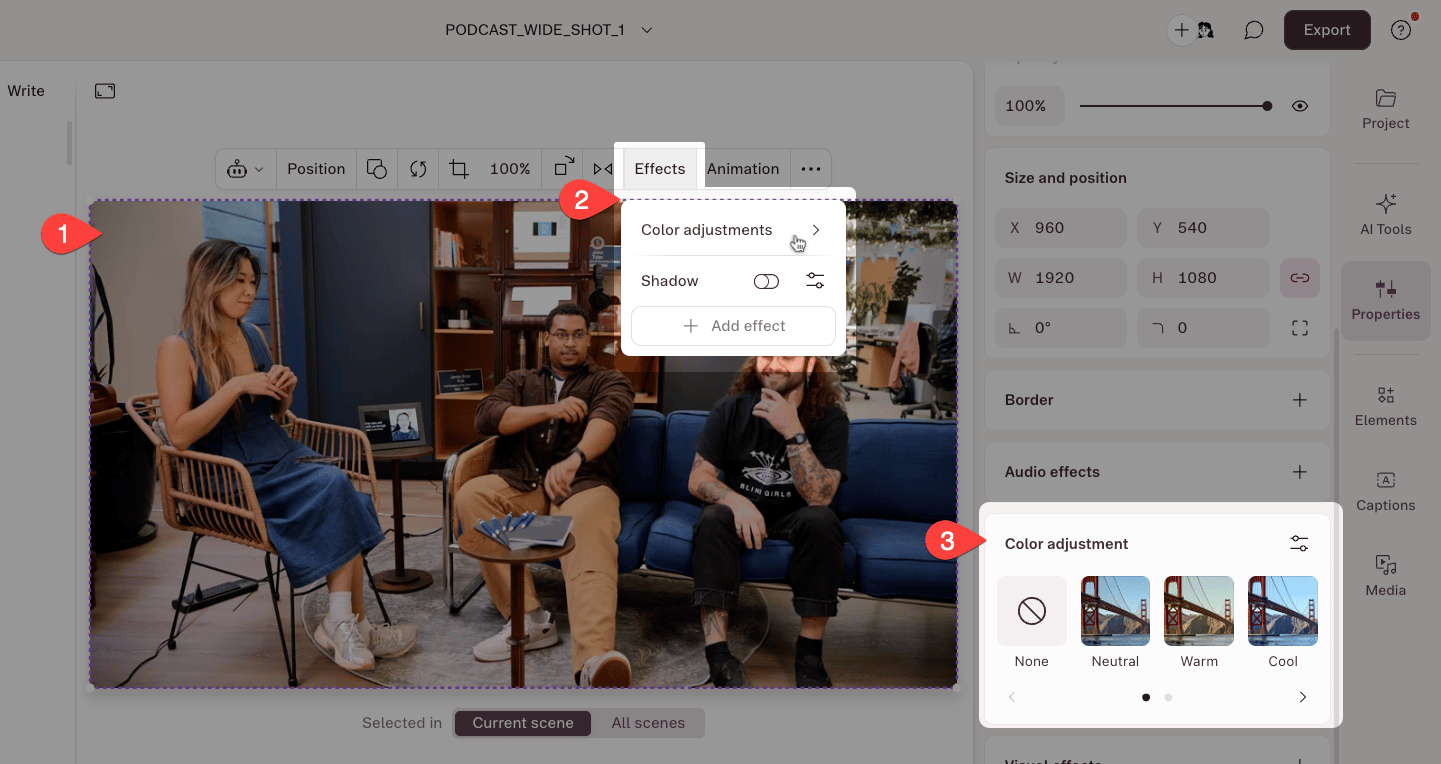
- Select an image, video, or avatar layer in your Scene Editor.
- In the hover toolbar that appears, click Color Adjustments in the Effects menu. This opens the Color Adjustments section in the Properties Panel.
- Browse the filter thumbnails in the carousel. Click a filter thumbnail to apply it.
Adjust white balance
White balance helps correct color casts in your footage. For example, it can help you adjust overly blue indoor footage or orange-tinted lighting to make it look more natural.- Select an image, video, or avatar layer.
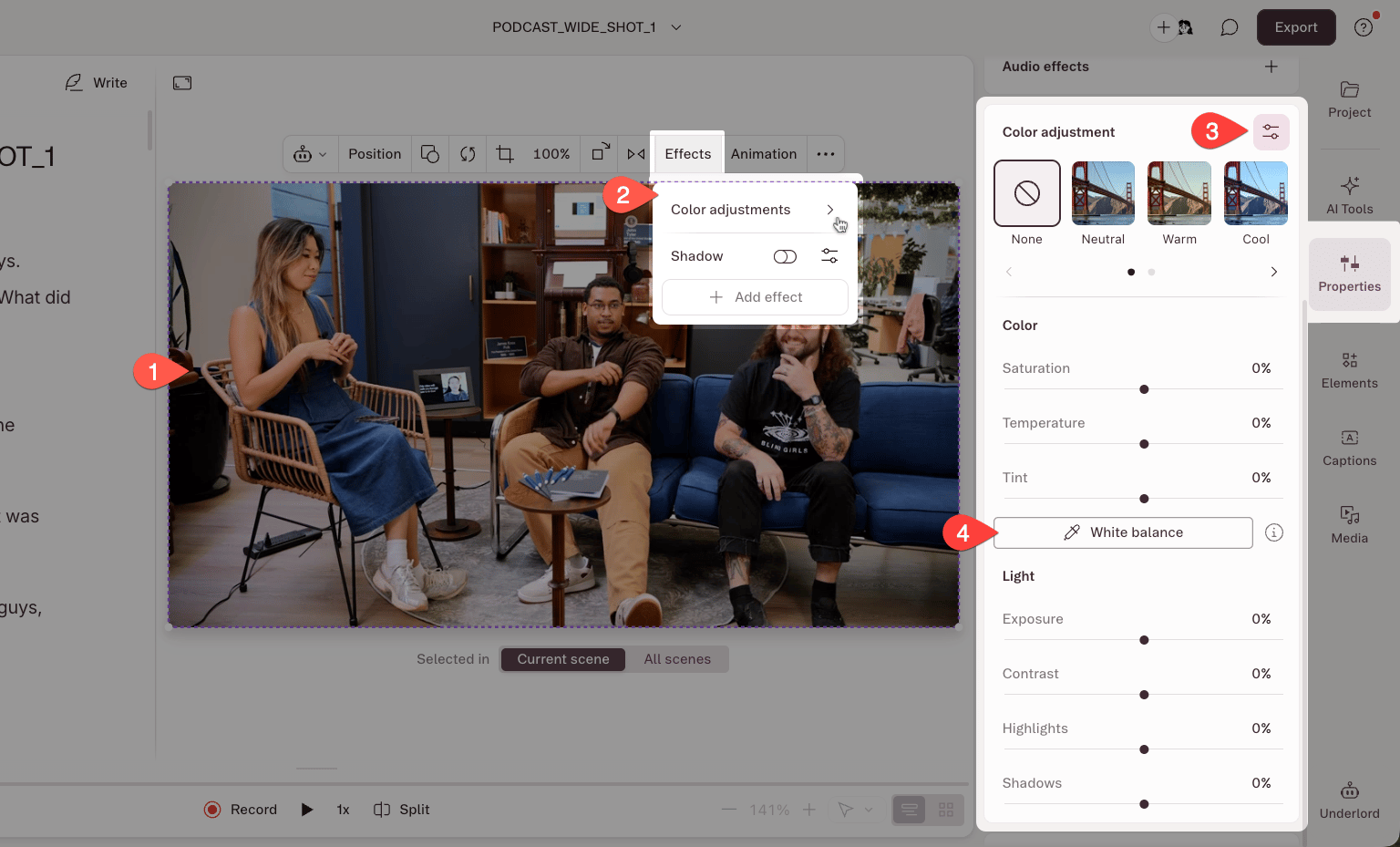
- In the hover toolbar, click Color Adjustments in the Effects menu to open the Color Adjustments section.
- Click More controls, then click the White Balance button.
- Click an area in your image or video that should be neutral (white or gray). Descript automatically adjusts the white balance based on your selection.
Color parameters
For more precise control, adjust individual color parameters manually.- Select a layer.
- In the hover toolbar, click Color Adjustments in the Effects menu, then click the More controls button in the top right corner.
- Drag any slider to adjust its value. To reset a single slider, double-click it to return it to the default.
Apply to all scenes
Color adjustments apply to the current scene by default. To apply your adjustments across all scenes at once, select the All Scenes toggle at the top of the Properties Panel before applying a color adjustment effect.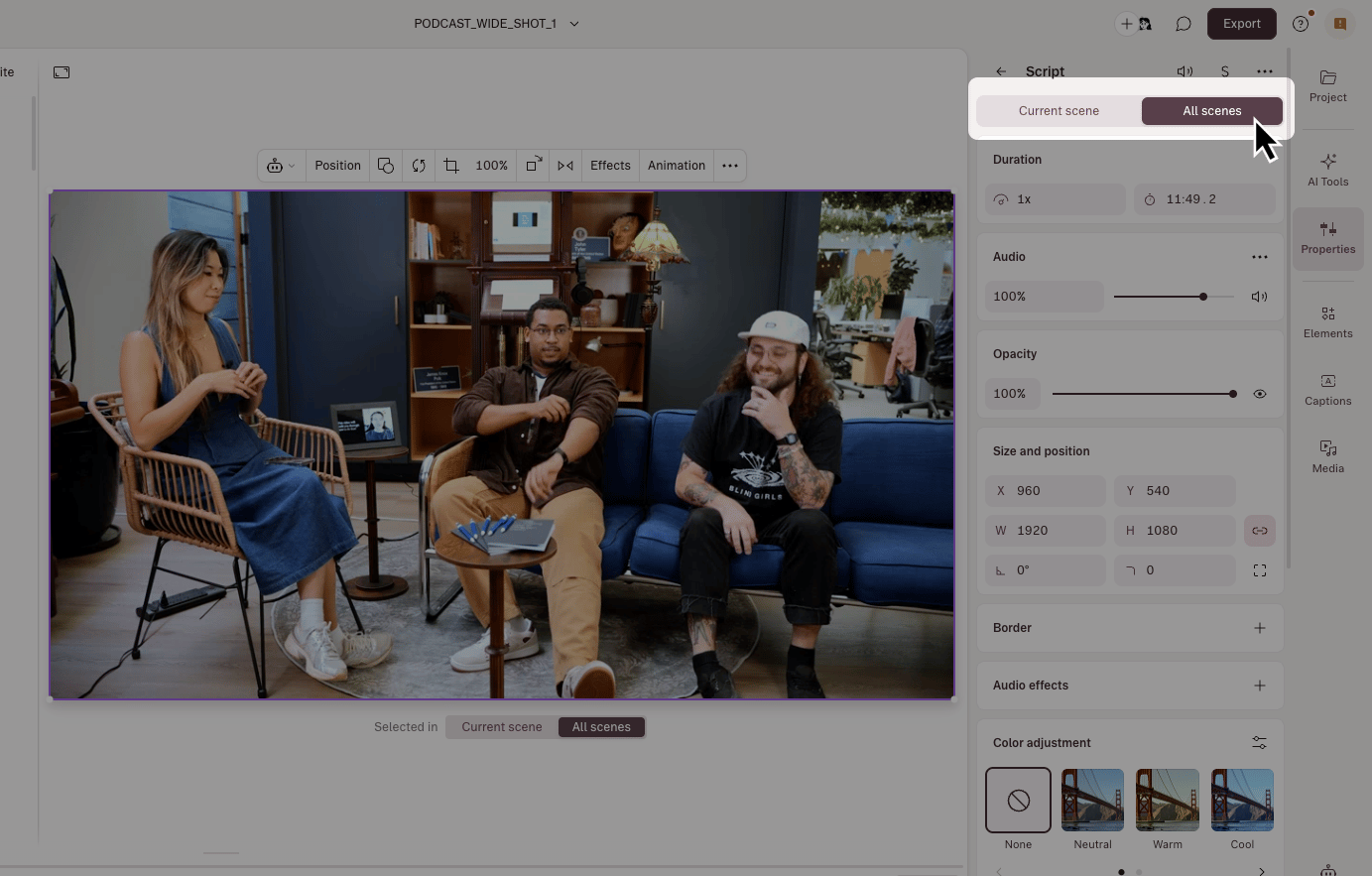
Presets reference
Color parameters reference
Known limitations
- One filter at a time: You can’t stack multiple filters. Applying a new filter replaces the previous one.
- Filter presets deselect on manual adjustment. If you tweak any slider after applying a filter, the filter preset deselects (your slider values stay).
- Color adjustments are applied last. When layering multiple effects, color adjustments are always applied after other effects. Learn more about applying and adjusting effects.