

Available on paid plansAll paid Drives (those on Hobbyist, Creator, Business, or Enterprise plans) can remix a layout. If you’re on a free Drive, you’ll need to upgrade to access this feature.
Prefer to watch instead?
This short video walks you through how to remix a layout pack in Descript.Open the layout pack remix tool
You can open the layout picker and start remixing from any of these places:- From the script: Click a scene thumbnail, then select Layout from the hover menu.
- From the timeline or storyboard view: Right-click a scene and select Change layout.
- From the properties panel: In the Layout section, click the Choose layout tile.
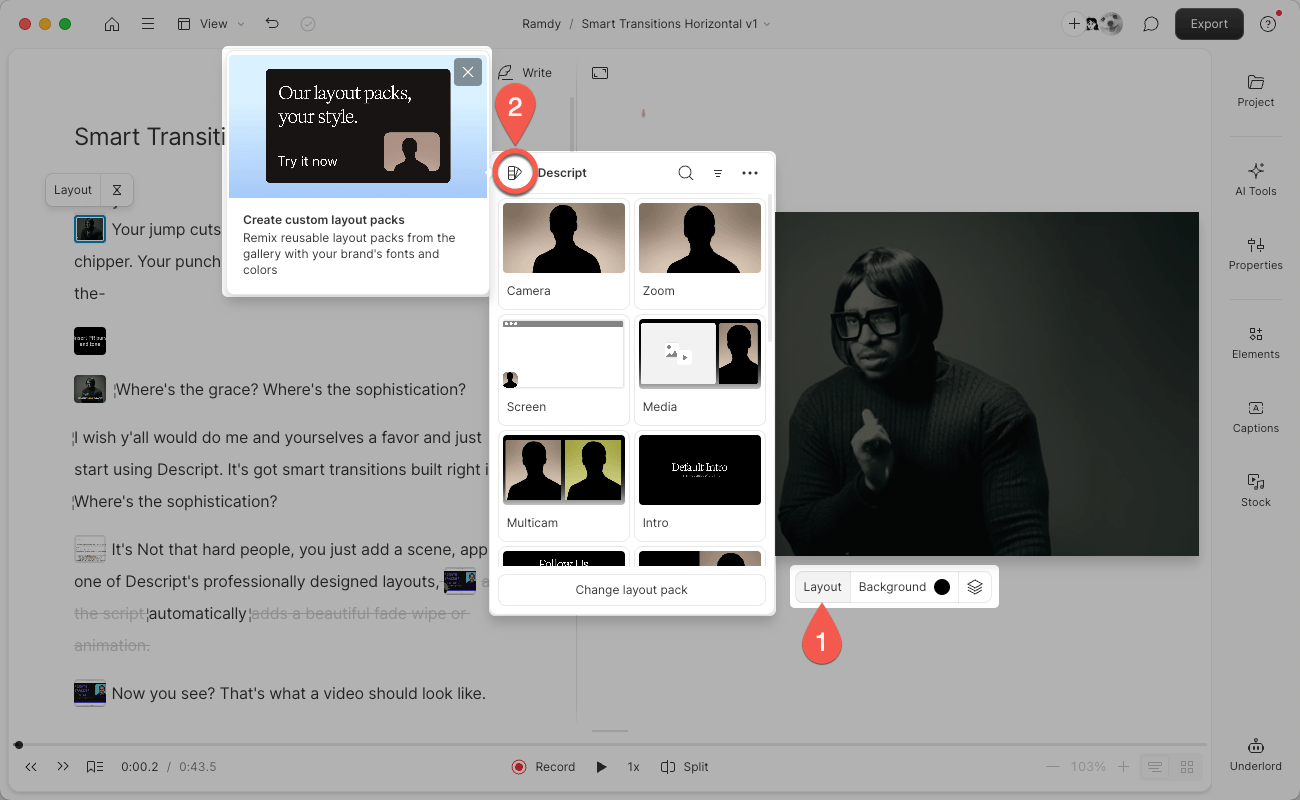
Select the Remix button in the layout picker to open the layout pack remixer. Click the image to view at full size.
Pick a base layout pack
By default, Descript starts with the Descript layout pack unless you’ve set a different one as your default. To explore other styles, click the dropdown in the remixer and choose from the available layout packs in the gallery.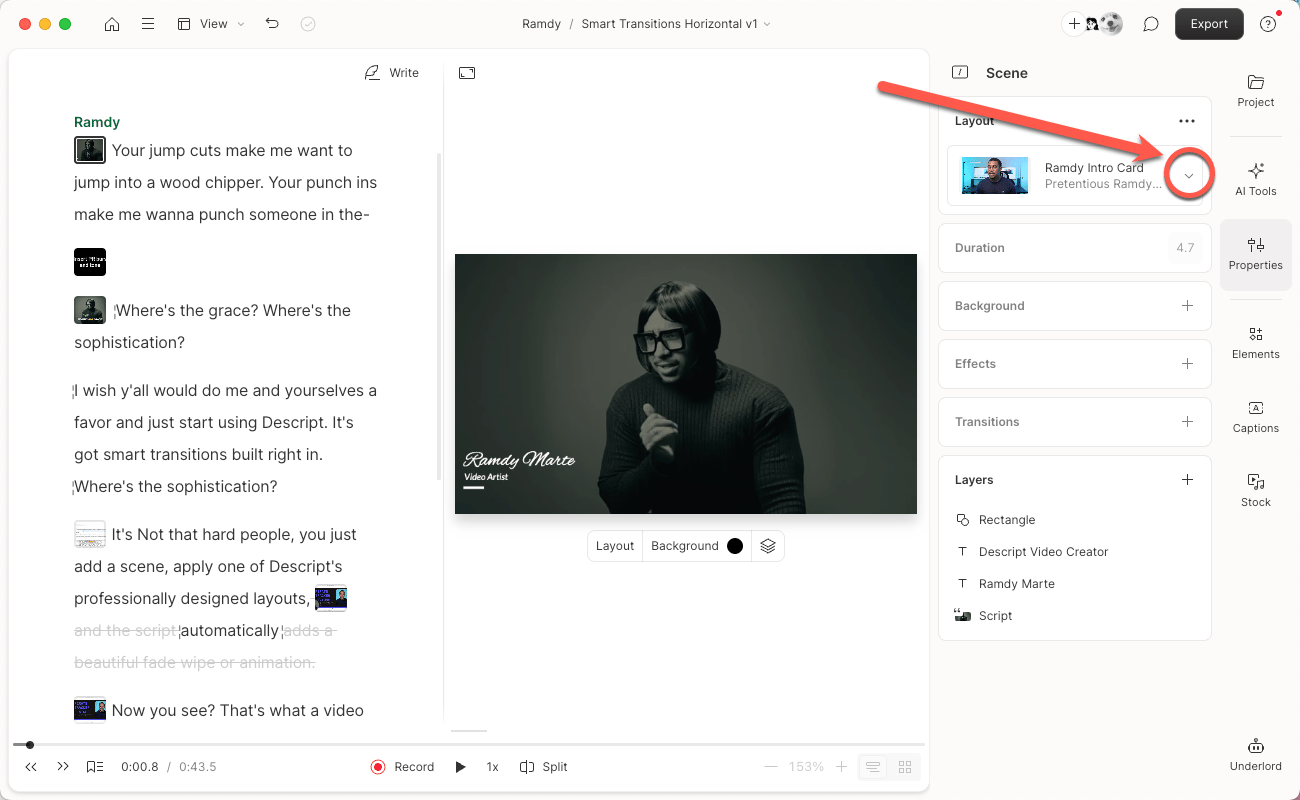
Use the dropdown to browse and select a base layout pack for your remix. Click image to zoom in.
Explore beyond the defaultThe Descript layout pack is a great starting point—but it’s just one of several remixable options. Check out the gallery to find unique layouts, bold styles, and new ways to showcase your content.
Choose your color palette
Customize the look and feel of your layout pack by choosing your colors:- Primary color — applied to main text and design elements
- Accent color — used for highlights, dividers, or subtitles
- Background color — controls the scene editor behind your visuals
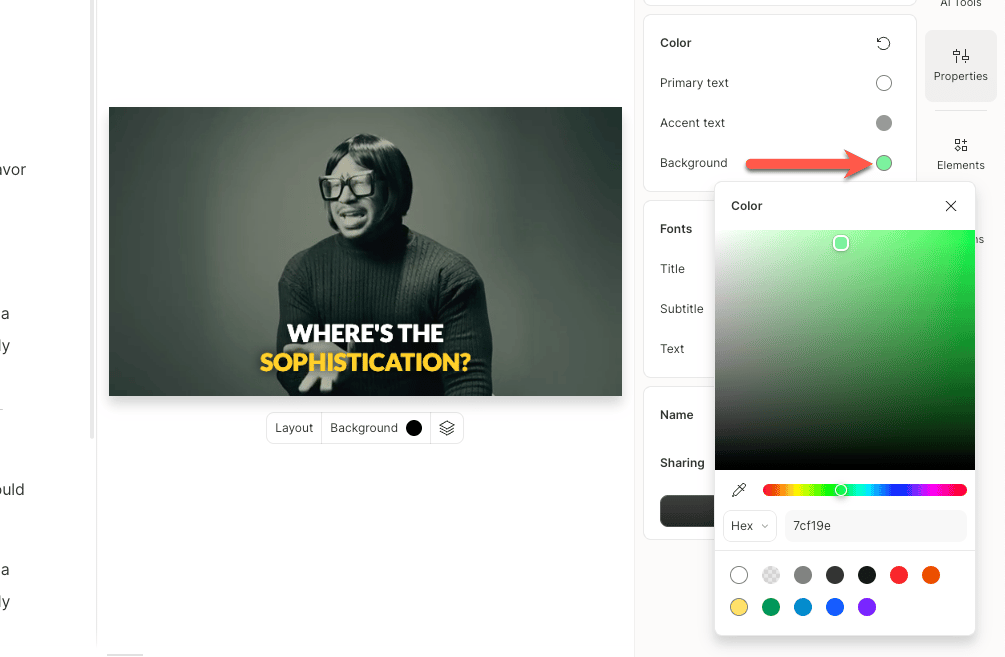
Use the color picker to customize your layout’s palette. Click the image to zoom in.
Select and upload fonts
Choose fonts for Title, Subtitle, and Text elements in your layout. Use the dropdown to browse fonts or upload your own.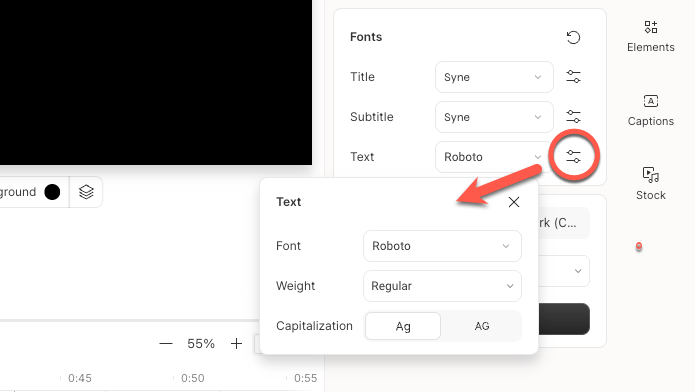
Choose fonts for Title, Subtitle, and Text in your layout pack. Click the image to zoom in.
Name and share your pack
Give your remixed layout a new name and set its visibility:- Private — only you can access it (default)
- Share with Drive — available to all team members on your Drive
- Public — anyone with the link can preview or save a copy
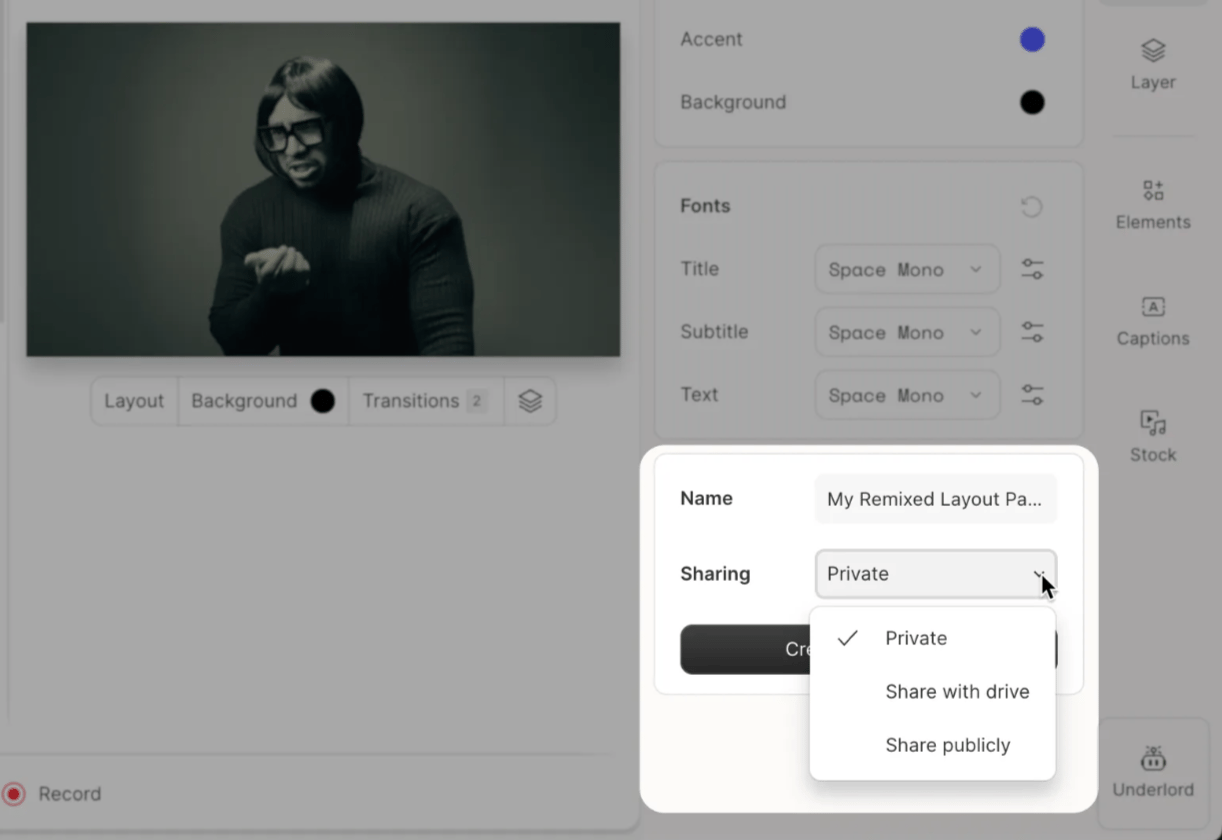
Set a name and sharing level (Private, Drive, or Public) for your layout pack. Click the image to zoom in.
Review and finalize your picks
Click Create layout pack to generate your customized set of layouts. You’ll see a preview of each style—click any tile to apply it to your scene and preview it fullscreen.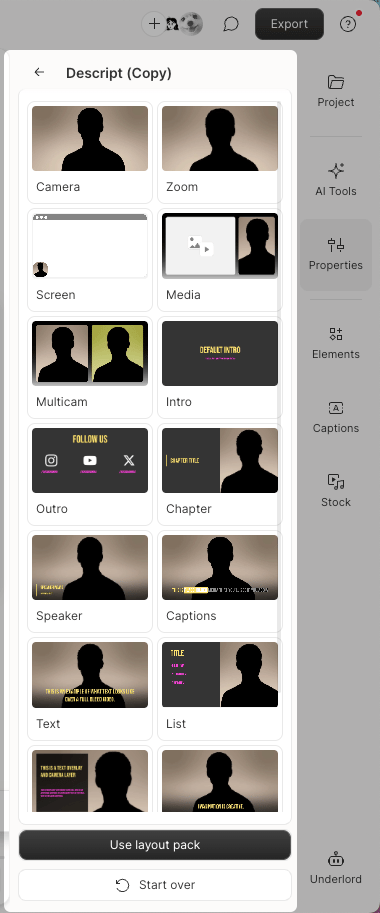
Click a tile in the preview to apply the layout and see how it looks in your project. Click the image to zoom in.
Start Over vs the back arrowIf you click Create layout pack and then use the back arrow to make further edits, Descript will create a brand new layout pack—even if it has the same name. To keep your gallery organized, update the pack name with each round of edits.