

Other layout pack optionsUse one of Descript’s ready-to-go pre-made layout packs, remix a pack with your fonts and colors, or generate a layout pack with the help of AI.
Save a scene as a layout
As you design scenes in your compositions, save the ones you want to reuse as layouts. Build your custom layout pack by adding scenes one at a time.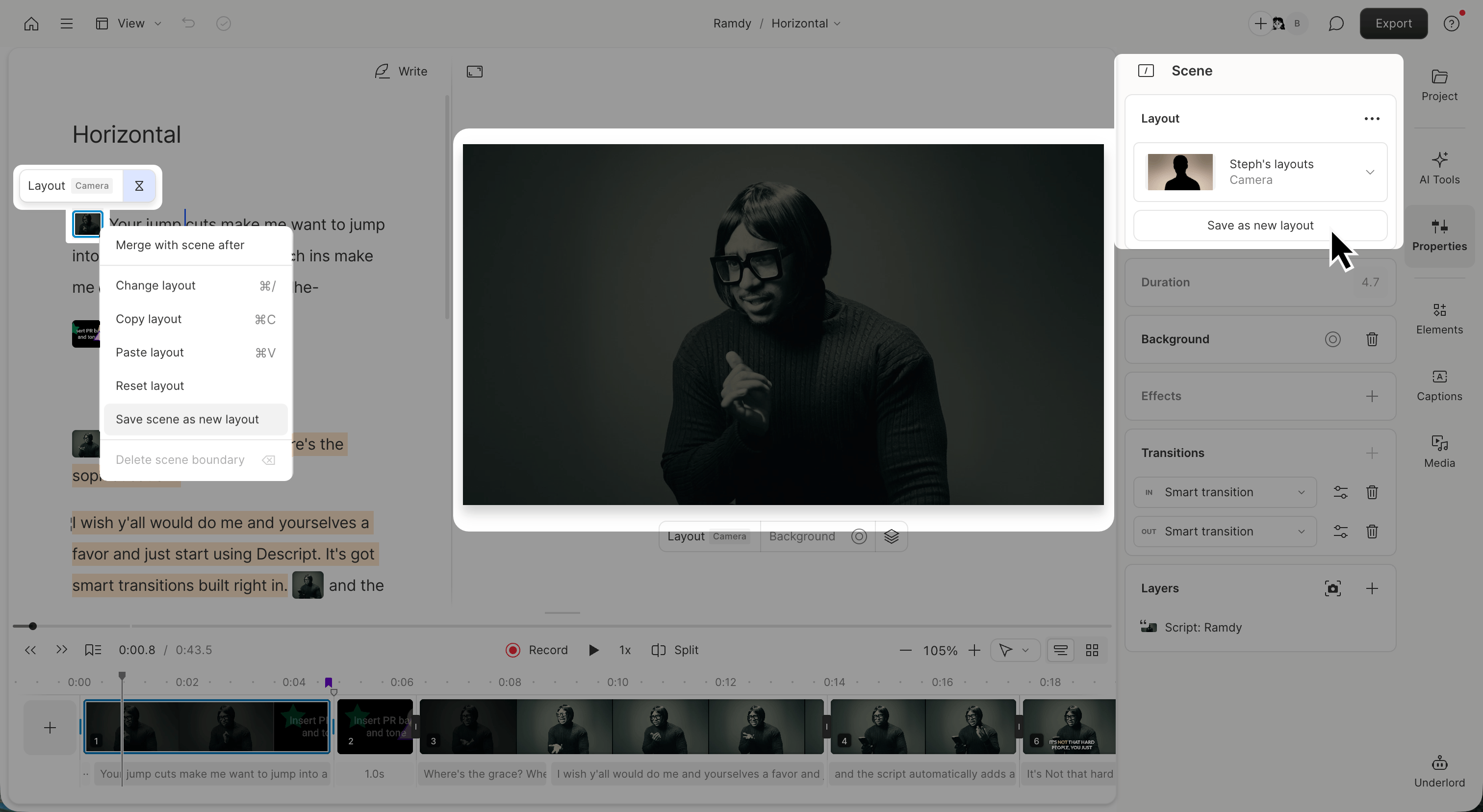
- Right-click the scene thumbnail in your script.
- Select Save as new layout.
- Name your layout. Choose something short and descriptive.
- Click Save to and choose an existing layout pack or click Create new layout pack.
- In the Layers section, choose what to do with each layer in your scene (this is what makes a layout smart-fillable later on):
- Keep as is (default) - The layer stays unchanged in your layout
- Don’t include - The layer will be removed from the layout
- Turn into placeholder - Replaces the layer with an appropriate placeholder based on its type so it can be automatically filled when the layout is reused. Note: Audio layers can only be kept or removed; they cannot be converted to placeholders.
- (Optional) Choose a type to categorize your layout - Intro, Outro, Captions, Text, etc. The default is Other.
- Click Add to create the new layout and add it to your layout pack.
Create a layout pack from scratch
Use this method if you want to build multiple layouts at once or organize them in one place. To have Descript build the pack for you instead, generate a layout pack with AI.- From the Drive view, go to Layout packs, click + New layout pack, then select Start from scratch.
- Give your pack a name.
- Each scene in the project becomes a layout. Use one scene per layout.
- When you’re done editing, click Publish layout pack in the top-right corner.
- Give each scene a name and layout type (optional).
- Choose who can access your pack:
- Private
- Share with Drive
- Share publicly
- Click Publish changes to save your layouts.
Can I edit a layout pack later?Yes! You can return to your layout pack project anytime to update layouts or add new ones. Your changes won’t affect scenes where the layout is already applied—only new uses of the layout.
Enable or disable Smart Fill
When enabled, Smart Fill automatically updates text layers based on your selection, including freeform text (populated from script content), captions, speaker labels, composition name, markers, or a timer.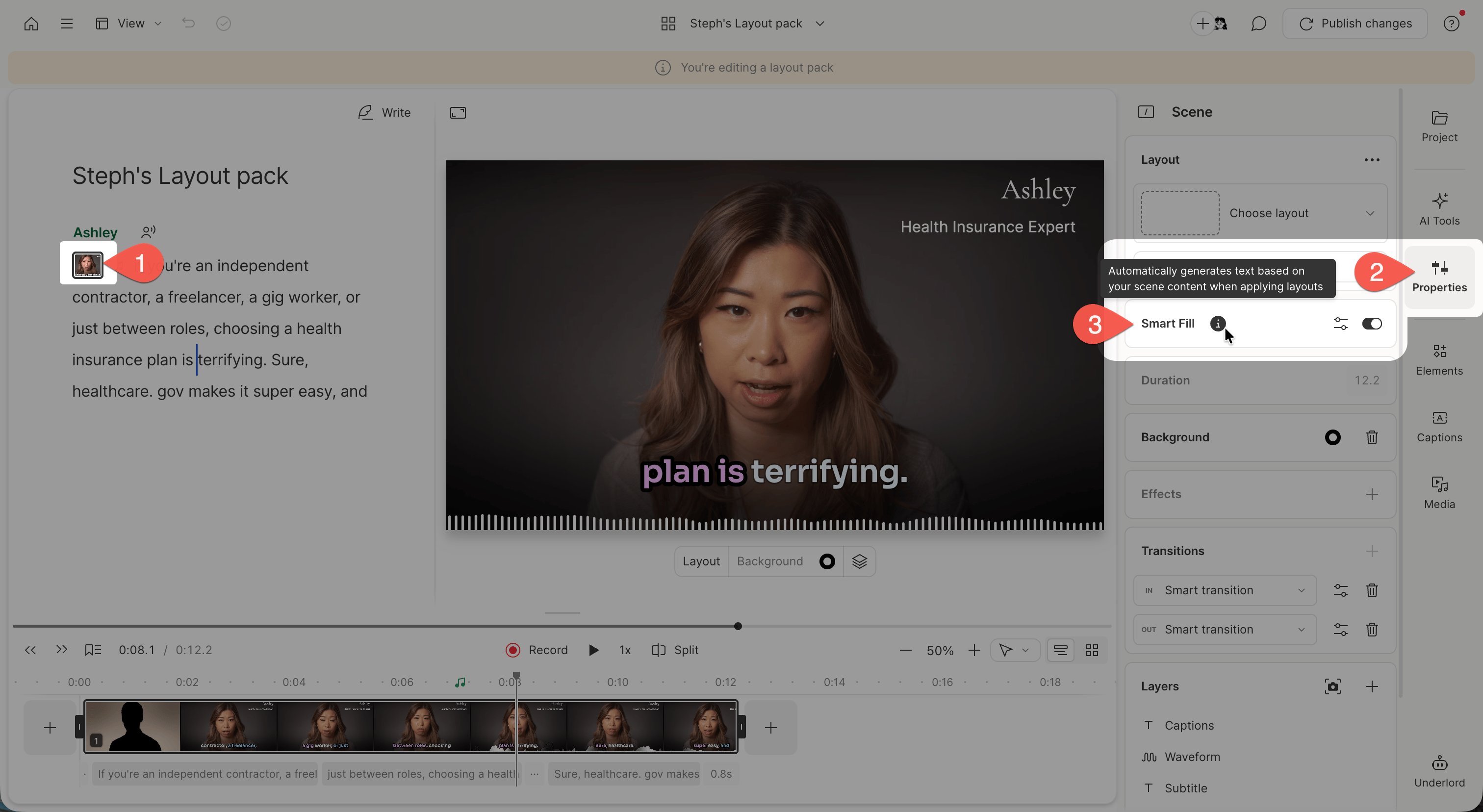
What Smart Fill affects
Smart Fill only affects Title and Subtitle text layers. To enable Smart Fill on freeform text layers in a saved layout, those layers must be set to use placeholders. Text layers set to dynamic types (Speaker, Timer, Marker, Composition name) are not affected by Smart Fill.Turn Smart Fill on or off for a layout
From the Drive view, select the Layout packs tab in the left sidebar. Then, open the layout pack project.- Select the scene to adjust.
- Navigate to the properties panel in the right-hand sidebar
- Toggle Smart Fill on or off. If you want Smart Fill to apply to freeform text layers, use the layer’s options menu and select Replace with placeholder for each text layer.
Enable Smart Fill for freeform text layers
To ensure Smart Fill works on freeform text layers in a saved layout:- Select the text layer in your layout.
- Open the layer’s options menu.
- Select Replace with placeholder.