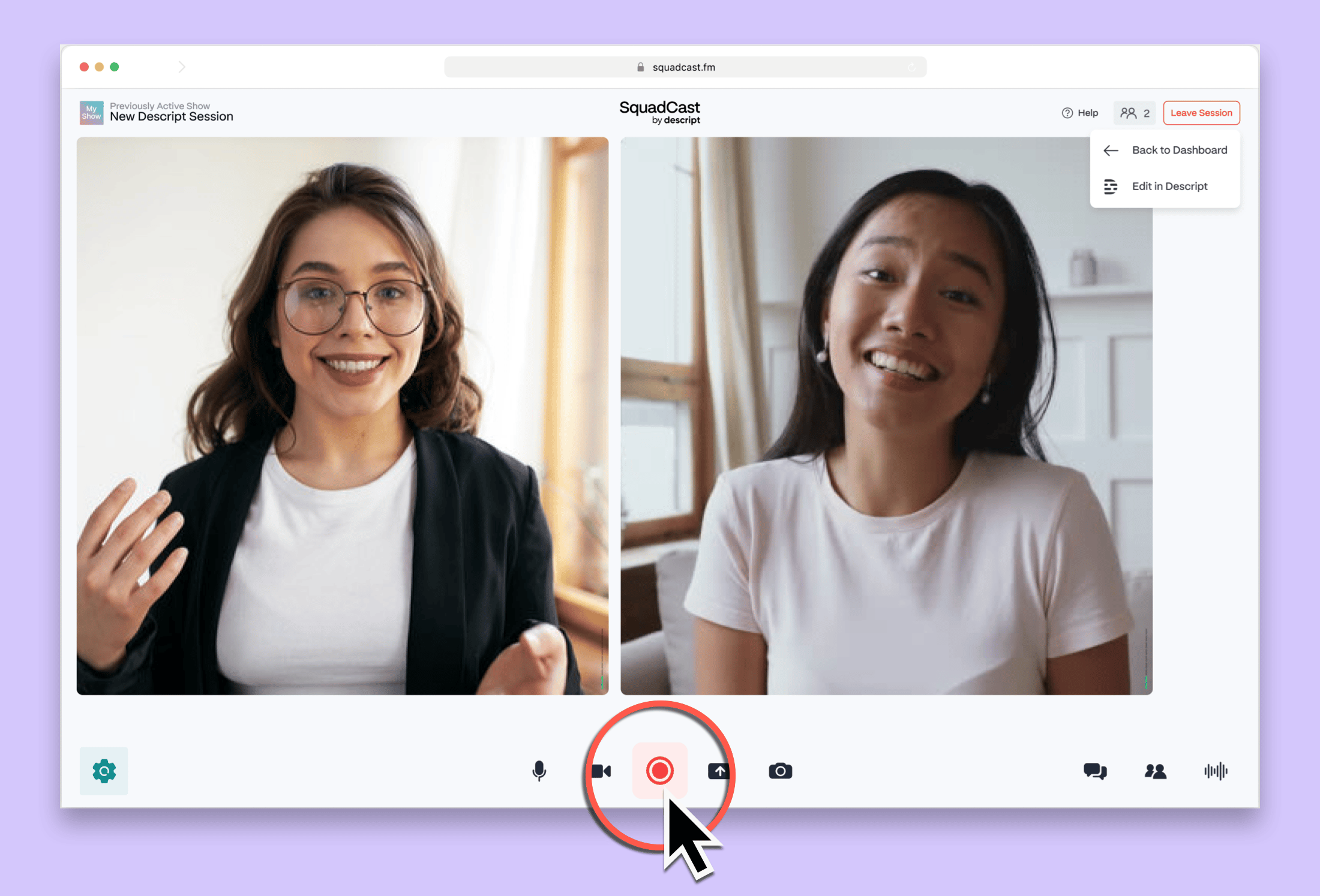

Sign up for Descript
Access to SquadCast comes with your Descript plan. New users need to sign up for Descript first.
Navigate to SquadCast
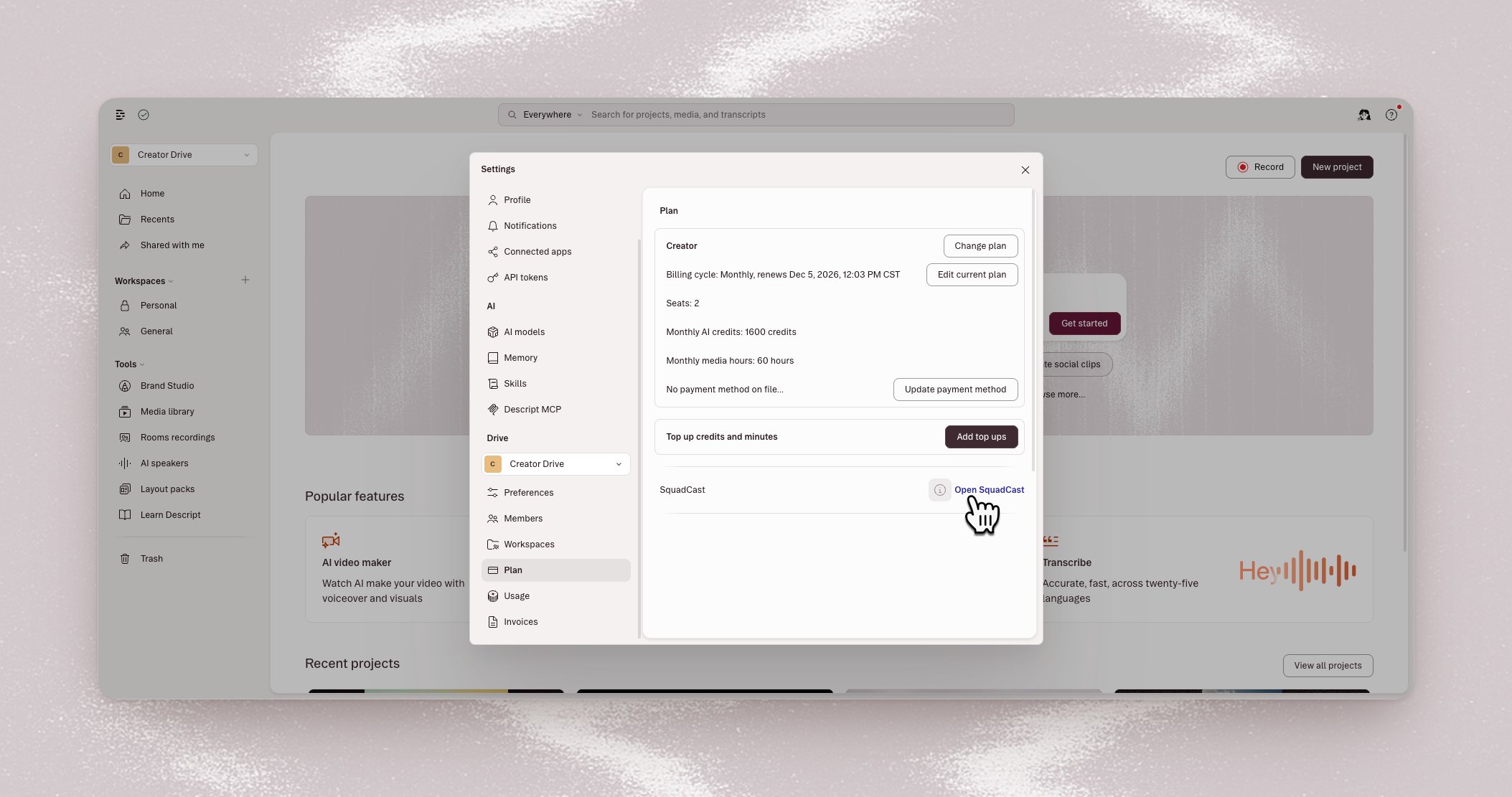
- In Descript, open your App settings with Cmd + , on Mac or Ctrl + , on Windows.
-
Select Plan, then Open SquadCast.
- If you haven’t already, create a SquadCast account.
-
Then, connect your new SquadCast account to Descript. If you own multiple drives, make sure to select the correct drive before continuing.
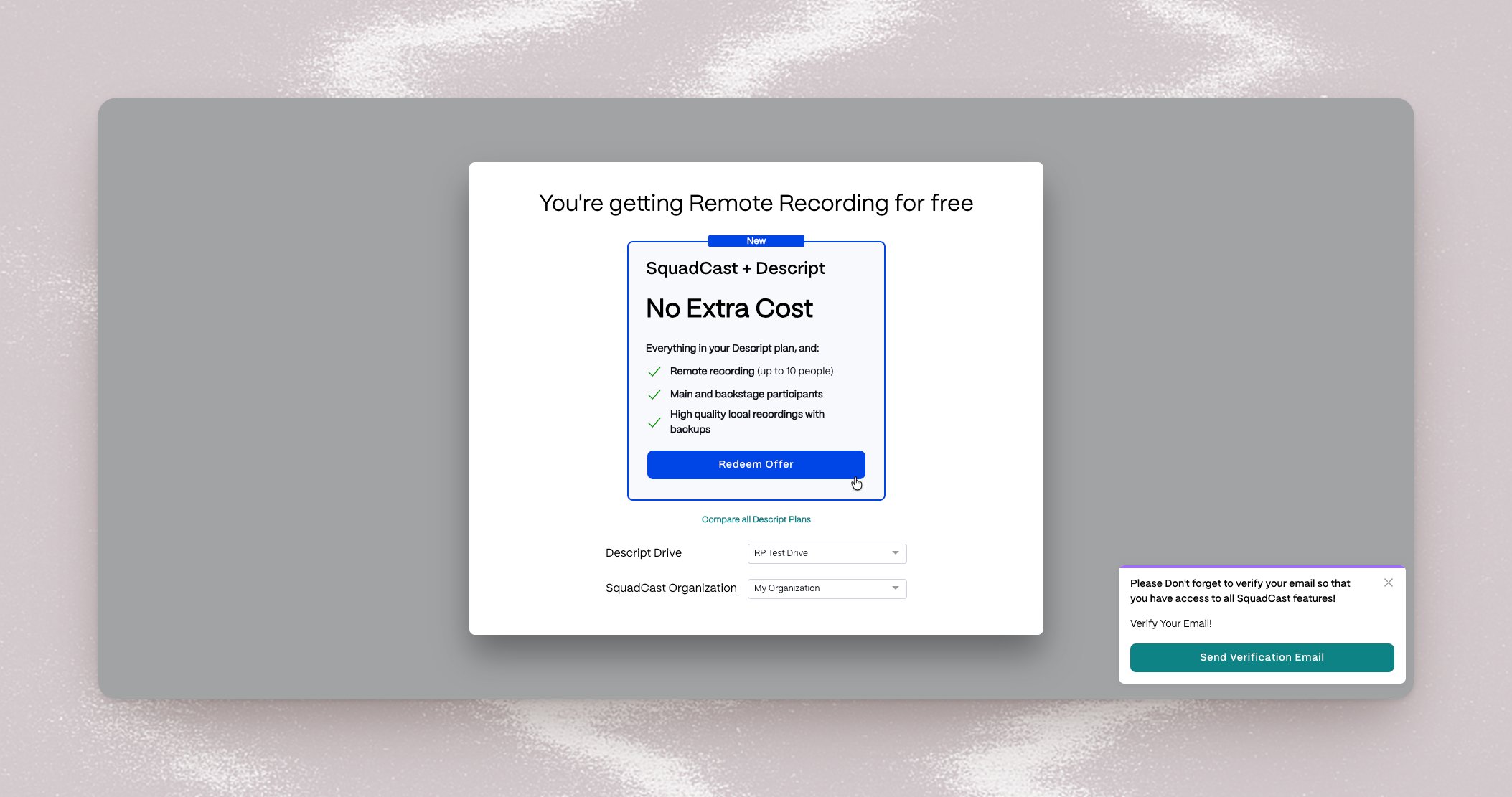 Only the Descript drive owner can link the accounts.If you belong to someone else’s drive, ask the owner to set up access.
Set up a recording session
- In SquadCast, select New Session > Schedule a Session.
- Enter the session title, date, time, and time zone.
- Choose Audio and Video or Audio Only.
- Add the co-hosts and guests.
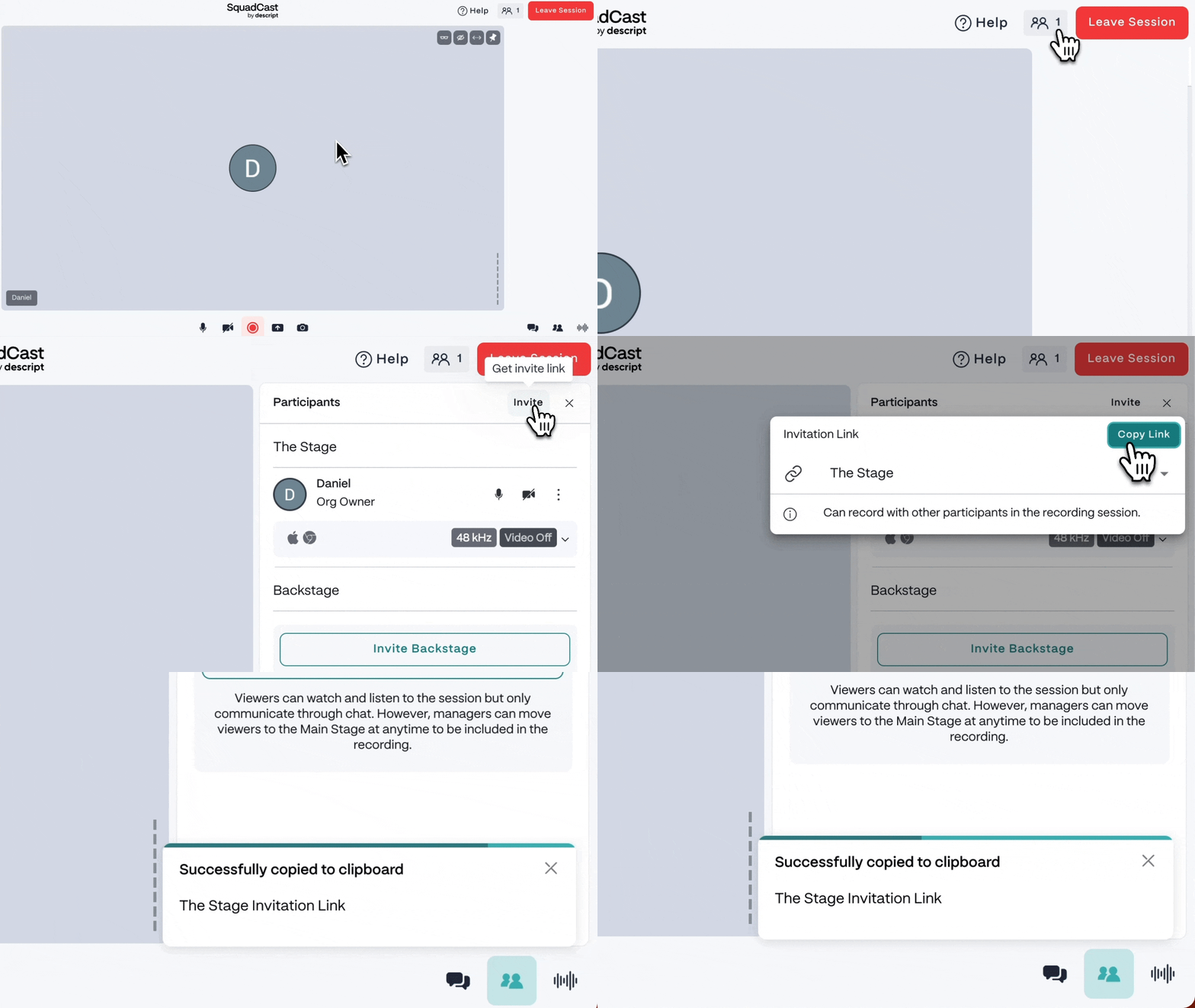
- Select Send Emails to send invitations with the session details and joining links, then select Done. To invite people later, copy and share the stage link.
- When you’re ready to record, select Start session.
Get ready in the Green Room
Each participant enters a private Green Room before joining the session.
- Allow SquadCast to use your camera and microphone when prompted.
- Enter your name and pronouns, then select your microphone, camera, and headphones or speakers.
- Check your camera preview and microphone input, then select Join session.