
System recommendations
- macOS
- Windows
Additional setup and performance tips
Force software video decoding
When toggled on in App settings, this setting disables GPU-based video decoding and uses your CPU instead. If you’re seeing playback issues—such as scenes appearing blank, videos not loading, or playback stalling after launch—enabling this option can help, especially for systems using certain Intel Arc GPUs.Browser requirements
A browser is required for authentication. For best results using Descript for web, we recommend a Chromium-based browser; Chrome, Edge, and Opera are officially supported. Descript also supports Firefox for web editing.“Incompatible browser or device” error in ChromeOpen Chrome’s Settings > System, turn on Use graphics acceleration when available, then restart Chrome. If the setting is already on, you can’t change it, or the warning continues, use the Descript desktop app. See Chrome browser troubleshooting.
Enable permissions for camera, microphone, and screen sharing
Descript needs permission to access your camera, microphone, and screen to record. If you’re having trouble recording or see permission errors, check your system settings.Some recording devices and virtual input software aren’t supported and can cause static, missing audio, or devices that aren’t detected. View unsupported recording devices and services
- macOS
- Windows
- Open System Settings (or System Preferences on older macOS versions)
- Click Privacy & Security
- Enable permissions for Descript under:
- Camera
- Microphone
- Screen Recording
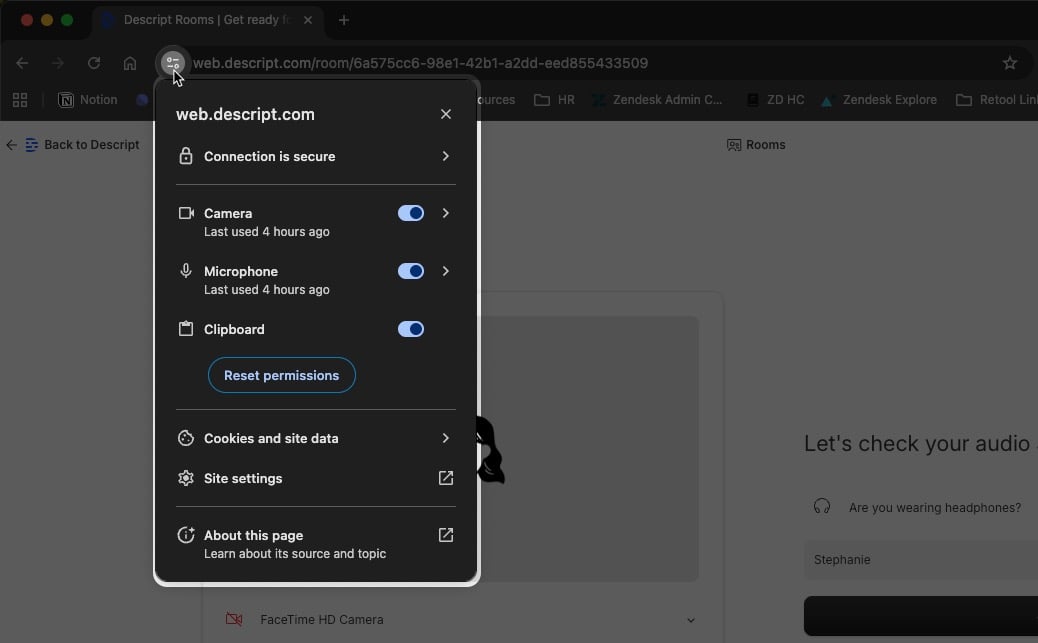
Browser permissions
When prompted by your browser, click Allow to grant Descript access to your camera, microphone, and screen. If you’ve previously blocked access, click the lock icon in the address bar, then enable Camera, Microphone, and Screen sharing.