
Save your transcript as a plain-text or formatted document to reuse, share, or archive. You can also export a transcript through Zapier, the Descript API, or Descript MCP. For a raw request from n8n, see Call the API from Zapier or n8n.
Wordless media and scene boundaries aren’t includedA text export leaves out your script’s wordless media and scene boundaries.

Export your transcript

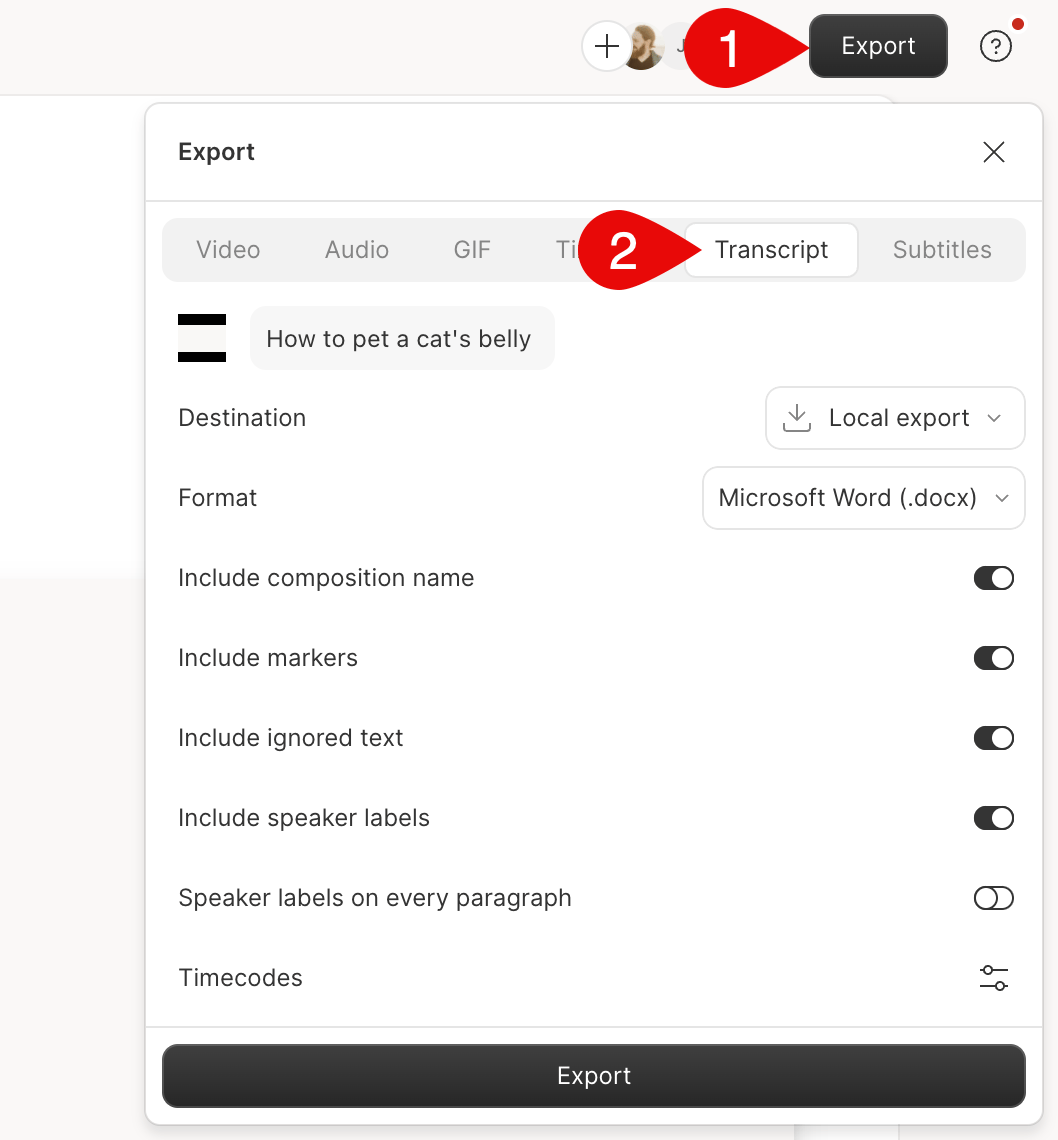
  1. In the editor, click Export in the top-right corner.
  2. Select the Transcript tab.
  3. Choose a Format and any other export settings.
  4. Click Export.
In the desktop app, choose where to save the file. In the web app, your browser downloads it. To paste your transcript somewhere else instead, click Copy to clipboard. This option is available for every format except .docx. Screenshot of export window for transcripts in Descript
Can I add timestamps to my transcript?Yes, set your timecode settings before exporting your text file.

Export settings