

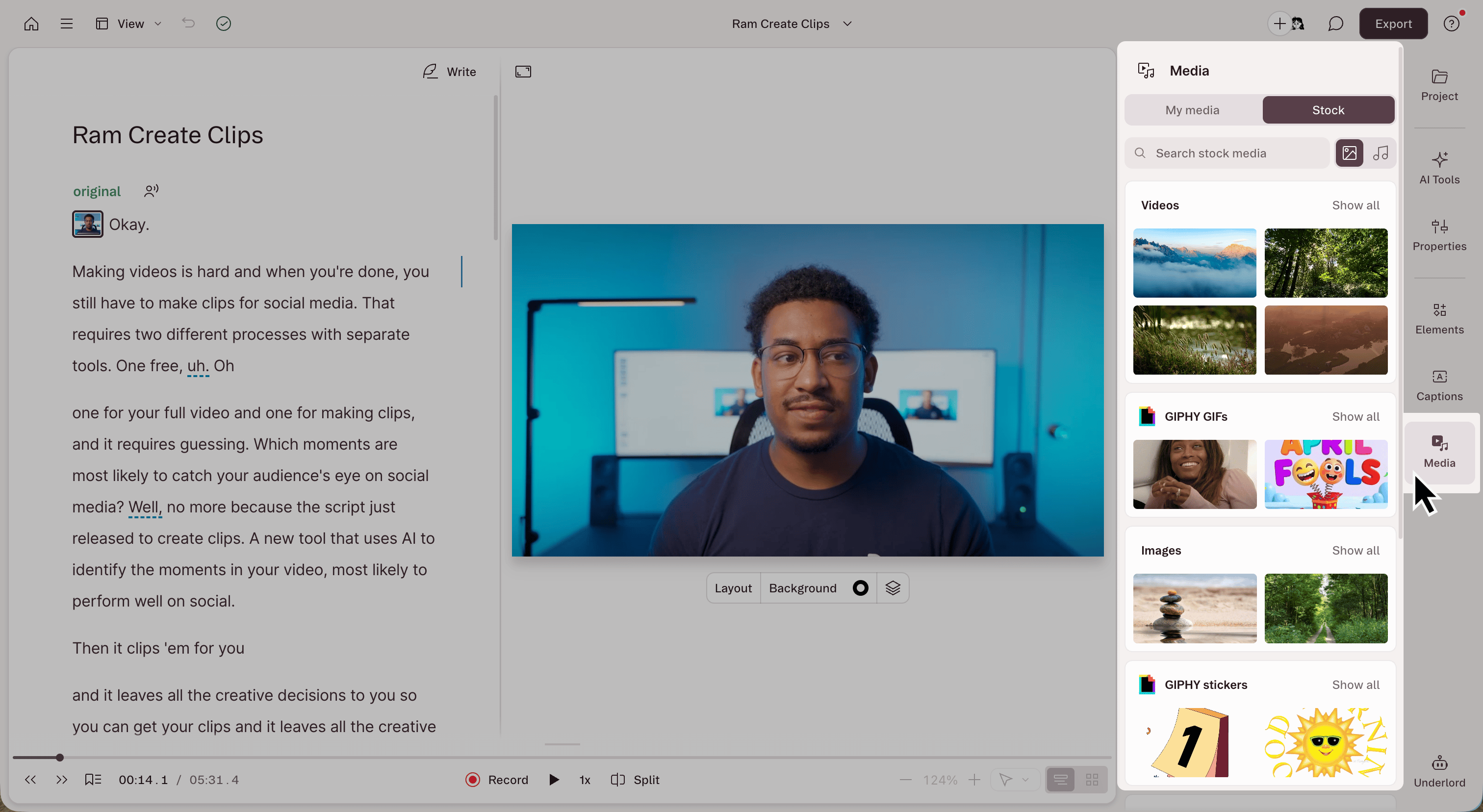
What’s in the Media panel
Open the Media panel by selecting Media in the right-hand sidebar when viewing your composition in the Descript editor. The Media panel has two tabs:- My Media: Files from your drive’s Media Library, approved Brand Studio assets, and media from projects in your workspaces. Reuse already-uploaded files without waiting for processing or consuming additional media minutes.
- Stock: Descript’s built-in library of stock videos, images, GIFs, stickers, backgrounds, music, and sound effects.
My Media
Find a clip, image, or audio file anywhere in your drive and add it to the project you’re editing. The My Media tab lets you browse your Media Library, Brand Studio, and your workspaces’ projects, and search across all of them from one search bar.Before getting started
- Search only reaches media in the drive your current project belongs to. Files on other drives don’t appear.
- What you can see depends on your access. Brand Studio assets only show up if your drive has Brand Studio set up and permissions allow you to use them.
Browse media by location
- Open the Media panel and select the My Media tab.
- Pick a location: your drive, Media library, Brand Studio, or a workspace such as Personal or General.
- Click a folder or project to open it and browse the media inside.
Search for media
- Select the location to search. Choose your drive to search all your media, or pick Media library, Brand Studio, or a workspace to narrow things down.
- Type in the search bar at the top of the panel. Search matches file names and words spoken in a recording’s transcript.
- Use the filter and sort controls next to the location to narrow the results, for example by media type or date modified.
Known limitations
- The panel shows files only. To find projects, folders, or layout packs, use drive search.
- SVG files can’t be previewed.
Stock media
The Stock tab gives you Descript’s built-in library of stock videos, images, GIFs, stickers, backgrounds, music, and sound effects. Browse by category or search by keyword. If the drive owner or an admin has disabled stock media permissions, stock media may be unavailable. Learn more about Brand Studio permissions.Commercial use of integrated libraries
Descript includes a host of video, image, and audio integrations, including content from stock media providers GIPHY and Storyblocks. When using stock media in commercial content, keep the following in mind:- GIPHY GIFs and stickers can’t be used commercially.
- Other stock content may be used in most commercial, personal, and editorial projects.
Trademark and copyright considerations
Some stock media may include imagery that depicts trademarks, logos, or other copyrighted content. Copyright or trademark law may protect this material, so use it with caution. Always review your content for possible third-party rights before publishing.Add media to your project
In My Media:- Click a file to preview it.
- Hover over the file and click Add to project. If the file is already in your project, the button reads View in project files instead.
- Drag a file from the panel into your script or canvas.
- Right-click a file and choose Add to project files or Add to playhead.
- Select several files in a folder with Cmd + click on Mac or Ctrl + click on Windows, or Shift + click for a range. Then choose Add at playhead or Add to project files from the selection bar.