Having trouble with Descript?Please reach out to our support team who are happy to assist you.
How to delete Descript from your computer
Deleting Descript from your computer removes the application file from your computer. Please choose from the Mac or Windows instructions below.Removing the Application on macOS
Removing the Application on macOS
Please follow the instructions below to remove the Descript application from the macOS operating system.
-
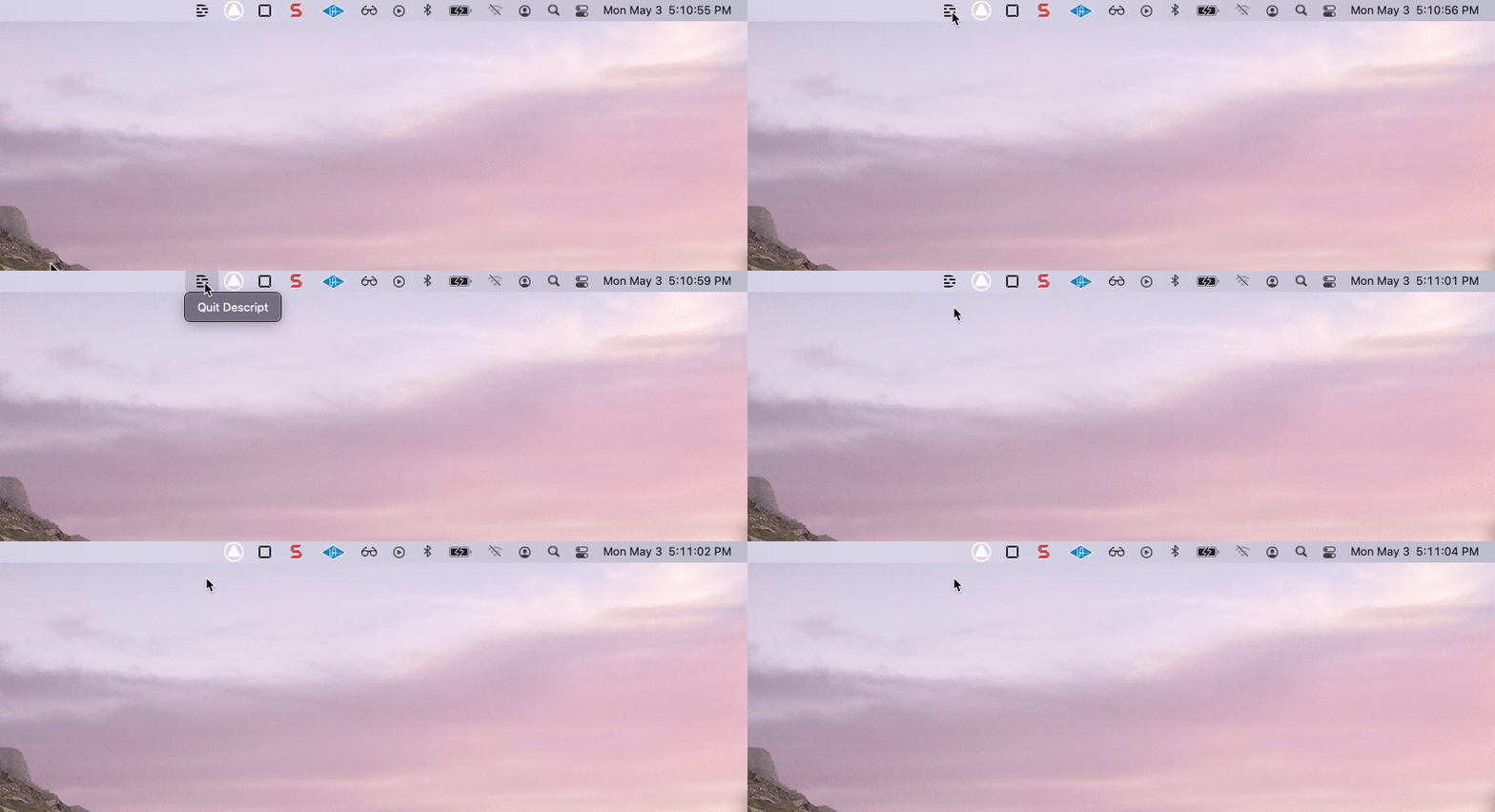
Quit the Descript application fully by pressing Option + click on the Descript D icon in the menubar at the top of the screen (Screen Recorder) and selecting Quit. If. If you don’t see this icon, you can quit Descript as you would typically with any application on MacOS.
- Open a new Finder window and click on the Applications folder in the left-hand sidebar.
- Locate Descript in the list, and then drag it to the Trash. Alternatively, you can select the app and then click File > Move to Trash.

Removing macOS Files and Preferences (full uninstall)
If you would like to perform a full uninstallation of your Descript files and preferences, please follow the instructions below.- Close Descript if it is still open
- Open a new Finder window
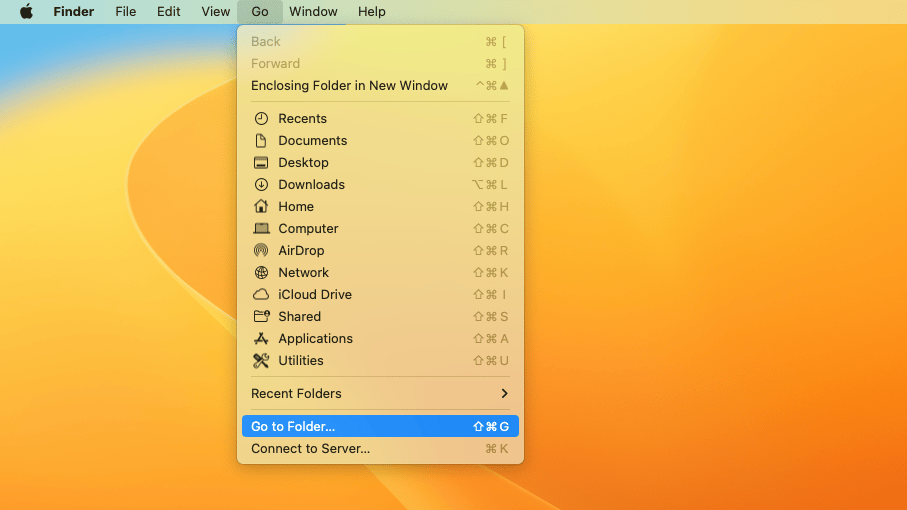
- In the Finder menu at the top of your screen, click Go > Go to Folder
- Enter ”~/Library/Application Support” then click Go
- Locate and control-click on the “Descript” folder in the list, then select Move to Trash
-
Navigate to **Go > Go to Folder
 **
**
- Enter “/Library/Audio/Plug-Ins/HAL” then click hit Enter
-
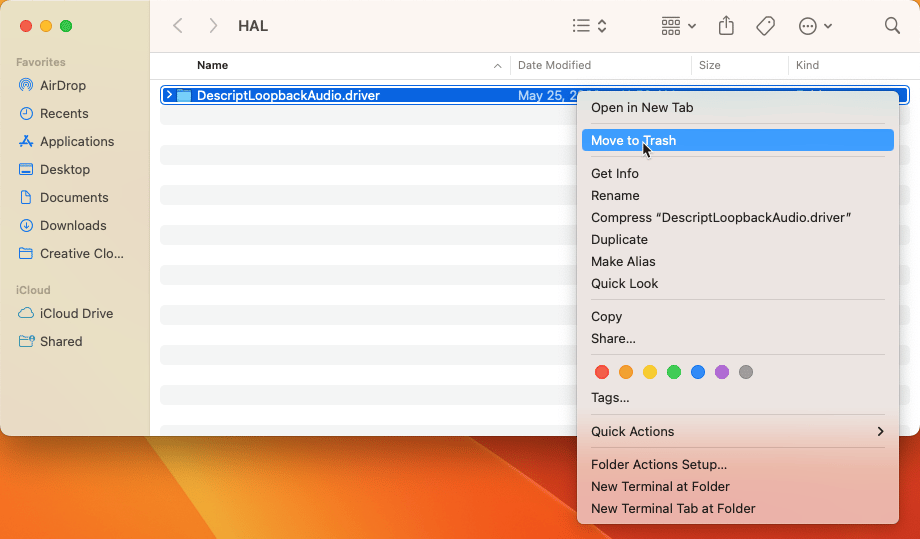
Locate and control-click on the “DescriptLoopbackAudio.driver” folder in the list, then select **Move to Trash
 **
**
Removing the Application on Windows
Removing the Application on Windows
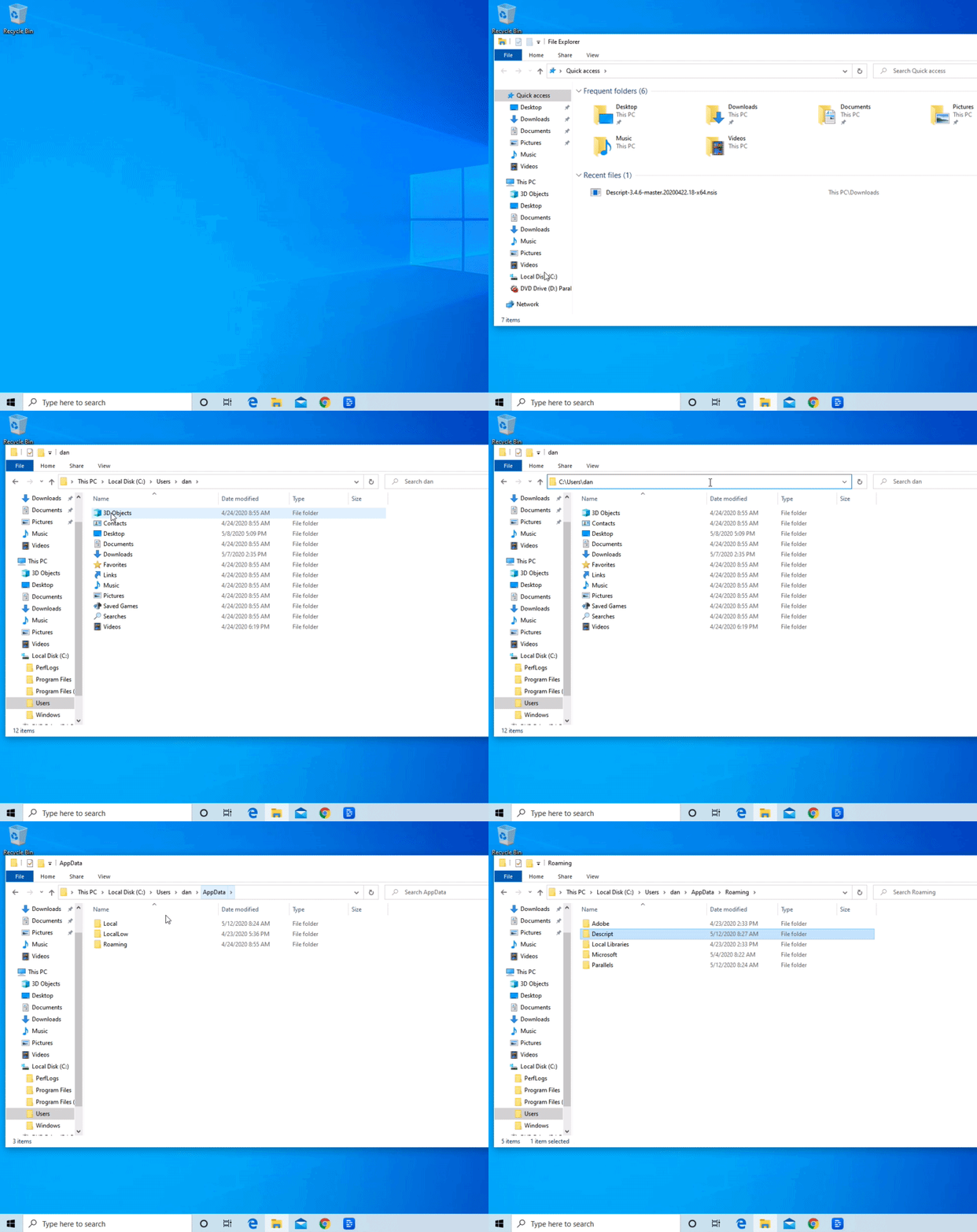
Here are some instructions on how to uninstall Descript based on your version of Windows. Before doing so, you will want to close Descript completely by clicking on the Notification Area icon in the taskbar at the bottom of the screen, right-clicking on the D icon, and selecting Quit Descript.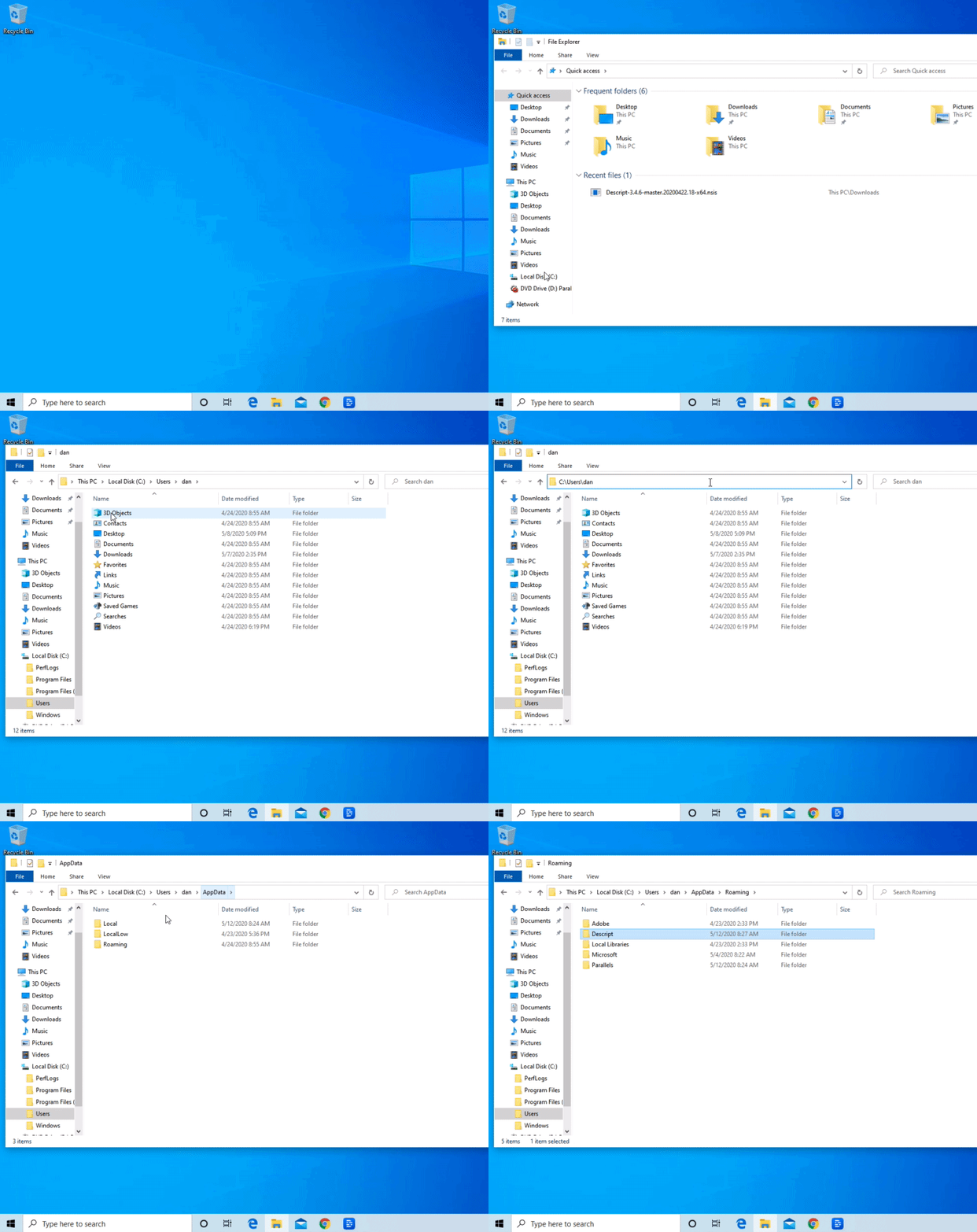
Once complete, follow the prompts to finish the uninstallation.
Removing Windows Files and Preferences on Windows 11, 10, 8.1, and 8.0 (full uninstall)
- Close Descript if it is still open
- Open a new File Explorer window
- Click on Local Disk (C:) > Users > (Your user name)
- Click in the navigation bar at the top of the window to enter edit mode
- Add “\AppData” to the end of the drive path and click Enter
- Click on Roaming
- Locate and right-click on the Descript folder in the list, then select Delete