Export a video or GIF locally

Export video from Descript to your computer as an MP4 or GIF file using the Local Export option.

This article covers

Are you only seeing audio export options? Be sure to check that you are not working in an audio-only composition if you want to export video.

Export video (MP4)

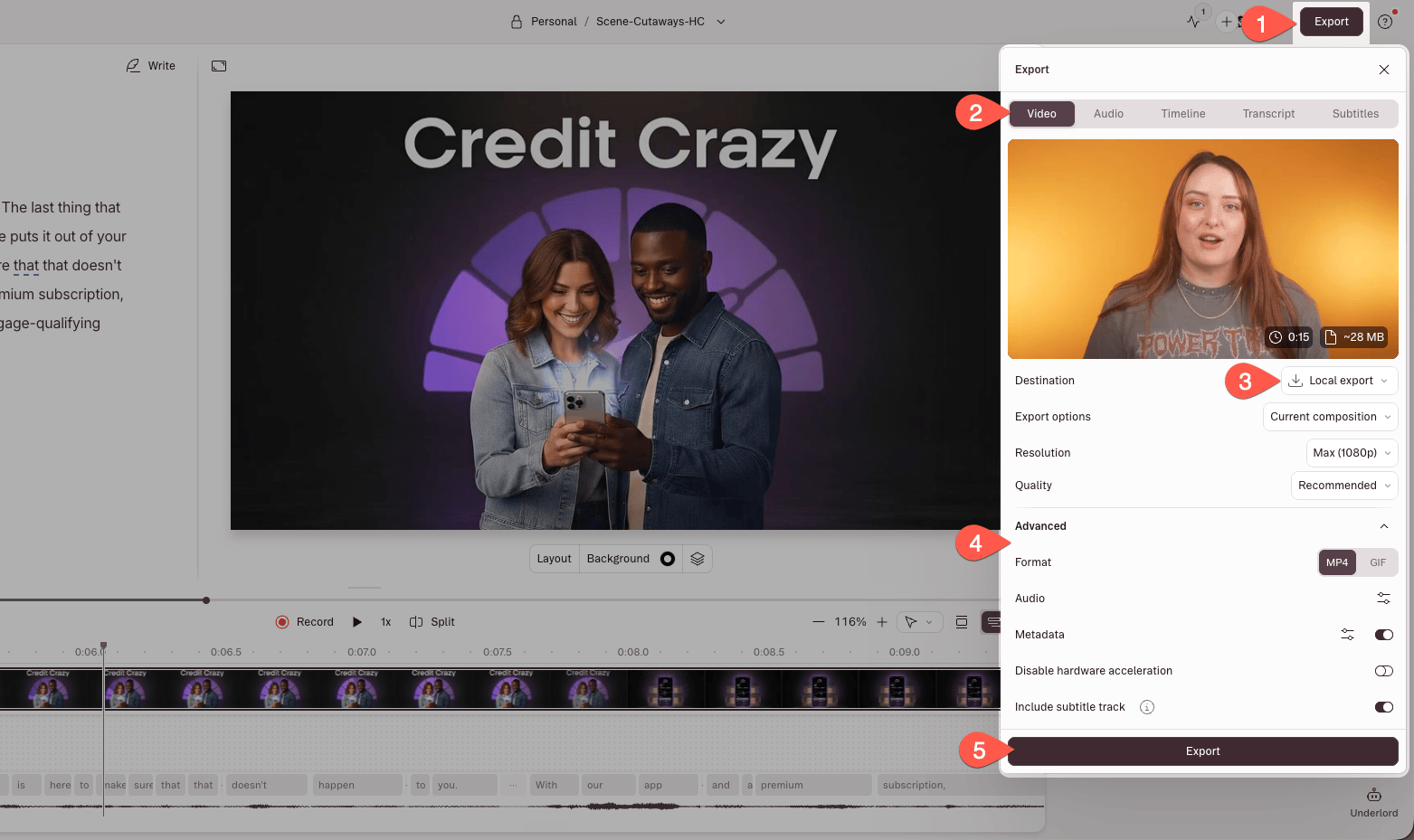
  1. In the editor, click Export in the upper-right corner.
  2. Select the Video tab.
  3. Choose Local export as the destination.
  4. Adjust your export settings (see Export settings below).
  5. Click Export.

Your video will be saved to your computer as an MP4 file.

Export panel in Descript showing Local Export options for video and GIF. Press Esc to close.

Export panel with Local Export options, including an option for the GIF format

Export a GIF

Previously, exporting GIFs was its own tab in the export panel. Now you’ll find GIF export as a Format option under Local Export → Video.

Export settings

When exporting video or GIFs, you can configure the following settings. Some options are format-specific.

Setting Description
Destination Choose what/where to export
Current composition Exports the selected composition (default)
Current selection Exports only the selected text range as a video
Current scene Exports the selected scene
Markers Exports individual files for each Marker in the composition
Line breaks Exports individual files for each section of text separated by line breaks
All compositions Batch exports one file per composition in the project
Resolution* Export at 480p, 720p, 1080p, or 4K.

*Free plan users are limited to 720p export. These resolutions are also restricted by your plan and your aspect ratio and video settings.
Quality (video) Choose from Low, Medium, or High
Quality (audio) Adjust audio quality manually
Channels Select mono (1) or stereo (2)
Sample rate Choose 44.1 kHz or 48 kHz
Audio bitrate Set between 32–256 kbps
Normalize volume Choose from Off, Peak, or target levels: -14 / -16 / -18 / -23 / -24 LUFS
Add metadata Include show title, episode title, description, and markers as chapters

Video watermark

Exports from a Free drive will include a Descript watermark in the bottom-right corner. Upgrading to a paid Hobbyist, Creator, or Business plan removes the watermark from all future exports. Existing exports must be republished or exported again after upgrading.
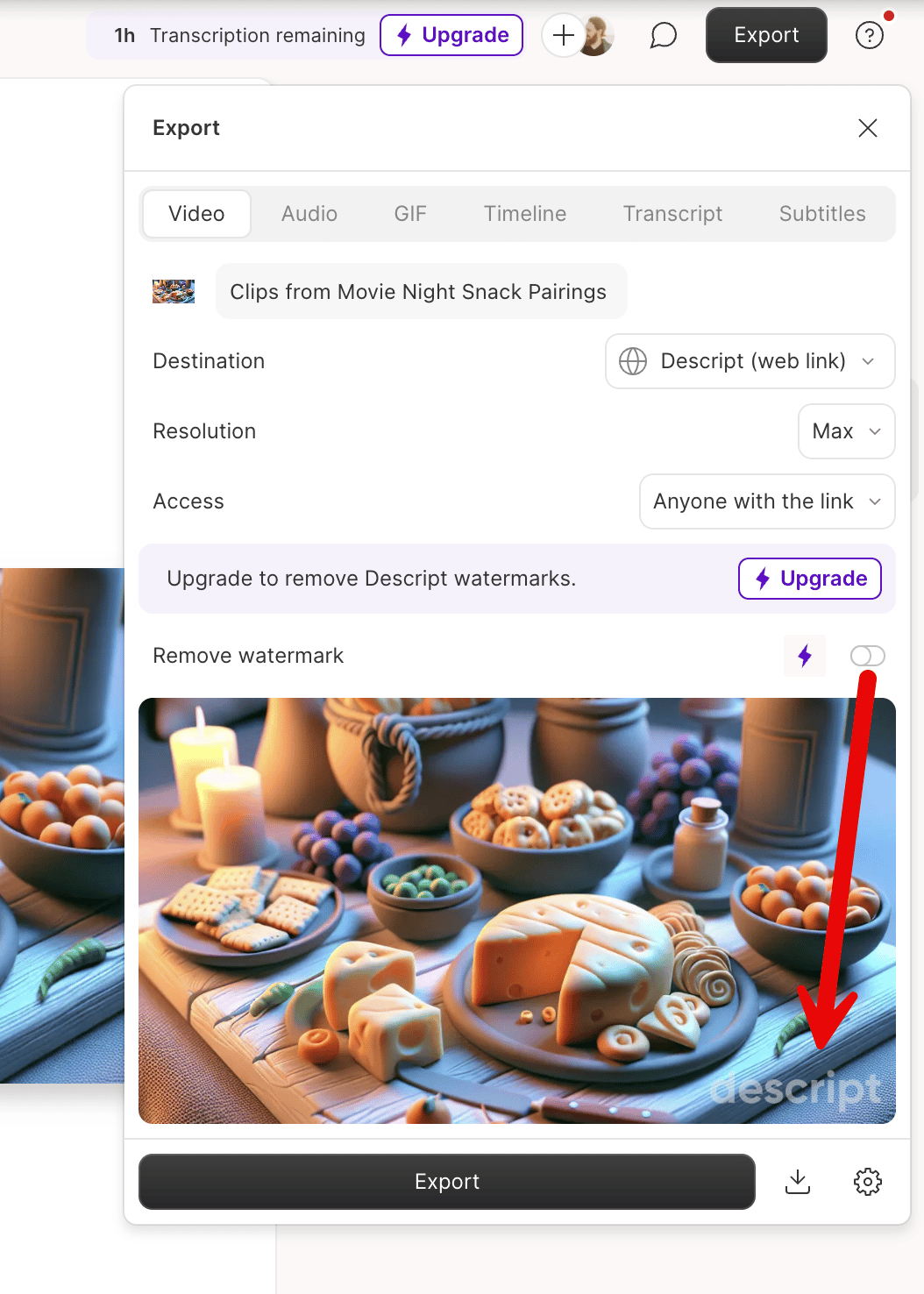
Example export showing a Descript watermark in the bottom-right corner. Press Esc to close.

Watermark placement on exports from Free drives

Embedded subtitles

Subtitle tracks are automatically embedded in exported video files. Platforms that support embedded subtitles allow viewers to toggle captions on or off.

Descript’s embedded subtitles are not burned in. To burn captions directly into your video, see add custom captions.

How do I format embedded subtitles?

Embedded subtitles only contain text and timestamp data. Once you import the video into a destination app (Final Cut Pro, Adobe Premiere, or a hosting platform), you can change how they look — font, size, color, and position.