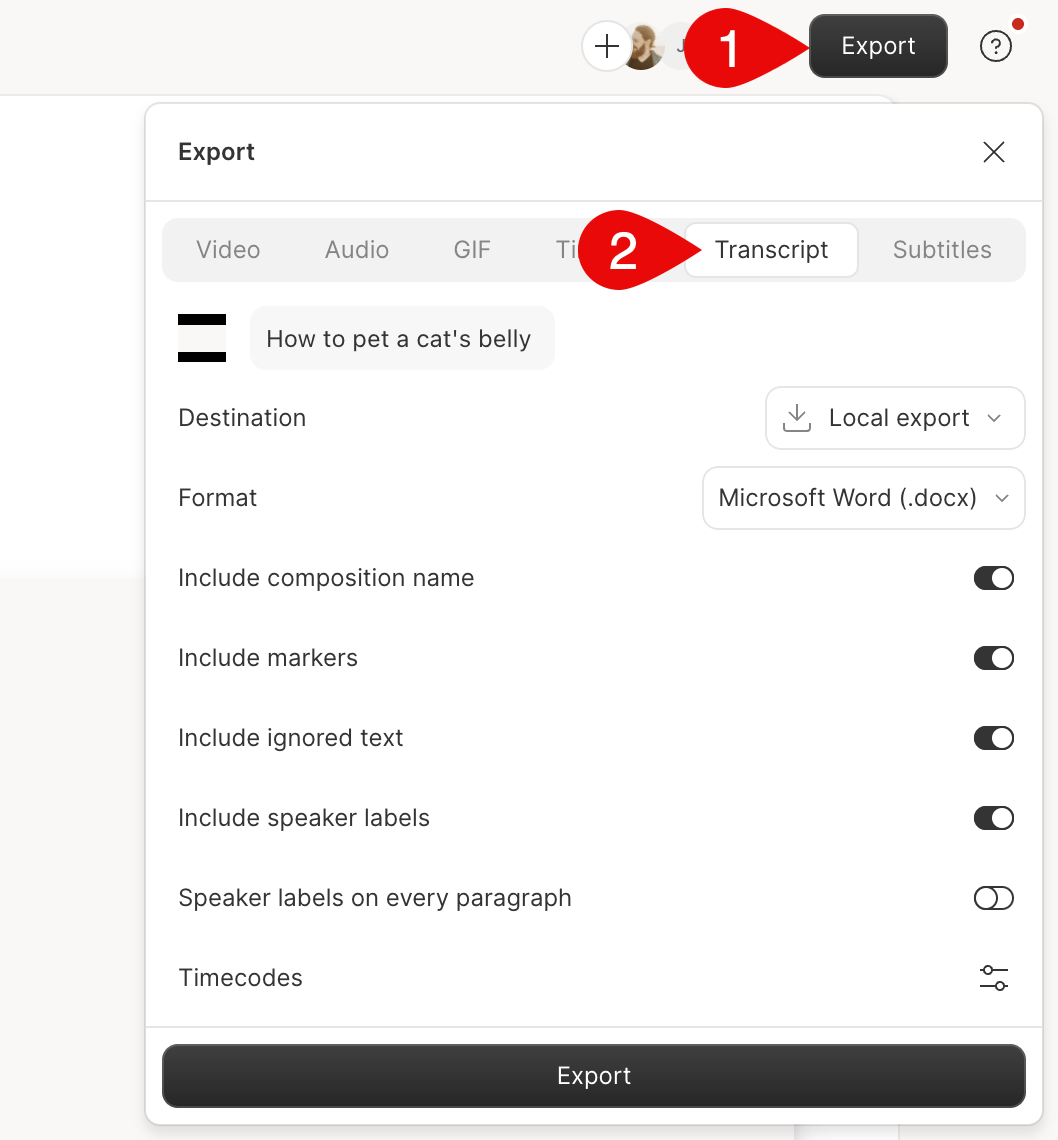
You can export your content as text files by clicking Export, and selecting the Transcript tab. Remember that your script's wordless media and scene boundaries will not appear in an exported text file.
Â
Can I add timestamps to my transcript?
Yes, set your timecode settings before exporting your text file.
Export settings
| Setting | Description |
|---|---|
| Timecode offset |
Offset the start time of your timecode by hh:mm:ss
to align the transcript timing with your audio or video content.
|
| Format |
Set the file format to .html, .md,
.docx, .txt, or .rtf.
|
| Include... | Choose to include your composition name, markers, ignored text, speaker labels, or speakers in every paragraph of the exported text file. |
|
|
|
| Intervals | Set how often, in seconds, you want the timecode to appear in the transcript file. |
| Paragraph breaks | Add or remove timecodes at paragraph breaks. |
| Speaker labels | Add or remove speaker labels in timecodes. |
| Markers | Add or remove timecodes for markers. |