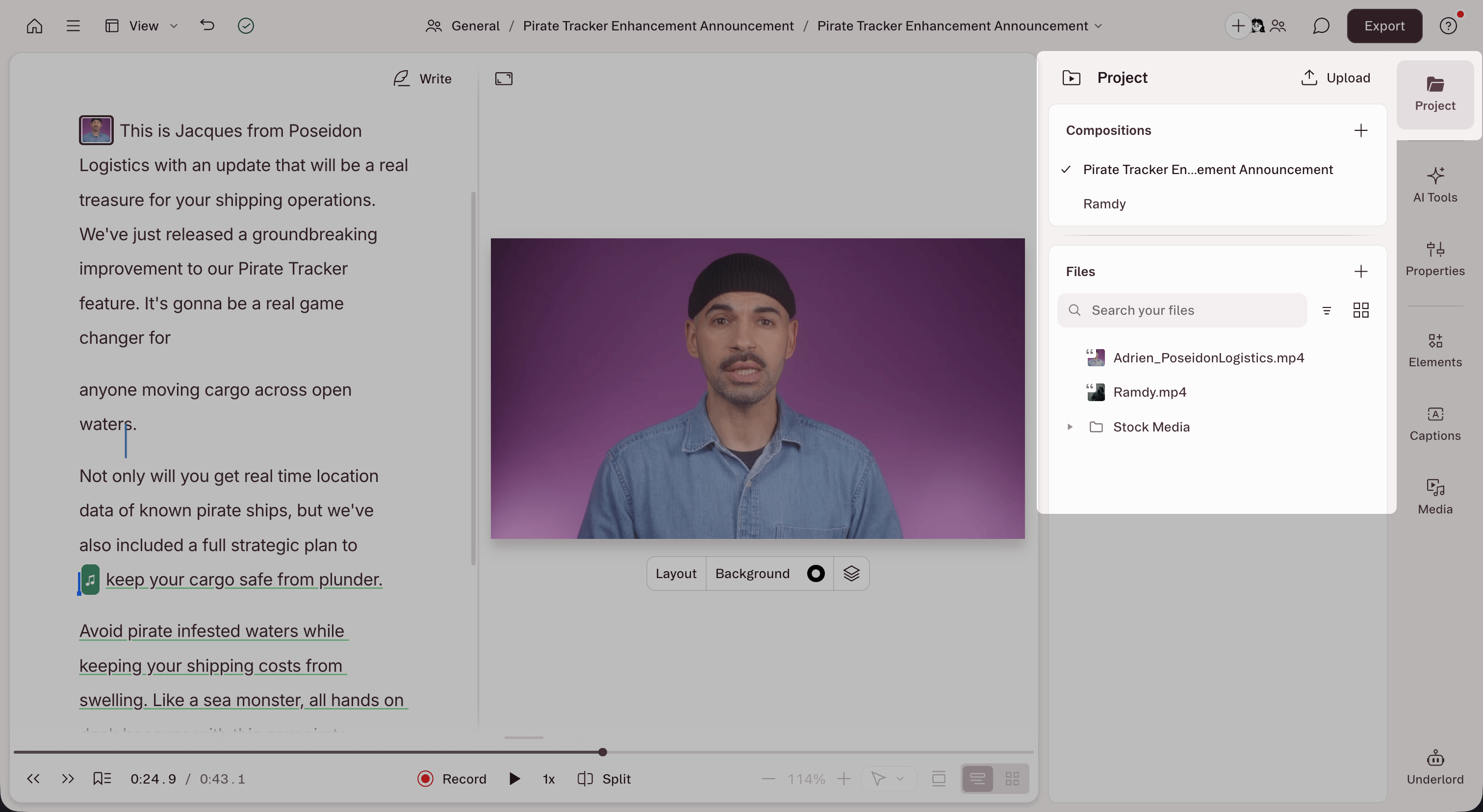
What’s in the project panel
The project panel is split into two main sections:- Compositions: Lists all compositions in your project. Learn more about compositions.
- Files: Shows all project files you’ve imported or recorded, including audio, video, and media assets. Learn more about individual project file actions.
Organize files with folders
Folders help you group related files and keep large projects organized. You can create folders, nest subfolders, and move files between them.- Create a folder: Click the + button in the Files section, select Add Folder from the menu, give the folder a name, and drag files into it.
- Rename or delete a folder: Right-click the folder or click the three dots next to its name.
- Create subfolders: Organize further by nesting folders inside folders.
Automatically created folders
Descript also creates some folders automatically:- Sequences: Multiple tracks grouped together—typically for interviews or recordings with camera, screen, mic, and computer audio inputs. Learn more about sequences.
- AI Assets: Images or videos you’ve created with the generate media features in the AI Tools panel.
- Saved keyframes: Images of your canvas captured with the Save current frame tool.
Search and filter files
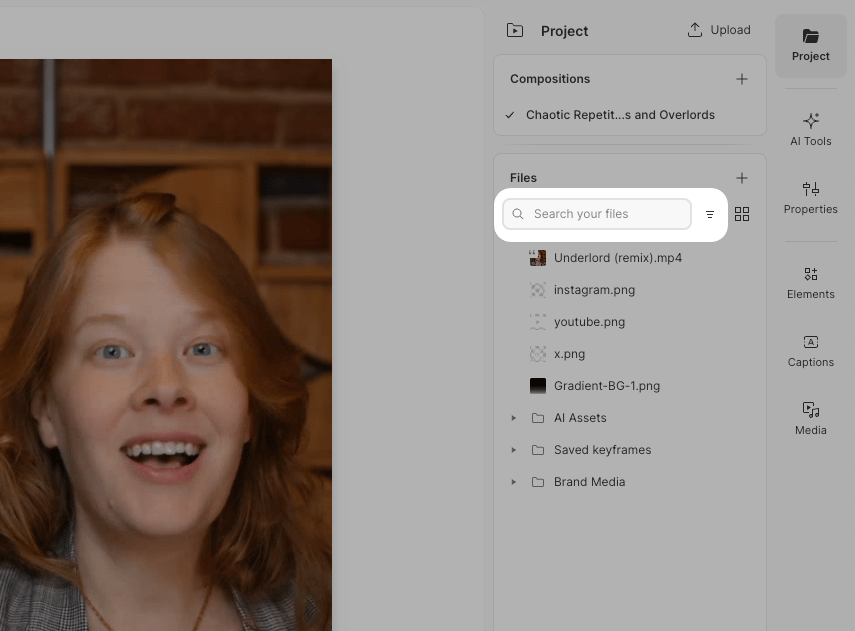
Use the search bar at the top of the Files section to find files by name inside the currently open project. Type any part of a file name to filter the list.Looking for files across your entire drive?Use the global search bar from the drive view instead — it searches all projects, media files, folders, and brand assets.
- Filter by file type — Show only audio, video, images, or other media types
- Sort files — Organize by name, date added, or date modified