Export and publish content with Descript web links

Exporting to a Descript web link (sometimes called "publishing" to a share page) creates a standalone page on share.descript.com with its own unique URL. Viewers can open the link to watch or listen without needing a Descript account.

This article covers:

Plan limits

Your plan determines the maximum length of videos you can export to a web link. Videos exceeding this limit will be converted to audio-only. Check your plan’s details on our pricing page.

If you’re on a legacy plan, see the limits in our Understanding your Legacy Plan guide.

  1. Click the Export button at the top-right corner of the editor.
  2. Select Descript (web link) as the export destination.
  3. Click Export to publish to your web link.
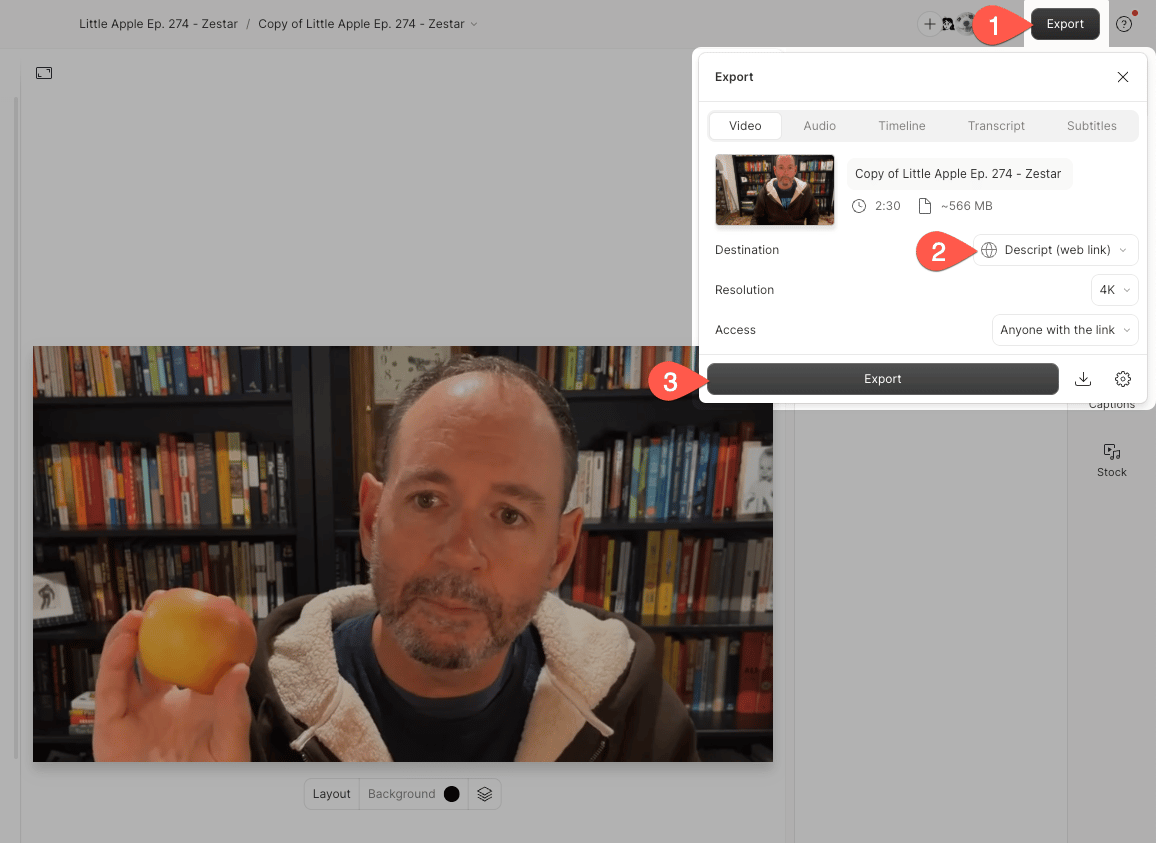
Export window with web link selected


You can update your content while maintaining the original URL. Follow the same steps as exporting — you’ll see an Update button instead of Export.

If you've made edits since your last web link export, you must click Update to publish these changes to your share.descript.com URL. Without updating, both downloads and the web link URL will display the previous version of your project.

Comments will be removed

Updating or removing a share page permanently deletes all comments on that page (but not comments in the Descript editor). Project comments are private to collaborators, while share page comments appear publicly on content exported with Descript (web link). Learn more about commenting directly in projects.

The Download button saves the version of your project from the last time it was exported to a web link. If you've made any changes since then, you'll need to update first to sync the changes to your share page, and then download. If you use the download button without updating, you'll be saving a previous version of your project to your device.
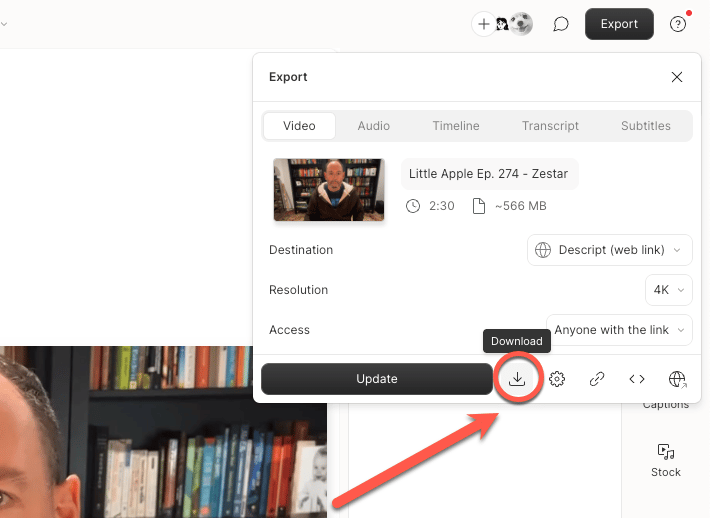
Download button in export menu

You can also download your content directly from the share.descript.com URL. Some browsers may open the file in a new tab instead — if this happens, right-click the video and select Save as to save it to your device.

Need the latest version without updating?

Use a local export to save your current composition to your device without updating the web link. See our Export a video or GIF locally guide for those steps.

To unpublish a page, click the gear icon in the Export menu, then select Unpublish.
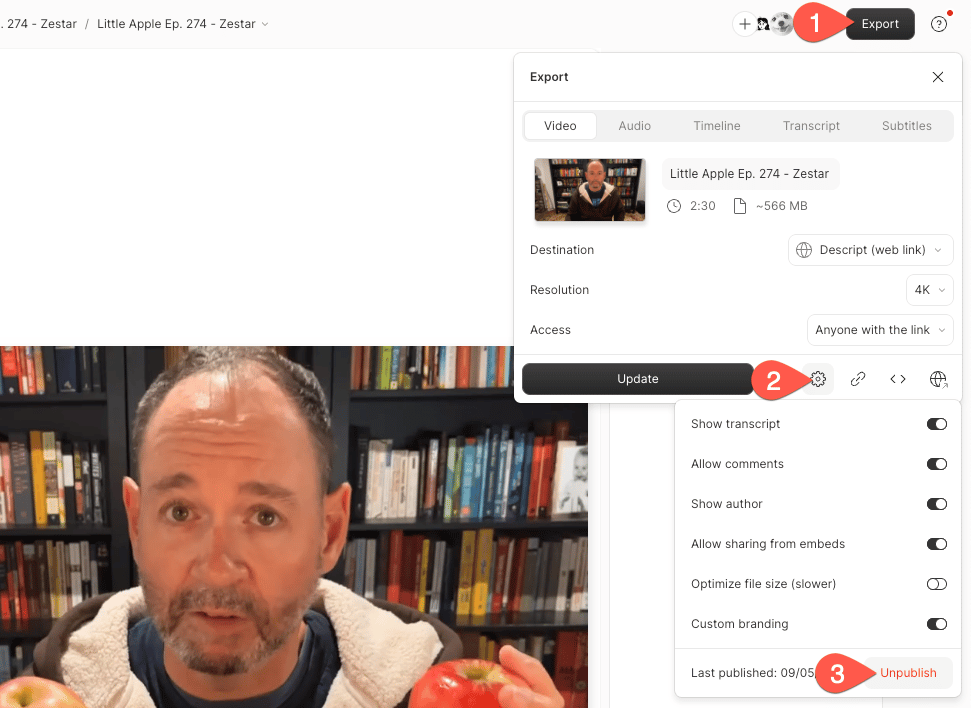
Export menu with Unpublish option


Export settings and permissions

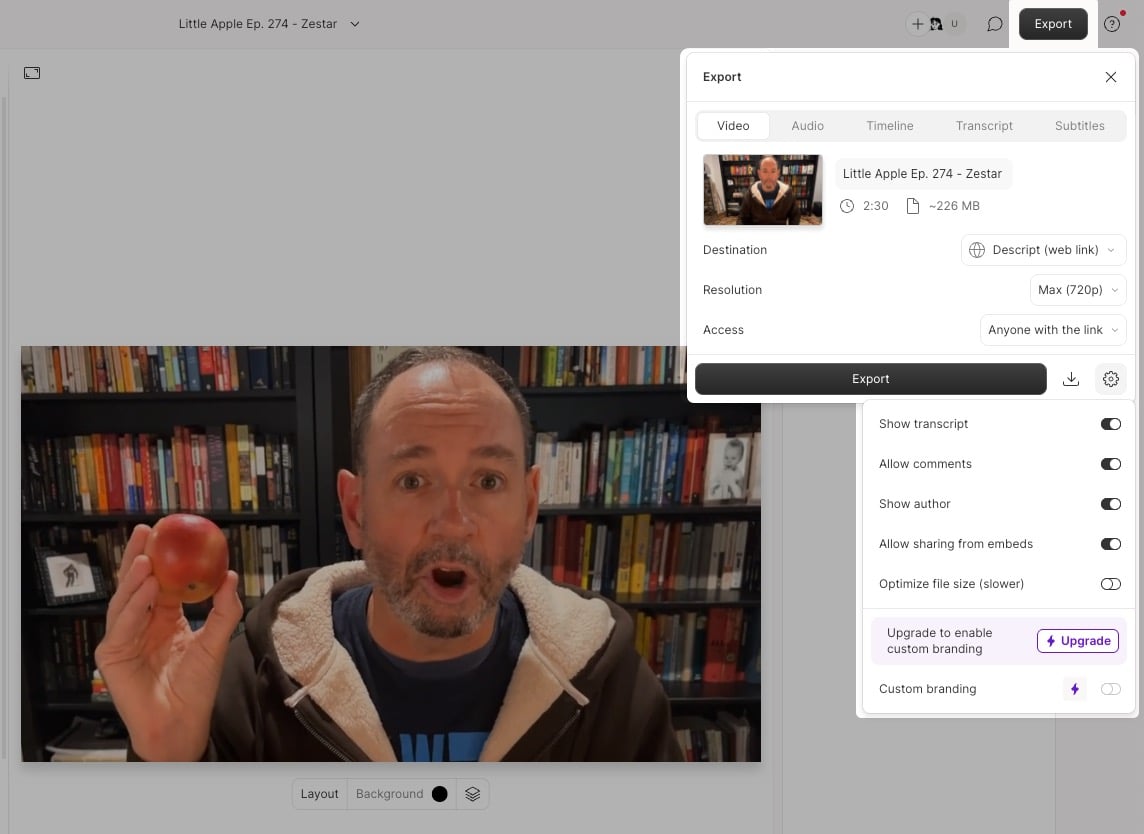
Export menu with settings option highlighted


The following settings control resolution, access, and branding for share pages:

* Free plan users are limited to 720p export. These resolutions are also restricted by your plan and scene editor size.

Customize share page thumbnails

By default, the thumbnail is the first frame of your video. For steps to change your thumbnail, see Set and customize thumbnails.

Video watermark

Users on a Free drive will see a Descript watermark in the bottom-right of exported videos. Upgrading to a paid plan removes the watermark. To remove it from previously published content, re-export after upgrading.

Setting Description
Resolution* Set video resolution to 480p, 720p, 1080p, or 4K.
Access

Choose who can view your share page:

  • Public — Pages can appear in search engines.
  • Anyone with the link — Not indexed; no login required.
  • Project access required — Viewers must log in and be authorized. Learn more.

Drive owners can also set the default privacy for all share pages from the Preferences tab in App Settings. Learn more in our App Settings guide.

Additional settings
Show transcript Displays the transcript on the share page.
Allow comments Enables commenting on the published page.
Show author Displays the project owner's name.
Allow sharing from embeds Adds a share button to embedded players.
Optimize file size (slower) Re-encodes the exported video to reduce file size.
Custom branding Controls whether the Drive icon appears on the page.