

Revert or rollback changes made by Underlord (beta)

Underlord is still in beta, and we want you to feel confident trying things out without worrying about losing your work. If something doesn’t go as planned, there are easy ways to undo changes Underlord made: Revert and Version History.

Trying to revisit an old chat?

Underlord saves your past conversations automatically — find them in the chat history list at the top of the Underlord panel. See Chat history in the Underlord overview for details.

Option 1: Revert a change

Underlord creates checkpoints before making changes. You’ll see these in the chat just before edits are applied.

  1. Open the Underlord panel on the right side of your project.
  2. Scroll through your chat with Underlord and find the response you want to undo.
  3. Click the Revert button in the action bar below the response.
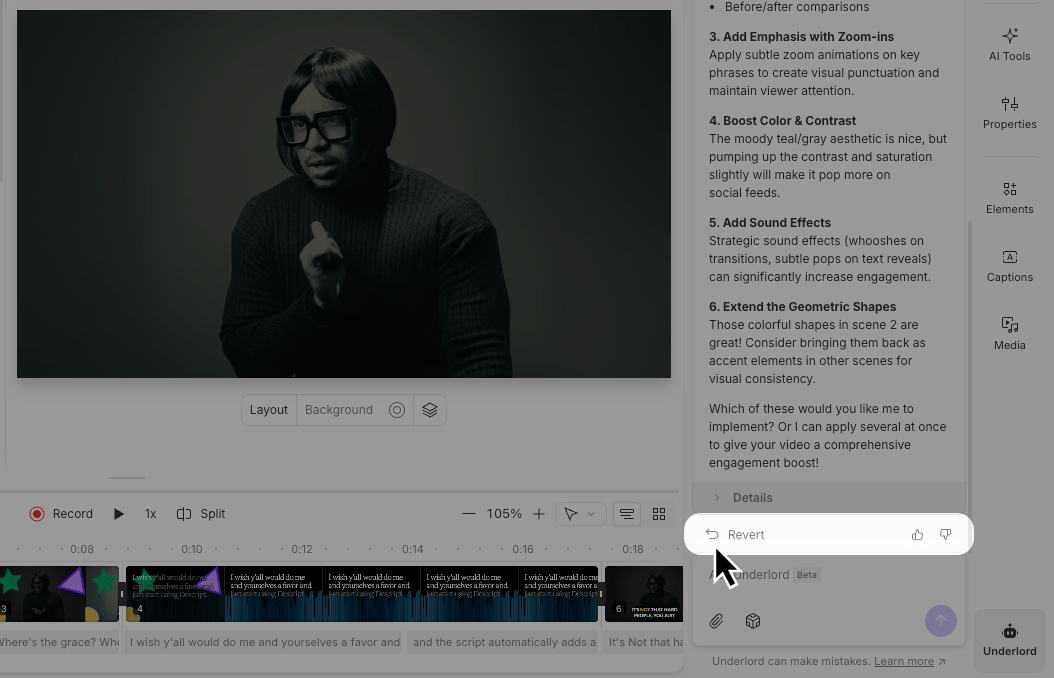
The Underlord side panel open in the Descript Editor, with the Revert, thumbs up, and thumbs down buttons highlighted.

Option 2: Use the Undo button

Near the top-left of the Descript editor window is an undo button. Click this or use the command/control + z keyboard shortcut to go back one step.
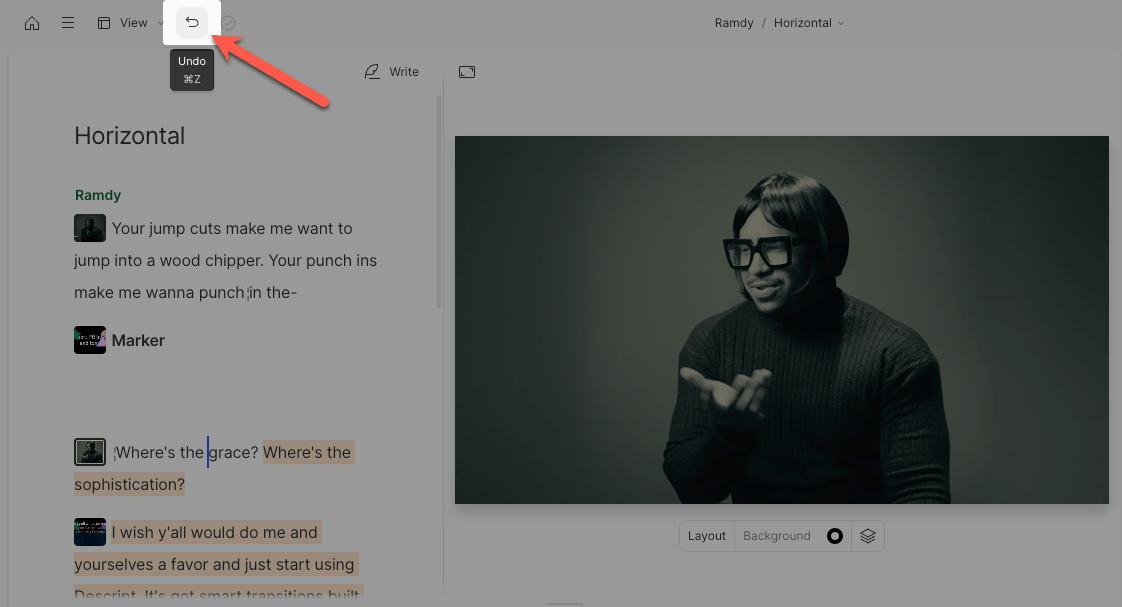
Undo button in Descript

Option 3: Use Version History

Descript automatically saves your project as you work, so you can always restore a previous version. To learn how, follow the steps in this guide: View and restore from Version History