

Open the workflow drawer
All Workflow Drawer actions start the same way — by selecting your SquadCast recording(s):- Select the Recordings tab in the top-left corner of the Dashboard.
- Expand the session and select the take you want to work with.
- Check the box next to the file(s) you want.
- The Workflow Drawer appears at the bottom of the page. Select the up arrow to expand it.
Download recordings
Download files individually or download everything from a session at once.Individual file from the Dashboard
Select the Ellipsis button next to the file, then select Download and choose your preferred format.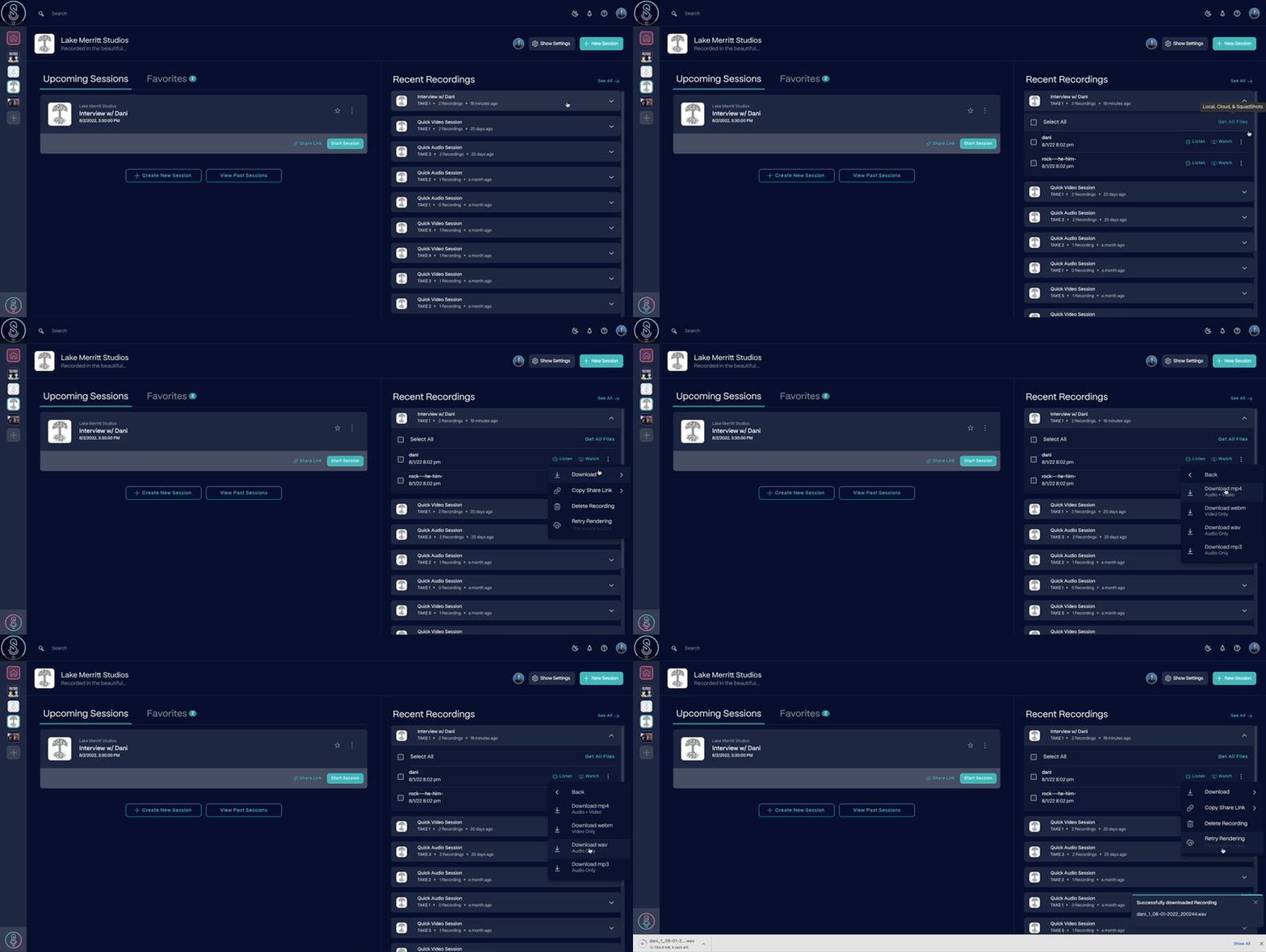
Individual file from the Studio
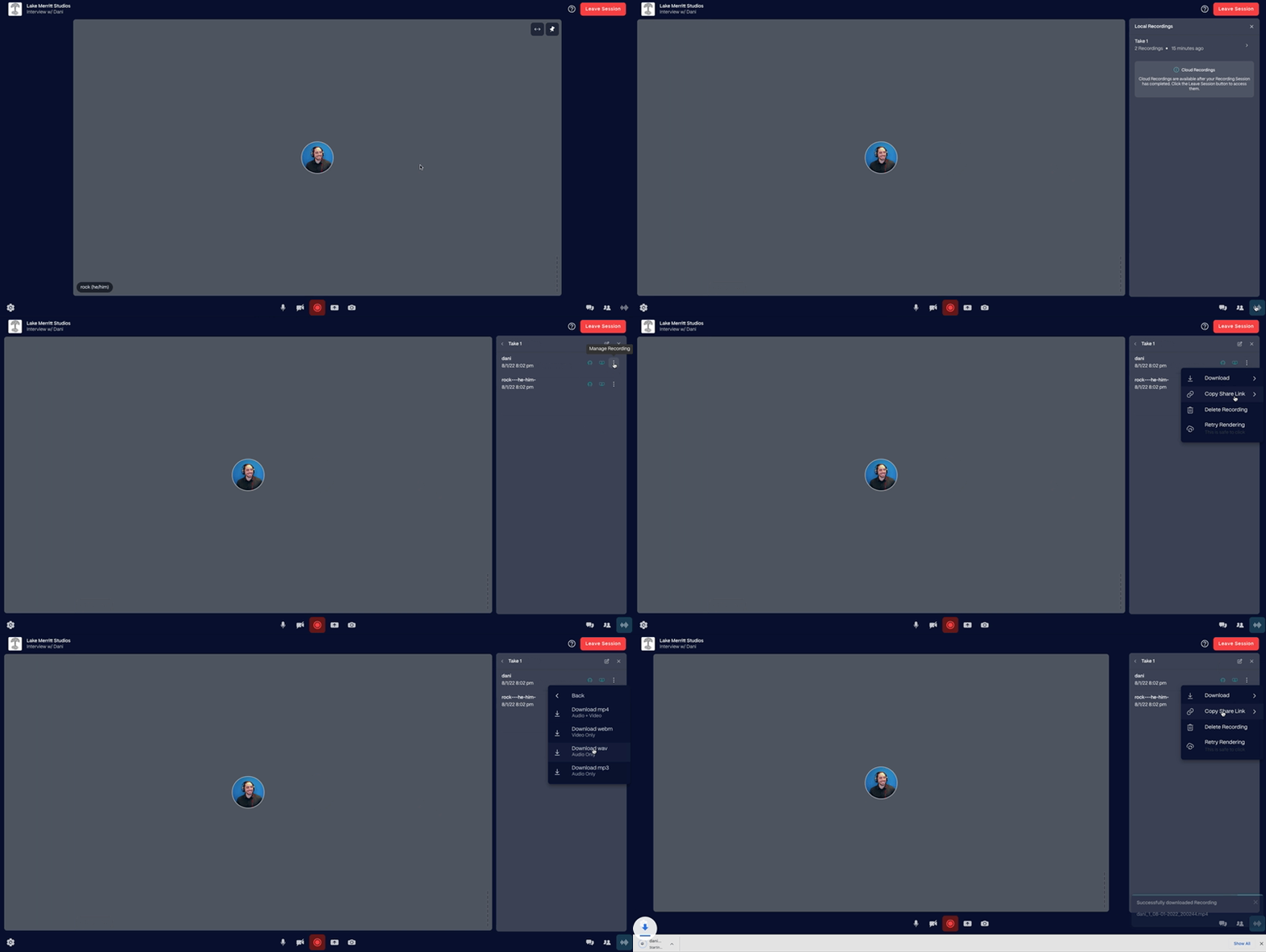
From within a session, select the recordings button in the lower-right corner (or pressCommand + 8 on macOS / Control + 8 on Windows). Select the Ellipsis button next to the file, then select Download and choose your format.
All files from a session
From the Recordings tab, select the Download button on the session row and choose your preferred format. All files from that session will download at once.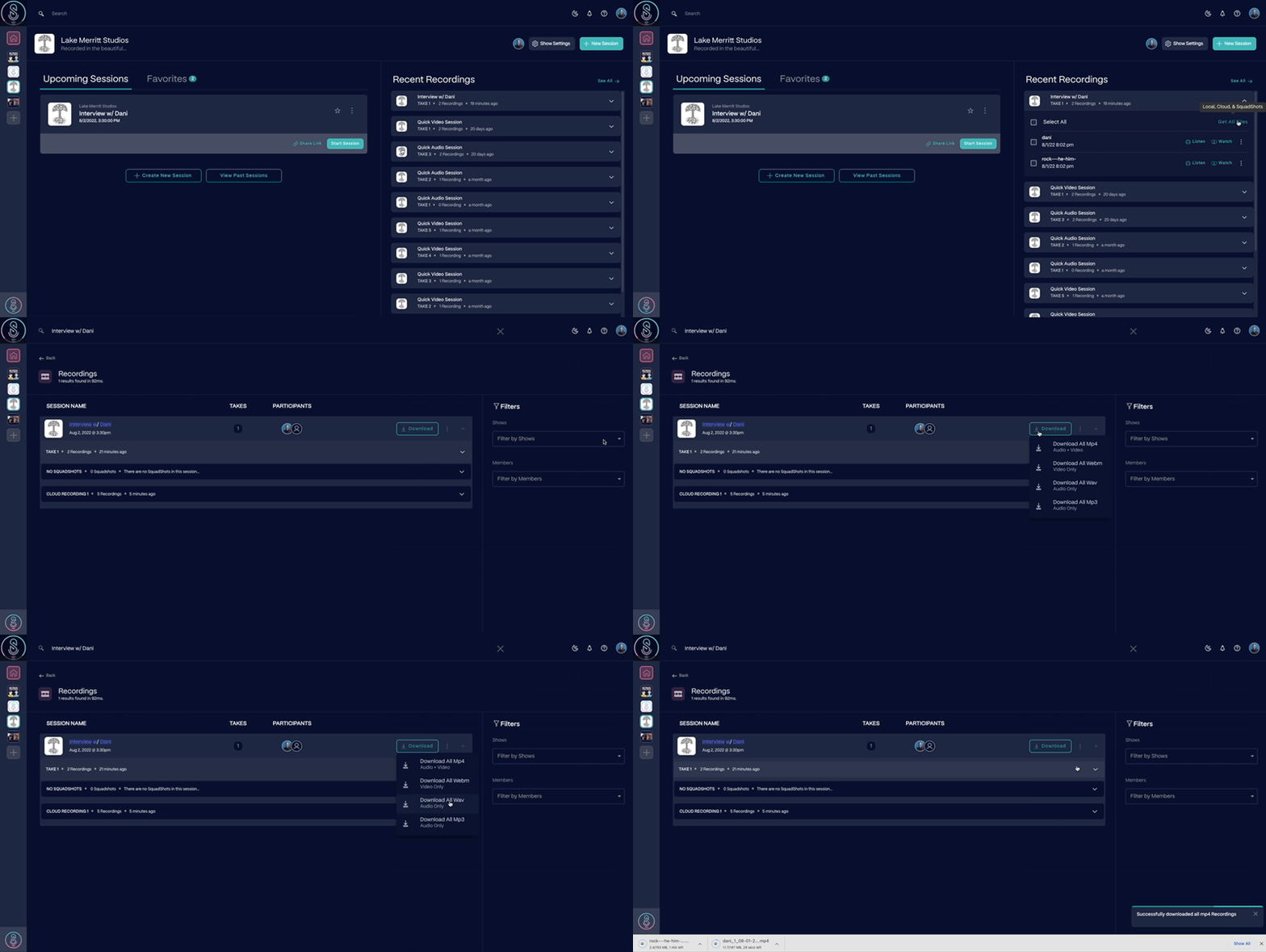
Mix audio recordings
Mix separate audio tracks into a single combined file, then download it in WAV or MP3 format. Select your recordings, then in the Workflow Drawer select Mix Audio. Confirm in the popup to start processing — you’ll be notified when it’s complete. Mixed files appear in your recent recordings and are searchable.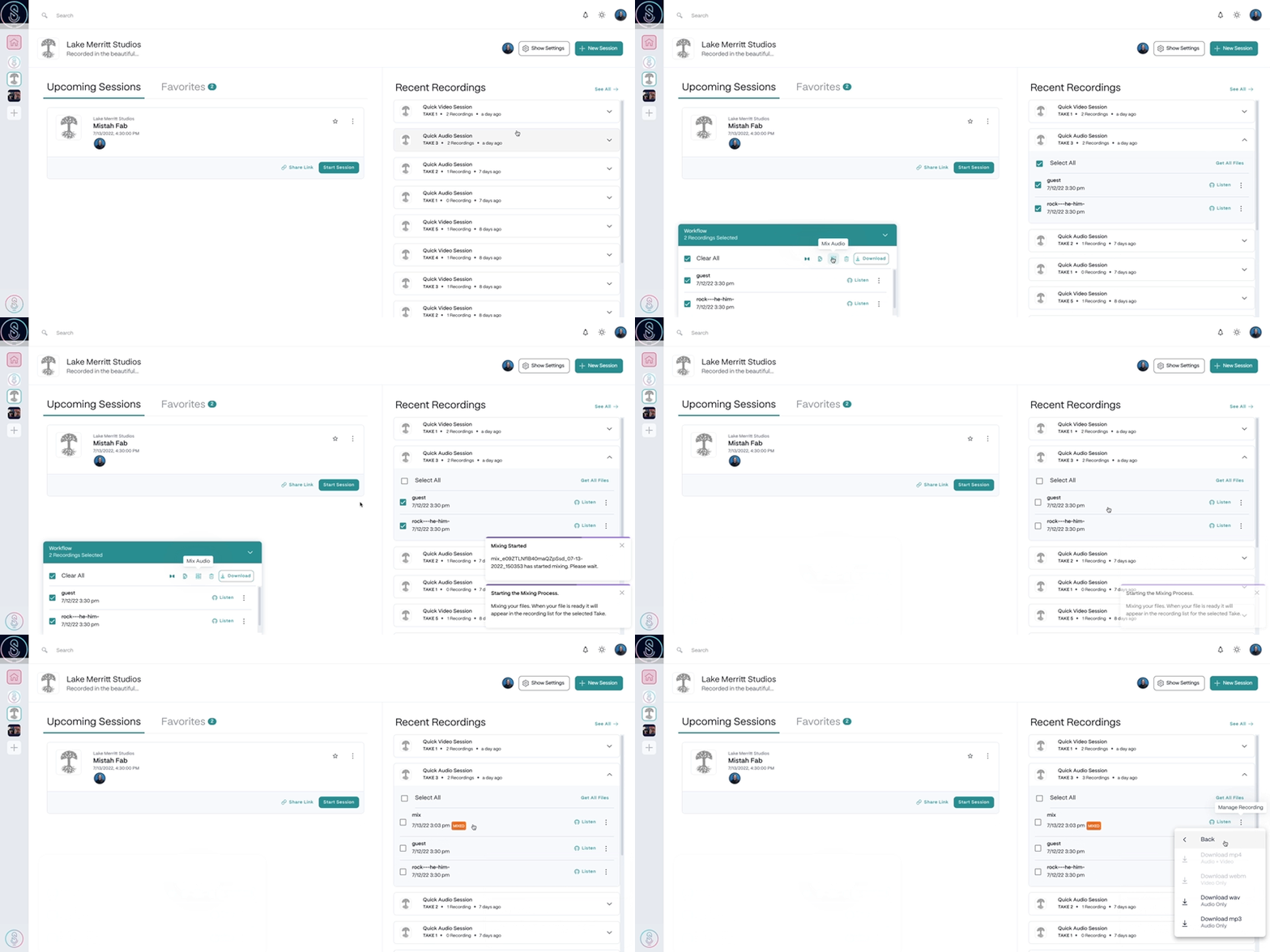
Audio onlyMixing is currently available for audio files, not video.
Transfer recordings to Dropbox
Send recordings directly from SquadCast to your Dropbox without downloading them to your computer first.Connect your Dropbox account (one-time setup)
- Go to Account Settings > Integrations.
- Select Connect to Dropbox and follow the prompts to authenticate.
- Once connected, you can disconnect anytime from Dropbox Options on the Integrations page.
Transfer files
Select your recordings, then in the Workflow Drawer select the Dropbox icon and choose your format. The transfer starts automatically — files are saved to/yourDropbox/SquadCast/SessionName/.
Other actions
The Workflow Drawer also gives you access to:- Edit in Descript — Import recordings directly into a Descript project. See Import SquadCast recordings into Descript.
- Master Audio with Dolby — Apply one-click audio mastering. See Enhance SquadCast recordings with Dolby Mastering.
- Delete — Permanently remove selected files.