

Add terms to your Do Not Translate list
- Open Brand Studio from your Drive view.
- Click the Glossary tab at the top of the window.
- Locate the Do Not Translate list tile and click Edit list.
- Type the word or phrase you want to preserve—add one term per line.
- Press
Shift+Enterto save each entry to your list.
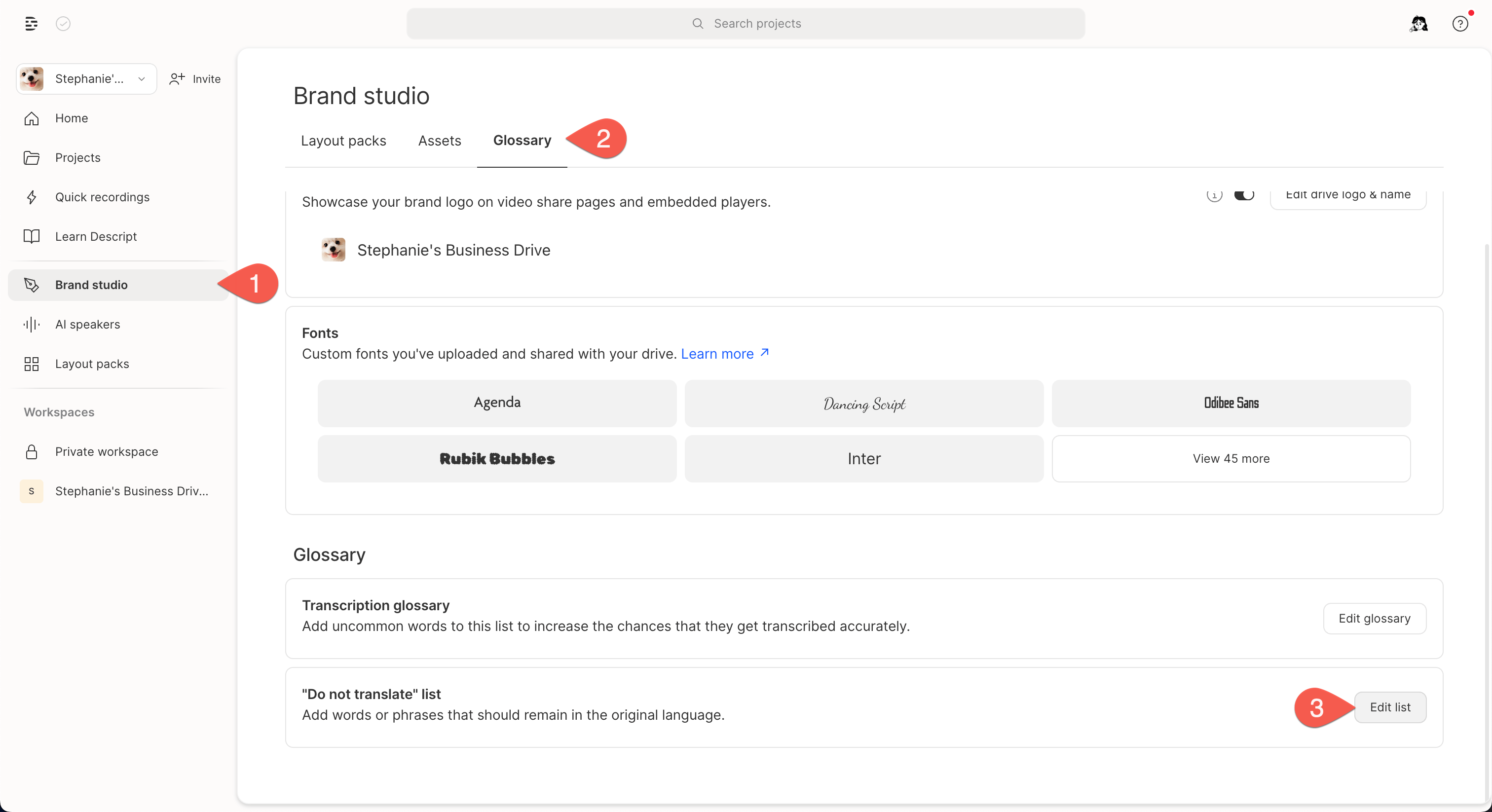
Steps to access the "do not translate" list in Brand Studio
Tips for best results
- Terms are not case sensitive. Descript ignores capitalization when checking for matches. So if you add “Acme” to your list, Descript will match and skip “acme”, “ACME,” “AcMe,” etc.
- Original formatting is preserved. The original capitalization, punctuation, etc. in your script is retained in the translated output. So “ACME” will stay “ACME,” and “Acme” will stay”Acme.”
- Use full words or phrases—partial matches are not supported.
- Focus on brand-specific terms, product names, or acronyms.
Looking to translate and dub your content?Use AI Tools to manually translate and dub your composition, or ask Underlord, Descript’s AI co-editor, to do it for you.