- Supported languages for translating captions
- How to translate captions from your original script
- How to manage your translated compositions
- How to edit a translated script with translation proofread (Business & Enterprise only)
- Exporting your translated content
Usage noteOn current plans, this feature uses AI Credits. Learn more about tracking your Media Minutes and AI Credits.Legacy and Sunset plans track usage differently. See our Understanding your Legacy and Sunset plan guide for details.
Supported languages
Descript supports caption translation into a wide range of languages. Note: Dubbing (translated voiceover using AI Speakers) is a separate feature with its own supported languages. Learn more in our Dub speech guide.About regional variantsRegional language variants—like Spanish (Latin America) or English (UK)—are available for translated captions only. These options adjust spelling and phrasing to match local usage, but the dubbed voiceover will remain in the standard version of that language without a regional accent or dialect.
Before getting started
- Style captions first — Your original caption style carries over to your translated version. If you update styles later, you’ll need to re-translate to apply those visual changes to the translated composition. Learn more about styling captions.
- Transitions and animations — Custom transitions aren’t supported. Use Smart Transitions before translating.
- Performance tip — Translating into more than four languages at once may cause slowdowns.
Translate captions
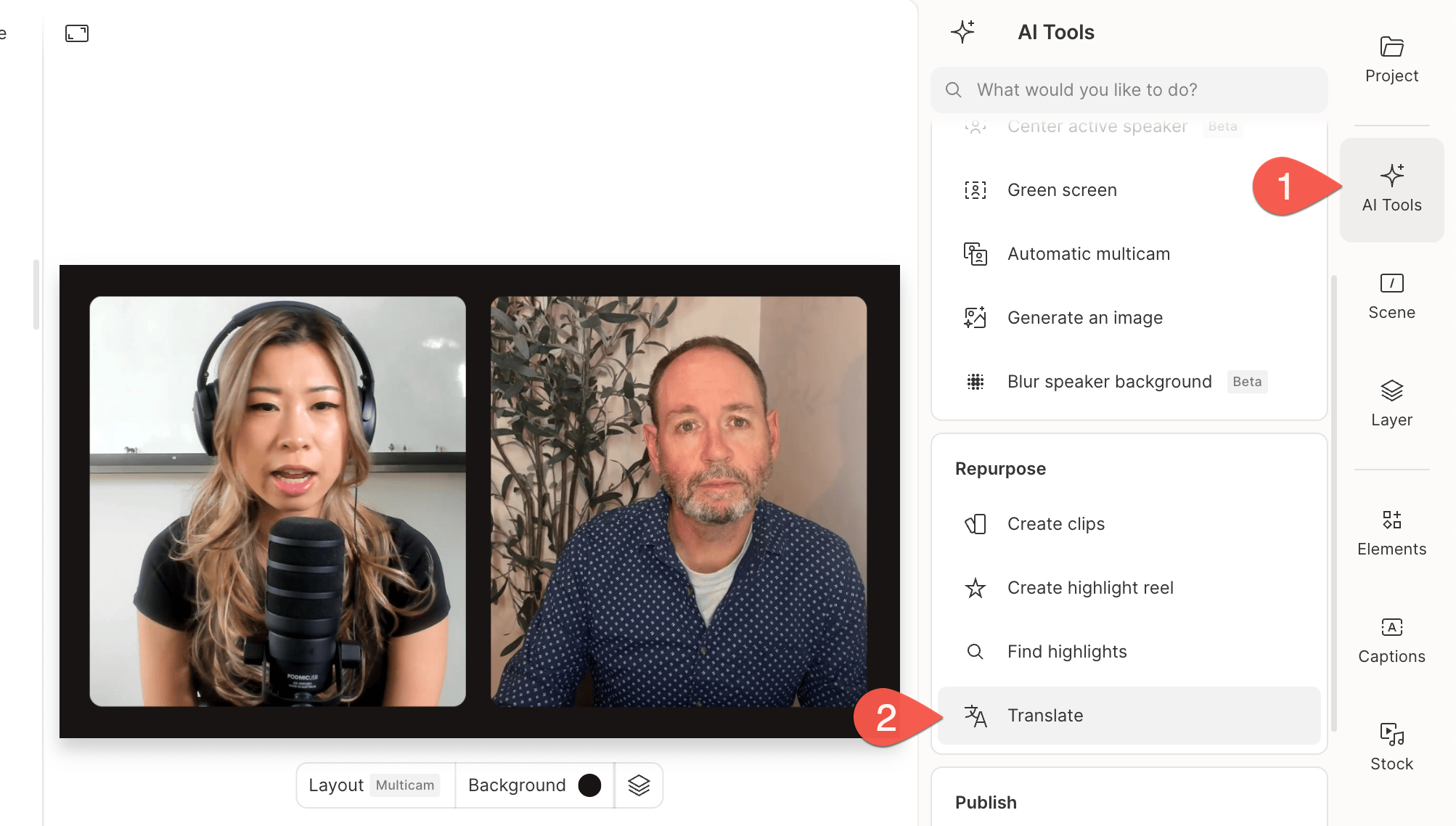
- Open the AI Tools panel and select Translate under the Repurpose section.\
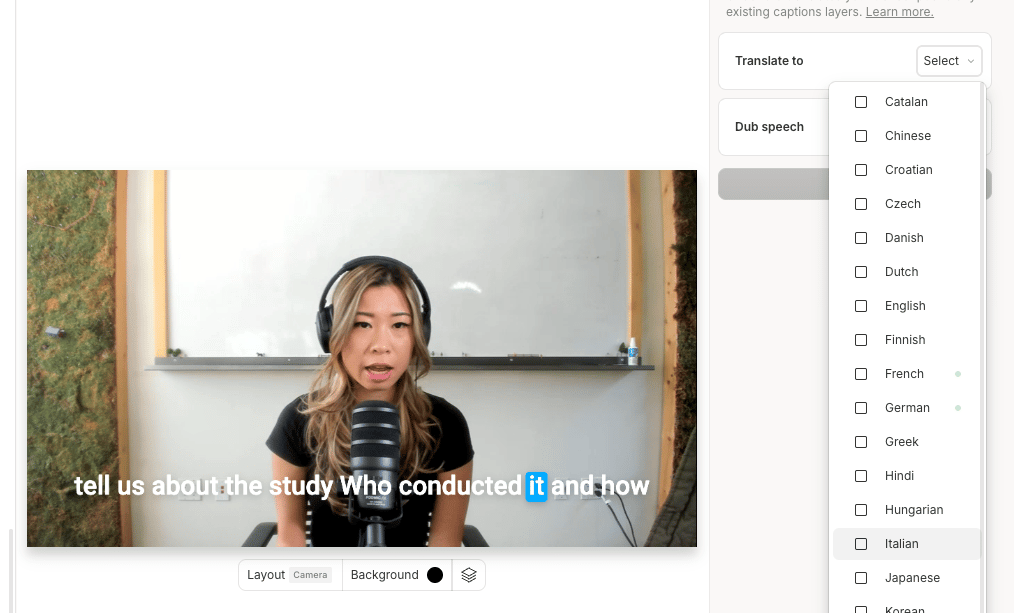
- In Translate to, choose your target languages. Any language you’ve already translated to will display a green dot. Re-translating will overwrite the existing version, including any manual edits.\
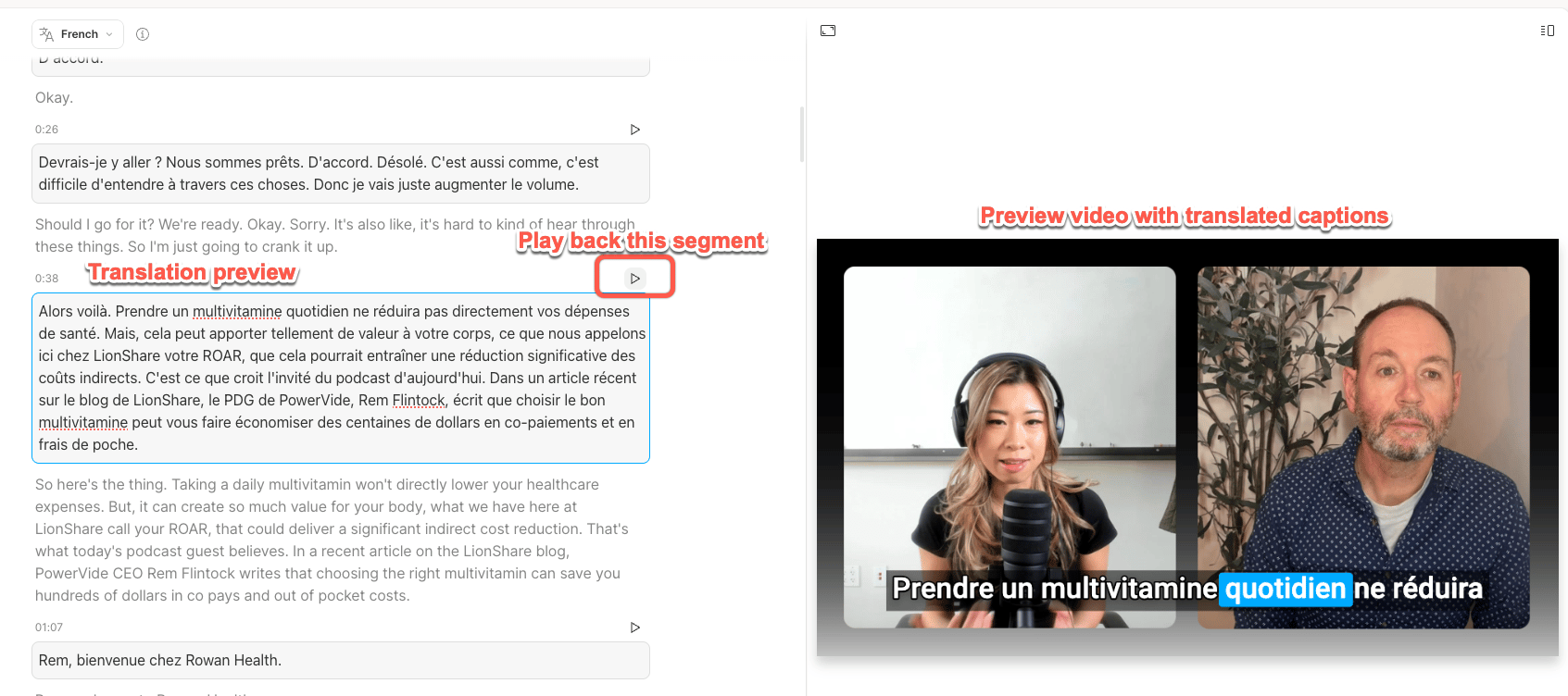
- Descript creates a new composition with translated captions. In the new composition, you’ll see the translated captions divided into sections. Use the play button in the top-right corner of each section to preview your translated composition.\
Manage translations
Edit your original composition
To edit your original script instead of the translation, switch to the Original view. Any changes you make there won’t appear in translated versions unless you re-translate.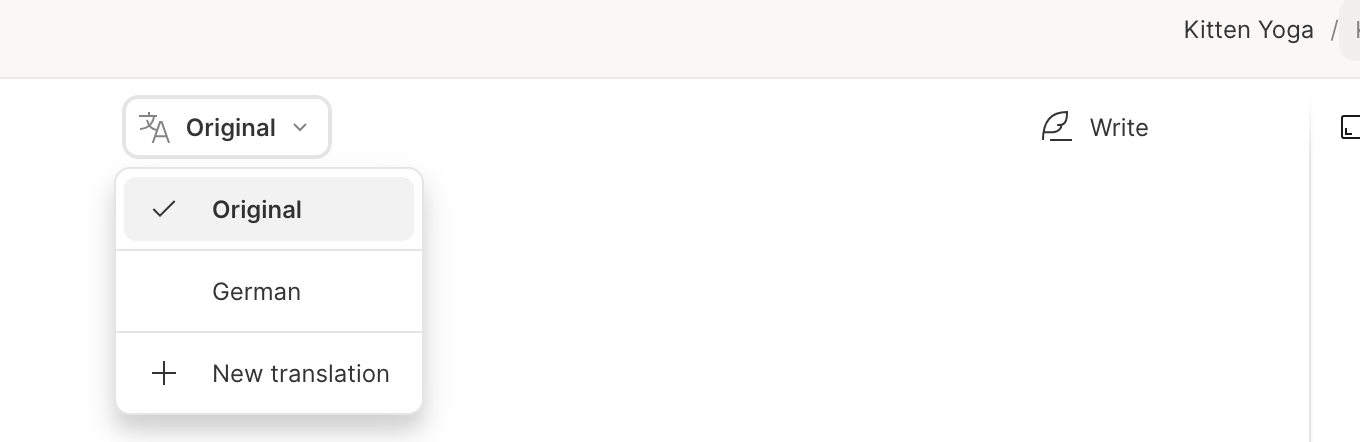
Open or add a translation
Use the language dropdown to switch between translations, or click New translation to add another.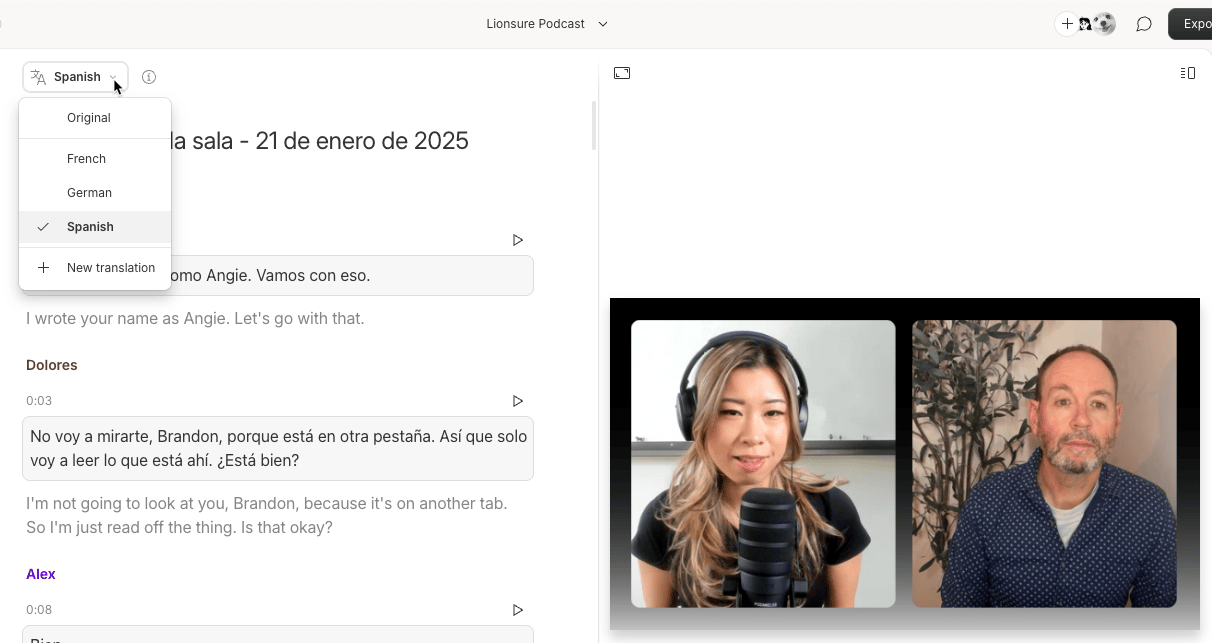
View and manage translations
Use the menu next to each translation to re-translate, export, share, or delete it.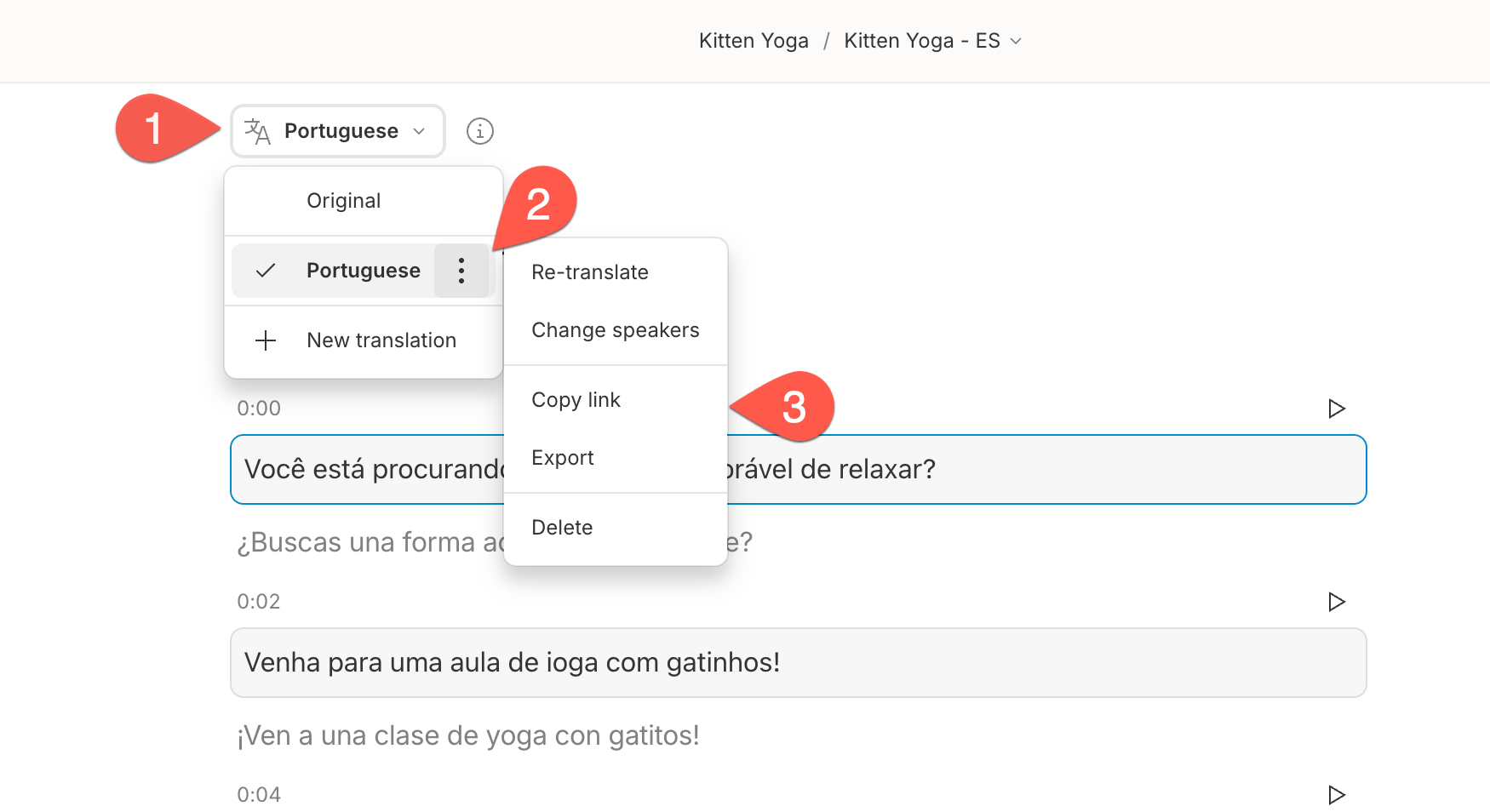
Manual syncing
Updates to your original script don’t sync automatically. Re-translate to refresh translations—this will overwrite manual edits.Edit with translation proofread (Business & Enterprise only)
On Business and Enterprise plans, you can play back and correct translations directly in the script.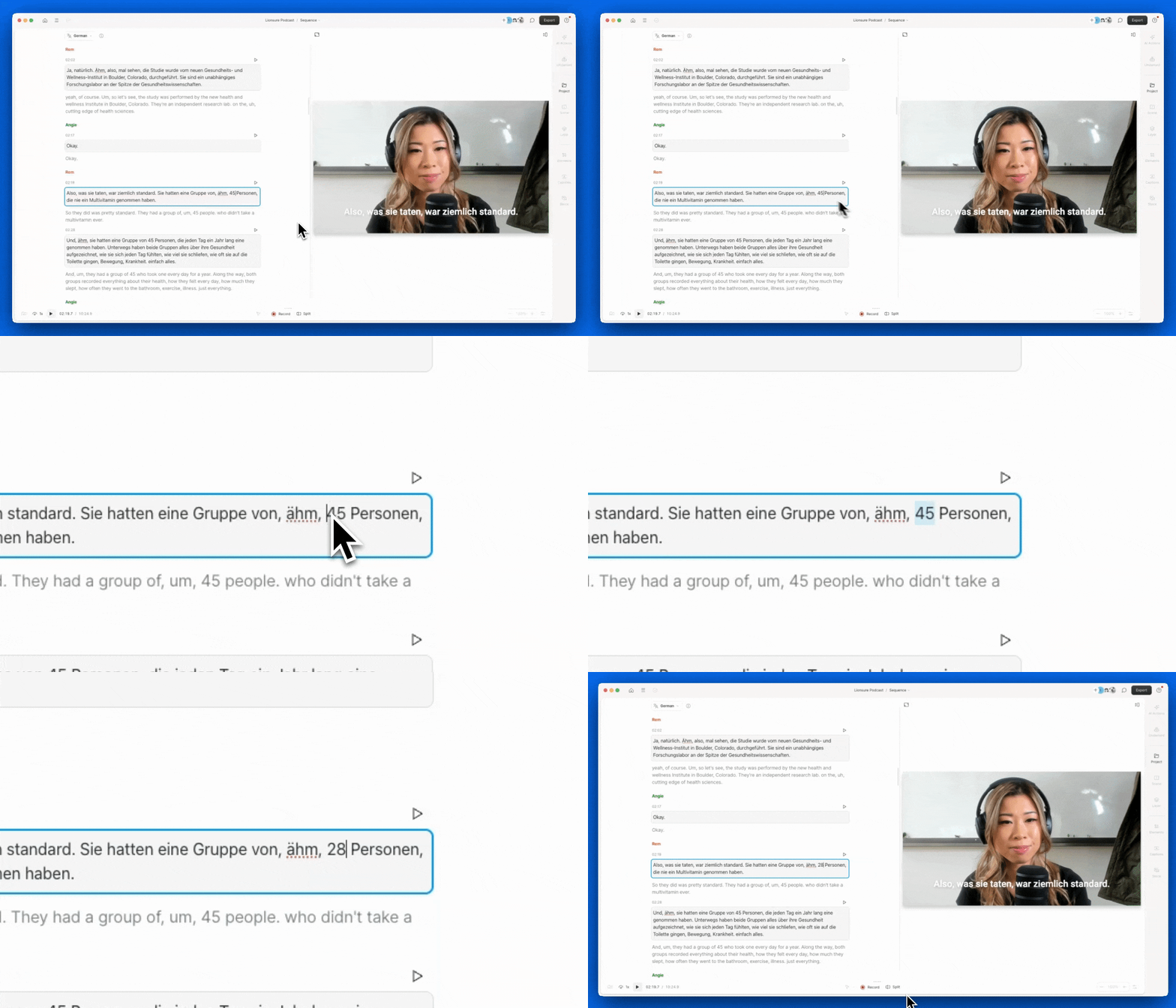
Export translations
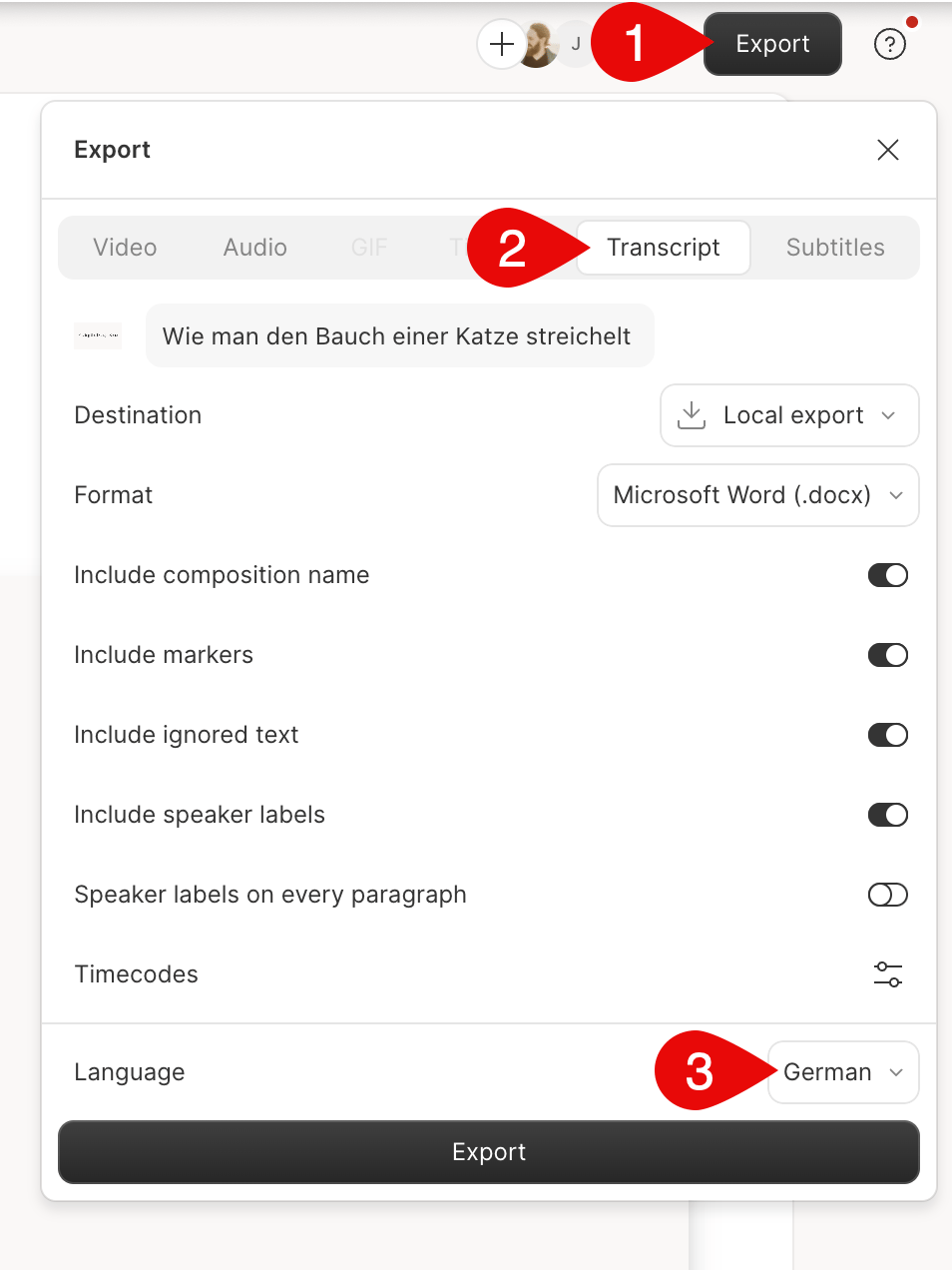
Use the Export button in the top-right corner to save your translated content.Export a single translation
Choose one translated language to download that version only.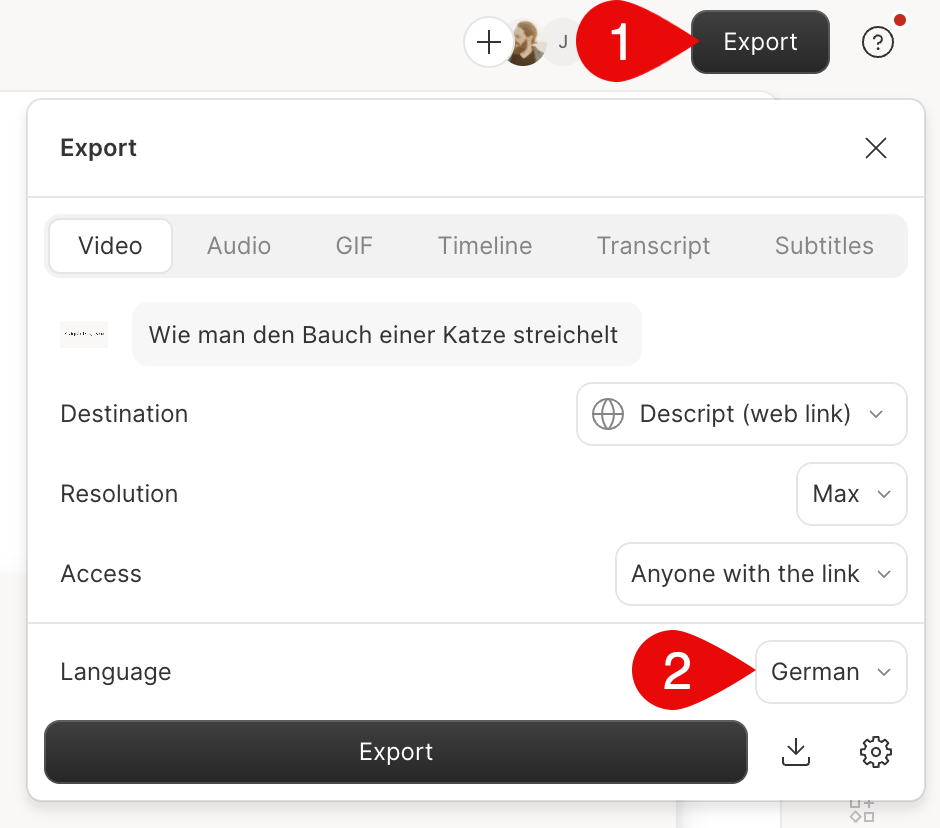
Export multiple translations
Select Local export and choose multiple languages for a batch export.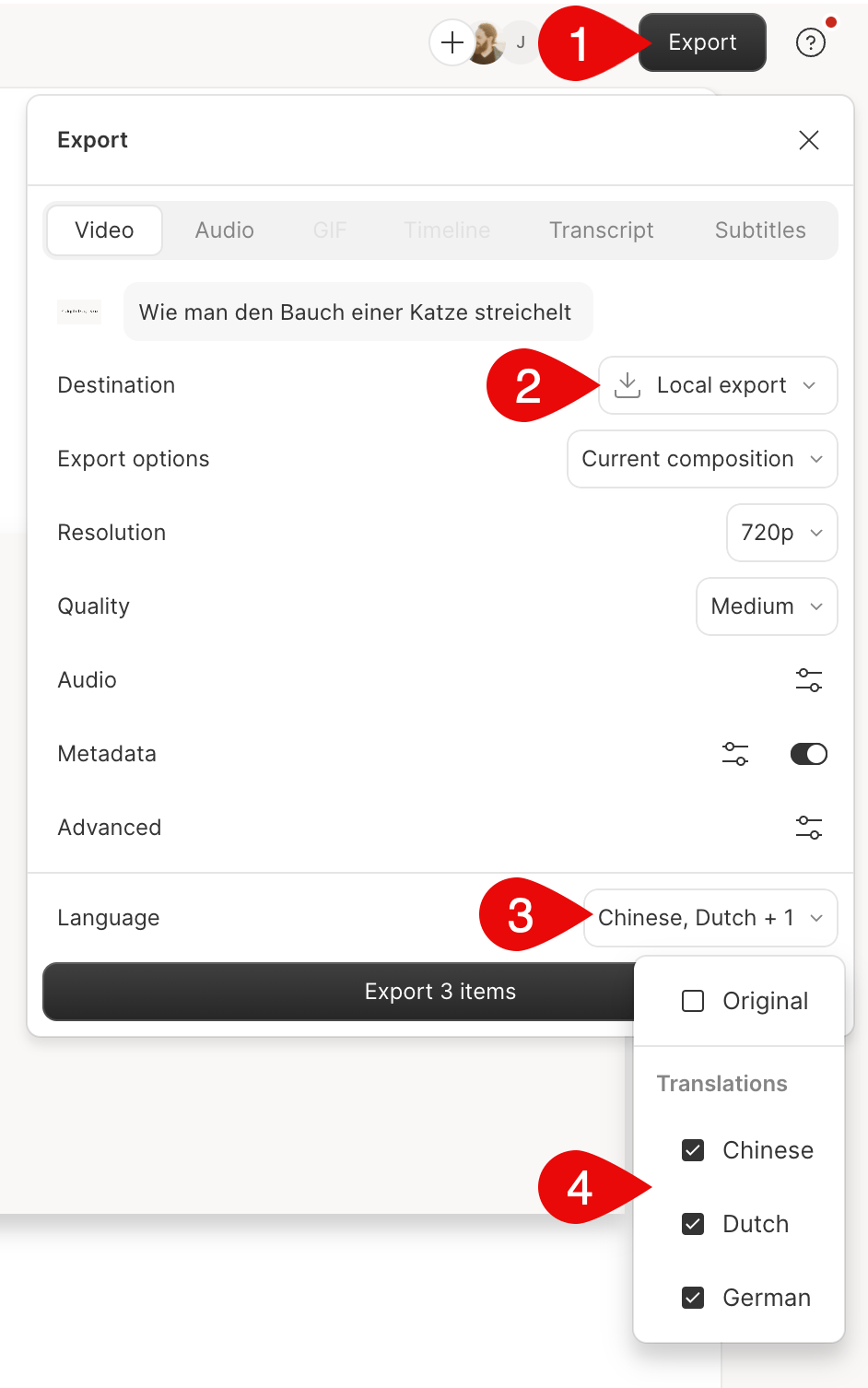
Export subtitles or transcripts
In export settings, select Transcript or Subtitles to download as.txt, .srt, or .vtt files.