

Steps to upgrade your plan
- Open App Settings with
Command/Control + , (comma) - If you have multiple Drives, use the Drive dropdown in the left-hand panel to select the Drive you want to upgrade.
- Go to the Plan tab.
- In the right panel, click Change plan next to your current subscription.
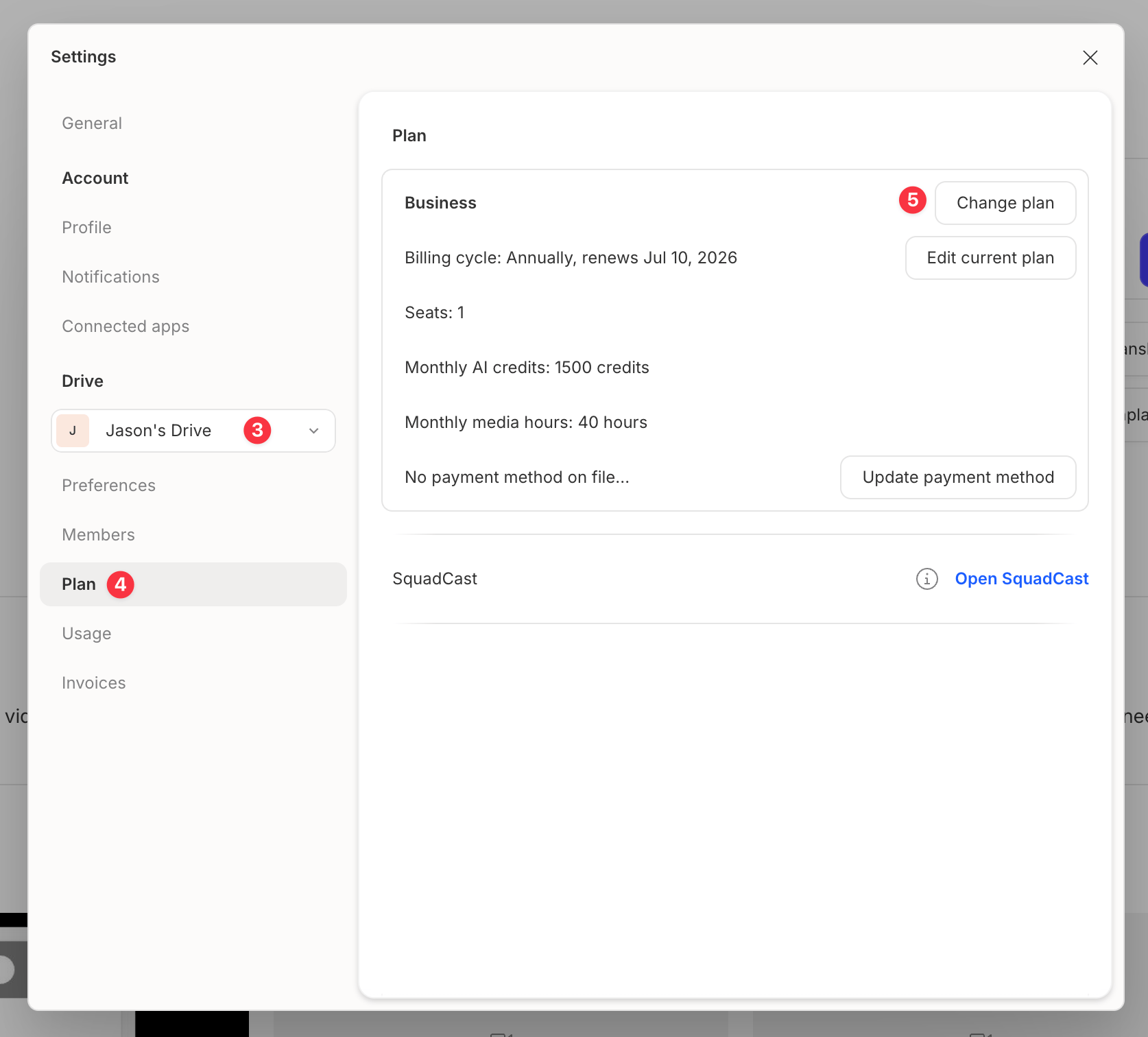
- A new browser tab will open where you can choose your new plan, select the number of Editor seats, and set your billing cycle.
- Click Save changes to complete your upgrade.
After you upgrade
Upgrade your plan at any time. When you upgrade, Descript immediately charges the card on file for a prorated amount based on the time remaining in your current billing cycle. We’ll credit the unused time left on your current plan and applies that credit toward the new plan’s price. Only upgrades are prorated. Downgrades and billing cycle changes take effect at the end of your current billing cycle without proration. For more details, see our guide on managing your Drive subscription. Any usage you’ve already accumulated during your current billing cycle will count toward your new limits. Usage does not reset when you upgrade. To learn more about usage tracking, see Understanding Media Minutes and AI Credits.Need additional Media minutes or AI Credits?If you reach your monthly limit, you can add more Media minutes or AI Credits by purchasing a Top up from the Plan tab in your App Settings. Top ups are shared across your Drive and are available for one-time use without changing your subscription plan. Learn more about Top ups.