-
Open App Settings, keyboard shortcut
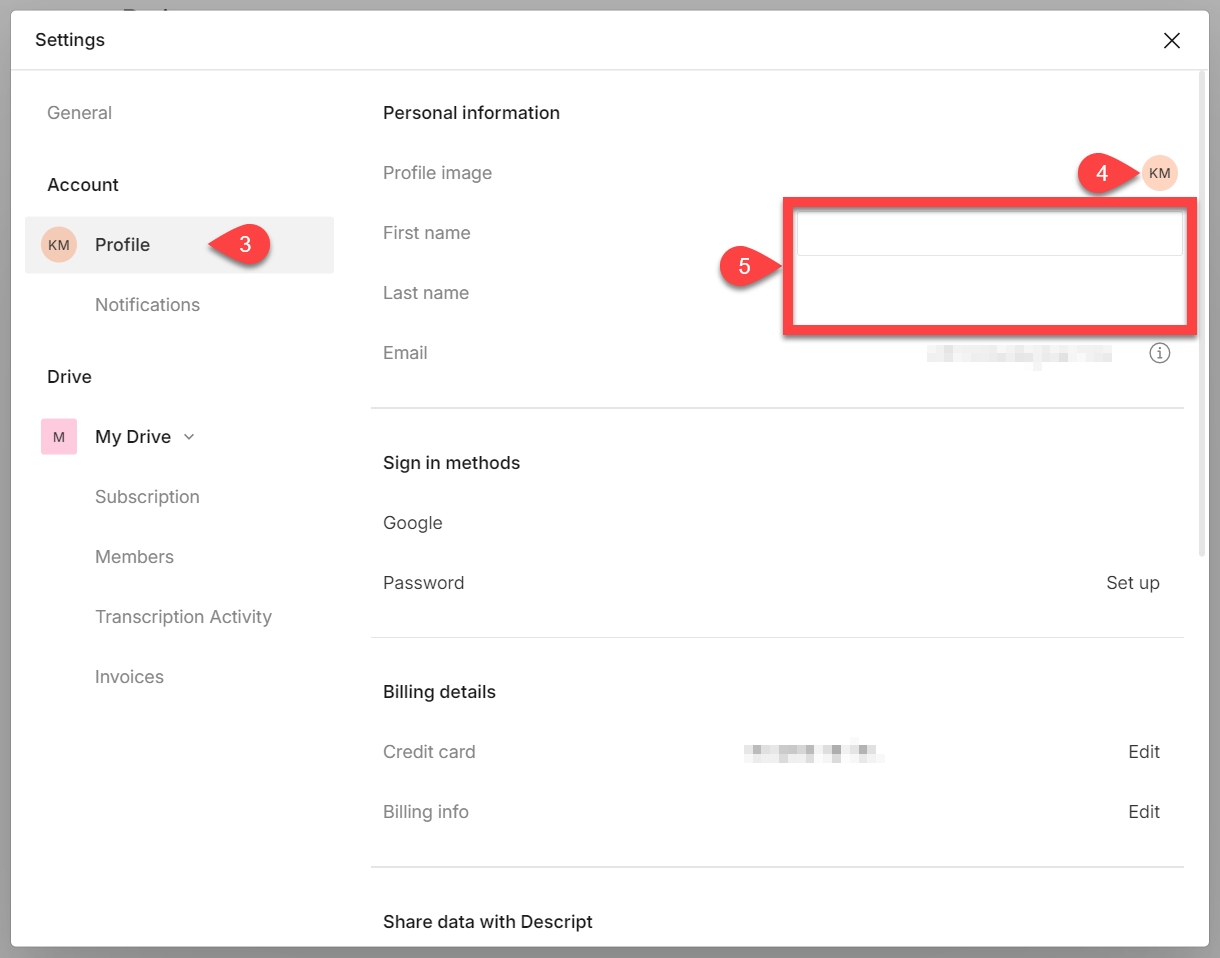
Command/Control + , (comma) - Select the Profile tab.
- Next to the Profile imageline item, click your current profile picture on the right. Then select the image from your computer that you would like to use, and click Open.
-
Next to the First nameand Last nameline items, click the text boxes and enter in the name you would like to use for your profile.
Customize your profile image and name
Update your display name and profile image shown on share pages.
Change your display name or add a profile image.