Before getting started
Templates vs. LayoutsIn earlier versions of Descript, templates referred to what we now call layouts. Layouts control the visual design of your video, while templates are now pre-built AI workflows you can run with Underlord. Learn more about layouts
Usage noteOn current plans, this feature uses AI Credits. Learn more about tracking your Media Minutes and AI Credits.Legacy and Sunset plans track usage differently. See our Understanding your Legacy and Sunset plan guide for details.
Where to find templates
Access the template gallery from the Home tab in your Drive view, or from the Underlord chat. Click Browse more templates to view the full gallery.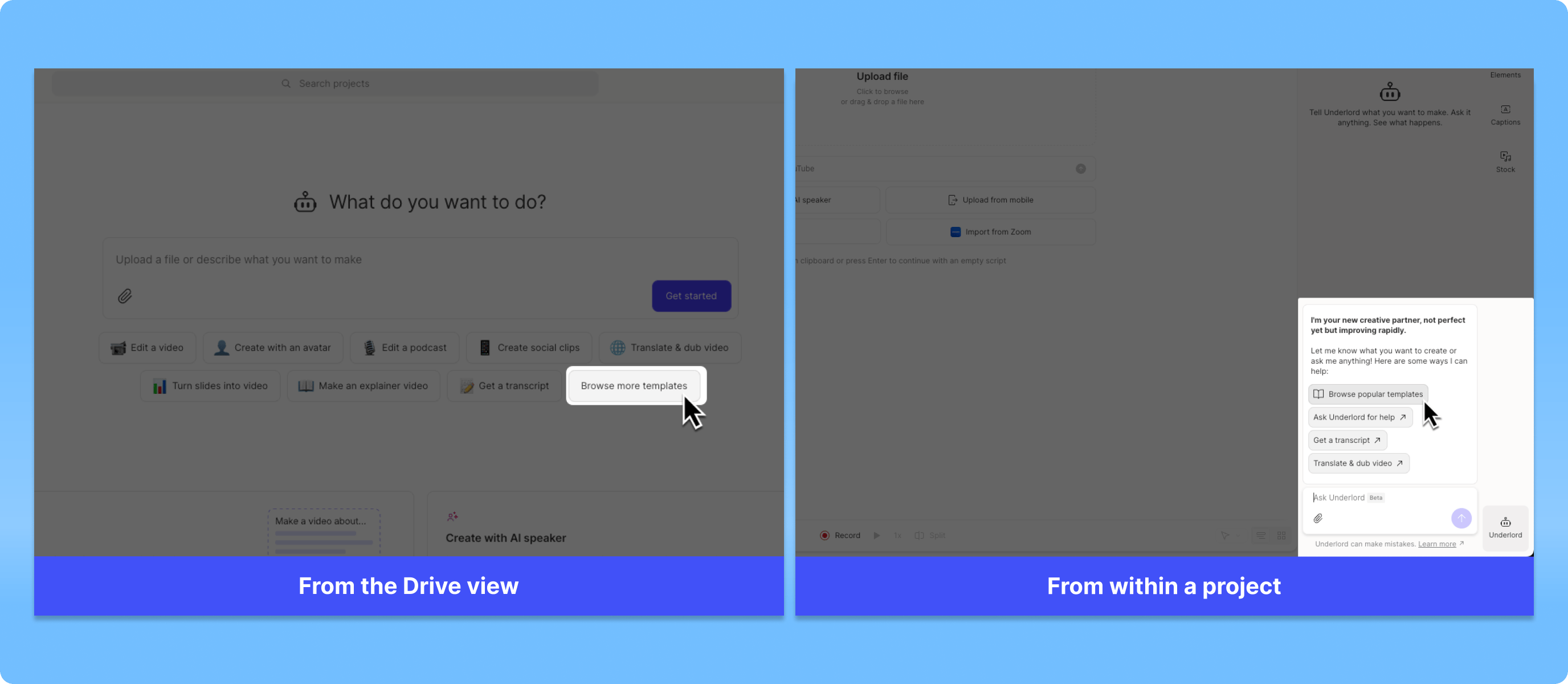
How to use a template
Click on any tile in the gallery to view the prompt details and get a preview of a project created from the prompt.- Find a template that fits your project and click Use template.
- Descript automatically opens a new project and begins running the prompt — Underlord applies the template to start your edit.
- Answer a few additional questions to customize your video to your exact specifications.
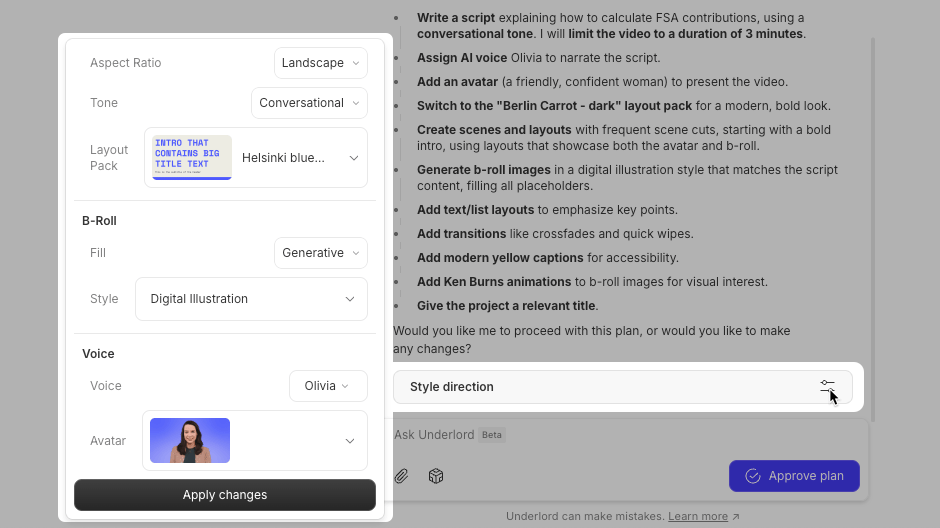
Style direction
Some templates offer additional customization through the style direction button. When available, click the options menu to adjust aspect ratio, tone, layout pack, b-roll style, AI speaker, and avatar.