

On current plans, this feature uses AI credits.
How it works
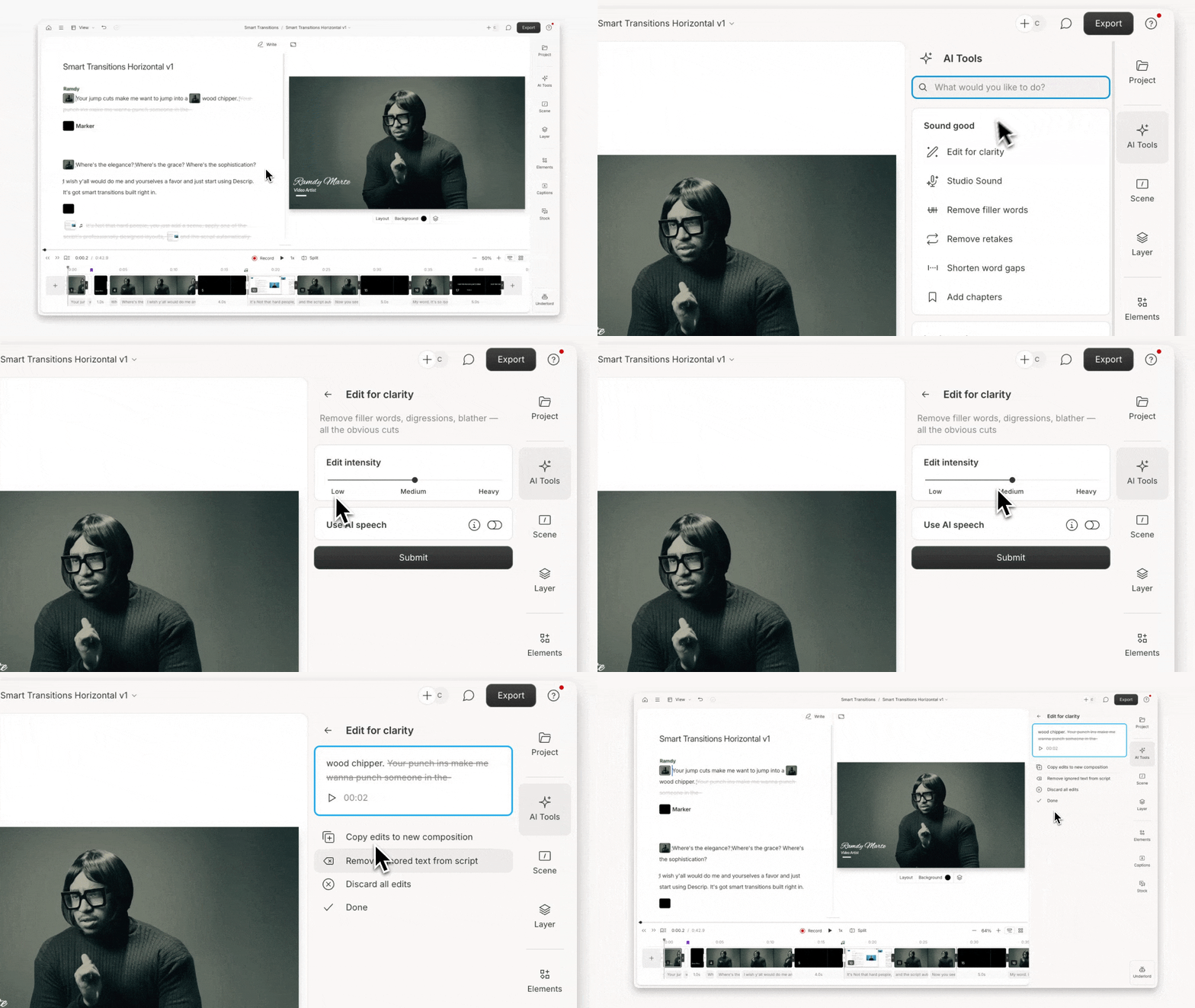
- Open the AI Tools panel in the right sidebar.
- Select Edit for Clarity from the Sound Good section.
- Adjust the Edit intensity slider:
- Low – Light touch, minimal edits
- Medium – Balanced cleanup
- Heavy – More aggressive editing and trimming
- Turn on Reword for flow to generate AI speech where needed.
- Make sure your script has proper speaker labels.
- Each speaker must have an AI Speaker assigned—you’ll be prompted if not.
- Click Submit to process the script and apply edits.
What you’ll see
- Removed words or phrases appear as ignored text so you can review or restore them.
- AI-generated edits appear in blue and include regenerated audio using the selected AI Speaker.
Next steps
After reviewing your edits, you can:- Copy edits to a new composition – create a cleaned-up version without overwriting the original.
- Remove ignored text – accept the changes and delete crossed-out text.
- Discard all edits – undo all changes and revert to your original script.
- Done – close the Edit for Clarity panel.