

Before you startYou’ll need an existing composition with enough content to clip from. Your source composition must be at least as long as the clips you want to create, and very short compositions (under 1 minute) may not generate clips if there isn’t enough to work with.
How to create clips
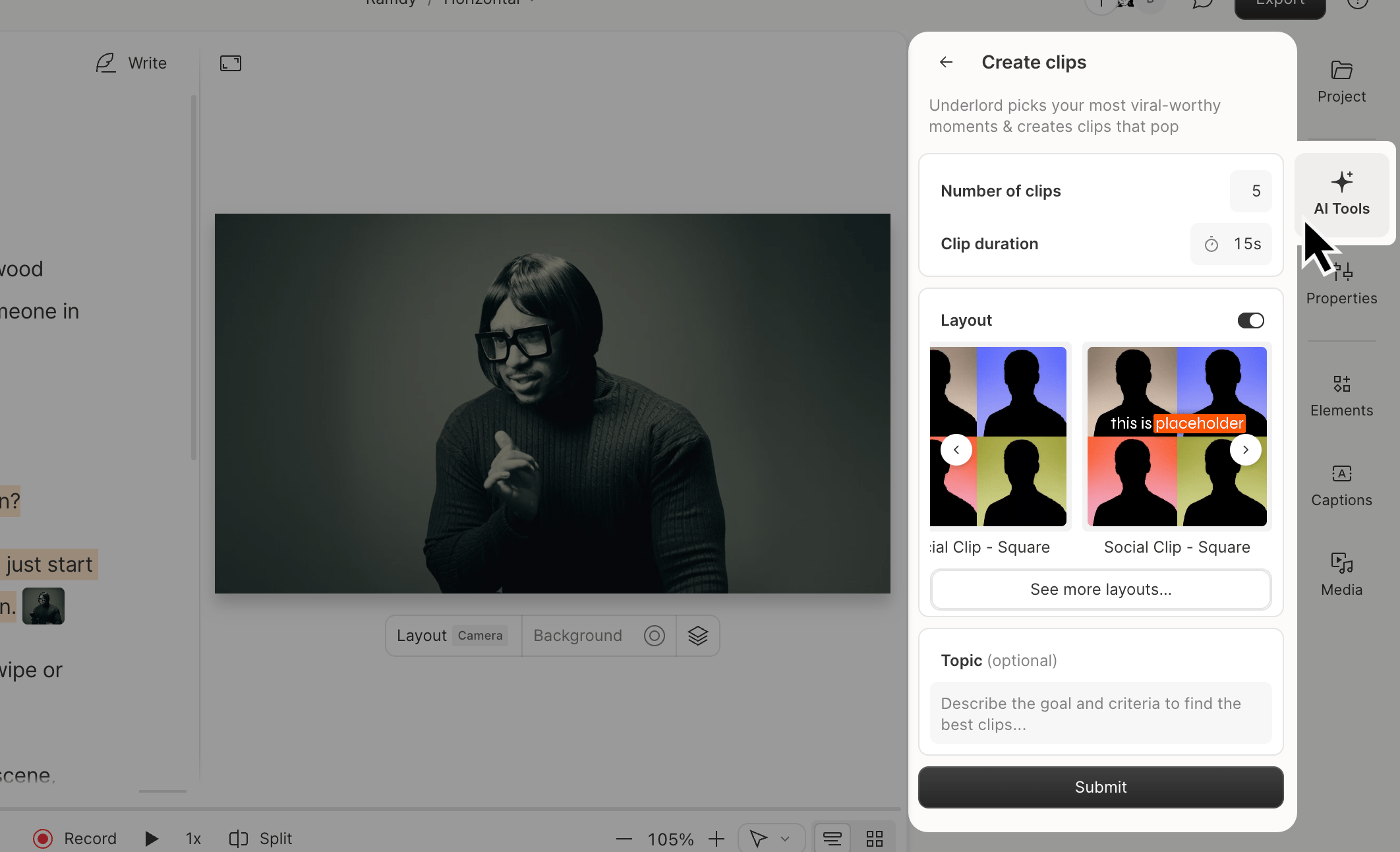
- Open the AI Tools panel in the right-hand sidebar.
- Scroll to the Repurpose section and select Create clips.
- Set the Number of clips (1–20) and Length (10 seconds to 5 minutes).
- (Optional) Choose a Layout. Scroll to view portrait (9:16) and square (1:1) presets, or select See more layouts to browse gallery or custom layout packs. Learn more about layouts
- (Optional) Enter a topic, goal, or criteria to guide clip selection.
- Click Submit. Descript generates new compositions based on the most engaging moments it identifies. Your clips appear in a Clips from [composition name] folder in the project panel.
Review and edit your clips
Open the Clips from [composition name] folder to view your generated clips. Each clip is its own composition and can be edited.Ask Underlord to create clipsYou can also ask Underlord to create clips. Describe what you’re looking for, and it handles the rest. Learn more about Underlord