

Usage noteOn current plans, this feature uses AI Credits. Learn more about tracking your Media Minutes and AI Credits.Legacy and Sunset plans track usage differently. See our Understanding your Legacy and Sunset plan guide for details.
Record in Descript first, then assign an avatar
Workflow: Avatar + Your recorded voice If you want to appear in your video using your own voice—without being on camera—you can record your voice directly in Descript and pair it with an avatar.- Open a new project and click Record at the bottom of the window.
- Record your content directly into your Descript composition. Need help recording? View our recording guide.
-
After recording, click the Add speaker button at the top of the script to apply a speaker label. You’ll have three options:
- Choose an existing custom AI speaker.
- Use one of Descript’s stock AI speakers.
- Create a new custom AI speaker.

- Make sure the label is applied to your script before assigning an avatar. Then, click the speaker label again and select Assign avatar to [your speaker name].
- Create a custom avatar with a text prompt, select a stock avatar from the gallery, or upload a headshot. Learn more about creating avatars in Descript.
-
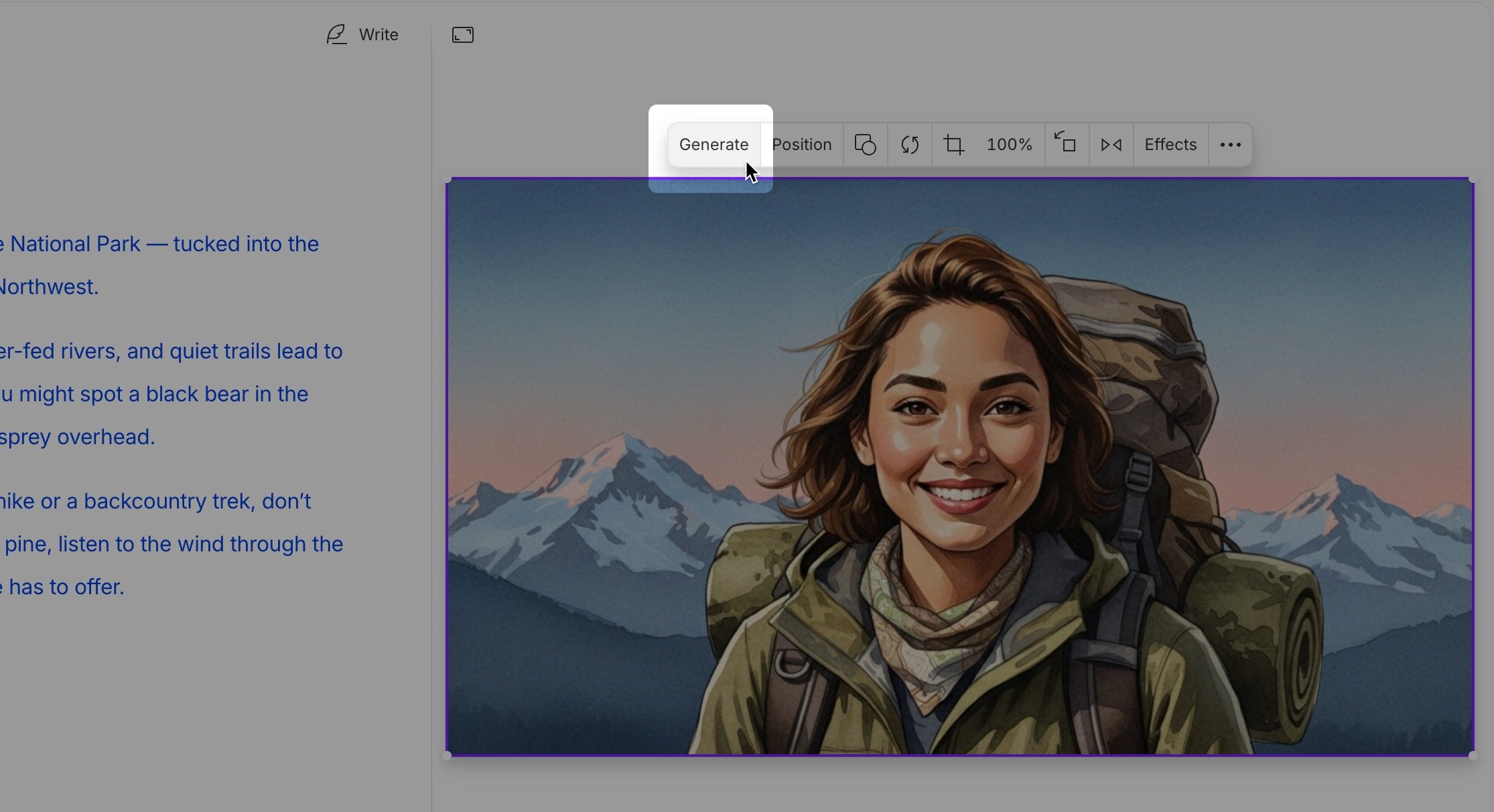
Click Generate avatar to animate it with your recorded voice. This should be a final step before finishing your composition — once you generate the avatar, any additional edits will require re-generating and an additional debit of your AI credits.\
Create a video from scratch with TTS audio
Workflow: Avatar + Text-to-speech voice Write a script, generate text-to-speech audio, then select a stock voice or existing custom AI speaker, and assign an avatar to present your content.- Open a new video project/composition and click Create with AI speaker.
- Select a stock voice or existing custom AI speaker. Click Choose speaker to confirm.
- Select a stock avatar from the gallery, or create a custom avatar. Click the Assign avatar button to confirm your selection. Learn more about creating avatars in Descript.
- In Write mode, draft or edit your script. When you’re done, click Done writing.
- Click Generate avatar to animate it with your text-to-speech voice. This should be a final step before finishing your composition — once you generate the avatar, any additional edits will require re-generating and an additional debit of your AI credits.
Add an avatar to existing audio or imported media
Workflow: Avatar + Imported voice track Working with recorded audio—like a podcast, voiceover, or screen recording? You can pair it with an avatar to add a visual presenter.- Import your media into your Descript project and add it to your script. Learn how to import and transcribe your content.
- If you haven’t already, add a speaker label to your script. Click the speaker label and choose Assign avatar.
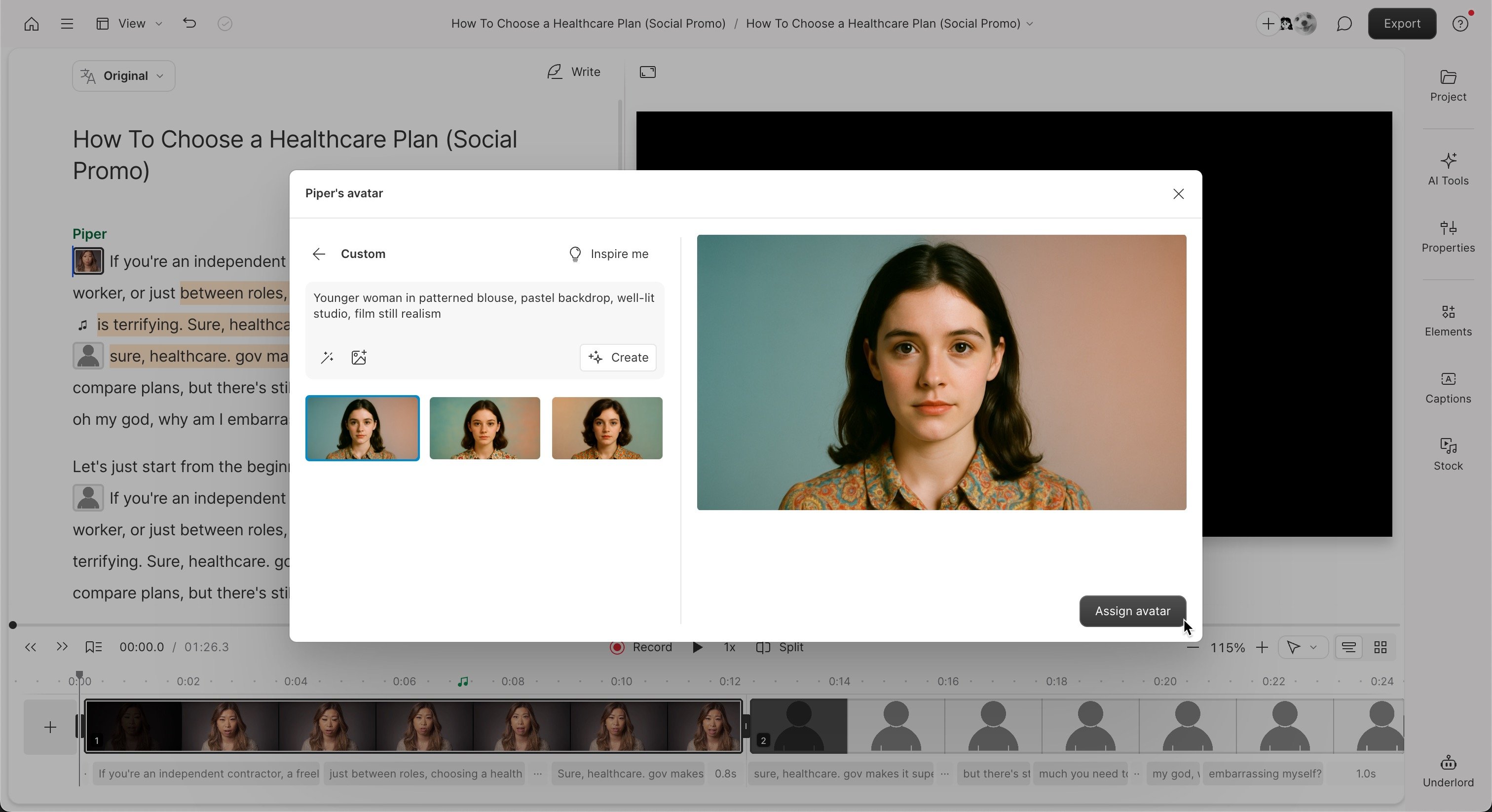
- Select a stock avatar from the gallery, or create a custom avatar. Click the Assign avatar button to confirm your selection. Learn more about creating avatars in Descript.
-
Click the Assign avatar button to confirm your selection.
- Click Generate avatar to animate it with your recorded voice. This should be a final step before finishing your composition — once you generate the avatar, any additional edits will require re-generating and an additional debit of your AI credits.