Usage noteOn current plans, this feature uses AI Credits. Learn more about tracking your Media Minutes and AI Credits.Legacy and Sunset plans track usage differently. See our Understanding your Legacy and Sunset plan guide for details.
Create a custom avatar with a text prompt
Create a new avatar by entering a description and Descript will generate a unique image based entirely on your prompt.- Assign a speaker to your script.
-
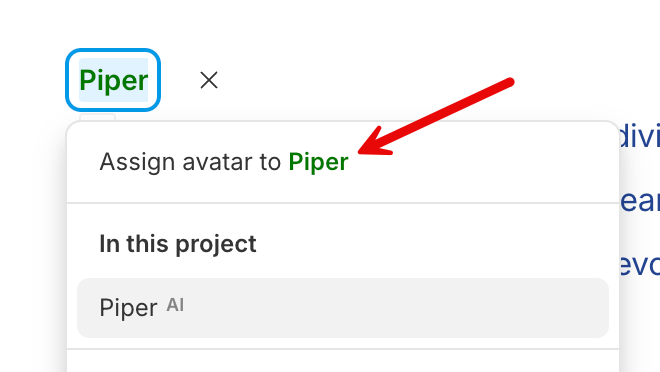
Click the speaker label and choose Assign avatar to [speaker name].\
-
Click the Create a custom avatar button.\
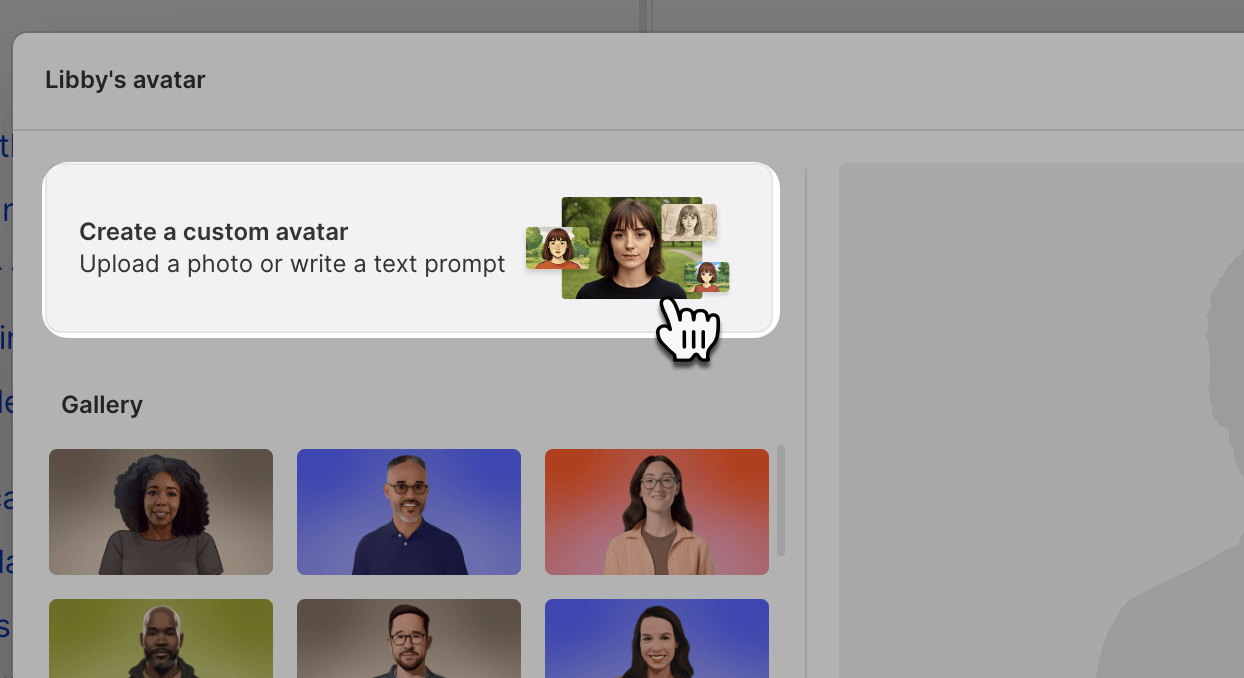
- In the Text prompt tab, enter a description or click Inspire for a suggested prompt. Describe a realistic, adult, non-celebrity, human-like figure. See avatar best practices.
-
(Optional) Choose a style for your avatar from the available options in our style library.
-
Descript will generate three avatar options. You can:
- Select one of the images to apply, or
- Continue iterating on your prompt. Previous generations remain visible as long as the avatar modal stays open.
- Click Assign avatar to create the avatar and assign it to your speaker.
- Once your script is finalized, click Generate avatar to animate the image and sync it with the speech audio.
Upload a photo to create your custom avatar
Upload a photo to use as your avatar. Be sure to reference the best practices for image guidelines that will yield the best results.- Assign a speaker to your script.
- Click the speaker label and choose Assign avatar to [speaker name].
- Click the Create a custom avatar button.
- Click the Upload an image button and select a supported image file (
.jpeg,.png, or.webp).\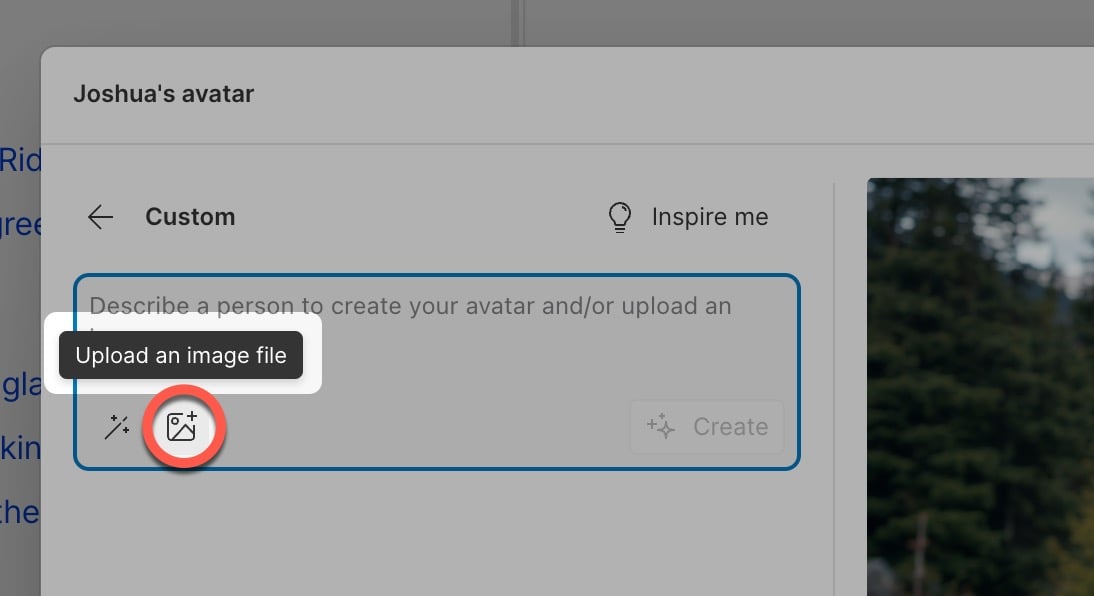
- Click the Create button to complete the upload.\
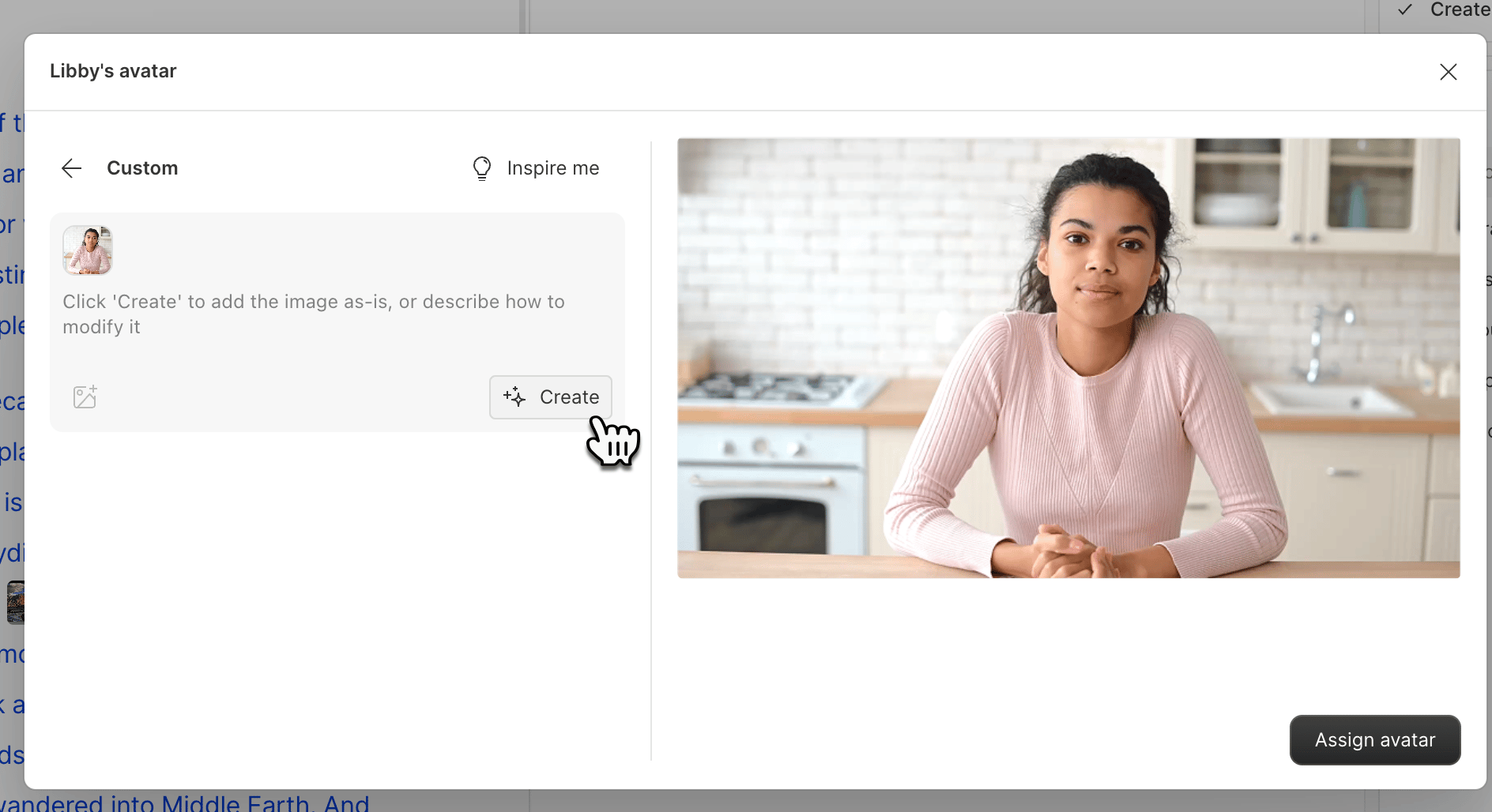
- If you just want to use the photo with no additional changes, click the Assign avatar button in the bottom right-hand corner.
Add an image to your prompt
Want to give your avatar a new look while keeping the same base image? In the preview pane on the right side of the avatar window, hover over the image and click Add image to prompt. This adds the image to your text prompt, and Descript will generate your next avatar using both the prompt and the attached image.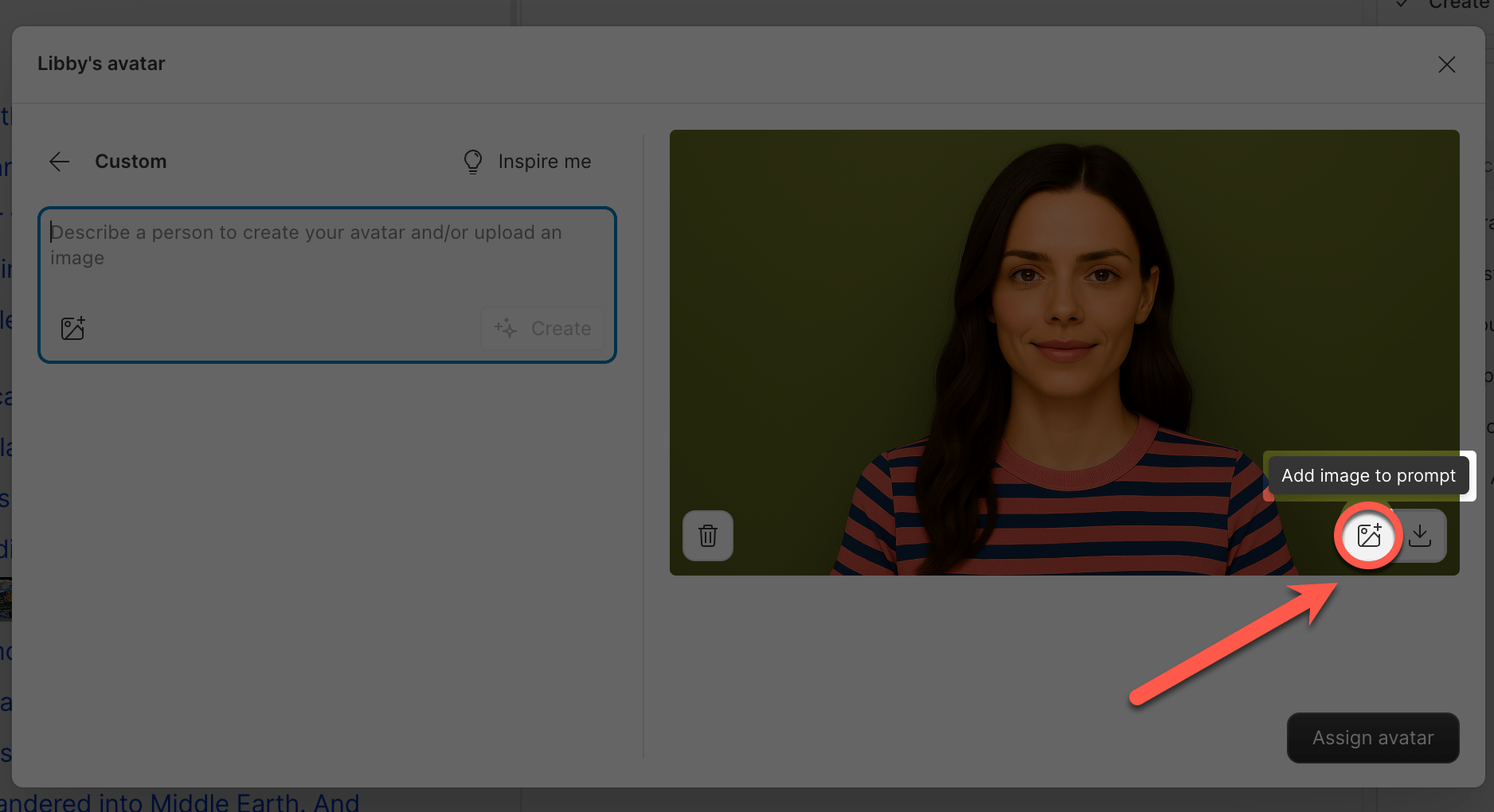
Save your avatar images
Any avatar image you generate is automatically saved to your Project files under AI Assets > Generated Avatar Images. You can access them there to reuse or restyle later. You can also download the image to your device by clicking the Download icon.Manage or update custom avatars
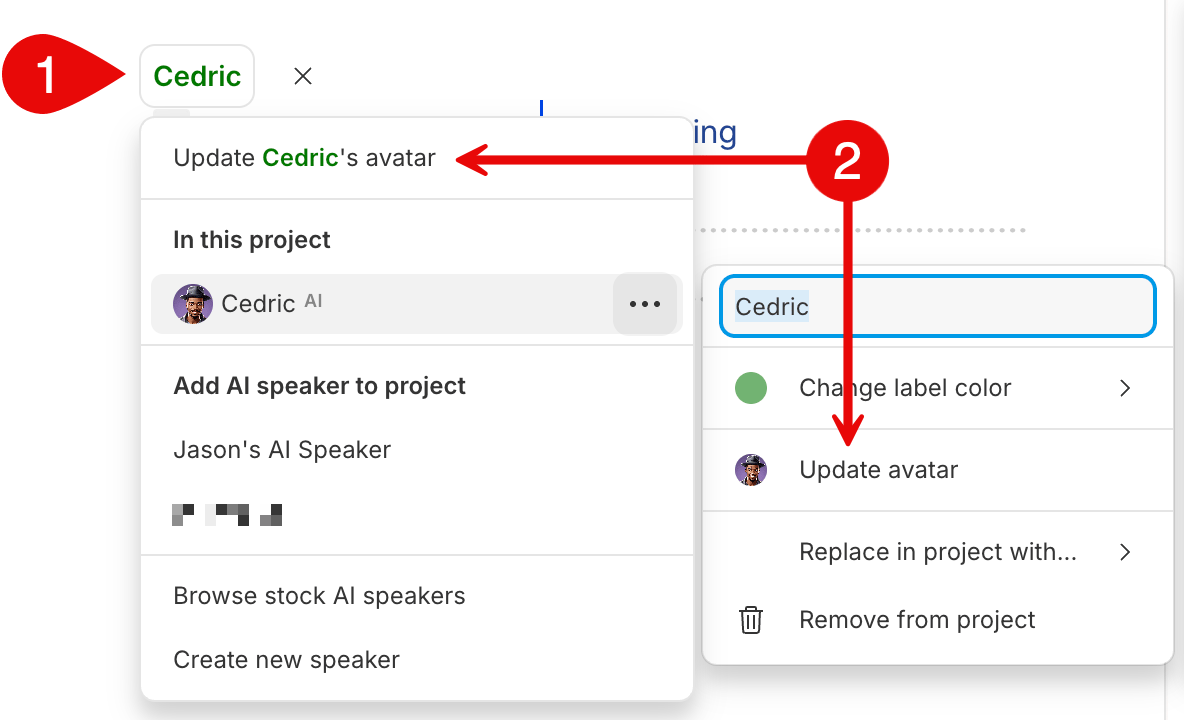
To update a custom avatar, click the speaker label and choose Update speaker’s avatar. This updates the avatar across your project while preserving its size, position, and visibility in the scene editor.