

Add an animation to a layer
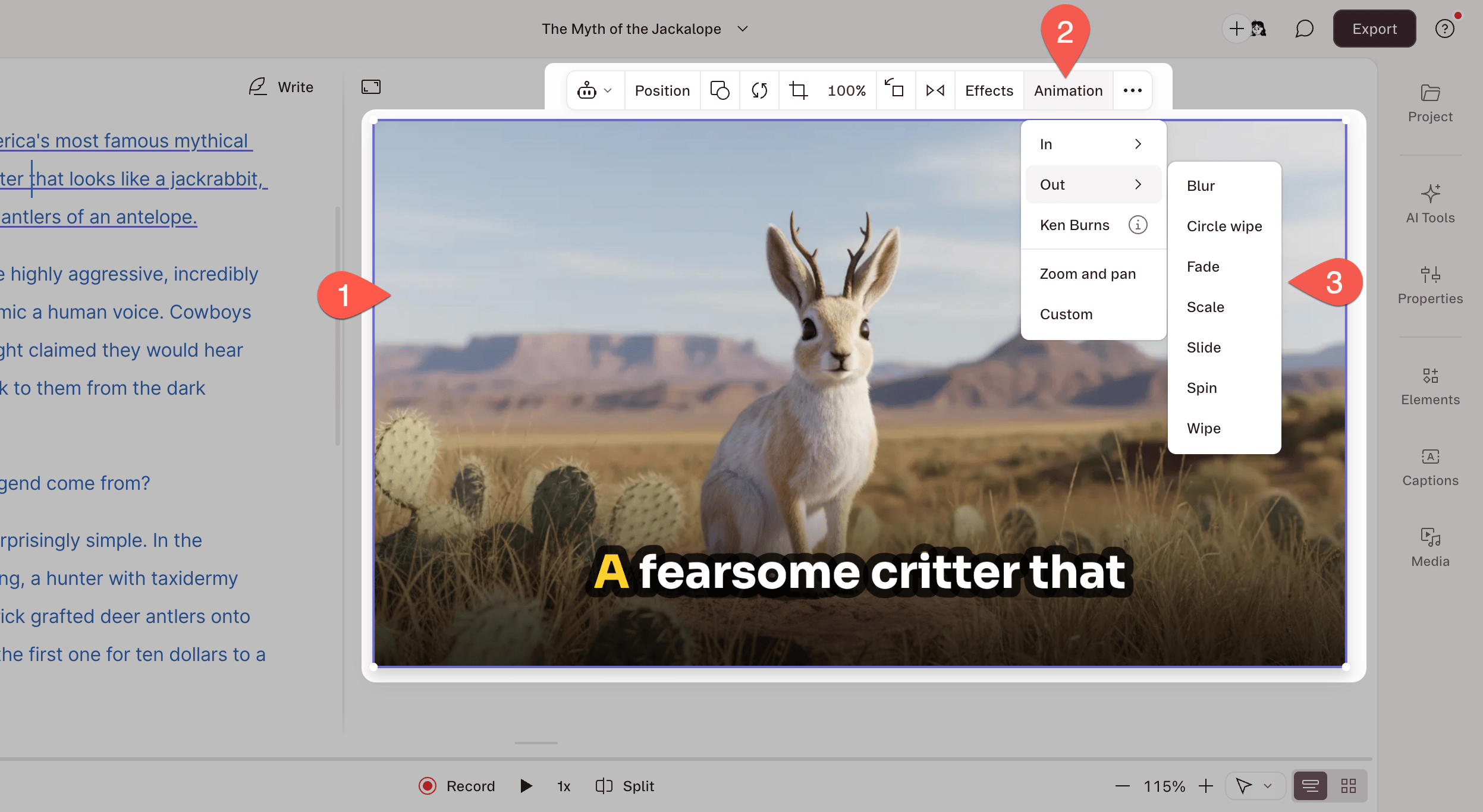
- Select the visual or text layer in the Scene Editor.
- In the hover menu, click Animation.
- Choose a preset from the dropdown, or select Custom.
Remove an animation
- Select the animated layer in the Script editor.
- Click Animation in the hover menu.
- Open the options menu for the animation.
- Select Remove.
Available animation presets
Choose from the following in/out presets for visual or text layers:Animation presets and script track layersIn/out presets are designed for b-roll layers with defined start and end points. Script layers are continuous and don’t support these presets—you’ll need to use custom keyframe animations instead.
Custom keyframe animations
With a custom animation, you control exactly how a visual or text element appears, moves, or changes over time. Define the start and end using keyframes, then adjust properties like position, size, and opacity.Add and adjust a custom keyframe animation
- Select a visual in the Scene Editor.
- Click Animation, then select Custom.
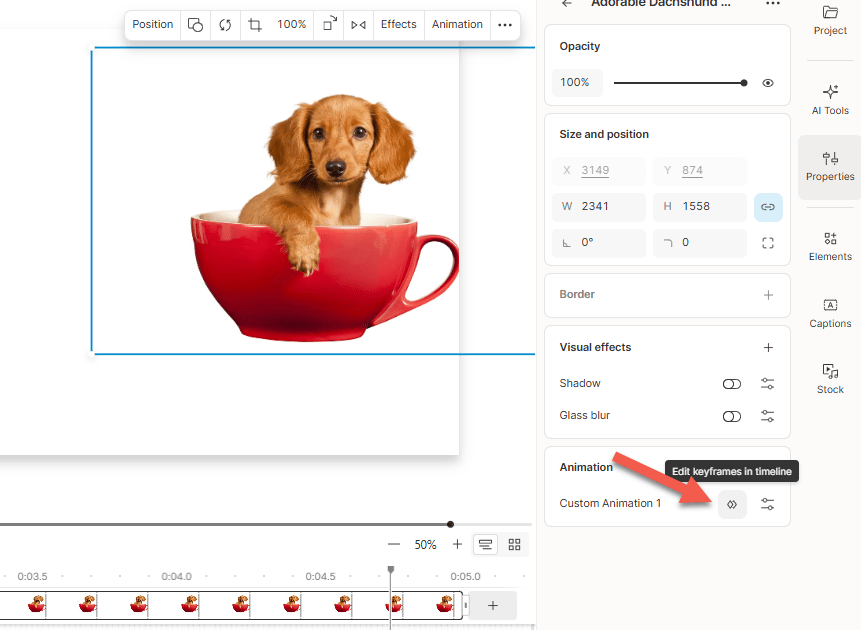
- Your animation appears in the timeline with two keyframes.
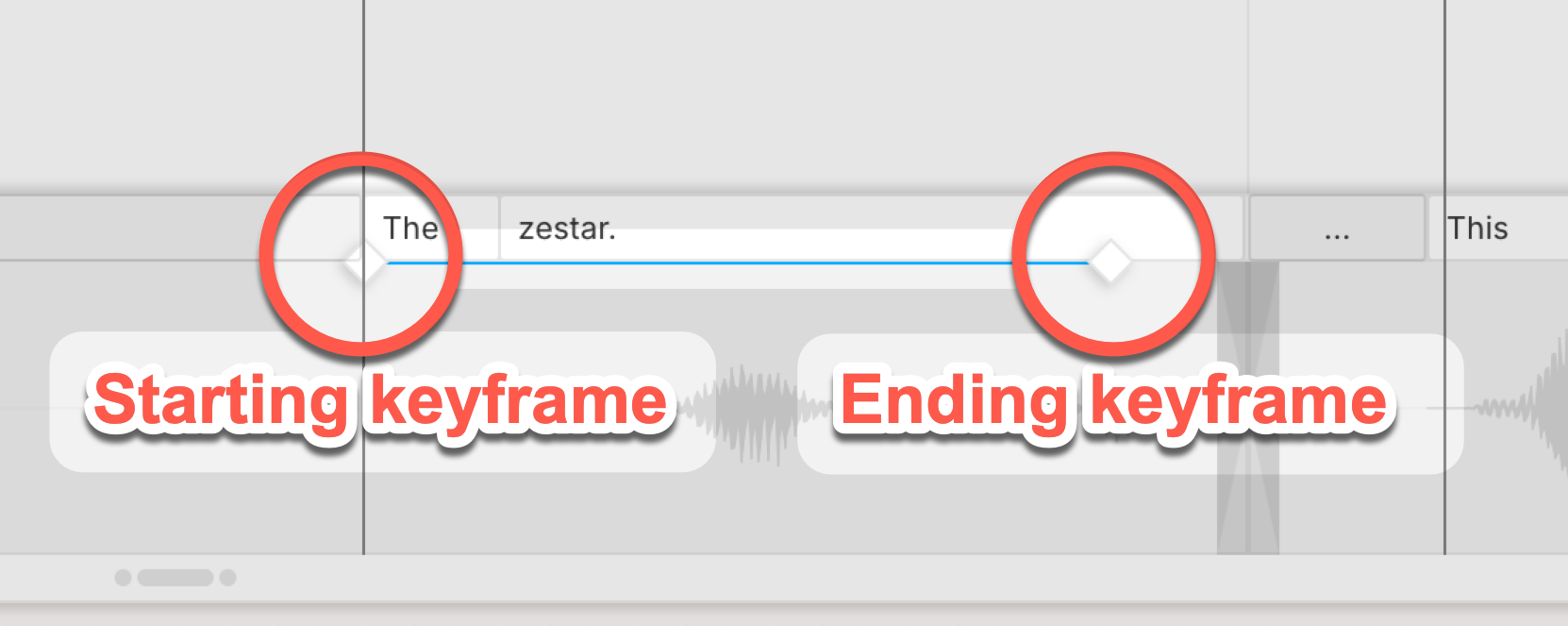
- Select the start keyframe and adjust position, size, rotation, cropping, or opacity.
- Repeat for the end keyframe.
- Press
Escto exit animation mode.
Text animation by unit
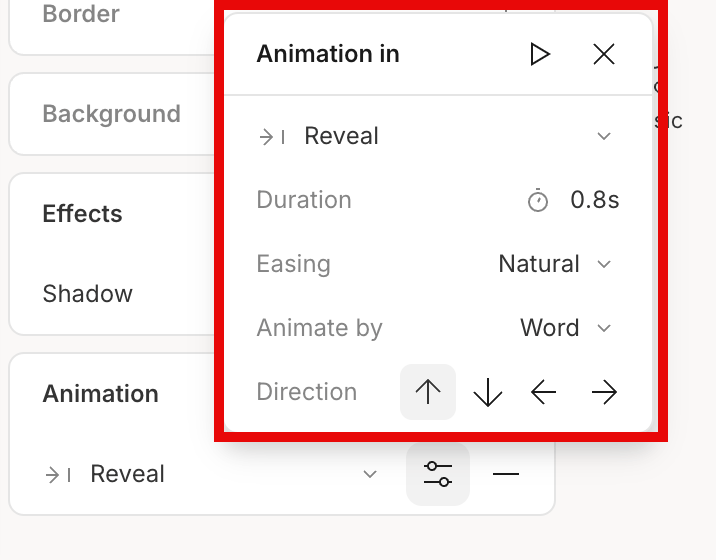
Animate text by word, line, or paragraph using the Appear and Reveal presets.- By word: Each word animates separately.
- By line: Each line animates as a unit.
- By paragraph: The entire paragraph animates together.
Animation curves
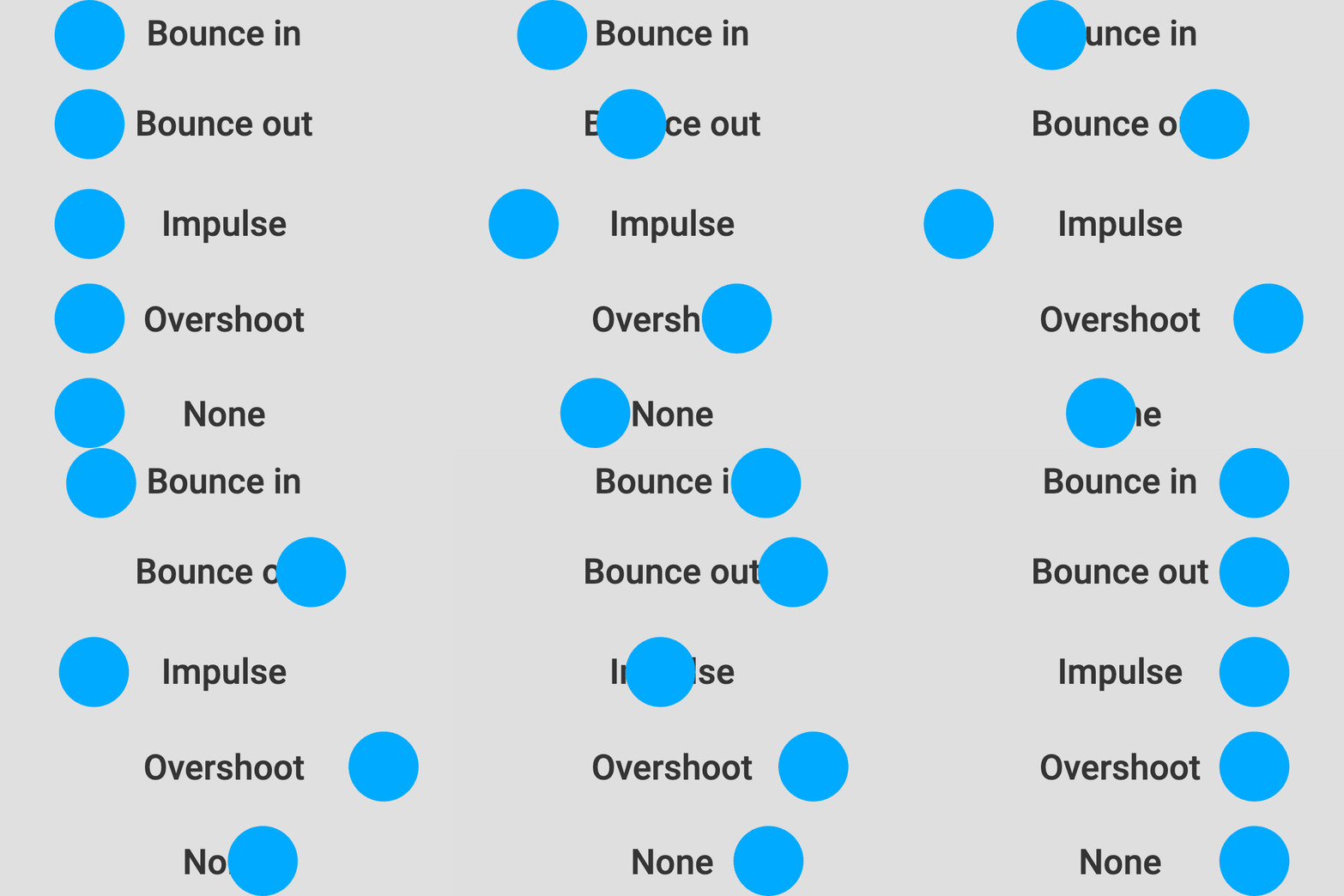
Animation curves control pacing between keyframes. By default, animations use a linear curve (constant speed), but easing options create more natural motion. Open Animation settings in the Properties panel to choose a curve.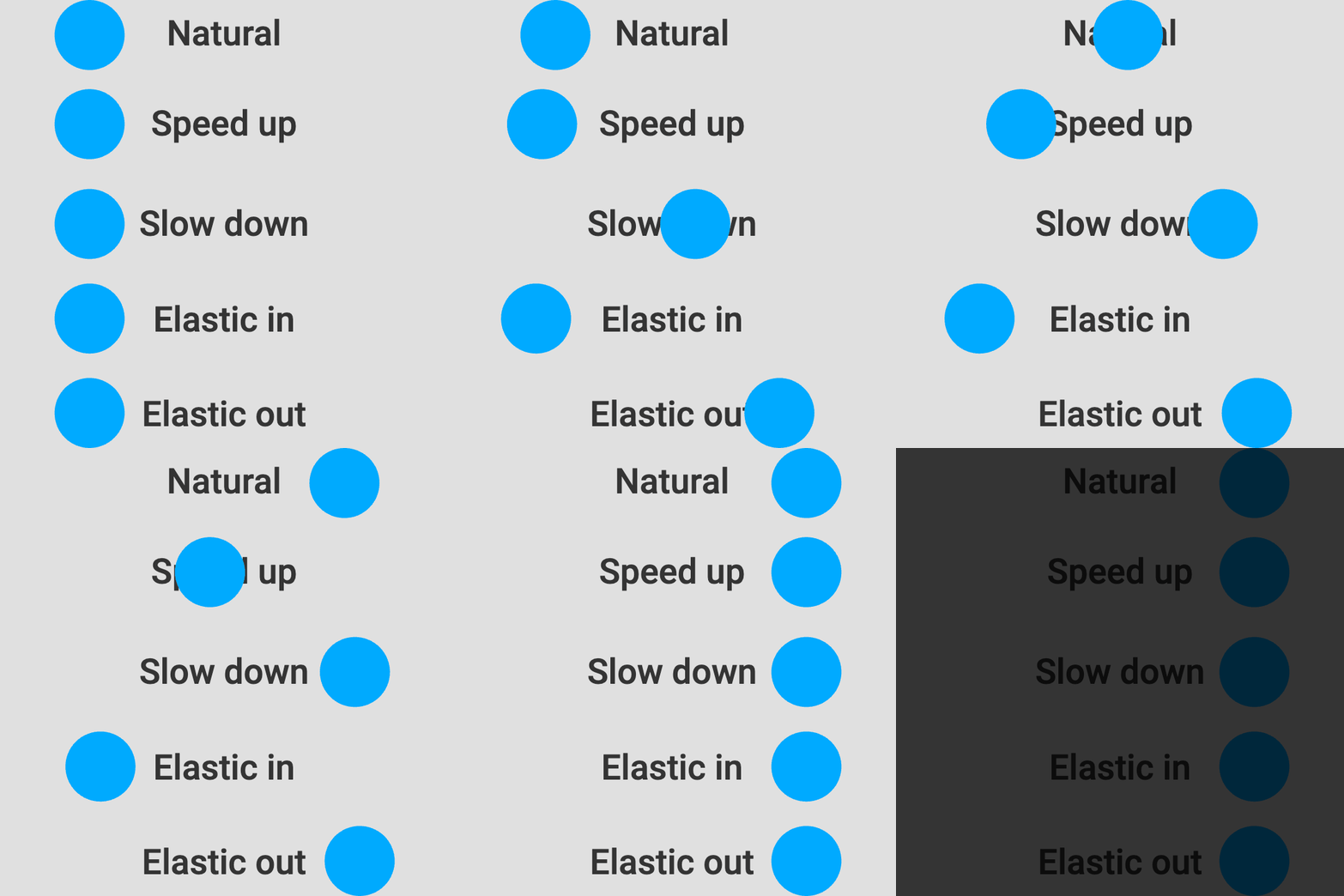
Adjusting animations in bulkDescript does not currently support applying or editing animations in bulk. Submit a feature request →