

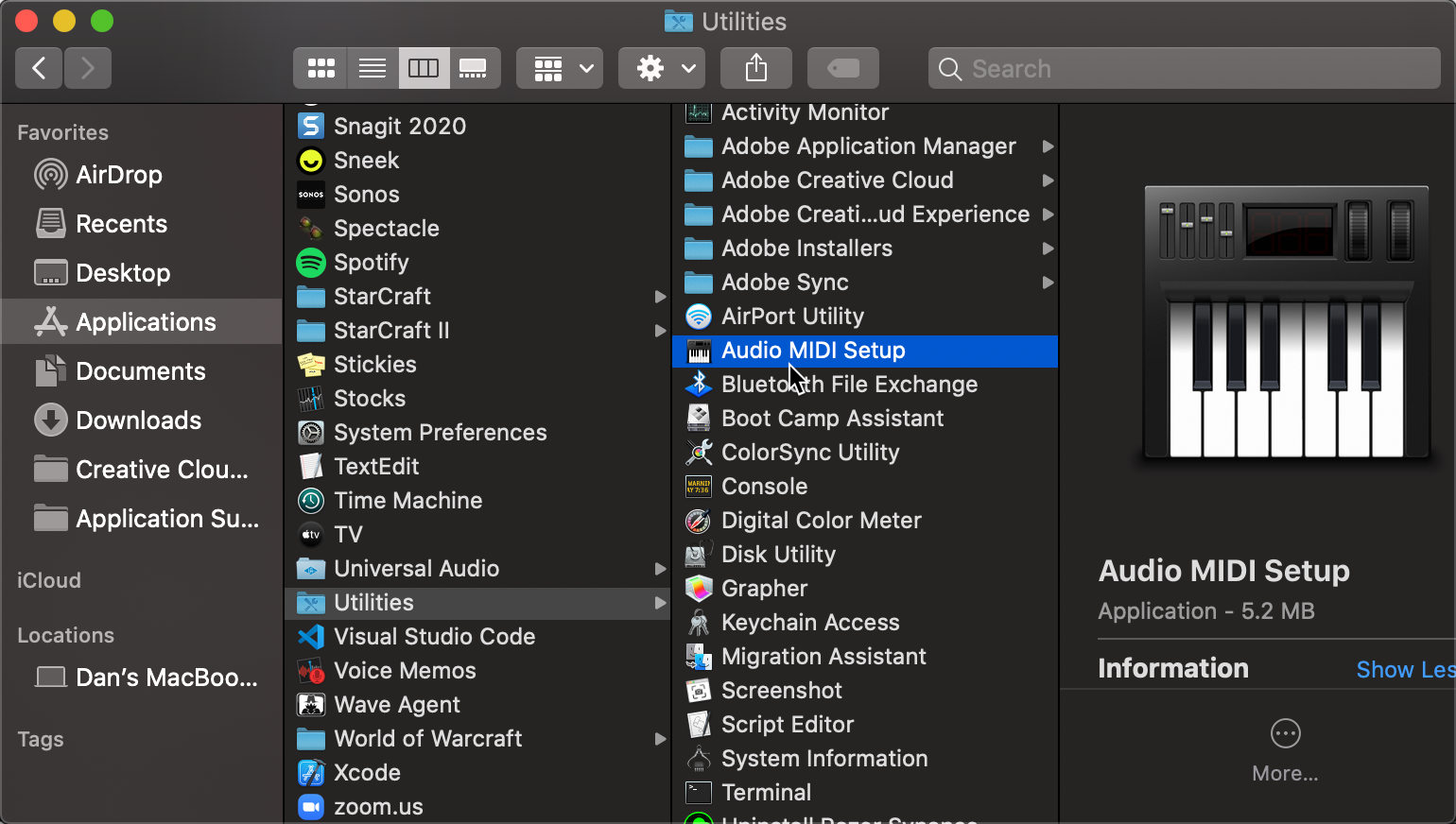
Are you using Windows?Windows does not natively support the use of multiple USB microphones simultaneously. To utilize more than one USB microphone, you will need to use third-party applications.
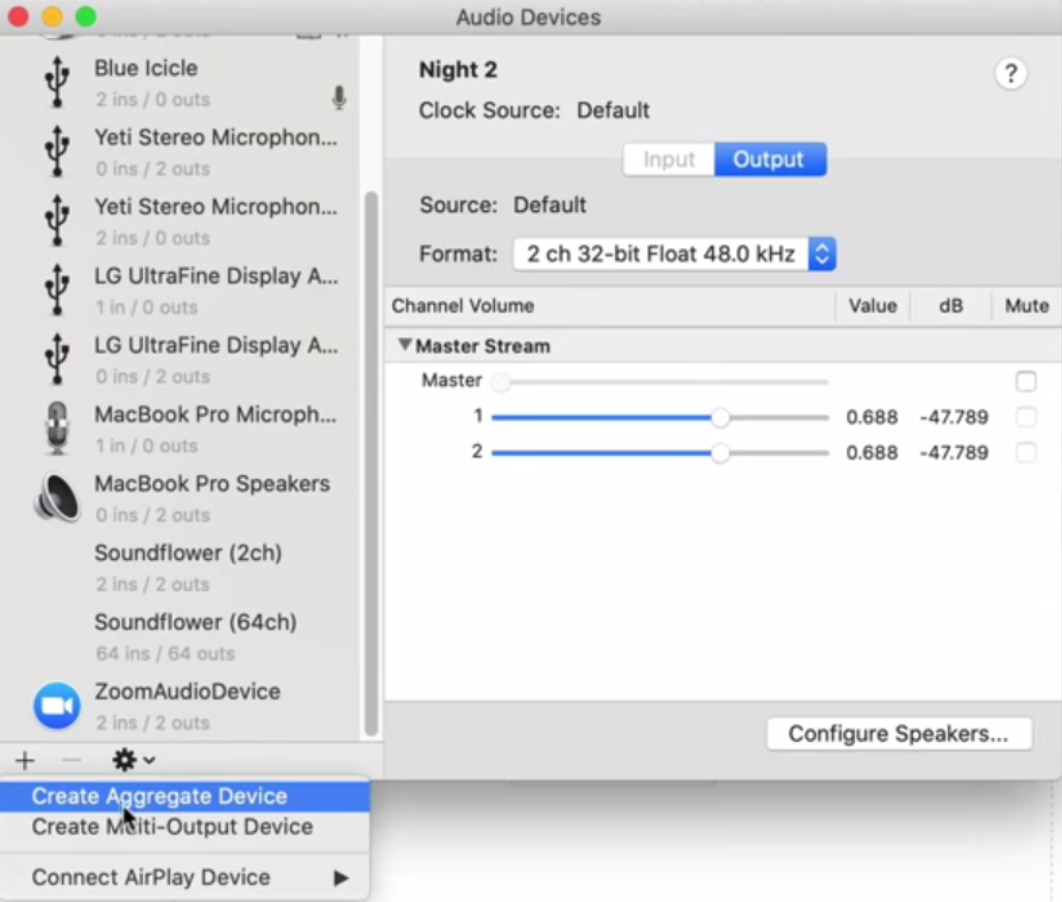 Here you can see a list of USB microphone devices on your computer and select the checkbox next to each that you would like to add to your aggregate device.
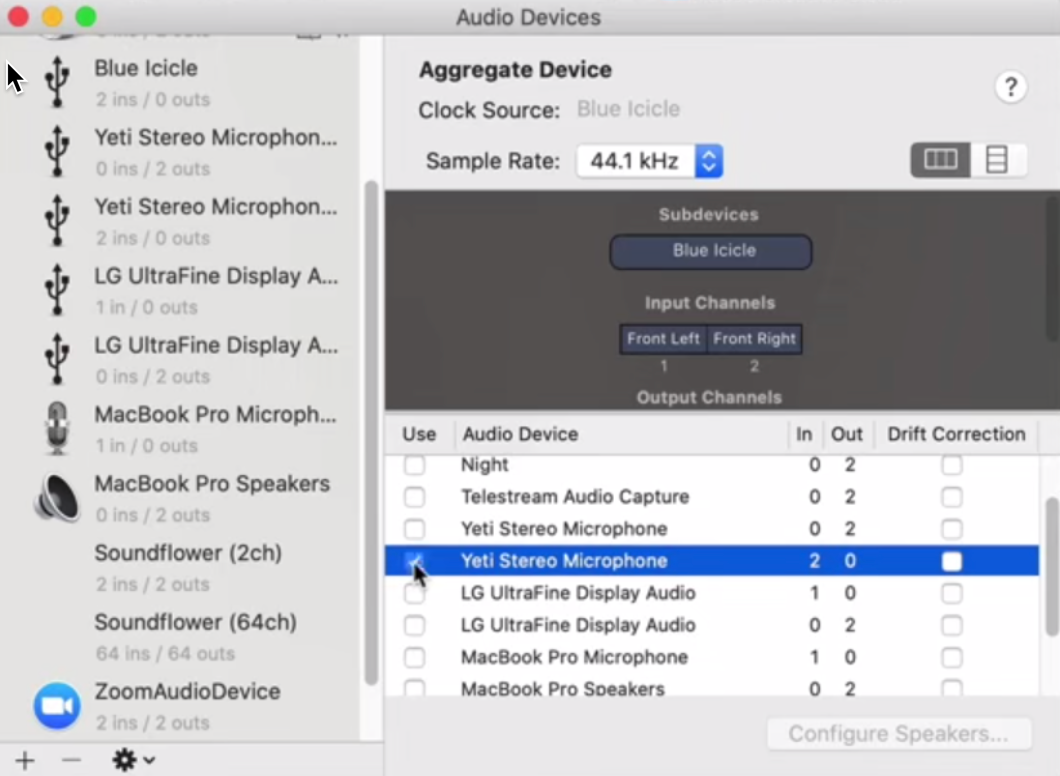 You can also rename the aggregate device if desired.
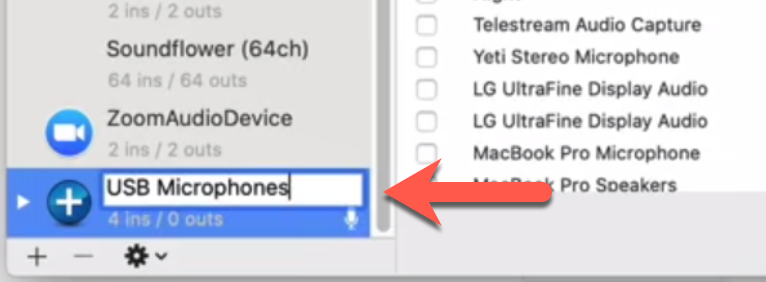 At that point, go ahead and restart Descript for the changes to take effect. When you open your Recording Settings, your new aggregate device will be listed along with your microphones, which you can select.