

Integration instructions
Get the customer’s Descript URL
When a customer exports to a hosting service, Descript uploads their content to a share.descript.com page. Once you’re a supported partner, customers can choose your service as their export destination.Descript sends them to your episode creation URL with the title and encoded share page URL as query parameters:Fetch the share page URL to get the media and transcript links.
Download the media
Look for these Video exports provide a video URL only. If you need audio separately, extract it from the MP4 file.If the share page has neither a
<meta> tags in the share page’s HTML <head>:descript:audio nor a descript:video tag, show an error such as “Import is disabled for this project.” Private share pages have no media tags. Ask the customer to set access to Anyone with the link so you can import without a Descript login.Download the transcript data
Descript provides transcripts in JSON and WebVTT formats using the Podcast Namespace Transcript specification. Find the links in the same HTML
<head>:Include transcripts in your podcast feed
Follow Podcast Namespace’s guide to include transcripts in your podcast’s RSS feed.
Best practices
Polling
Customers may reach your episode creation page before their export is ready. The share page already includes the metadata tags, so fetch it once to get the file URLs, then poll the media URL. UseHEAD requests to check whether the media is ready. While Descript generates the file, the link returns 429 with a Retry-After header. Wait that many seconds before trying again, with a maximum timeout of 3 hours.
Older video exports can also return 429 on the first request while Descript rebuilds the file. Handle it the same way.
Transcript (
descript:transcript) and captions (descript:subtitles) links point directly to files written at the end of the export. They return 404 while the export is running. Fetch them once the media is ready. If they still return 404, stop retrying: import without them or ask the customer to export again.
Transcript and captions links expire after 12 hours and return an error other than 401 or 410. Fetch the share page again for fresh links.
Show progress in the UI
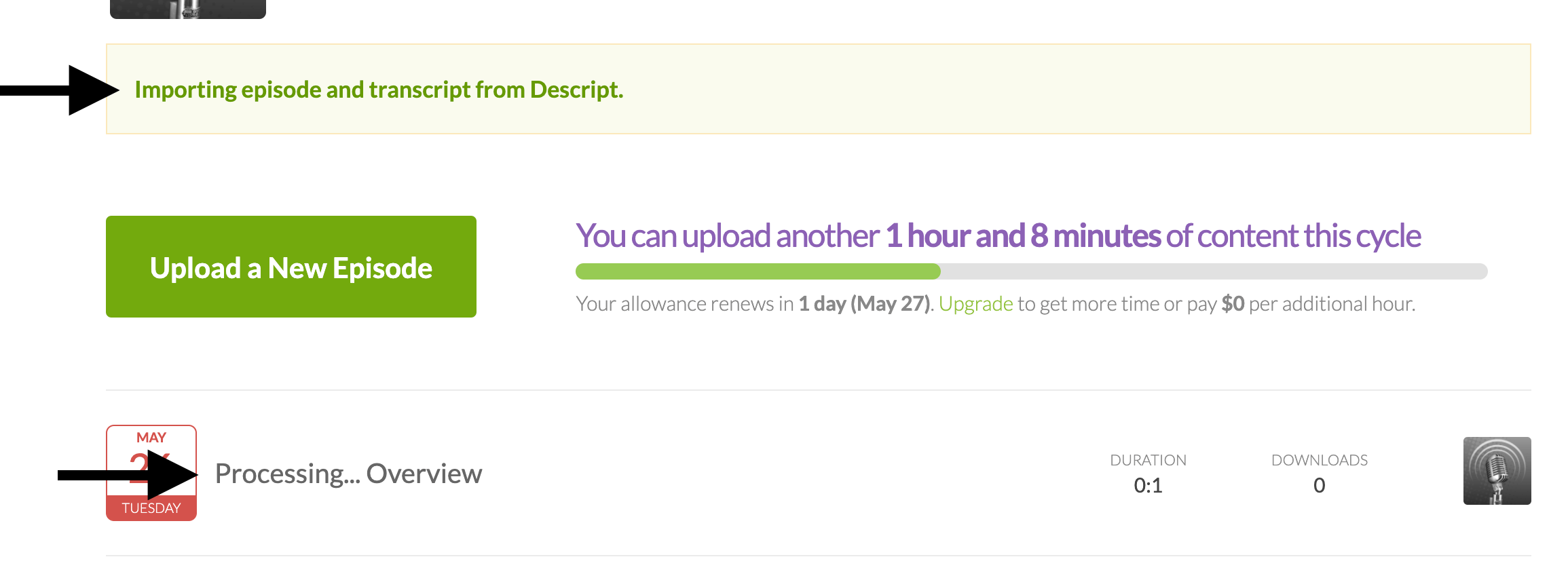
Tell customers when their export is still processing.