

Usage noteOn current plans, this feature uses AI Credits. Learn more about tracking your Media Minutes and AI Credits.Legacy and Sunset plans track usage differently. See Understanding Your Legacy and Sunset Plan.
Generate a YouTube thumbnail
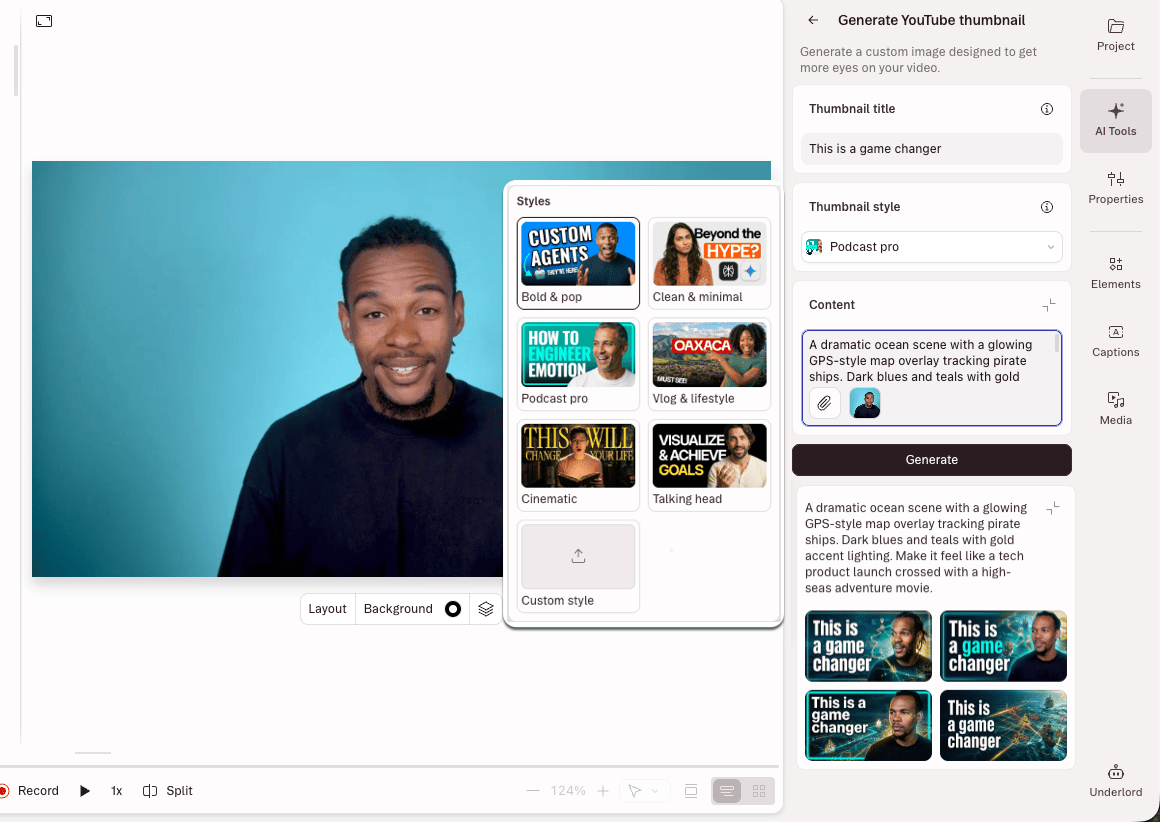
Before you start, it helps to have the title text, subject or frame, and visual style you want in mind.- Open the AI tools panel in the right-hand sidebar.
- In the Publish section, select Generate a YouTube thumbnail.
- Enter your Title. This is the exact text Descript renders on the thumbnail. Keep it short so it stays readable at small sizes.
- Choose a Thumbnail style from the available presets, or upload your own image as a custom style reference.
- Add any additional instructions or reference images in the Content field. If you want the thumbnail to feature a specific person or moment, save a frame from your video or attach a reference image so Descript has a strong visual starting point. Focus on describing what should change rather than listing everything the image should contain.
- Click Generate.
Use your generated thumbnail
After generating, select a thumbnail to see your options:- Set as share page thumbnail updates the preview image that appears when you or anyone else shares your Descript web link.
- Download saves the image to your device. To use it as your YouTube thumbnail, upload the downloaded file in YouTube Studio. Generated thumbnails don’t automatically sync to YouTube.
- Add as new layer places the image in your composition so you can edit or build on it further.
- Reuse prompt generates a fresh set of options using the same title, style, and instructions.