Who can move projects
Drive owners and editors can move projects within and between workspaces on a drive. Folders can’t be moved between workspaces or across drives.Move a project from the drive view
- Right-click the project name or click the ⋯ menu next to the project.
- Select Move to…
- Choose a destination workspace, drive, or folder and click Move.
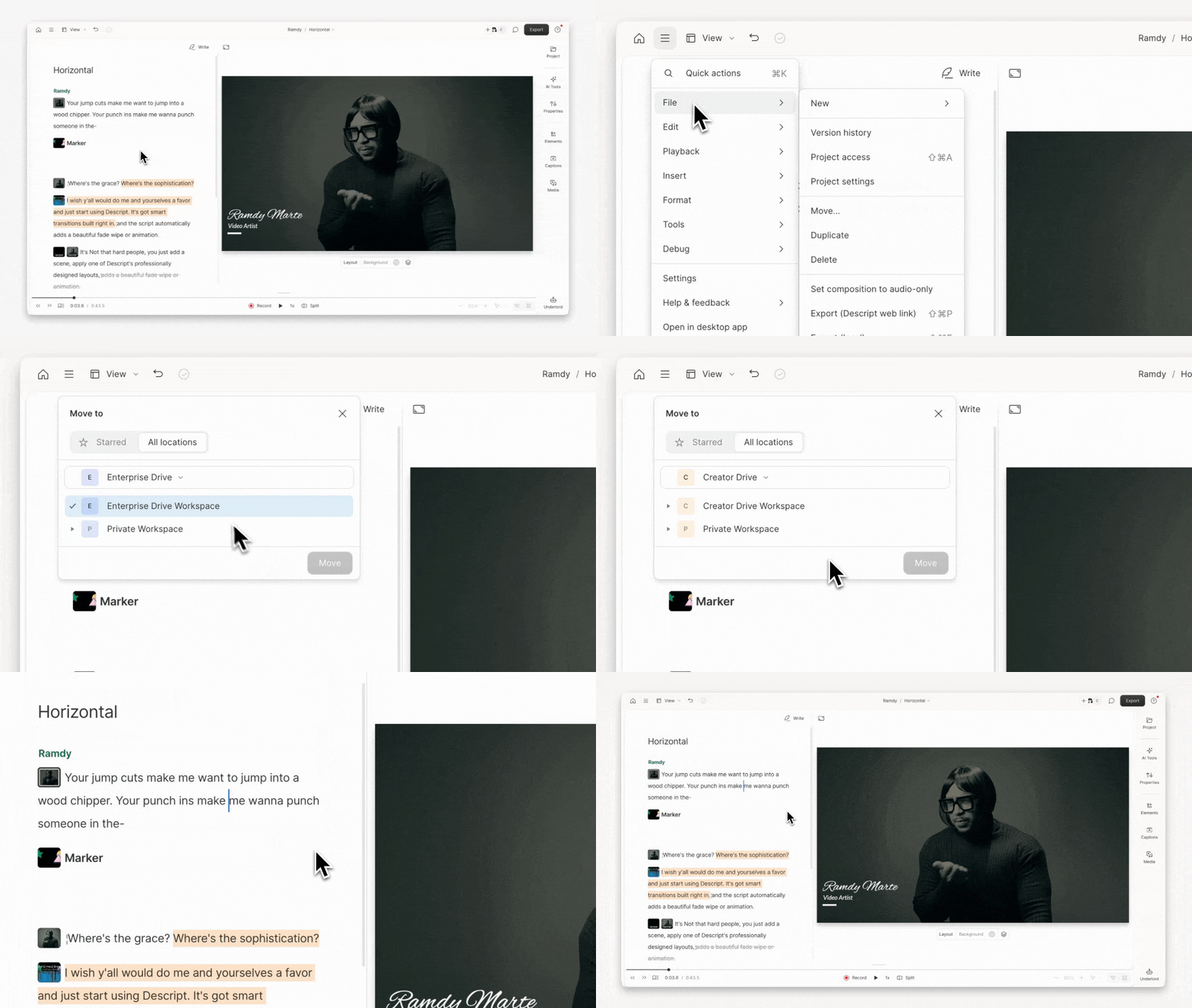
Move a project from the project editor
- With a project open, click the menu icon in the top-left corner.
- Select File > Move…
- Choose the destination workspace, drive, or folder, then click Move.
Move multiple projects at once
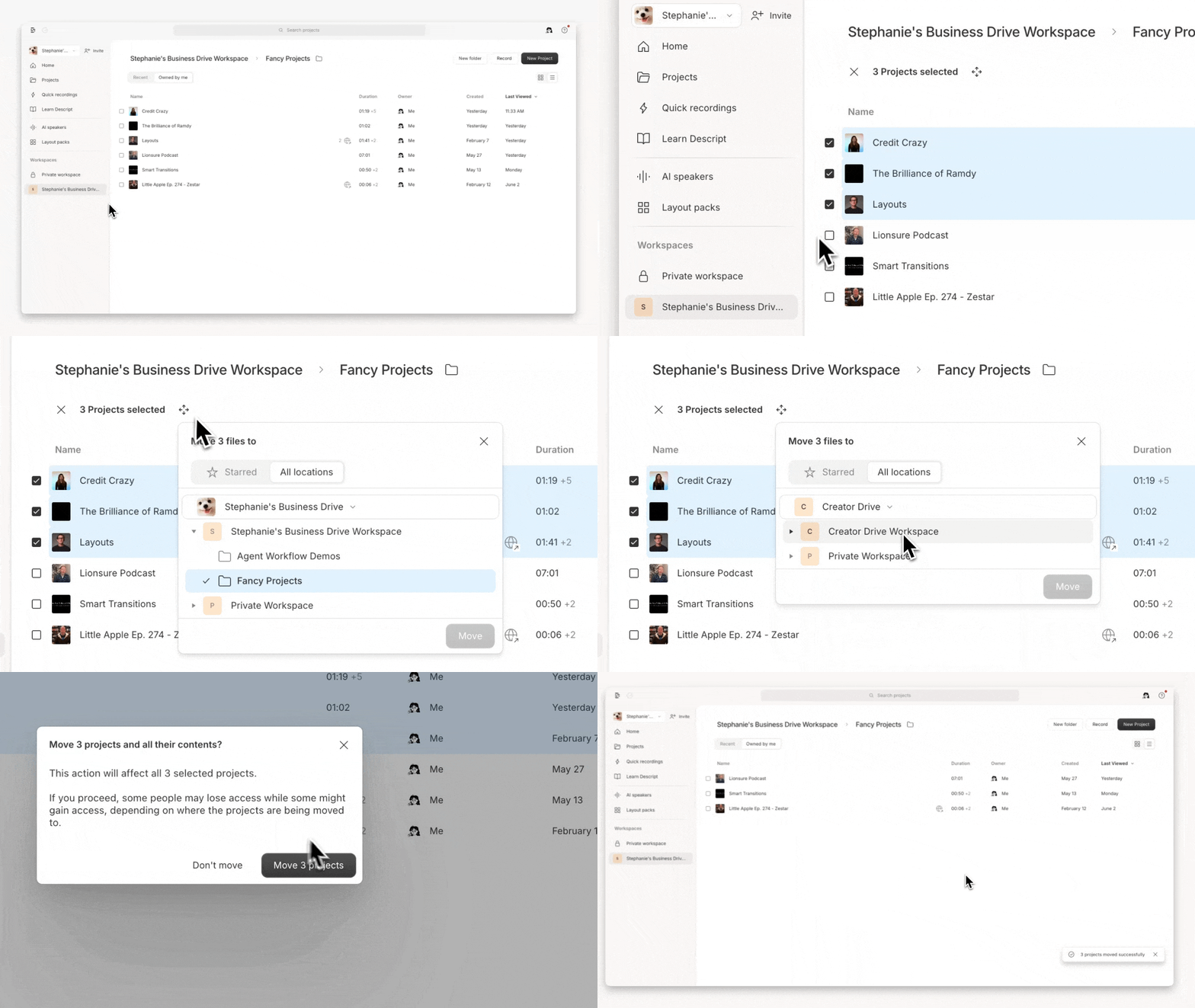
- Open a workspace from the left sidebar.
- Select checkboxes beside each project to move. Use
Shift+ click to select a range. - Click the move icon or the ⋯ menu in the toolbar that appears and choose Move to…
- Choose the destination workspace, drive, or folder, then click Move.