The Files section of the Project panel lets you take action on any media you've added to your project. From here, you can rename files, initiate transcription and speaker detection, duplicate files, and more.
This article covers
- How to access file actions
- Available actions for project files
- How to view file metadata
- Actions for AI-generated images and videos
How to access file actions
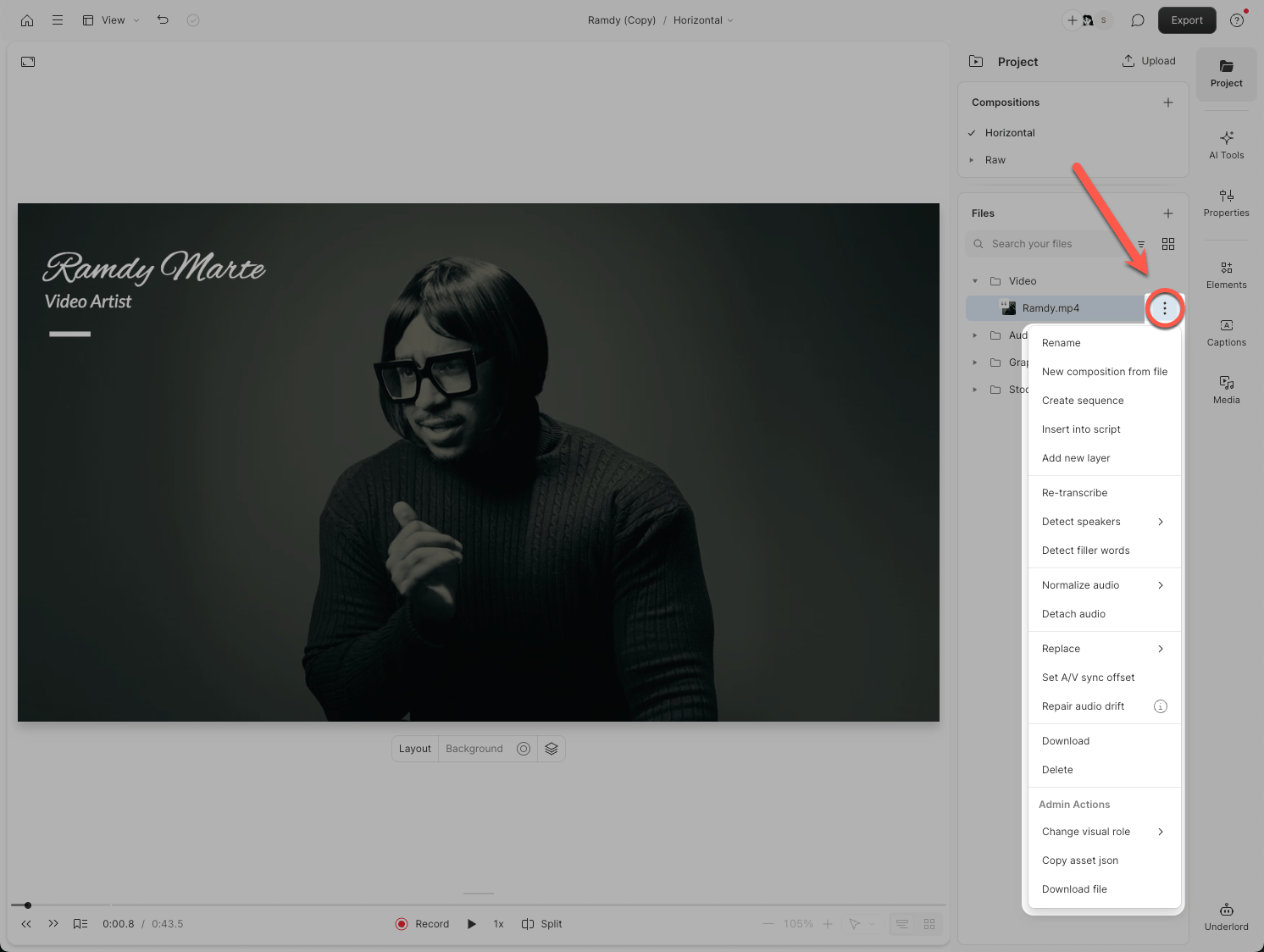
- Open the Project panel from the right-hand sidebar.
- Navigate to the Files section.
- Click the ellipsis button (
...) next to any file name.
Note: Some actions only appear for certain file types.
Available actions for project files
| Action | Description |
|---|---|
| Rename | Change a file’s name. |
| New composition from file | Create a new composition in your project with the selected file. |
| Duplicate | Duplicate the selected sequence. |
| Create sequence | Combine multiple selected files into a sequence. |
| Insert into script | Adds your file to the script of the current composition. Learn more about the script. |
| Add new layer | Adds your file as a new layer in the current composition. Learn more about layers. |
| Transcribe file / Re-transcribe file | Transcribe the file’s audio. Learn more about transcription. |
| Detect speakers | Run speaker detection and/or identification, then apply speaker labels. Learn about how to detect and label speakers in your transcript |
| Detect filler words | Run remove filler words to detect and remove filler words from your composition using AI. Learn about filler words. |
| Convert to mono | Create a new mono audio file from a stereo audio project file; the original file will be preserved. |
| Separate into mono files | Create a left and right mono audio file from a stereo audio project file; the original file will be preserved. |
| Normalize audio | Adjust the overall gain or volume level of a file. |
| Detach audio | Separate audio from video. Creates a sequence with separate audio and video tracks. |
| Replace | Replace the file or replace the transcript. |
| Set A/V sync offset | Adjust audio/video synchronization
|
| Repair audio drift | Repair improperly encoded files. Learn more about using the repair audio drift tool. |
| Import transcript | Import and sync an existing transcript with its corresponding audio. Learn how to import an existing transcript |
| Download | Download the project file to your computer. |
| Delete | Delete the project file or recording from your project. |
View file metadata
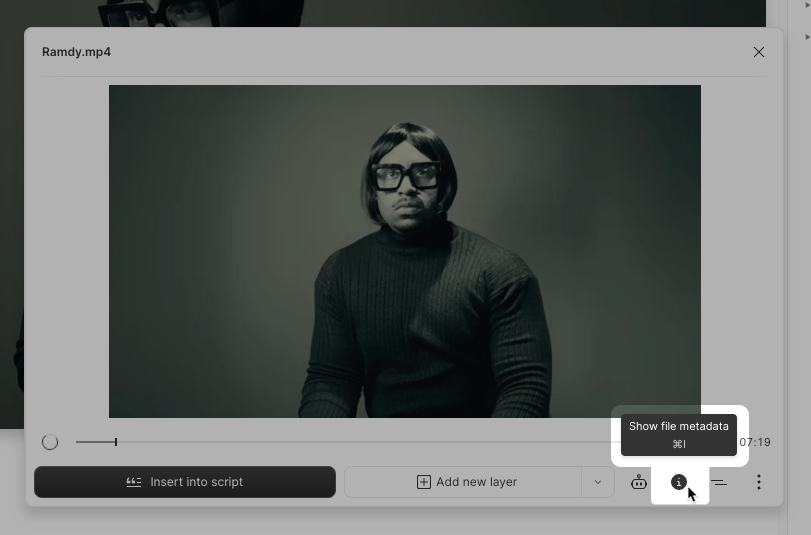
- Select a project file from the Files section.
- Click the Show file metadata button in the bottom-right corner of the pop-out panel.
Actions for AI-generated images and videos
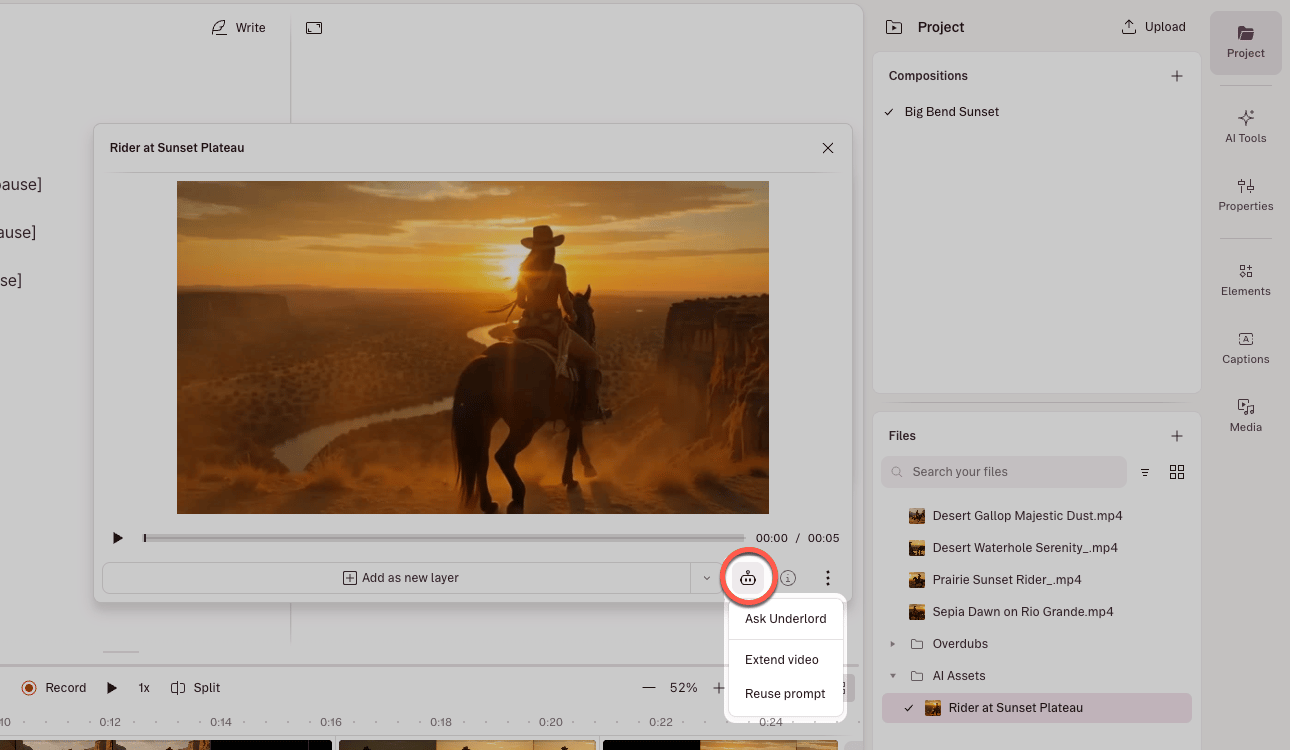
For AI-generated images and videos, additional menu options are available. Click the Underlord icon and choose:
- Edit image — Opens the Generate an image pane with the image attached to the prompt.
- Turn into video — Opens the Generate a video pane with the image attached to the prompt.
- Reuse prompt — Copies the original prompt and parameters, pre-loading them so you can iterate or create similar assets.