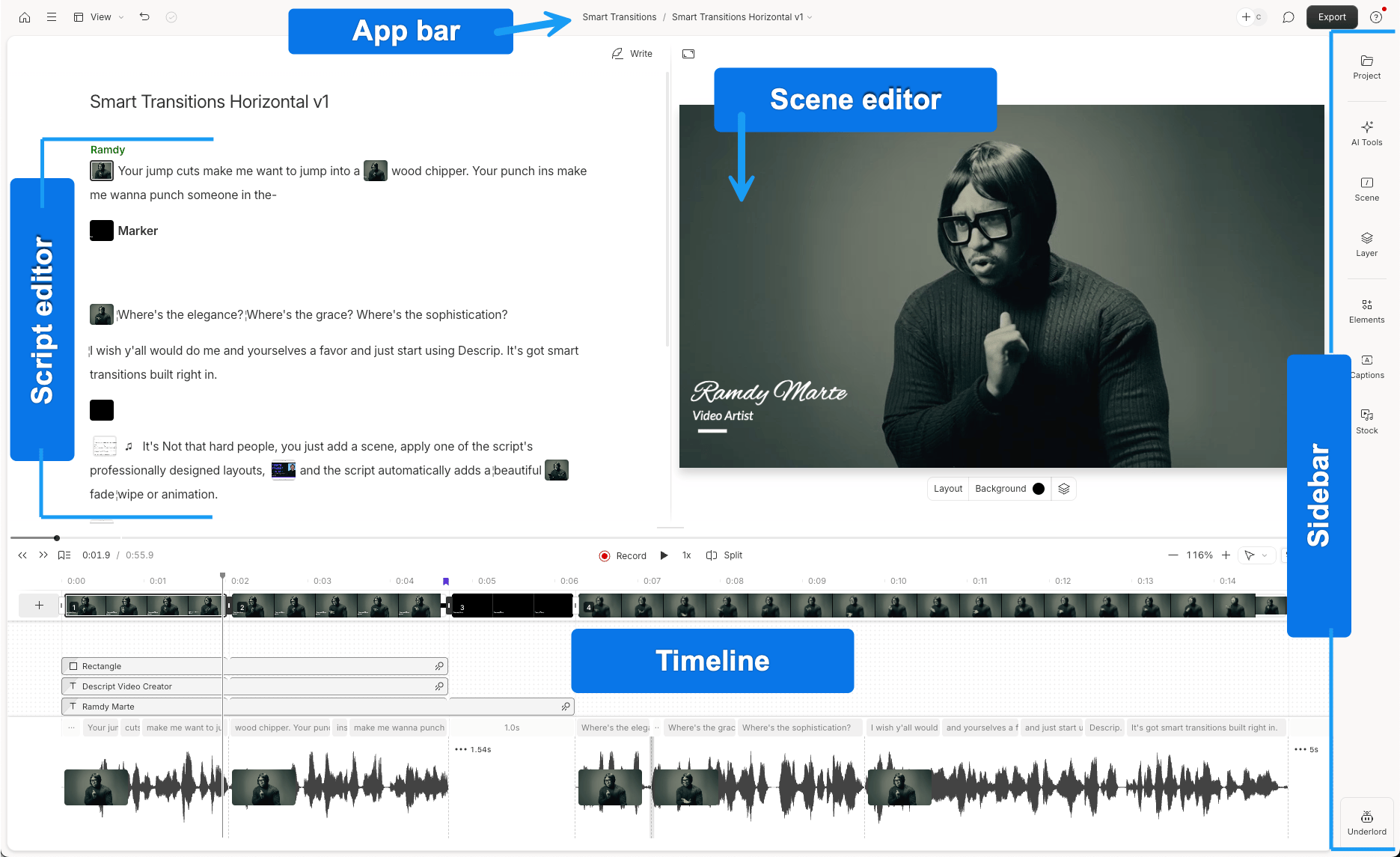
Key areas in the editor
Here’s a quick map of the key areas you’ll see when working in a composition within a Descript project:- Script editor: Where you write, edit, and review your transcript. You can edit your content like a doc and use text-based editing for video and audio.
- Scene editor: The visual preview area where you can resize, move, or arrange elements in your video across scenes.
- Timeline: A more traditional view with audio waveforms. Trim, split, and move clips here to adjust timing across your script and media layers.
- Sidebar: Contains tools and panels for managing files, editing visuals, applying effects, and using AI features:
- Project: Access your files and compositions
- Scene: Change layout, background, or apply transitions
- Layer: Adjust position, size, duration, and effects
- Elements: Add shapes, text, GIFs, and other layers. Learn more about layers.
- Media: Browse assets to add to your project
- AI Tools: Run automated tools like Studio Sound, remove filler words, or auto-generate social posts
- Underlord: Descript’s AI powered co-editor.